About Network Integration Features
This chapter describes how to configure advanced features such as asymmetric routing, connection forwarding, encryption, flow export, joining a Windows domain, simplified routing, and WCCP.
For details about basic and advanced deployment types, see the SteelHead Deployment Guide.
About asymmetric routing features
Settings for asymmetric route detection are under Networking > Networking Integration: Asymmetric Routing.
This feature helps identify and manage situations where packets take different paths to and from a destination—something known as asymmetric routing. While this routing pattern is common in large networks, it can cause problems for devices like SteelHeads, firewalls, and VPNs, which need to see all traffic in both directions to work correctly.
SteelHeads must be placed so that all TCP traffic flows through the same appliances in both directions. If traffic only passes through SteelHeads in one direction, clients may fail to connect to servers.
When asymmetric route detection is enabled, client-side SteelHeads automatically detect asymmetry. If found, the SteelHead will bypass optimization for affected traffic to allow the connection to continue. The first connection between a pair of IP addresses might fail during detection, but once asymmetry is confirmed, all future connections between those hosts are passed through unoptimized. These conditions are stored in the asymmetric routing table and remain in effect until the entry times out. This feature also supports IPv6.
The Networking > Network Integration: Asymmetric Routing page displays the asymmetric routing table. The following table describes the different types of asymmetry.
Type | Description | Asymmetric routing table and log entries |
|---|
Complete Asymmetry | Packets traverse both SteelHeads going from the client to the server but bypass both SteelHeads on the return path. | • Asymmetric Routing Table: bad RST • Log: Sep 5 11:16:38 gen-sh102 kernel: [intercept.WARN] asymmetric routing between 10.11.111.19 and 10.11.25.23 detected (bad RST) |
Server-Side Asymmetry | Packets traverse both SteelHeads going from the client to the server but bypass the server-side SteelHead on the return path. | • Asymmetric Routing Table: bad SYN/ACK • Log: Sep 7 16:17:25 gen-sh102 kernel: [intercept.WARN] asymmetric routing between 10.11.25.23:5001 and 10.11.111.19:33261 detected (bad SYN/ACK) |
Client-Side Asymmetry | Packets traverse both SteelHeads going from the client to the server but bypass the client-side SteelHead on the return path. | • Asymmetric Routing Table: no SYN/ACK • Log: Sep 7 16:41:45 gen-sh102 kernel: [intercept.WARN] asymmetric routing between 10.11.111.19:33262 and 10.11.25.23:5001 detected (no SYN/ACK) |
multiSYN Retransmit | The types of multi-SYN retransmits are: • Probe-filtered occurs when the client-side SteelHead sends out multiple SYN+ frames and doesn’t get a response. • SYN-remit occurs when the client-side SteelHead receives multiple SYN retransmits from a client and doesn’t see a SYN/ACK packet from the destination server. | • Asymmetric Routing Table: probe-filtered (not-AR) • Log: Sep 13 20:59:16 gen-sh102 kernel: [intercept.WARN] it appears as though probes from 10.11.111.19 to 10.11.25.23 are being filtered. Passing through connections between these two hosts. |
Detecting and caching asymmetric routes doesn’t optimize these packets. If you want to optimize asymmetric routed packets, you must make sure that packets going to the WAN always go through a SteelHead either by using a multiport SteelHead, connection forwarding, or using external ways to redirect packets, such as WCCP or PBR.
Troubleshooting asymmetric routes
You can use these tools to detect and analyze asymmetric routes:
TCP Dump
Runs a TCP dump diagnostic report on the client-side SteelHead to verify the packet sequence that is causing the asymmetric route detection. You can take traces on the LAN and WAN ports of the SteelHead and, based on the packet maps, look for the packet sequence that is expected for the type of warning message that was in the log.
As an example, to obtain information about all packets on the WAN interface sourced from or destined to 10.0.0.1, and with a source and destination TCP port of 80:
1. Choose Reports > Diagnostics: TCP Dumps to display the TCP Dumps page.
2. Click Add a New TCP Dump.
3. Select the WAN interface.
4. Specify 10.0.0.1 as the source and destination address.
5. Specify TCP port 80 as the source and destination port.
6. Select the Schedule Dump check box and specify the date and time to initiate the dump.
7. Specify any other options such as the capture filename or duration.
8. Click Add.
Trace Route
Discovers what path a packet is taking from the client to the server and from the server to the client. You access the client and run the traceroute command with the IP address of the server, then run the traceroute command from the server with the IP address of the client: for example, for a Cisco router:
#Client’s Address: 10.1.0.2
#Server’s Address: 10.0.0.4
client# traceroute 10.0.0.4 Type escape sequence to abort.
Tracing the route to 10.0.0.4
1 10.1.0.1 4 msec 0 msec 4 msec
2 10.0.0.2 4 msec 4 msec 0 msec
3 10.0.0.3 4 msec 4 msec 0 msec
4 10.0.0.4 4 msec 4 msec 0 msec
server# traceroute 10.1.0.2 Type escape sequence to abort.
Tracing the route to 10.1.0.2
1 10.0.0.6 4 msec 0 msec 4 msec
2 10.0.0.5 4 msec 4 msec 0 msec
3 10.1.0.1 4 msec 4 msec 0 msec
4 10.1.0.2 4 msec 4 msec 0 msec
For details, see the Riverbed Command-Line Interface Reference Guide or the SteelHead Deployment Guide.
Automatically detecting asymmetric routing
On the Asymmetric Routing page, these options are available for configuring automatic detection of asymmetric routing:
Enable Asymmetric Routing Detection
Detects asymmetric routes in your network.
Enable Asymmetric Routing Pass-Through
Allows traffic to pass through without optimization if it detects asymmetric routing—where packets take different paths to and from a destination. Once detected, the SteelHead stores the pair of IP addresses (client and server) involved in that connection. Any future connections between these same addresses are also passed through without optimization until the cached entry expires.
However, this feature does not optimize asymmetric traffic. If you want to optimize it, you must ensure all traffic to and from the WAN passes through a SteelHead. You can achieve this by using a multiport SteelHead, enabling connection forwarding, or redirecting packets using external methods such as Web Cache Communication Protocol (WCCP) or Policy-Based Routing (PBR).
For details, see the SteelHead Deployment Guide.
About connection forwarding features
Settings for connection forwarding for a network with multiple paths from the server are under Networking > Network Integration: Connection Forwarding.
Cloud appliances do not support this feature.
You enable connection forwarding only in asymmetric networks; that is, networks in which a client request traverses a different network path than the server response. The default port for connection forwarding is 7850.
For virtual in-path deployments with multiple SteelHeads, including WCCP clusters and connection forwarding, you must always allow in-path neighbor failure. Allowing in-path neighbor failure is necessary because certain events, such as network failures, and router or SteelHead cluster changes, can cause routers to change the destination SteelHead for TCP connection packets. When this happens, SteelHeads must be able to redirect traffic to each other to ensure that optimization continues.
To optimize connections in asymmetric networks, packets traveling in both directions must pass through the same client-side and server-side SteelHead. If you have one path from the client to the server and a different path from the server to the client, you must enable in-path connection forwarding and configure the SteelHeads to communicate with each other. These SteelHeads are called neighbors and exchange connection information to redirect packets to each other.
When you define a neighbor, specify the SteelHead in-path IP address, not the primary IP address.
In RiOS 9.6 and later, you can use IPv6 addresses when you configure SteelHead neighbors. Specify either all-IPv4 addresses or all-IPv6 addresses; mixed IPv4 and IPv6 addresses aren’t allowed.
You can use connection forwarding in mixed IPv4 and IPv6 networks. The protocol and neighbors you specify for connection forwarding (either IPv4 or IPv6) determine the control channel to use, but IPv4 and IPv6 traffic to those neighbors is sent unchanged.
When RiOS determines an IPv6 incompatibility between connection-forwarding neighbors, it triggers an alarm indicating that a peer SteelHead is incompatible. For details, see
About alarm settings and
Viewing the Alarm Status report.
You must enable connection forwarding in a WCCP cluster. With connection forwarding enabled, the WCCP load-balancing algorithm considers the total number of in-path interfaces of all neighbors in the service group when balancing the load across the interfaces. If you don’t enable connection forwarding, the SteelHead with the lowest IP address assigns all traffic flows to itself. For details, see the SteelHead Deployment Guide.
While WCCP doesn’t support IPv6, you can use connection forwarding in a WCCP cluster with a mixed IPv4 and IPv6 network, as long as all appliances in the cluster are running RiOS 8.5 or later.
Asymmetric network
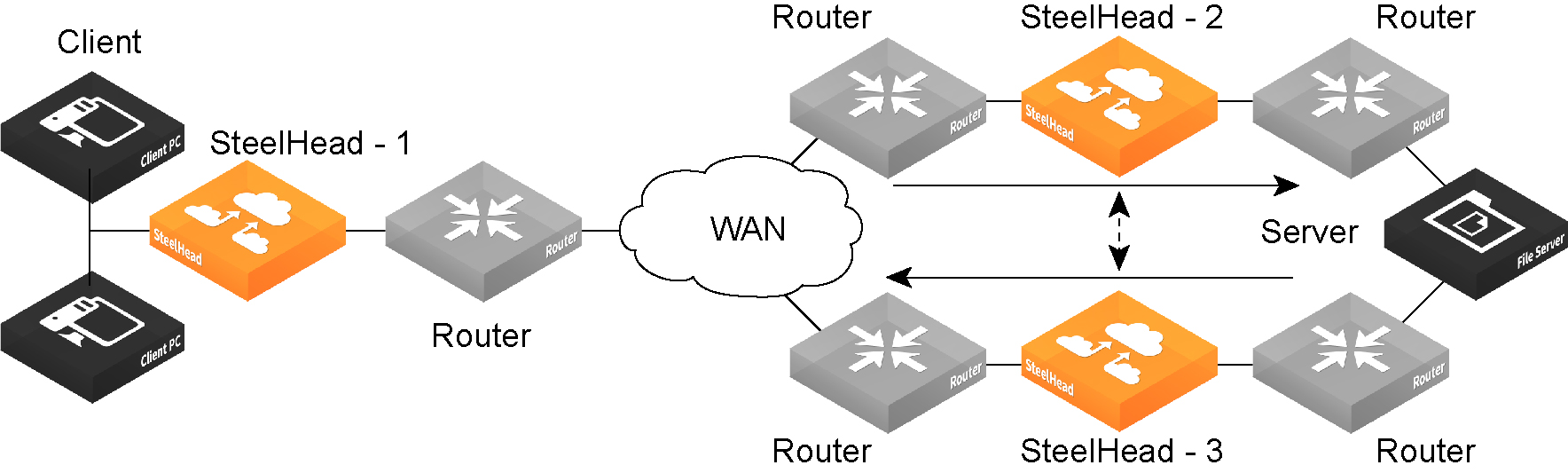
You can place neighbors in the same physical site or in different sites, but the latency between them must be short because the packets traveling between them aren’t optimized.
If there are more than two possible paths, additional SteelHeads must be installed on each path and configured as neighbors. Neighbors are notified in parallel so that the delay introduced at the connection setup is equal to the time it takes to get an acknowledgment from the furthest neighbor.
Connection-forwarding neighbors must use the same WAN visibility mode. For details, see
About in-path rule settings.
For details about connection forwarding, see the SteelHead Deployment Guide.
Enabling connection forwarding
Settings for connection forwarding are under the Connection Forwarding Settings pane on the Connection Forwarding pane.
Connection Forwarding Settings pane
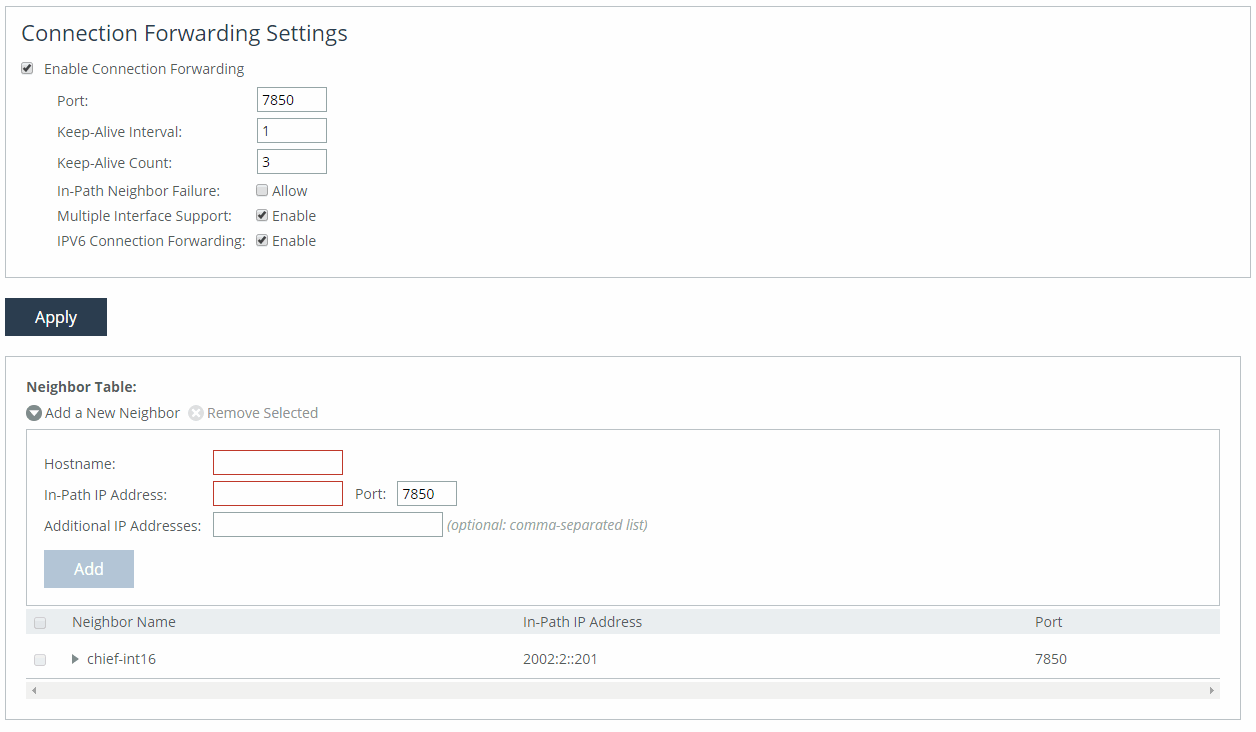
These options are available for configuring connection forwarding:
Enable Connection Forwarding
Enables connection forwarding by default on all neighbors added to the peer list.
Port
Specifies the port number to use as the default for the neighbor SteelHead in-path port. The default value is 7850.
Keep-Alive Interval
Specifies the number of seconds to use as the default interval for ping commands between neighbor SteelHeads. The default value is 1 second.
Keep-Alive Count
Specifies the number of tries to use as the default number of failed ping attempts before an appliance terminates a connection with a neighbor. The default value is 3.
In-Path Neighbor Failure
Uses the neighbor appliance to optimize new connections if the appliance fails.
For in-path deployments that use connection forwarding with WCCP, enabling this option ensures that if one appliance fails, the neighbor appliance continues to optimize new connections.
For in-path deployments that use connection forwarding without WCCP, enabling this option ensures that a SteelHead attempts to optimize new connections that are symmetrically routed, even after all of the neighbor SteelHeads on another network path failed. New asymmetrically routed connections aren’t optimized but passed through.
Multiple Interface Support
Enables high availability on SteelHead appliances configured with multiple in-path interfaces and using connection forwarding with another multiport SteelHead. This option makes all neighbor in-path interface IP addresses visible to each peer to ensure proper neighbor communication if the in-path0_0 interface fails.
RiOS 6.5 and later require connection forwarding in a WCCP cluster.
You must enable multiple interface support for a connection-forwarding neighbor to work with IPv6.
IPv6 Connection Forwarding
Allows IPv6 addresses to be entered in the Neighbor Table area of this page, in the In-Path IP Address and Additional IP Addresses fields.
Selecting this check box disallows the use of IPv4 addresses for neighbors; clearing this box disallows the use of IPv6 addresses for neighbors.
Adding a new neighbor
Under the Neighbor Table, these options are available to add a new neighbor:
Add a New Neighbor
Displays the controls to add a new neighbor.
Hostname
Specifies a hostname.
In-Path IP Address
Specifies the in-path IP address for the neighbor SteelHead. When you define a neighbor, you must specify the appliance in-path IP address, not the primary IP address.
You can use connection forwarding with IPv6 addresses if the following conditions are met:
• Both SteelHeads must be running RiOS 9.6 or later.
• Multiple interface support must be selected.
• The IPv6 Connection Forwarding check box must be selected in the Connection Forwarding Settings area of this page
Port
Specifies the in-path port for the neighbor SteelHead. The default port is 7850.
Additional IP Addresses
Adds a neighbor SteelHead to the neighbor list. IPv6 addresses are allowed if this SteelHead and the neighbor SteelHeads are running RiOS 9.6 or later and the IPv6 Connection Forwarding check box is selected.
To modify the neighbor properties, select the IP address of the neighbor and complete the configuration.
About IPsec encryption
IPsec encryption helps secure data communication between peer SteelHeads by making it difficult for third parties to intercept or impersonate trusted devices. Only optimized traffic is encrypted—pass-through traffic is not.
To enable IPsec, you must choose at least one encryption and one authentication algorithm. This feature is optional and does not support IPv6.
Each SteelHead that will use IPsec must have IPsec enabled individually and must share the same secret key with its peers.
If there is NAT traffic between SteelHeads, IPsec cannot be used because NAT modifies packet headers, which causes IPsec to reject the traffic.
For information on SSL peering beyond standard HTTPS, see
About secure peers.
About IPsec encryption settings
These settings are under Optimization > SSL: Secure Peering IPsec.
IPsec secure peering settings
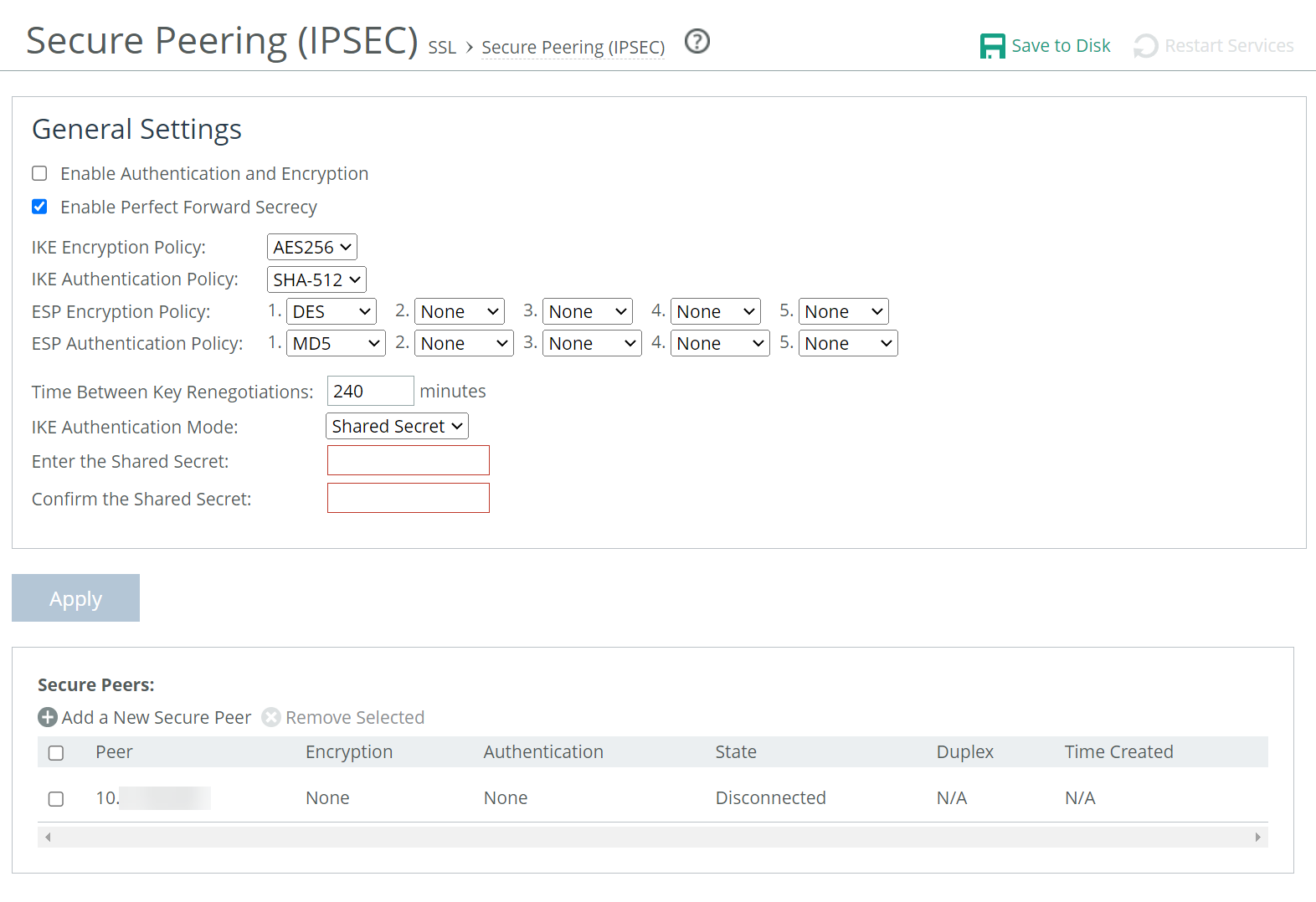
Enable Authentication and Encryption
Enables authentication between SteelHeads. By default, this option is disabled.
Enable Perfect Forward Secrecy
Enables additional security by renegotiating keys at specified intervals. If one key is compromised, subsequent keys are secure because they’re not derived from previous keys. By default, this option is enabled.
IKE Encryption Policy
Specifies the Internet Key Exchange (IKE) encryption policy:
• DES specifies the Data Encryption Standard. This is the default value.
• 3DES specifies the Triple DES encryption algorithm.
• AES specifies the AES 128-bit encryption algorithm.
• AES256 specifies the AES 256-bit encryption algorithm.
Internet Key Exchange (IKE) is the protocol that ensures a secure, authenticated communications channel between two peers.
IKE Authentication Policy
Specifies the IKE authentication policy:
• MD5 enables MD5 security protocol.
• SHA-1 enables SHA security protocol.
• SHA-256 enables the SHA-256 cryptographic hash function.
• SHA-384 enables the SHA-384 cryptographic hash function.
• SHA-512 enables the SHA-512 cryptographic hash function.
ESP Encryption Policy
Selects one of these Encapsulating Security Payload (ESP) encryption methods from the drop-down list:
• DES encrypts data using the Data Encryption Standard algorithm. DES is the default value.
• NULL specifies the null encryption algorithm.
• None doesn’t apply an encryption policy.
• 3DES appears when a valid Enhanced Cryptography License Key is installed on the appliance. Encrypts data using the Triple Digital Encryption Standard with a 168-bit key length. This standard is supported for environments where AES hasn’t been approved, but is both slower and less secure than AES.
• AES appears when a valid Enhanced Cryptography License Key is installed on the appliance. Encrypts data using the Advanced Encryption Standard (AES) cryptographic key length of 128 bits.
• AES256 appears when a valid Enhanced Cryptography License Key is installed. Encrypts data using the Advanced Encryption Standard (AES) cryptographic key length of 256 bits. Provides the highest security.
Optionally, select an algorithm from the method 2, 3, 4, or 5 drop-down lists to create a prioritized list of encryption policies for negotiating between peers.
Peer appliances must both have a valid Enhanced Cryptography License Key installed to use 3DES, AES, or AES256. When an appliance has the valid Enhanced Cryptography License Key installed and an IPsec encryption level is set to 3DES or AES, and a peer SCC doesn’t have a valid Enhanced Cryptography License Key installed, the appliances uses the highest encryption level set on the appliance without the key.
ESP Authentication Policy
Enables you to select one of these ESP authentication methods from the drop-down list:
• MD5 specifies the Message-Digest 5 algorithm, a widely-used cryptographic hash function with a 128-bit hash value. This is the default value.
• SHA-1 specifies the Secure Hash Algorithm, a set of related cryptographic hash functions. SHA-1 is considered to be the successor to MD5.
• SHA-256 enables the SHA-256 cryptographic hash function.
• SHA-384 enables the SHA-384 cryptographic hash function.
• SHA-512 enables the SHA-512 cryptographic hash function.
Optionally, select an algorithm from the method 2 drop-down list to create a secondary policy for negotiating the authentication method to use between peers. If the first authentication policy negotiation fails, the peer appliances use the secondary policy to negotiate authentication.
Time Between Key Renegotiations
Specifies the number of minutes between quick-mode renegotiation of keys using the Internet Key Exchange (IKE) protocol. IKE uses public key cryptography to provide the secure transmission of a secret key to a recipient so that the encrypted data can be decrypted at the other end. The default value is 240 minutes.
Enter the Shared Secret/Confirm the Shared Secret
Specifies and confirms the shared secret. All the SteelHeads in a network for which you want to use IPsec must have the same shared secret.
Add a New Secure Peer
Displays the controls to add a new secure peer.
Peer IP Address
Specifies the IP address for the peer SteelHead (in-path interface) for which you want to make a secure connection.
Add
Adds the peer specified in the Peer IP Address text box. If a connection has not been established between the two SteelHeads that are configured to use IPsec security, the peers list doesn’t display the peer SteelHead status as mature. Adding a peer causes a short service disruption (3 to 4 seconds) to the peer that is configured to use IPsec security.
The peered SteelHeads don’t establish the IPsec channel until they’re optimizing traffic.
About the Secure Peers list
The Secure Peers list displays the peers with the encryption and authentication policies and one of these states:
• Mature indicates the IPsec connection is established and usable.
• Larval indicates the IPsec connection is being established.
• Disconnected indicates the IPsec connection isn’t yet established or isn’t usable.
About subnet side rules
Settings for subnet side rules are under Networking > Network Services: Subnet Side Rules.
Cloud appliances do not support this feature.
Subnet side rules are used in a virtual in-path deployment to support Flow Export, to support a client-side SteelHead with Riverbed Services Platform (RSP) enabled, or to exempt certain subnets from QoS enforcement or path selection.
Subnet side rules let you configure subnets as LAN-side subnets or WAN-side subnets for a virtual in-path SteelHead. The subnet side rules determine whether traffic originated from the LAN-side or the WAN-side of the SteelHead based on the source subnet. You must configure subnets on each SteelHead in a virtual in-path configuration when RSP is enabled, as the subnets for each will likely be unique.
With subnet side rules in place:
• LAN-bound traffic that traverses the WAN interface of the SteelHead is exempt from QoS enforcement. For details, see
About subnet side rules.
• client-side SteelHeads configured for virtual in-path deployment and RSP enabled can optimize traffic from client-side connections. Otherwise, the appliance does not optimize traffic from client-side connections. In virtual in-path configurations, all traffic flows in and out of one physical interface, and the default subnet side rule causes all traffic to appear to originate from the WAN side of the device.
• flow export collectors such as NetFlow analyze nonoptimized or passed through traffic correctly. Otherwise, the SteelHead can’t discern whether the traffic is traveling from the LAN to the WAN or in the opposite direction. Without subnet side rules, the SteelHead can over-report traffic in a particular direction or for a particular interface.
The Fake index feature is necessary for correct optimized traffic reporting. The fake index feature is enabled by default if you enable the Flow Export option on the Networking > Network Services: Flow Statistics page For details, see the SteelHead Deployment Guide.
Adding subnet side rules
You add subnet side rules on the Subnet Side Rules page.
These options are available for configuring subnet side rules:
Add a Subnet Side Rule
Displays the controls to create a subnet side rule.
Insert Rule At
Selects Start, End, or a rule number from the drop-down list. SteelHeads evaluate rules in numerical order starting with rule 1. If the conditions set in the rule match, then the rule is applied, and the system moves on to the next packet. If the conditions set in the rule don’t match, the system consults the next rule. For example, if the conditions of rule 1 don’t match, rule 2 is consulted. If rule 2 matches the conditions, it is applied, and no further rules are consulted.
Subnet
Specifies the subnet. The subnet can be either an IPv4 or an IPv6 address. Use the following format:
<ip-address>/<subnet-mask>
xxx.xxx.xxx.xxx/xx (IPv4)
x:x:x:x/xxx (IPv6)
Subnet is on the LAN side of this appliance
Specifies that the subnet is on the LAN side of the device. In virtual in-path configurations, all traffic is flowing in and out of one physical interface.
Subnet is on the WAN side of this appliance
Specifies that the subnet is on the WAN side of the device. In virtual in-path configurations, all traffic is flowing in and out of one physical interface.
Add
Adds the rule to the subnet map table. The Management Console redisplays the subnet map table and applies your changes to the running configuration, which is stored in memory.
You can’t delete the default rule that optimizes all remaining WAN side traffic that has not been selected by another rule. This rule is always listed last.
About flow statistics
Settings to enable and configure flow statistics are under Networking > Network Services: Flow Statistics. You can also enable flow export to an external collector and to a CascadeFlow collector. CascadeFlow collectors can aggregate information about QoS configuration and other application statistics to send to a NetProfiler. The Enterprise NetProfiler summarizes and displays the QoS configuration statistics.
By default, flow export is disabled.
External collectors use information about network data flows to report trends such as the top users, peak usage times, traffic accounting, security, and traffic routing. You can export preoptimization and post-optimization data to an external collector.
The Top Talkers feature enables a report that details the hosts, applications, and host and application pairs that are either sending or receiving the most data on the network. Top Talkers doesn’t use a NetFlow Collector.
Enabling flow export
SteelHeads support NetFlow v5.0 and later, CascadeFlow v9.1 and later, and CascadeFlow-compatible features. Not available in cloud appliances.
NetFlow export is supported only when Xbridge mode is enabled. NetProfiler 10.20 and later are supported.
Flow export requires these components:
• Exporter—When you enable flow export support, the SteelHead exports data about the individual flows that it sees as they traverse the network.
• Collector—A server or appliance designed to aggregate data sent to it by the SteelHead and other exporters.
• Analyzer—A collection of tools used to analyze the data and provide relevant data summaries and graphs. NetFlow analyzers are available for free or from commercial sources. Analyzers are often provided in conjunction with the collectors.
Before you enable flow export in your network, consider the following:
• Flow data typically consumes less than 1 percent of link bandwidth. Take care with low bandwidth links to ensure that flow export doesn’t consume too much bandwidth and thereby impacting application performance.
• You can reduce the amount of bandwidth consumption by applying filters that only export the most critical information needed for your reports.
These options are available under Flow Statistics Settings:
Enable Application Visibility
Continuously collects detailed application-level statistics for both pass-through and optimized traffic. The Application Visibility and Application Statistics reports display these statistics. This statistic collection is disabled by default.
To view the reports, choose Reports > Networking: Application Statistics or Application Visibility.
Enabling application visibility also improves connection reporting on the Current Connections report. For example, HTTP-SharePoint is displayed as the WebDAV or FPSE protocols and Office 365 appears as MS-Office-365 instead of HTTP.
Enable Peer Bandwidth and RTT Stats
Continuously collects performance statistics for each peer SteelHead. The Peer Optimization reports display these statistics. The performance statistics of individual peers or an aggregate of all connected peers can be viewed. This statistic collection is disabled by default.
To view the reports, choose Reports > Optimization: Peer Optimization.
Enable WAN Throughput Statistics
Continuously collects detailed application-level statistics for both pass-through and optimized traffic. The Application Visibility and Application Statistics reports display these statistics. This statistic collection is disabled by default.
To view the reports, choose Reports > Networking: Application Statistics or Application Visibility.
Enabling application visibility also improves connection reporting on the Current Connections report. For example, HTTP-SharePoint is displayed as the WebDAV or FPSE protocols and Office 365 appears as MS-Office-365 instead of HTTP.
Enable Top Talkers
Continuously collects statistics for the most active traffic flows. A traffic flow consists of data sent and received from a single source IP address and port number to a single destination IP address and port number over the same protocol.
The most active, heaviest users of WAN bandwidth are called the Top Talkers. A flow collector identifies the top consumers of the available WAN capacity (the top 50 by default) and displays them in the Top Talkers report. Collecting statistics on the Top Talkers provides visibility into WAN traffic without applying an in-path rule to enable a WAN visibility mode.
You can analyze the Top Talkers for accounting, security, troubleshooting, and capacity planning purposes. You can also export the complete list in CSV format.
The collector gathers statistics on the Top Talkers based on the proportion of WAN bandwidth consumed by the top hosts, applications, and host and application pair conversations. The statistics track pass-through or optimized traffic, or both. Data includes TCP or UDP traffic, or both (configurable in the Top Talkers report page).
A NetFlow collector is not required for this feature.
Optionally, select a time period to adjust the collection interval:
• 24-hour Report Period specifies a five-minute granularity (the default setting).
• 48-hour Report Period specifies a ten-minute granularity.
The system also uses the time period to collect SNMP Top Talker statistics. For top talkers displayed in the Top Talker report and SNMP Top Talker statistics, the system updates the Top Talker data ranks either every 300 seconds (for a 24- hour reporting period), or 600 seconds (for a 48-hour reporting period).
The system saves a maximum of 300 Top Talker data snapshots, and aggregates these to calculate the top talkers for the 24-hour or 48-hour reporting period.
The system never clears top talker data at the time of polling; however, every 300 or 600 seconds, it replaces the oldest Top Talker data snapshot of the 300 with the new data snapshot.
After you change the reporting period, it takes the system one day to update the Top Talker rankings to reflect the new reporting period. In the interim, the data used to calculate the Top Talkers still includes data snapshots from the original reporting period. This delay applies to Top Talker report queries and SNMP Top Talker statistics.
These options are available under Flow Export Settings:
Enable Flow Export
Enables the SteelHead to export network statistics about the individual flows that it sees as they traverse the network. By default, this setting is disabled.
Export QoS and Application Statistics to CascadeFlow Collectors
Sends application-level statistics from all sites to a SteelCentral collector on a SteelCentral appliance. SteelCentral appliances provide central reporting capabilities. The collector aggregates QoS and application statistics to provide visibility using detailed records specific to flows traversing the SteelHead.
The SteelHead sends SteelCentral an enhanced version of NetFlow called CascadeFlow. CascadeFlow includes:
• NetFlow v9 extensions for round-trip time measurements that enable you to understand volumes of traffic across your WAN and end-to-end response time.
• extensions that enable a SteelCentral NetExpress to properly measure and report on the benefits of optimization.
After the statistics are aggregated on a Cascade appliance, you can use its central reporting capabilities to:
• analyze overall WAN use, such as traffic generated by application, most active sites, and so on.
• troubleshoot a particular application by viewing how much bandwidth it received, checking for any retransmissions, interference from other applications, and so on.
• compare actual application use against your outbound QoS policy configuration to analyze whether your policies are effective. For example, if your QoS policy determines that Citrix should get a minimum of 10 percent of the link, and the application statistics reveal that Citrix performance is unreliable and always stuck at 10 percent, you might want to increase that minimum guarantee.
You must enable outbound QoS on the SteelHead, add a CascadeFlow collector, and enable REST API access before sending QoS configuration statistics to a SteelCentral NetProfiler.
To enable QoS, choose Networking > Network Services: Outbound QoS.
The collectors appear in the Flow Collector list at the bottom of the Configure > Networking: Flow Statistics page.
To enable REST API access, choose Administration > Security: REST API Access.
The CascadeFlow collector collects read-only statistics on both pass-through and optimized traffic. When you use CascadeFlow, the SteelHead sends four flow records for each optimized TCP session: ingress and egress for the inner-channel connection, and ingress and egress for the outer-channel connection. A pass-through connection still sends four flow records, even though there are no separate inner- and outer-channel connections. In either case, the SteelCentral NetExpress merges these flow records together with flow data collected for the same flow from other devices.
For details, see the SteelCentral Network Performance Management Deployment Guide.
Enable IPv6
Enables support for IPv6 addresses for flow exports.
Active Flow Timeout
Specifies the amount of time, in seconds, the collector retains the list of active traffic flows. The default value is 60 seconds. You can set the time-out period even if the Top Talkers option is enabled.
Inactive Flow Timeout
Specifies the amount of time, in seconds, the collector retains the list of inactive traffic flows. The default value is 15 seconds.
These options are available under Flow Collectors:
Collector Hostname or IP Address
Specifies the IP address or (in RiOS 9.7 and later) a hostname for the Flow collector.
Port
Specifies the UDP port the Flow collector is listening on. The default value is 2055.
Version
Specifies a version from the drop-down list.
CascadeFlow and CascadeFlow-compatible are enhanced versions of flow export. These versions allow automatic discovery and interface grouping for SteelHeads in a Riverbed NetProfiler or a Flow Gateway and support WAN and optimization reporting.
Packet Source Interface
Selects the interface to use as the source IP address of the flow packets (Primary, Aux, or MIP) from the drop-down list. NetFlow records sent from the SteelHead appear to be sent from the IP address of the selected interface.
LAN Address
Causes the TCP/IP addresses and ports reported for optimized flows to contain the original client and server IP addresses and not those of the SteelHead. The default setting displays the IP addresses of the original client and server without the IP address of the SteelHeads.
This setting is unavailable with NetFlow v9 and later, because the optimized flows are always sent out with both the original client server IP addresses and the IP addresses used by the SteelHead.
Capture Interface/Type
Specifies the traffic type to export to the flow collector. Select one of these types from the drop-down list:
• All exports both optimized and nonoptimized traffic.
• Optimized exports optimized traffic.
• Passthrough exports pass-through traffic.
• None disables traffic flow export.
The default is All for LAN and WAN interfaces, for all four collectors. The default for the other interfaces (Primary, rios_lan, and rios_wan) is None. You can’t select a MIP interface.
Enable Filter
(CascadeFlow and NetFlow v9 only) filters flow reports by IP and subnets or IP:ports included in the Filter list. When disabled, reports include all IP addresses and subnets.
Adding or removing a flow collector
1. Under Flow Collectors, click Add a New Flow Collector.
To remove a collector, select it, and then click Remove Selected.
2. Adjust the settings to your needs.
3. Click Add.
About flow export in virtual in-path deployments
In virtual in-path deployments, such as WCCP or PBR, traffic arrives and leaves from the same WAN interface. When data is exported to a flow export collector, all traffic has the WAN interface index. This behavior is correct because the input interface is the same as the output interface.
Troubleshooting flow export settings
• Make sure the port configuration matches on the SteelHead and the listening port of the collector.
• Ensure that you can reach the collector from the SteelHead (for example, –i aux 1.1.1.1 where 1.1.1.1 is the NetFlow collector and aux is the Packet Source Interface).
• Verify that your capture settings are on the correct interface and that traffic is flowing through it.
About joining a Windows domain or workgroup
A server-side SteelHead can join a Windows domain or workgroup under Optimization > Active Directory: Domain Join. The Domain Join page provides a central place for a SteelHead to join a Windows domain or workgroup.
Domain Join page
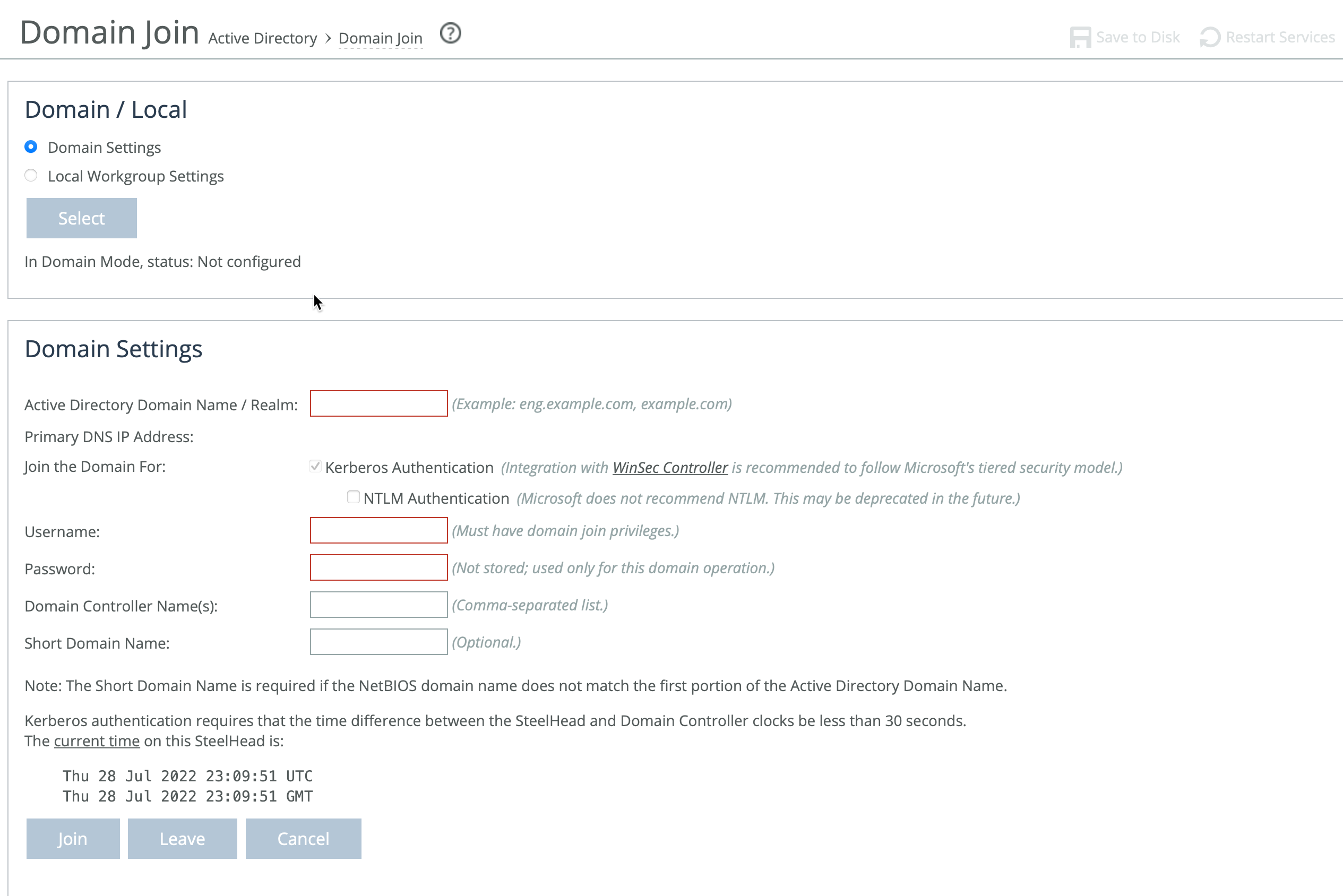
The SteelHead can join a single Windows domain to use these features:
• MAPI 2007 encrypted traffic optimization authentication. For details, see
About MAPI.
• MAPI Exchange as a hosted service.
SteelHead includes an automatic way to join the domain and deploy the server-side SteelHead in the Active Directory. For details, see
Joining a SteelHead to a Windows domain.
Domain and local workgroup settings
SteelHeads offer two modes for user authentication: Domain mode and Local Workgroup mode.
Local Workgroup mode is simpler and doesn't require joining a Windows domain. Instead, you define a workgroup and manually add users who need access. This mode is useful in environments where domain integration isn't needed or wanted. However, it has limitations—it doesn't support SMB signing, authentication for MAPI 2007 encrypted traffic, or hosted MAPI Exchange services. Additionally, user permissions configured in Local Workgroup mode may not match those on the origin file server, and account management must be done locally on each SteelHead.
Domain mode is more integrated and is ideal for enterprise environments. It allows the SteelHead to join a Windows domain (usually your company’s domain), enabling centralized authentication via a domain controller (DC), which can be at the remote site or in the main data center. You’ll need to ensure that Active Directory service accounts with replicate directory privileges are configured on the appliance for the user domains and server domains which need to be optimized.
Domain mode also supports one-way domain trusts, including for Windows 7 clients, without requiring registry changes. If you plan to use Microsoft Exchange online services, the server-side SteelHead must be joined to the same domain as the client or a trusted domain. This is supported in Active Directory integrated mode (Windows 2008 and later). For configuration steps, see
Joining a SteelHead to a Windows domain.
Configuring a Windows domain in Local Workgroup mode
You configure a Windows domain in Local Workgroup mode in the Domain Join page.
Under Domain/Local, select Local Workgroup Settings, click Select, and then click OK when a dialog asks if you really want to change the setting or reminds you to leave the domain before changing the setting.
Domain Join page displaying local workgroup settings
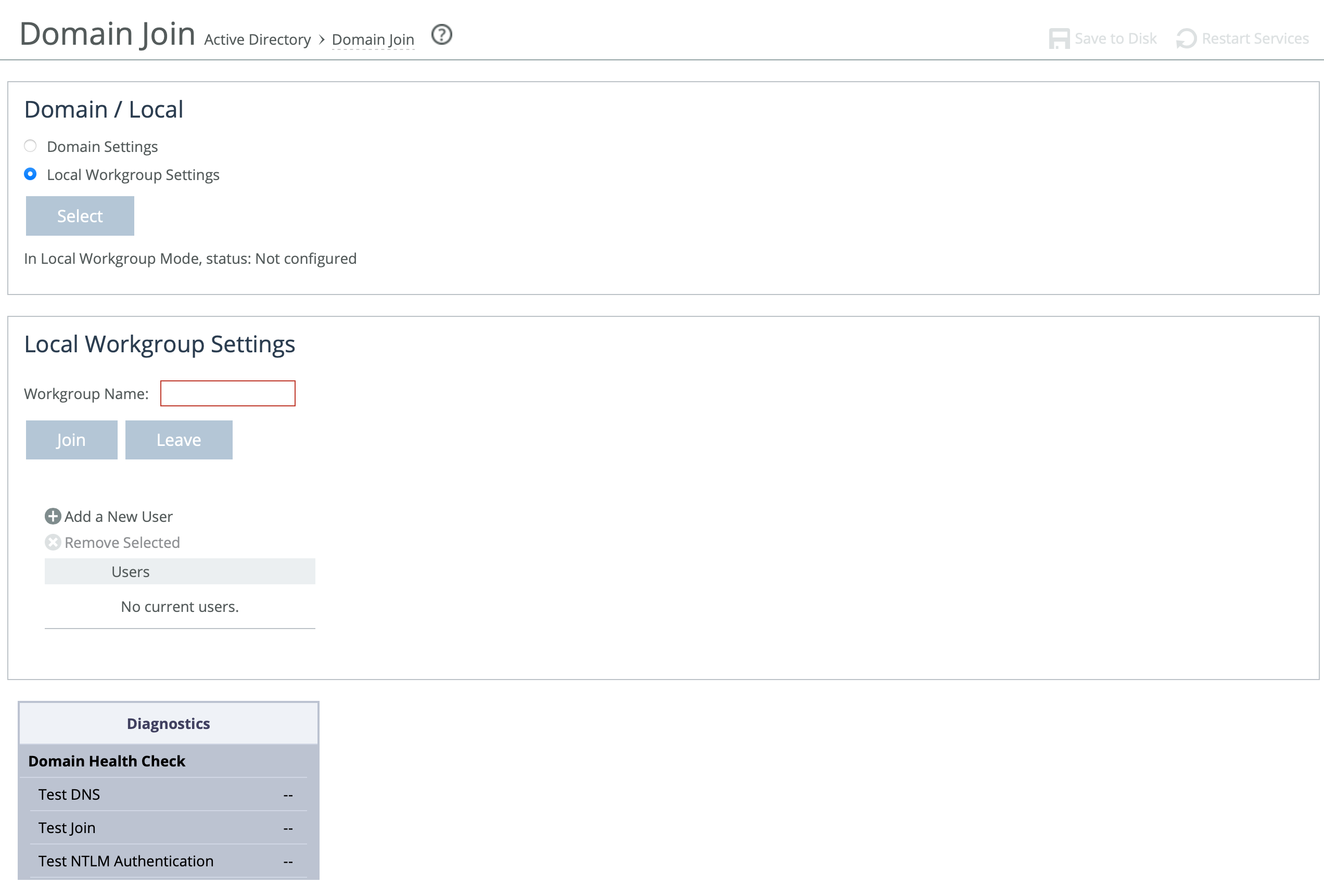
These options are available to configure Windows domain in Local Workgroup mode:
Workgroup Name
Specifies a local workgroup name. If you configure in local workgroup mode, the SteelHead doesn’t need to join a domain. Local workgroup accounts are used by clients when they connect to the SteelHead. Starting with RiOS 9.5, this name is not case sensitive.
Add a New User
Displays the controls to add a new user to the local workgroup.
User
Specifies the login to create a local workgroup account so that users can connect to the SteelHead.
Password/Password Confirm
Specifies and confirms the user account password.
Joining a SteelHead to a Windows domain
Generally, you do not need to join appliance to a Windows Domain unless you need to use NTLM delegation.
When joining a SteelHead to a Windows domain, follow a few key guidelines to ensure a successful connection. First, synchronize the SteelHead’s time with the domain time, keeping it within 5 minutes for NTLM authentication or 30 seconds for Kerberos. Using an NTP server helps keep the SteelHead’s time accurate. Make sure the Primary (management) interface is connected to the LAN and has access to DNS, NTP, and Active Directory, as all domain functions use this interface.
For DNS configuration, verify that both A and reverse lookup records exist for the SteelHead’s primary interface. Set the Active Directory DNS server on the SteelHead to enable domain controller lookups. Add the domain suffix (for example, domain.riverbed.com) to the DNS Settings section on the Networking > Host Settings page. Also, ensure that Windows clients use this DNS server. To support SMB signing, the server-side SteelHead must be resolvable via DNS.
If unauthorized domain join attempts occur, configure the SteelHead to ignore trusted domains and explicitly specify only the desired domains. The SteelHead hostname must be 15 characters or fewer, and the FQDN should match what’s configured for all Windows clients. Before joining the domain, make sure the SteelHead’s hostname doesn’t already exist in the Active Directory. If it's in an Organizational Unit (OU) instead of the default container, check there.
For RiOS 9.5 and earlier, SMB1 (CIFS) must be enabled on the domain controller. RiOS 9.6 and later support SMB2/3. Joining the domain for Kerberos requires a Windows user with permission to add a workstation; NTLM requires permission to add a domain controller. Don’t use a limited user account—use one that can assign the SteelHead to the correct group or OU and update the userAccountControl attribute. Domain admin credentials are not stored on the SteelHead after the join is complete.
When specifying the domain username, enter just the username (for example, username), not the domain prefix (for example, DOMAIN\username). If using a non-admin Windows account, precreate a computer account for the SteelHead and assign extra privileges.
For Kerberos in restricted trust environments (such as Office 365 or managed service providers), use a one-way trust configuration and ensure the required ports are open to all domain controllers. (For more detailed steps, see the SteelHead Deployment Guide - Protocols or these related Knowledge Base articles: S25759, S27002, S30252, S22468, S18097.)
Protocol | Port |
|---|
SMB1, SMB2/3 | TCP 139 (legacy Windows implementations)
445 (more recent Windows implementations) |
LDAP | TCP/UDP 389 |
Kerberos | TCP/UDP 88 |
DNS | UDP 53 |
SMB1-Named-Pipes, SMB2/3-Named-Pipes | TCP 445 |
EPM/RPC | TCP 135 |
Configuring a Windows domain in Domain mode
You configure a Windows domain in Domain mode in the Domain Join page.
Under Domain/Local, click Domain Settings, click Select, and then click OK when a dialog asks if you really want to change the setting.
These options are available to configure Windows domain in Domain mode:
Active Directory Domain Name/Realm
Specifies the domain in which to make the SteelHead a member. Typically, this is your company domain name. RiOS supports Windows 2000 or later domains.
RiOS doesn’t support nondomain accounts other than administrator accounts. If you create Local mode shares on a nonadministrator account, your security permissions for the share aren’t preserved on the origin-file server.
Primary DNS IP Address
Displays the primary DNS IP set in the DNS Settings page. To modify this entry, click the IP address.
Kerberos Authentication
Enables Kerberos authentication with the domain controller.
NTLM Authentication
May be deprecated in the future. We recommend you do not enable this feature.
If NTLM Authentication is not checked and if there are SMB connections with NTLM authentication in the network, they will be blacklisted by SteelHead. Also, if Kerberos Authentication fails, the fallback to NTLM Authentication will not be attempted by the SteelHead.
Username
Specifies the username. The credentials used to join the domain must have domain join privileges. For Kerberos support, use any user account that has permission to join a workstation to the domain. For NTLM support, use any user account that has permission to join a domain controller to the domain. Domain administrator credentials are not strictly required but we recommend using them. Domain administrator credentials are required when you join the domain as an Active Directory integration.
The system does not cache user credentials after the join operation; credentials are deleted after the operation.
Password
Specifies the password. This control is case sensitive.
Domain Controller Name(s)
Specifies the hosts that provide user login service in the domain, separated by commas. (Typically, with Windows 2000 Active Directory Service domains, given a domain name, the system automatically retrieves the DC name.) We recommend specifying the domain controller names in environments where there’s varying latency between the SteelHead and the domain controllers.
Short Domain Name
Specifies the short domain (NetBIOS) name if it doesn’t match the first portion of the Active Directory domain name. Case matters; NBTTECH is not the same as nbttech.
Join/Leave
Joins the domain or leaves the domain. If you are in domain mode and have joined a domain, you can’t change to local workgroup mode until you leave the domain.
Rejoin
Rejoins the domain.
Cancel
Cancels any current domain action that is in progress, such as joining or leaving a domain.
When you have successfully joined the domain, the status updates to In a Domain.
Troubleshooting a domain join failure
This section describes common problems that can occur when joining a Windows domain.
A built-in domain health tool helps to identify, diagnose, and report possible problems with a SteelHead within a Windows domain environment.
System time mismatch
The number one cause of failing to join a domain is a significant difference in the system time on the Windows domain controller and the SteelHead. When the time on the domain controller and the SteelHead don’t match, this error message appears:
lt-kinit: krb5_get_init_creds: Clock skew too great
We recommend using NTP time synchronization to synchronize the client and server clocks. It is critical that the SteelHead time is the same as on the Active Directory controller. Sometimes an NTP server is down or inaccessible, in which case there can be a time difference. You can also disable NTP if it isn’t being used and manually set the time. You must also verify that the time zone is correct.
Select the primary DNS IP address to view the Networking: Host Settings page.
Invalid domain controller IP
A domain join can fail when the DNS server returns an invalid IP address for the Domain Controller. When a DNS misconfiguration occurs during an attempt to join a domain, these error messages appear:
Failed to join domain: failed to find DC for domain <domain name>
Failed to join domain: No Logon Servers
Additionally, the Domain Join alarm triggers and messages similar to these appear in the logs:
Oct 13 14:47:06 bravo-sh81 rcud[10014]: [rcud/main/.ERR] - {- -} Lookup for bravo-sh81.GEN-VCS78DOM.COM Failed
Oct 13 14:47:06 bravo-sh81 rcud[10014]: [rcud/main/.ERR] - {- -} Failed to join domain: failed to find DC for domain GEN-VCS78DOM.COM
When you encounter this error, choose Networking > Networking > Host Settings and verify that the DNS settings are correct.
About simplified routing features
Settings for enabling simplified routing are under Networking > Network Integration: Simplified Routing.
Cloud appliances do not support this feature.
Simplified routing collects the IP address for the next hop MAC address from each packet it receives to address traffic. With simplified routing, you can use either the WAN or LAN side device as a default gateway. The SteelHead learns the right gateway to use by watching where the switch or router sends the traffic, and associating the next-hop Ethernet addresses with IP addresses. Enabling simplified routing eliminates the need to add static routes when the SteelHead is in a different subnet from the client and the server.
Without simplified routing, if a SteelHead is installed in a different subnet from the client or server, you must define one router as the default gateway and static routes for the other routers so that traffic isn’t redirected back through the SteelHead. In some cases, even with the static routes defined, the ACL on the default gateway can still drop traffic that should have gone through the other router. Enabling simplified routing eliminates this issue.
Simplified routing has these constraints:
• WCCP can’t be enabled.
• The default route must exist on each SteelHead in your network.
For detailed configuration information, see the SteelHead Deployment Guide.
The SteelHead Cloud isn’t deployed in-path, but in its unique out-of-path method, using one interface. Simplified routing doesn’t apply.
The simplified routing feature in and later is compatible with IPv6.
Enabling simplified routing
You enable simplified routing in the Simplified Routing page.
These options are available to configure simplified routing:
Collect Mappings From
Specifies one of these options from the drop-down list:
• None does not collect mappings.
• Destination Only collects mappings from destination IP, destination MAC, and VLAN tag (when deployed on 802.1q trunk). We recommend that you use this setting for most deployments with multiple in-paths or connection forwarding SteelHeads. SteelHeads do not usually learn incorrect mappings unless the network devices themselves are routing incorrectly. This is the default setting.
• Destination and Source collects mappings from destination and source IP, destination and source MAC, and VLAN tag (when deployed on 802.1q trunk).
• All collects mappings for destination, source, and inner MAC data. Also collect data for connections that are un-NATted (that is, connections that aren’t translated using NAT).
Enable simplified routing for GRE-tunneled pass-through packets
Enables simplified routing for GRE tunnel pass-through traffic. Enabling this setting avoids packet ricochet between the server-side SteelHead and the server-side SteelHead gateway for pass-through packets from GRE tunnels. This setting applies to TCP and UDP packets.
About WCCP
Settings for enabling WCCP service groups are under Networking > Network Integration: WCCP.
Cloud appliances do not support this feature.
WCCP page
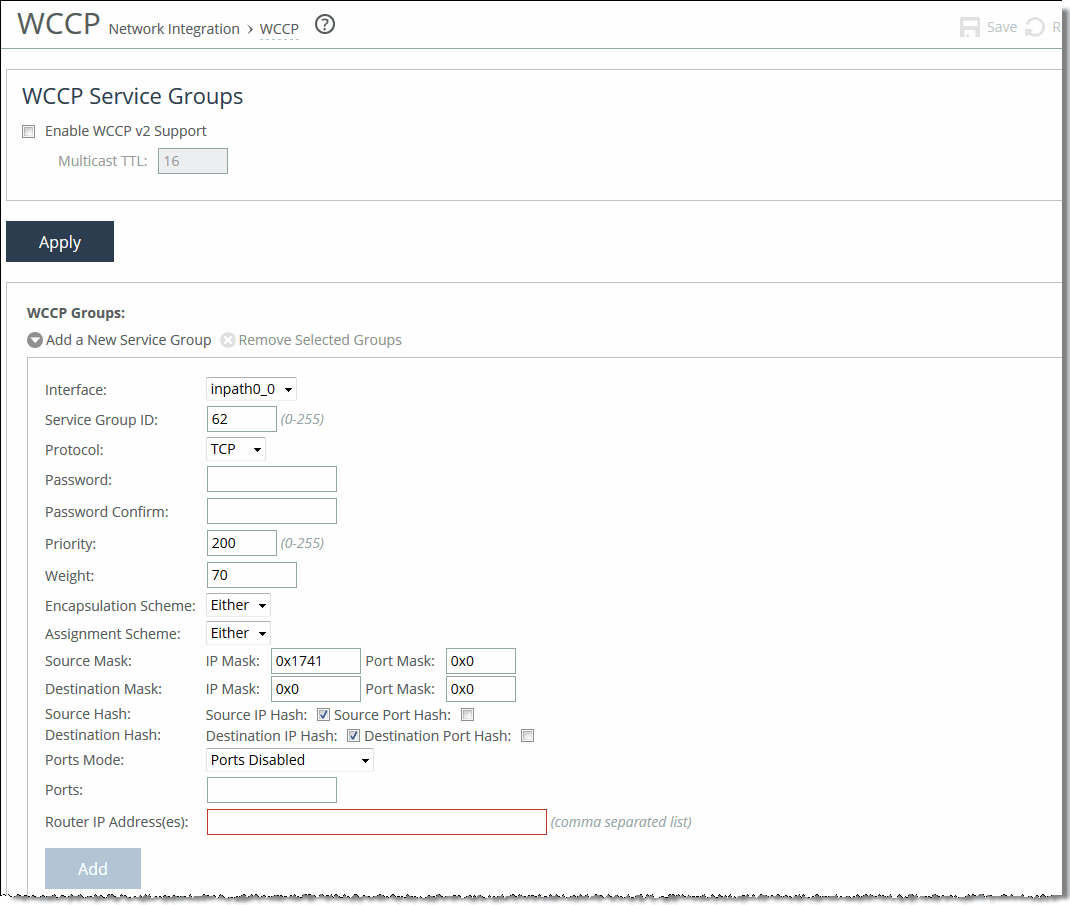
WCCP enables you to redirect traffic that isn’t in the direct physical path between the client and the server. To enable WCCP, the SteelHead must join a service group at the router. A service group is a group of routers and SteelHeads that define the traffic to redirect, and the routers and SteelHeads the traffic goes through. You might use one or more service groups to redirect traffic to the SteelHeads for optimization.
RiOS allows each individual SteelHead in-path interface to be configured as a WCCP client. Each configured in-path interface participates in WCCP service groups as an individual WCCP client, providing flexibility to determine load balancing proportions and redundancy.
You must enable connection forwarding in a WCCP cluster. A WCCP cluster refers to two or more SteelHeads participating in the same service group. By default, RiOS provides load balancing across all participating SteelHeads in a WCCP cluster. With connection forwarding enabled, the WCCP load balancing algorithm considers the total number of in-path interfaces of all neighbors in the service group when balancing the traffic load across the interfaces. If you don’t enable connection forwarding, the SteelHead with the lowest IP address assigns all traffic flows to itself.
In virtual in-path configurations, all traffic flows in and out of one physical interface, and the default subnet side rule causes all traffic to appear to originate from the WAN side of the device. For more information, see
About subnet side rules.
Enabling WCCP is optional.
WCCP doesn’t support IPv6.
You can also use the CLI to configure WCCP service groups. For detailed configuration information (including configuring the WCCP router), see the SteelHead Deployment Guide.
The SteelHead Cloud doesn’t support L4/PBR/WCCP configuration. The Legacy SteelHead Cloud supports it.
Enabling a WCCP service group
Before configuring your WCCP service group, you must enable L4/PBR/WCCP support in the General Service Settings page. For details, see
About general service settings.
These options are available to configure a WCCP service group:
Enable WCCP v2 Support
Enables WCCPv2 support on all groups added to the Service Group list.
Multicast TTL
Specifies the TTL boundary for the WCCP protocol packets. The default value is 16.
Adding, modifying, or removing a service group
Under WCCP groups, these options are available to add, modify, or remove a service group.
Add a New Service Group
Displays the controls for adding a new service group.
Interface
Selects a SteelHead interface to participate in a WCCP service group. In virtual in-path configurations, all traffic flows in and out of one physical interface, and the default subnet side rule causes all traffic to appear to originate from the WAN side of the device.
RiOS allows multiple SteelHead interfaces to participate in WCCP on one or more routers for redundancy (RiOS 6.0 and earlier allow a single SteelHead interface). If one of the links goes down, the router can still send traffic to the other active links for optimization.
You must include an interface with the service group ID. More than one SteelHead in-path interface can participate in the same service group. For WCCP configuration examples, see the SteelHead Deployment Guide.
If multiple SteelHeads are used in the topology, they must be configured as neighbors.
RiOS 6.5 and later require connection forwarding in a WCCP cluster.
Service Group ID
Enables WCCPv2 support on all groups added to the Service Group list. Specify a number from 0 to 255 to identify the service group on the router. A value of 0 specifies the standard HTTP service group. We recommend that you use WCCP service groups 61 and 62. The service group ID is local to the site where WCCP is used. The service group number is not sent across the WAN.
Protocol
Selects a traffic protocol from the drop-down list: TCP, UDP, or ICMP. The default value is TCP.
Password/Password Confirm
Assigns a password to the SteelHead interface. This password must be the same password that is on the router. WCCP requires that all routers in a service group have the same password. Passwords are limited to eight characters.
Priority
Specifies the WCCP priority for traffic redirection. If a connection matches multiple service groups on a router, the router chooses the service group with the highest priority. The range is 0 to 255. The default value is 200. The priority value must be consistent across all SteelHeads within a particular service group.
Weight
Specifies the percentage of connections that are redirected to a particular SteelHead interface, which is useful for traffic load balancing and failover support. The number of TCP, UDP, or ICMP connections a SteelHead supports determines its weight. The more connections a SteelHead model supports, the heavier the weight of that model. In RiOS 6.1 and later, you can modify the weight for each in-path interface to manually tune the proportion of traffic a SteelHead interface receives.
A higher weight redirects more traffic to that SteelHead interface. The ratio of traffic redirected to a SteelHead interface is equal to its weight divided by the sum of the weights of all the SteelHead interfaces in the same service group. For example, if there are two SteelHeads in a service group and one has a weight of 100 and the other has a weight of 200, the one with the weight 100 receives 1/3 of the traffic and the other receives 2/3 of the traffic.
However, since it’s generally undesirable for a SteelHead with two WCCP in-path interfaces to receive twice the proportion of traffic, for SteelHeads with multiple in-paths connected, each of the in-path weights is divided by the number of that SteelHead's interfaces participating in the service group.
As an example, if there are two SteelHeads in a service group and one has a single interface with weight 100 and the other has two interfaces each with weight 200, the total weight will still equal 300 (100 + 200/2 + 200/2). The one with the weight 100 receives 1/3 of the traffic and each of the other's in-path interfaces receives 1/3 of the traffic.
The range is 0 to 65535. The default value corresponds to the number of TCP connections your SteelHead supports.
To enable single in-path failover support with WCCP groups, define the service group weight to be 0 on the backup SteelHead. If one SteelHead has a weight 0, but another one has a nonzero weight, the SteelHead with weight 0 doesn’t receive any redirected traffic. If all the SteelHeads have a weight 0, the traffic is redirected equally among them.
The best way to achieve multiple in-path failover support with WCCP groups is to use the same weight on all interfaces from a given SteelHead for a given service group. For example, suppose you have SteelHead A and SteelHead B with two in-path interfaces each. When you configure SteelHead A with weight 100 from both inpath0_0 and inpath0_1 and SteelHead B with weight 200 from both inpath0_0 and inpath0_1, RiOS distributes traffic to SteelHead A and SteelHead B in the ratio of 1:2 as long as at least one interface is up on both SteelHeads.
In a service group, if an interface with a nonzero weight fails, its weight transfers over to the weight 0 interface of the same service group.
For details on using the weight parameter to balance traffic loads and provide failover support in WCCP, see the SteelHead Deployment Guide.
Encapsulation Scheme
Specifies the method for transmitting packets between a router or a switch and a SteelHead interface. Select one of these encapsulation schemes from the drop-down list:
• Either uses Layer 2 first; if Layer 2 is not supported, GRE is used. This is the default value.
• GRE uses Generic Routing Encapsulation. The GRE encapsulation method appends a GRE header to a packet before it’s forwarded. This method can cause fragmentation and imposes a performance penalty on the router and switch, especially during the GRE packet deencapsulation process. This performance penalty can be too great for production deployments.
• L2 uses Layer-2 redirection. The L2 method is generally preferred from a performance standpoint because it requires fewer resources from the router or switch than the GRE does. The L2 method modifies only the destination Ethernet address. However, not all combinations of Cisco hardware and IOS revisions support the L2 method. Also, the L2 method requires the absence of L3 hops between the router or switch and the SteelHead.
Assignment Scheme
Determines which SteelHead interface in a WCCP service group the router or switch selects to redirect traffic to for each connection. The assignment scheme also determines whether the SteelHead interface or the router processes the first traffic packet. The optimal assignment scheme achieves both load balancing and failover support. Select one of these schemes from the drop-down list:
• Either uses Hash assignment unless the router doesn’t support it. When the router doesn’t support Hash, it uses Mask. This is the default setting.
• Hash redirects traffic based on a hashing scheme and the Weight of the SteelHead interface, providing load balancing and failover support. This scheme uses the CPU to process the first packet of each connection, resulting in slightly lower performance. However, this method generally achieves better load distribution. We recommend Hash assignment for most SteelHeads if the router supports it. The Cisco switches that don’t support Hash assignment are the 3750, 4000, and 4500 series, among others.
Your hashing scheme can be a combination of the source IP address, destination IP address, source port, or destination port.
• Mask redirects traffic operations to the SteelHeads, significantly reducing the load on the redirecting router. Mask assignment processes the first packet in the router hardware, using less CPU cycles and resulting in better performance.
Mask assignment supports load-balancing across multiple active SteelHead interfaces in the same service group.
The default mask scheme uses an IP address mask of 0x1741, which is applicable in most situations. However, you can change the IP mask by clicking the service group ID and changing the service group settings and flags.
In multiple SteelHead environments, it’s often desirable to send all users in a subnet range to the same SteelHead. Using mask provides a basic ability to leverage a branch subnet and SteelHead to the same SteelHead in a WCCP cluster.
For details and best practices for using assignment schemes, see the SteelHead Deployment Guide.
If you use mask assignment you must ensure that packets on every connection and in both directions (client-to-server and server-to-client), are redirected to the same SteelHead. For details, see the SteelHead Deployment Guide.
Source
• IP Mask specifies the service group source IP mask. The default value is 0x1741.
• Port Mask specifies the service group source port mask.
• IP Hash specifies that the router hash the source IP address to determine traffic to redirect.
• Port Hash specifies that the router hash the source port to determine traffic to redirect.
Destination
• IP Mask specifies the service group destination IP mask.
• Port Mask specifies the service group destination port mask.
• IP Hash specifies that the router hash the destination IP address to determine traffic to redirect.
• Port Hash specifies that the router hash the destination port to determine traffic to redirect.
Ports Mode
Selects one of these modes from the drop-down list:
• Ports Disabled disables the ports.
• Use Source Ports indicates the router determines traffic to redirect based on source ports.
• Use Destination Ports indicates the router determines traffic to redirect based on destination ports.
Ports
Specifies a comma-separated list of up to seven ports that the router will redirect. Use this option only after selecting either the Use Source Ports or the Use Destination Ports mode.
Router IP Address(es)
Specifies a multicast group IP address or a unicast router IP address. You can specify up to 32 routers.
Verifying a multiple in-path interface configuration
You can verify that multiple SteelHeads are participating in WCCP with one or more routers using a multiple in-path interface configuration.
• Because the SteelHeads are configured as neighbors, messages appear in the log at INFO level when the neighbors connect to each other, and the log displays a list of in-path IP addresses.
• When the weight computation is about to begin, a message appears in the log at INFO level that the SteelHead interface with the lowest IP address is taking over as the lead cache.
• When the weight computation is complete, a REDIRECT_ASSIGN WCCP message appears from the SteelHead interface with the lowest IP address. This message includes the load balancing information from the hash or mask value table.
For more WCCP troubleshooting, see the SteelHead Deployment Guide.
Modifying WCCP service group settings
Settings for configuring WCCP service groups, adding additional routers to a service group, and setting flags for source and destination ports to redirect traffic (that is, the hash table settings) are under Networking > Network Integration: WCCP.
Configuring Hardware Assist rules
Settings for hardware-assist rules (HAP) are under Networking: Network Services > Hardware Assist Rules. Hardware-assist rules can automatically bypass all UDP (User Datagram Protocol) connections. You can also configure rules for bypassing specific TCP (Transmission Control Protocol) connections. Automatically bypassing these connections decreases the work load on the local SteelHeads because the traffic is immediately sent to the kernel of the host machine or out of the other interface before the SteelHead receives it. To configure hardware assist rules using the Riverbed CLI, see the Riverbed Command-Line Interface Reference Guide.
This feature only appears on SteelHeads equipped with compatible NICs.
SteelHeads equipped with one or more of the following NICs can use HAP rules:
• Two-Port LR4 Fiber 40 Gigabit-Ethernet PCI-E
• Two-Port SR4 Fiber 40 Gigabit-Ethernet PCI-E
• Four-Port SR Multimode Fiber 10 Gigabit-Ethernet PCI-E
• Two-Port LR Single Mode Fiber 10 Gigabit-Ethernet PCI-E
• Two-Port SR Multimode Fiber 10 Gigabit-Ethernet PCI-E
Two-Port LR Single Mode Fiber 10 Gigabit-Ethernet PCI-E and the Two-Port SR Multimode Fiber 10 Gigabit-Ethernet PCI-E cards only support IPv4 rules.
When using IPv6 only or a combination of IPv6 and IPv4, the maximum number of rules is 120. With IPv4 traffic only, a maximum of 240 HAP rules can be configured.
To be safe, change hardware-assist rules only during a maintenance window, or during light traffic and with a full understanding of the implications. For details, go to Knowledge Base article
S12992.
For a hardware-assist rule to be applied to a specific NIC, the corresponding in-path interface must be enabled and have an IP address.
Under Hardware Assist Rules Settings, enable pass-through as follows:
• To automatically pass through all UDP traffic, select the Enable Hardware Passthrough of All UDP Traffic check box.
• To pass through TCP traffic based on the configured rules, select the Enable Hardware Passthrough of TCP Traffic Defined in the Rules Below check box. TCP pass-through is controlled by rules. The next step describes how to step up hardware-assist rules.
RiOS ignores all hardware-assist rules unless you select this check box. No TCP traffic is passed through.
Under TCP Hardware Assist Rules, these options are available to complete the configuration:
Add a New Rule
Displays the controls for adding a new rule.
Type
Selects a rule type:
• Accept accepts rules matching the Subnet A or Subnet B IP address and mask pattern for the optimized connection.
• Pass-Through identifies traffic to be passed through the network unoptimized.
Insert Rule At
Determines the order in which the system evaluates the rule. Select Start, End, or a rule number from the drop-down list.
The system evaluates rules in numerical order starting with rule 1. If the conditions set in the rule match, then the rule is applied and the system moves on to the next rule: for example, if the conditions of rule 1 don’t match, rule 2 is consulted. If rule 2 matches the conditions, it is applied, and no further rules are consulted.
In general, filter traffic that is to be unoptimized, discarded, or denied before processing rules for traffic that is to be optimized.
Type
Specifies Accept or Pass-through.
Position
Specifies a position for the rule, Start, a specific number, or End.
Subnet A
Specifies an IP address and mask for the subnet that can be both source and destination together with Subnet B.
• All IPv4 passes through all IPv4 traffic.
• All IPv6 passes through all IPv6 traffic.
• IPv4 specifies an IPv4 address and mask for the subnet that can be both source and destination together with Subnet B. Use this format: xxx.xxx.xxx.xxx/xx
• IPv6 specifies an IPv6 address that can be used for both source and destination together with Subnet B. Use this format: x:x:x::x/xxx
Subnet B
Specifies an IP address and mask for the subnet that can be both source and destination together with Subnet A.
• All IPv4 passes through all IPv4 traffic.
• All IPv6 passes through all IPv6 traffic.
• IPv4 specifies an IPv4 address and mask for the subnet that can be both source and destination together with Subnet B. Use this format: xxx.xxx.xxx.xxx/xx
• IPv6 specifies an IPv6 address that can be used for both source and destination together with Subnet B. Use this format: x:x:x::x/xxx
VLAN Tag ID
Specifies a numeric VLAN tag identification number.
Select all to specify the rule applies to all VLANs. Select untagged to specify the rule applies to nontagged connections. Pass-through traffic maintains any preexisting VLAN tagging between the LAN and WAN interfaces.
To complete the implementation of VLAN tagging, you must set the VLAN tag IDs for the in-path interfaces that the SteelHead uses to communicate with other SteelHeads. For details about configuring the in-path interface for the SteelHead, see
About in-path rule settings.
Description
Optionally includes a description of the rule.
Add
Adds the new hardware-assist rule to the list. You can add up to a maximum number of 50 rules.
• RiOS applies the same rule to both LAN and WAN interfaces.
• Every 10G card has the same rule set.
The SteelHead refreshes the hardware-assist rules table and applies your modifications to the running configuration, which is stored in memory.