About Peering, Autodiscovery, In-Path Rules, and Service Ports
SteelHead appliances typically work in pairs to accelerate network traffic between them. In a common setup, client-side appliances are placed at remote sites or branch offices, while server-side appliances are in the data center. The client-side appliances establish trusted connections with the server-side appliances. In cloud or SaaS deployments, client-side appliances peer with server-side appliances in the cloud or with the SaaS Accelerator service. These appliances optimize traffic between client systems and data centers, cloud services, or SaaS platforms.
Higher-capacity SteelHead models can support up to 20,000 peers per appliance. If you have more than 4,000 peers, we recommend you enable the extended peer table. After enabling this, you'll need to clear the appliance’s data store and restart the service.
Peering can be managed manually through peering rules, but autodiscovery offers an automated method. Peering rules (usually set on server-side appliances) work alongside in-path rules (typically set on client-side appliances).
In an in-path deployment, appliances are placed directly between client systems and data center resources. In-path rules control the appliance’s behavior when it receives initial connection requests (TCP SYN packets), allowing detailed management of traffic across in-path links.
About peering rules
Peering rules are used in complex networks to configure peering connections based on various factors. While the default peering rules are sufficient for typical setups like in-path configurations, custom peering rules may be needed for more complex networks.
We recommend using in-path rules to optimize SSL connections on destination ports other than 443.
Peering rules control how the appliance responds to probe queries from other appliances. The appliance evaluates incoming SYN packets against rules based on fields like subnet, IP address, port, and peer relationship. Rules are applied in numerical order, starting with rule 1. If a rule matches, it is applied, and the appliance does not evaluate further rules. If a rule doesn't match, the appliance moves to the next rule. The type of rule determines the action taken on the connection.
Default peering rule number 1, with the SSL incapable flag, applies to any SSL connection with an IP address and port listed in the appliance's bypass list. The bypass list includes SSL servers that the appliance bypasses due to certificate issues or SSL handshake failures. Any subsequent connections to these IP addresses and ports will match rule number 1.
Default peering rule number 2, with the SSL capable flag, applies to SSL connections on port 443 that didn't match rule number 1. The appliance attempts to discover certificate matches and performs SSL acceleration and enhanced autodiscovery for these connections.
About peering rules settings
Peering rules settings are under Optimization > Network Services: Peering Rules.
Peering Rules settings
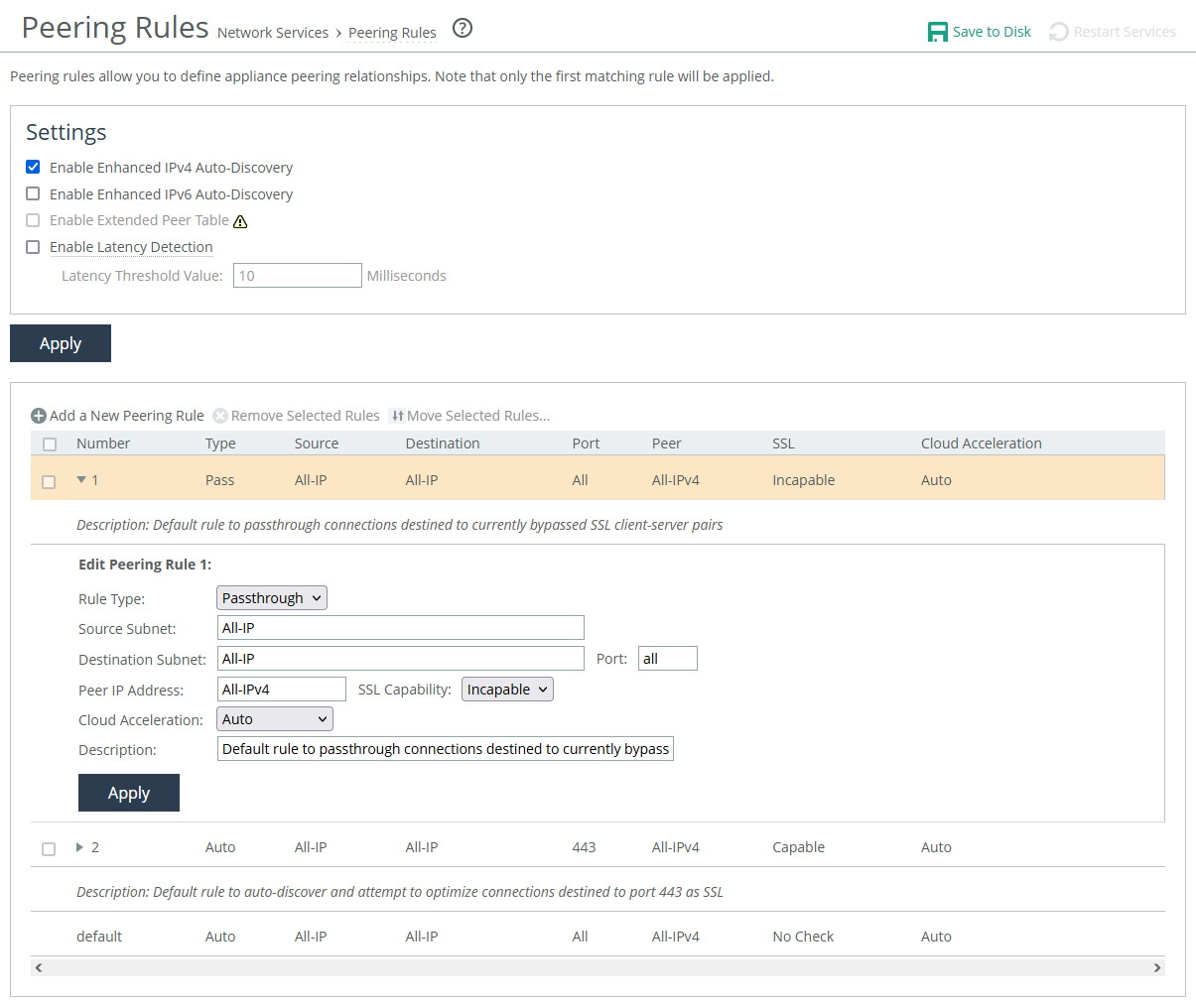
Rule Type
Determines the action the appliance takes on the connection:
• Auto automatically decides the best peering action. If autodiscovery isn’t used, this is the same as "Accept." If autodiscovery is enabled, the appliance will only become the optimization peer if it's the last appliance in the path to the server.
• Accept accepts peering requests that match the source-destination-port pattern. The receiving appliance responds and establishes the peer connection.
• Passthrough allows peering requests that match the source and destination port pattern to pass through. The receiving appliance doesn’t reply to the probe and lets the SYN+probe packet to continue through the network.
Insert Rule At
Determines the order in which the system evaluates the rule.
Source Subnet and Destination Subnet
Specify IP addresses and subnet masks for traffic sources and destinations. Wildcards are supported.
Port
Specifies the destination port number, port label, or All.
Peer IP Address
Specifies the in-path IP address of the probing appliance. If more than one in-path interface is present on the probing appliance, apply multiple peering rules, one for each in-path interface. You can also specify wildcards.
SSL Capability
Enables an SSL capability flag, which specifies criteria for matching an incoming connection with one of the rules in the peering rules table. This flag is typically set on a server-side appliance.
• No Check performs no check to determine whether the server-side appliance is present at the specified destination IP address and port combination.
• Capable determines that the connection is SSL-capable if the destination port is 443 (irrespective of the destination port value on the rule) and the destination IP and port don’t appear on the bypassed servers list. The appliance accelerates SSL for traffic meeting those conditions.
• Incapable determines that the connection is SSL-incapable if the destination IP and port appear in the bypassed servers list. The service adds a server to the bypassed servers list when there’s no SSL certificate for the server or for any other SSL handshake failure. The appliance passes the connection through unoptimized without affecting connection counts.
Cloud Acceleration
Determines which connections from a client-side appliance (with the Legacy SteelHead Cloud enabled but with redirect disabled) should be optimized with the Legacy SteelHead Cloud. Use cloud acceleration in peering rules on a server-side SteelHead in a back-hauled deployment.
• Auto indicates the server-side SteelHead redirects connections to the cloud for acceleration.
• Pass Through indicates the server-side SteelHead doesn’t redirect connections to the cloud.
If the client-side SteelHead doesn’t have cloud acceleration enabled or isn’t trying to optimize cloud connections, the value of this setting on the server-side SteelHead doesn't matter.
Description
Enter a description to help you identify the peering relationship.
About autodiscovery
By default, enhanced autodiscovery is enabled. It automatically finds the furthest peer appliance in the network and establishes a trust relationship with it. For example, if you have four appliances (A, B, C, D), appliance A will automatically find D (the furthest from A) and peer with it. This simplifies configuration and scales deployments.
When enhanced autodiscovery is disabled, regular autodiscovery is used. With regular autodiscovery, the appliance peers with its nearest peer appliance. Using the example above, appliance A in this case peers with appliance B.
We recommend enhanced autodiscovery for the following kinds of deployments:
• Serial Cascade Deployments—Ideal for multisite deployments where traffic passes through multiple SteelHeads to reach its destination. Enhanced autodiscovery selects the two outermost SteelHeads for optimization.
• Serial Cluster Deployments—Deploy multiple SteelHeads back-to-back in an in-path configuration to create a serial cluster. This optimizes traffic and allows the next SteelHead to intercept new connections if the previous one reaches its connection limit.
For environments using MAPI or FTP, consider using primary and backup redundancy instead of serial clusters. For large environments, SteelHead Interceptors offer scalability and high availability by creating multi-appliance clusters. For details, see the SteelHead Interceptor Deployment Guide and the SteelHead Interceptor User Guide.
A serial cluster’s bandwidth matches the appliance model in use; it does not increase with multiple appliances in the cluster. For example, a serial cluster that is made up of two 570-M model appliances with a bandwidth specification of 20 Mbps has a cluster bandwidth of 20 Mbps.
If the active appliance in the cluster experiences high CPU load and enters a degraded state, it will still continue to accept new connections.
About autodiscovery settings
Make sure the autodiscovery settings on both the peered server-side and client-side appliances are the same. If they don't match, optimization may not work correctly.
Enable Enhanced IPv4 Auto-Discovery and mixed (dual-stack) IPv4 and IPv6
Enables enhanced autodiscovery for IPv4 and mixed IPv4/IPv6 networks. This option relies on an IPv4 connection to the peer appliance over TCP, and your network must support IPv4 for the inner channels for this feature to function.
Enable Enhanced IPv6 Auto-Discovery
Enables enhanced auto-discovery for IPv6 networks. Enabling this option is required for IPv6 single-stack networks. This can be enabled for both single-stack IPv6 and dual-stack IPv4 + IPv6 networks. Enhanced IPv6 Auto-discovery is disabled is by default.
Enable Extended Peer Table
Supports up to 20,000 peers on high-end server-side SteelHeads The appliance’s data store organizes peers in groups of 1,024 in the global peer table. If you have more than 4,000 peers, we recommend enabling the extended peer table. By default, this option is disabled (the option is unavailable on models that don’t support it).
Before enabling, ensure you understand the performance and scaling implications. You should compare this with a serial cluster deployment for scalability.For details, see SteelHead Deployment Guide. After enabling, you must clear the RiOS data store and restart the service.
Enable Latency Detection
Enables peer appliances to pass traffic without optimization when the latency between them is below a set threshold. The default threshold is 10 milliseconds, but you can adjust it. The client-side SteelHead calculates the latency. When latency is low, sending unoptimized traffic can be faster than optimizing it. You can also use the Ignore Latency Detection option in peer in-path rules, if needed.
Preventing unwanted peering
SteelHead's enhanced auto-discovery feature makes deployment easy but can sometimes cause unwanted appliances (not part of your organization) to connect. To prevent this, you can create a pass-through peering rule to block these appliances and remove them from your peer list. Create a pass-through rule for the unwanted appliance by specifying its subnet as the source and your local network subnet as the destination.
Alternatively, create a rule that only allows peering from your organization's subnet and denies others. Place this rule at the top of the list. Add a second rule to allow all other traffic to pass through. With these rules, your local SteelHead will either peer with an appliance (if it matches the accept rule) or ignore it (if it matches the pass-through rule).
Any unknown appliances will appear in the Current Connections report as "Connected Appliances" until their connection times out. Once inactive, they’ll appear dimmed, and you can restart the service to remove them completely.
About in-path rules
When a client-side appliance receives a new SYN packet, it checks the packet’s fields (such as source or destination subnet, IP address, VLAN tag, and TCP port) against its in-path rules. If a match is found, the appliance follows the settings in the rule. In-path rules apply only when SYN packets are received on the LAN (physical in-path) or WAN (virtual in-path) interface.
By default, appliances use autodiscovery to connect to peer appliances for any connections that aren't secure, interactive, or default Riverbed ports. The appliance will automatically find and connect to a peer server-side appliance if available.
In-path rules do not affect established connections. To apply new rules, you must reset the connections.
The appliance checks incoming connection requests in order, starting with rule 1. If rule 1 matches, it is applied, and the system moves on to the next packet. If rule 1 doesn’t match, the appliance checks rule 2, and so on.
Rules are listed in order of their specified priority. Expand a rule to access its settings. In general, list rules in this order, placing rules that use domain labels below others:
1. Deny
2. Discard
3. Pass-through
4. Fixed-Target
5. Auto-Discover
The default rule accelerates all traffic that doesn't match any other rules. It cannot be removed and is always listed last. It applies to all IPv4 and IPv6 addresses, using autodiscovery for WAN visibility.
Auto Discovery rules use autodiscovery to check if a remote SteelHead can optimize the connection initiated by the SYN packet.
Fixed target rules skip autodiscovery and use a specified remote appliance for acceleration. At least one remote peer must be configured, and you can specify multiple peers or backup peers. IPv6 is supported.
Fixed-target (packet mode optimization) is similar to fixed target rules, but it supports acceleration for various transport protocols (v4 and v6 TCP and UDP) using SDR and LZ optimization. However, performance is reduced since the appliance doesn’t proxy or predict applications when using this method.
Packet-mode optimization rules are unidirectional, meaning it only accelerates traffic from the client-side appliance to the server-side appliance. For bidirectional traffic, you need to set up two rules: one on the client-side and one on the server-side appliance.
Avoid using the All IP option for source and destination subnets.
Packet-mode optimization works with physical in-path, virtual in-path with WCCP/PBR, and primary-backup deployments. It is not supported in out-of-path, serial cluster, or SteelHead Interceptor deployments.
IPv6 addresses and routes are required for each interface, unless optimizing UDP traffic.
Packet-mode optimization must be enabled under General Service Settings, requiring a service restart. Connections appear in the Current Connections report and Connection History report. Optionally, you can run the show flows command for additional details.
Pass-through rules let traffic pass through the appliance without acceleration. They can be used to exclude specific subnets from acceleration. An appliance in bypass mode will pass all traffic without optimizing it.
Discard rules silently drop SYN packets that match the rule. Similar to how routers or firewalls filter traffic, the connection initiator won't know that the packet was dropped until the connection times out.
Deny rules drop SYN packets and send a message back to the source, resetting the connection. This provides feedback to the initiator that the connection is disallowed. The settings for discard and deny rules are similar.
About in-path rule settings
In-path rule settings are under Optimization > Network Services: In-Path Rules.
In-path rules settings
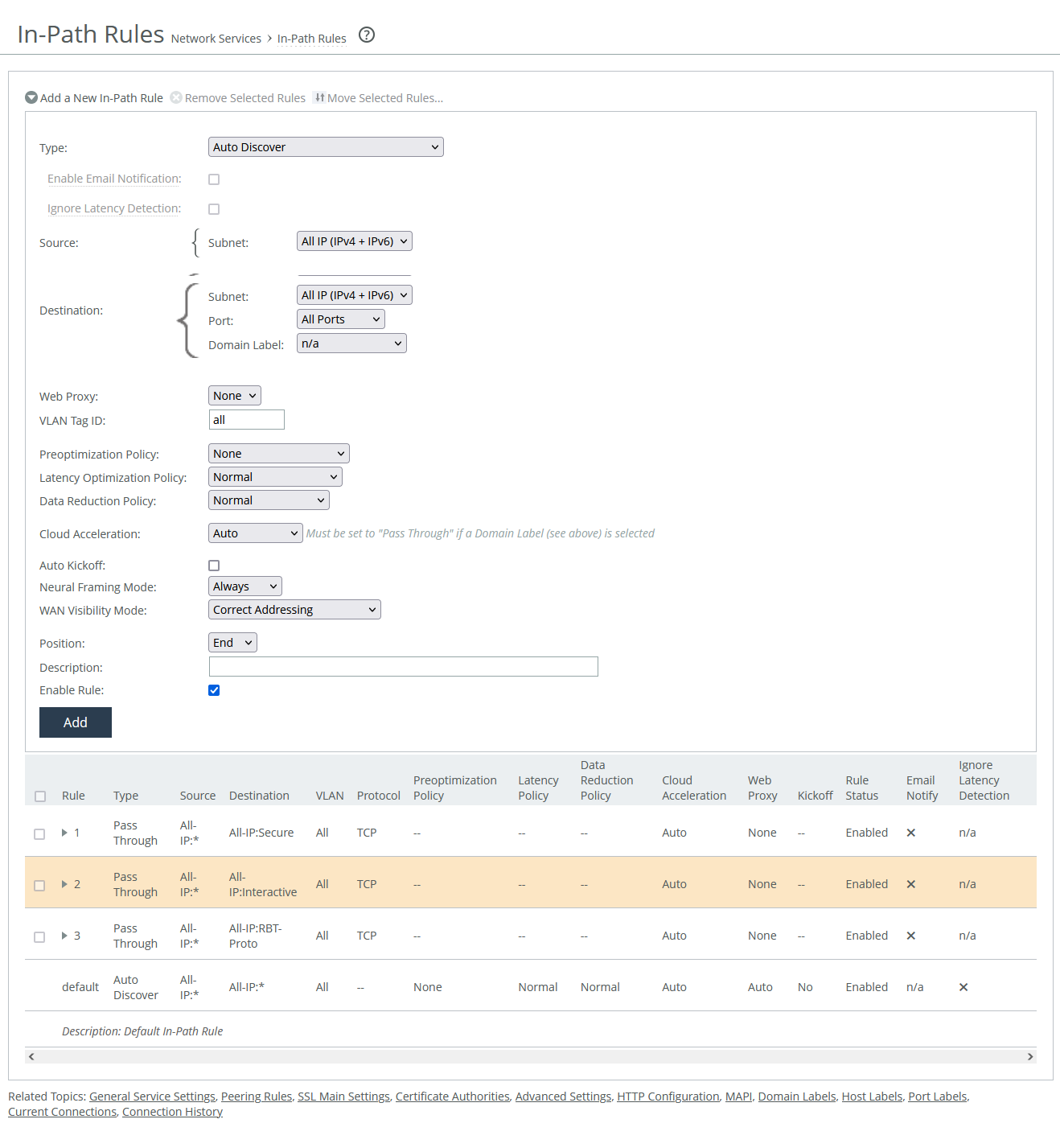
Type
Specifies the general behavior of the appliance toward new connections.
Enable email notification
Enables the appliance to send email notifications and reminders to specified users. Reminder emails, if enabled, are sent every 15 days. You can adjust the frequency using the notify-timer <notification-time-in-days> command, but this feature is only available for pass-through rules. To use it, email notifications must be enabled in the administration settings.
Ignore latency detection
Deactivates latency detection on matching connections.
Source and Destination
These settings determine which client requests the rule applies to, based on their source and destination. The options vary slightly depending on the type of rule.
If you're using a virtual in-path setup with packet-mode optimization, do not use the wildcard All IP for source and destination as it can cause traffic loops between appliances. Instead, specify the local LAN subnet for proper configuration.
Subnet
Specifies the subnet IP address and netmask for the source and destination network:
• Host label is a logical group of hostnames and subnets that represent a collection of servers or services. You can use both host labels and domain labels within a single in-path rule. RiOS versions 9.16.0 and later support IPv6 for host labels. RiOS versions prior to 9.16.0 require that you change the source to All IPv4 or a specific IPv4 subnet. Labels are optionally configured.
• SaaS application defines an in-path rule for SaaS application acceleration through SteelHead SaaS Manager (SSM). Requires that the appliance is registered with a SSM.
• Port specifies all ports, a specific port, or a port label. Valid port numbers are from 1 to 65535. For port labels, a list of configured labels appears.
Domain label
Specifies a domain label for use in autodiscover, passthrough, or fixed-target rules. For a rule to apply, both the destination and domain label must match. If they don’t, the system checks the next rule. Domain labels only apply to HTTP and HTTPS traffic. If the destination port is set to All, the rule defaults to ports 80 (HTTP) and 443 (HTTPS). You can also set specific ports or use port labels. Domain labels support IPv6 starting in RiOS version 9.16.0.
Web proxy
Enables the appliance to transparently intercept internet-bound traffic using a single-ended web proxy. It is available to autodiscover and pass-through rules. Not available in cloud appliances.
• None does not send traffic through the web proxy.
• Force directs traffic for any matching private or intranet IP address and port through the web proxy. When enabled, full and port transparency WAN visibility modes have no impact. This option is for pass-through rules only. Port labels are supported.
• Auto sends all internet-bound traffic (to public IPs on ports 80 or 443) through the web proxy. If the proxy can’t be used, the appliance falls back to autodiscovery. When enabled, full and port transparency modes are ignored.
VLAN tag ID
Specifies a numerical ID from 0 to 4094 that identifies a specific VLAN. Enter all to match all VLANs, or enter untagged to match untagged connections. Passed-through traffic maintains existing VLAN tags. The default is 0.
Target appliance IP address
Specifies the IP address for the remote peer appliance. When the protocol is TCP and you don’t specify an IP address, the rule defaults to all IPv6 addresses.
Port
Specifies the target port number.
Backup appliance IP address
Settings are similar to those for target appliances.
Protocol
Specifies a traffic protocol: TCP, UDP, or any.
Preoptimization policy
Specifies a preoptimization policy Oracle Forms or SSL traffic:
• None disables preoptimization. However, if SSL acceleration is enabled, SSL preoptimization is always active for traffic on port 443—regardless of the in-path rule setting. To fully disable SSL preoptimization for port 443 disable SSL optimization on the client-side or server-side appliance, or set SSL Capability to No Check in the server-side appliance's peering rule.
• Oracle Forms enables preoptimization for Oracle Forms. IPv6 is not supported.
• Oracle Forms over SSL enables preoptimization for both Oracle Forms traffic and SSL-encrypted traffic on secure ports. The latency optimization policy must be set to HTTP. IPv6 is not supported. If the server uses the standard secure port (443), this Oracle Forms rule must come before the default secure port pass-through rule in the rule list.
• SSL enables preoptimization for SSL encrypted traffic through SSL secure ports on the appliance.
Latency optimization policy
Activates latency optimization for the selected traffic type:
• Normal optimizes all supported traffic types. Use this option with Auto-Detect Outlook Anywhere Connections under MAPI settings to automatically detect Outlook Anywhere and HTTP traffic.
• HTTP optimizes only HTTP traffic that matches the rule.
• Outlook Anywhere optimizes RPC over HTTP/HTTPS traffic. Best for environments using an IIS server as an RPC Proxy, or setups with asymmetric routing, connection forwarding, or Interceptor. Disable auto-detect under MAPI settings when using this option.
• Citrix enables latency optimization for Citrix-over-SSL traffic. The client-side appliance must have an in-path rule with the Citrix Access Gateway IP. This policy must be selected in both client-side and server-side in-path rules, and the preoptimization policy must be set to SSL. SSL must be enabled on the Citrix Access Gateway. On the server-side SteelHead, SSL must be enabled and the Citrix Access Gateway’s SSL certificate must be installed.
• Exchange autodetect optimizes latency for MAPI (Outlook Anywhere, MAPI over HTTP), Autodiscover, and HTTP traffic. SSL optimization must be enabled under MAPI settings. The Exchange Server’s SSL certificate must be installed on the server-side appliance.
• None disables latency optimization for all traffic types on matching connections.
Data reduction policy
Enables the selected optimization method:
• Normal enables SDR and LZ optimizations for all supported traffic. This is the default value.
• SDR-only enables SDR and disables LZ compression.
• SDR-M performs all data reduction in memory, avoiding any disk read/write operations. This eliminates disk latency and can significantly boost LAN-side throughput. It's ideal for interactive traffic, small data transfers, or point-to-point replication during off-peak hours—especially when both the client-side and server-side appliances have similar performance capabilities.
• Compression-only performs LZ compression; it doesn’t perform SDR.
• None disables SDR and LZ optimizations for all traffic on matching connections.
Cloud acceleration
Specifies whether the connection is accelerated by the cloud or passed through.
Auto kickoff
Resets preexisting matched connections to force reconnection.
Neural framing mode
Optimizes packet framing for Scalable Data Referencing (SDR) by using heuristics to decide the best time to flush TCP buffers. Here are the available modes:
• Never—Neural heuristics are calculated but not used. This mode disables the Nagle algorithm, making it ideal for chatty or real-time traffic where low latency is key.
• Always—All data goes through the Nagle algorithm to combine small packets for better fingerprinting. This is the default value. IPv6 is not supported.
• TCP Hints—Encodes partial frames or packets with the TCP PUSH flag without coalescing them. Neural heuristics are calculated but not applied. IPv6 is not supported.
• Dynamic—Automatically selects the best framing method based on traffic type, adjusting Nagle parameters in real time. IPv6 is not supported.
WAN visibility mode
Enables visibility of how packets traversing the WAN are addressed:
• Correct addressing disables WAN visibility. SteelHead uses its own IPs and ports in TCP/IP headers for accelerated traffic in both directions. This is the default value.
• Port transparency preserves the server's port numbers in packet headers. This is useful for enforcing QoS policies based on destination ports. For IPv6, you must enable Enhanced IPv6 Auto-Discovery under Peering Rules. This allows existing WAN router rules (based on port numbers) to work without modification.
• Full transparency with reset preserves both IP addresses and port numbers and resets the initial connection probe. This mode supports fully transparent acceleration and ensures the secure channel can pass through firewalls.
Position
Specifies the rule’s hierarchical position in the list. Place rules that use domain labels below others. The default rule can’t be removed.
Description
Specifies a description for the rule to facilitate administration.
Enable rule
Enables or disables the rule.
Web Proxy
This setting, available for autodiscover and pass-through rules, allows client-side appliances to route internet-bound traffic through a single-ended web proxy. Enabling it boosts performance by caching web content (HTTP/HTTPS) to reduce load times and WAN usage, and decrypting SSL traffic for better optimization and visibility.
Web object caching stores HTTP and HTTPS content. The cache space available depends on the appliance model. Each object stays in the cache for the time set in its cache control header, and once expired, it's removed.
The cache is separate from the data store. If the content is already cached, the appliance serves it locally, skipping connection setup and reducing WAN traffic. The proxy cache is persistent, meaning its contents are preserved even after a restart.
Single-ended and asymmetric topologies are supported, and a server-side peer is not required.
Web proxy connections appear in the Current Connections report.
Cloud acceleration
Cloud acceleration lets you control whether connections to the cloud are optimized. You don’t need an in-path rule unless you want to apply acceleration to specific users only. Choose from these options:
• Auto—If the in-path rule matches, the connection is optimized by the SaaS appliance.
• Pass Through—If the in-path rule matches, the connection isn’t optimized by the SaaS appliance, but it might be optimized by other appliances or passed through.
Domain labels and cloud acceleration can’t be used together. If a domain label is selected, the cloud acceleration option will automatically be set to Pass Through. Cloud acceleration can be set to Auto only when no domain label is used (set to n/a).
Neural Framing Mode
Neural framing helps optimize the moment to flush TCP buffers by evaluating heuristics to maximize data transmission and minimize idle time. It is available for Auto-Discover or Fixed Target rule types and can be selected for the in-path rule.
• Never—Does not use the Nagle algorithm. Data is encoded immediately, without waiting for timers or buffer thresholds. This setting works well for time-sensitive or real-time traffic but doesn’t use neural heuristics.
• Always—Uses the Nagle algorithm (default setting). Data is passed to the codec, which attempts to combine small outgoing messages. A 6 ms timer helps consume leftover data. Neural heuristics are computed but not used. This mode is not compatible with IPv6.
• TCP Hints—For partial frame packets or packets with the TCP PUSH flag, data is encoded rather than immediately coalesced. Neural heuristics are computed but not used. This mode is not compatible with IPv6.
• Dynamic—Automatically adjusts the Nagle parameters based on the traffic type. This mode switches to the best algorithm based on traffic changes. This mode is not compatible with IPv6.
The best algorithm depends on traffic type, latency, compression, and SDR performance.
To set up neural framing for FTP or MAPI data channels, define an in-path rule with the respective destination port (FTP: 20, MAPI: 7830) and configure the data reduction policy.
WAN Visibility Mode
WAN Visibility Mode enables monitoring and management of traffic across the WAN, with different options for transparency:
• Port Transparency—Manage QoS policies based on destination ports. It allows WAN routers to classify traffic based on existing rules, without changes. Network analyzers between the SteelHeads can inspect traffic by its original TCP port number, but it doesn't provide client or server IP address visibility, nor client port visibility. This method is preferred when full address transparency isn't necessary, as it avoids potential networking risks.
• Full Address Transparency—Preserves client and server IP addresses and port numbers in the TCP/IP headers for traffic across the WAN. This option also preserves VLAN tags for optimized traffic while maintaining visibility into header fields. It is suitable for WAN routers and monitoring devices that need to inspect these fields. It requires symmetrical traffic flows between client and server—asymmetry can lead to connectivity issues.
• Full Transparency with Reset—Enables both full address and port transparency while resetting the connection probe to ensure firewalls don’t block the inner transparent connections. This option is ideal for networks using stateful firewalls, as it clears connections mapped to the same IP addresses and ports.
Full Transparency with a stateful firewall is supported. A stateful firewall examines packet headers, stores information, and then validates subsequent packets against this information. If your system uses a stateful firewall, use Full Transparency with Reset.
Port transparency is generally preferable unless you need full address visibility. Full transparency may lead to connectivity issues if network traffic is asymmetric. To enable full transparency globally by default, create an in-path autodiscover rule. Set the visibility mode to Full Transparency. Place this rule above the default in-path rule, but after the Secure, Interactive, and RBT-Proto rules. You can configure full transparency even if the server-side appliance doesn’t support it; however, in that case, the connection will not be transparent.
WAN visibility works only with autodiscover in-path rules, not with fixed-target rules or server-side out-of-path configurations.
The Top Talkers report provides WAN visibility by showing the most active users of WAN bandwidth, without needing to enable full WAN visibility.
About default in-path rules
SteelHead appliances come with three default in-path rules that are designed to pass through specific types of traffic unoptimized. These defaults are in place because protocols like Telnet, SSH, and HTTPS are commonly used during appliance deployment and configuration.
These rules allow essential management traffic through without interference. The autodiscover default rule is read-only; you can’t edit or delete it.
Default rule | Description and ports |
|---|
All-IP: Secure | Ports 22, 49, 88, 261, 322, 443, 448, 465, 563, 585, 614, 636, 684, 695, 902, 989-990, 992-995, 1701, 1723, 2252, 2478-2479, 2482, 2484, 2492, 2679, 2762, 2998, 3077-3078, 3183, 3191, 3220, 3269, 3410, 3424, 3471, 3496, 3509, 3529, 3539, 3660-3661, 3713, 3747, 3864, 3885, 3896-3897, 3900, 3995, 4031, 5007, 5061, 5723, 6514, 7674, 8305, 9443, 9802, 11751, 12109, 41017. This default rule automatically passes traffic through on commonly secure ports (for example, SSH, HTTPS, and SMTPS). |
All-IP: Interactive | Ports 77, 23, 37, 107, 179, 513-514, 1494, 1718-1720, 2000-2003, 2427, 2598, 2727, 3389, 5060, 5631, 5900-5903, 6000. This default rule automatically passes traffic through on interactive ports (for example, Telnet, TCP ECHO, remote logging, and shell). |
All-IP: RBT-Proto | Ports 7744, 7800-7801, 7810, 7820, 7850, 7860, 7870, 7881-7882. This default rule automatically passes traffic through on commonly secure ports (for example, SSH, HTTPS, and SMTPS). |
We recommend you keep the default in-path rules, as they support essential management protocols. However, if needed, you can override them by creating custom rules with higher priority. Modify the port groups used in the default rules to adjust their behavior.
Commonly excluded ports are 1503, 1720-1727, 2000, 3230-3253, and 5060.
Uncommon ports include 261, 448, 684, 695, 994, 2252, 2478, 2479, 2482, 2484, 2492, 2679, 2762, 2998, 3077, 3078, 3183, 3191, 3220, 3269, 3410, 3424, 3471, 3496, 3509, 3529, 3539, 3660, 3661, 3747, 3864, 3885, 3896, 3897, 3995, 4031, 5007, 5061, 7674, 9802, 11751, and 12109.
About service ports
Service port settings are under Optimization > Network Services: Service Ports.
Service ports are used for inner connections between SteelHead appliances. For QoS purposes, you can configure multiple service ports on the server-side appliance to support various QoS mappings, and you can create a new service port and map specific destination ports to it. This allows QoS settings on your router to be applied to traffic based on the defined service port.
Service Ports
Specifies ports in a comma-separated list. The default service ports are 7800 and 7810.
Default Port
Specifies the default service port.
For adding a service port mapping:
Destination Port
Specifies a destination port.
Service Port
Specifies the service port.