About System Administrator Settings
About alarm settings
Settings for alarms are under Administration > System Settings: Alarms. Enabling alarms is optional.
RiOS uses a hierarchical alarm system, where related alarms are grouped under top-level categories. For example, the System Disk Full alarm is a parent alarm that monitors multiple disk partitions. If one partition becomes full, the parent alarm is triggered, and the Alarm Status report shows which specific partition caused it.
Disabling a parent alarm automatically disables all of its child alarms. You can enable a parent alarm and selectively disable any of its children. However, you cannot enable a child alarm unless its parent is enabled first. On the Alarm Status report, child alarms of a disabled parent will show a suppressed status, while disabled children of an enabled parent will show a disabled status.For more details about alarm status, see
Viewing the Alarm Status report.
Admission Control
The Admission Control setting enables an alarm and sends an email notification if the SteelHead enters admission control. When this occurs, the SteelHead optimizes traffic beyond its rated capability and is unable to handle the amount of traffic passing through the WAN link. During this event, the SteelHead continues to optimize existing connections, but new connections are passed through without optimization.
Connection Limit
Indicates the system connection limit has been reached. Additional connections are passed through unoptimized. The alarm clears when the SteelHead moves out of this condition.
CPU
Indicates the appliance has entered admission control due to high CPU use. During this event, the appliance continues to optimize existing connections, but new connections are passed through without optimization. The alarm automatically clears when the CPU usage has decreased.
MAPI
Indicates that the number of optimized MAPI connections has exceeded the maximum threshold set by admission control. By default, this threshold is set at 85% of the maximum optimized connection capacity on the client-side SteelHead. The remaining 15% is reserved to ensure that MAPI traffic does not interfere with other protocols. This 85% limit applies only to MAPI connections.
When the threshold is exceeded, RiOS starts passing through MAPI connections from new clients, meaning these are not optimized. However, it continues to intercept and optimize MAPI connections from existing clients, including any new MAPI connections they initiate. Non-MAPI connections from all clients continue to be optimized as usual.
To manage this, RiOS may proactively close some MAPI sessions to reduce the number of active connections and bring the count below the 85% threshold. The alarm will automatically clear once MAPI traffic decreases, but it may take up to one minute for this to happen. RiOS closes the MAPI sessions in this order:
• MAPI prepopulation connections
• MAPI sessions with the largest number of connections
• MAPI sessions with most idle connections
• Most recently optimized MAPI sessions or oldest MAPI session
• MAPI sessions exceeding the memory threshold
Memory
Indicates the appliance has entered admission control due to memory consumption. The appliance is optimizing traffic beyond its rated capability and is unable to handle the amount of traffic passing through the WAN link. During this event, the appliance continues to optimize existing connections, but new connections are passed through without optimization. No other action is necessary; the alarm automatically clears when the traffic has decreased.
TCP
Indicates the appliance has entered admission control due to high TCP memory use. During this event, the appliance continues to optimize existing connections, but new connections are passed through without optimization. The alarm automatically clears when the TCP memory pressure has decreased.
By default, this alarm is enabled.
Asymmetric Routing
The Asymmetric Routing setting enables an alarm if asymmetric routing is detected on the network. Asymmetric routing is usually due to a failover event of an inner router or VPN.
By default, this alarm is enabled.
Connection Forwarding
The Connection Forwarding setting enables an alarm if the system detects a problem with a connection-forwarding neighbor. The connection-forwarding alarms are inclusive of all connection-forwarding neighbors. For example, if a SteelHead has three neighbors, the alarm triggers if any one of the neighbors are in error. In the same way, the alarm clears only when all three neighbors are no longer in error.
Cluster Neighbor Incompatible
Enables an alarm and sends an email notification if a connection-forwarding neighbor in a Interceptor cluster has path selection enabled while path selection isn’t enabled on another appliance in the cluster.
This alarm is also raised when a connection-forwarding neighbor is running a RiOS version that is incompatible with IPv6, or if the IP address configuration between neighbors doesn’t match. Neighbors must be running RiOS 8.5 or later.
Multiple Interface
Enables an alarm and sends an email notification if the connection to an appliance in a connection forwarding cluster is lost or is disconnected due to a configuration incompatibility.
Single Interface
Enables an alarm and sends an email notification if the connection to a SteelHead connection-forwarding neighbor is lost.
By default, this alarm is enabled.
CPU Utilization
The CPU Utilization setting enables an alarm and sends an email notification if the average and peak threshold for the CPU utilization is exceeded. When an alarm reaches the rising threshold, it is activated; when it reaches the lowest or reset threshold, it is reset. After an alarm is triggered, it isn’t triggered again until it has fallen below the reset threshold.
By default, this alarm is enabled.
Rising Threshold
Specifies the rising threshold. When an alarm reaches the rising threshold, it is activated. The default value is 90 percent.
Reset Threshold
Specifies the reset threshold. When an alarm reaches the lowest or reset threshold, it is reset. After an alarm is triggered, it isn’t triggered again until it has fallen below the reset threshold. The default value is 70 percent.
Data Store
If the alarm was caused by an unintended change to the configuration, the configuration can be changed to match the old data store settings again and then a service restart (without clearing) will clear the alarm. Typical configuration changes that require a restart clear are changes to the data store encryption (choose Optimization > Data Replication: Data Store) or enabling extended peer table (choose Optimization > Network Services: Peering Rules).
Corruption
Enables an alarm and sends an email notification if the RiOS data store is corrupt or has become incompatible with the current configuration. To clear the RiOS data store of data, restart the optimization service and click Clear the Data Store.
Data Store Clean Required
Enables an alarm and sends an email notification if you need to clear the RiOS data store.
Encryption Level Mismatch
Enables an alarm and sends an email notification if a data store error such as an encryption, header, or format error occurs.
Synchronization Error
Enables an alarm if RiOS data store synchronization has failed. The RiOS data store synchronization between two SteelHeads has been disrupted and the RiOS data stores are no longer synchronized.
By default, this alarm is enabled.
Disk Full
The Disk Full setting enables an alarm if the system partitions (not the RiOS data store) are full or almost full. For example, RiOS monitors the available space on /var, which is used to hold logs, statistics, system dumps, TCP dumps, and so on.
By default, this alarm is enabled.
Domain Authentication Alert
The Domain Authentication Alert setting enables an alarm when the system is either unable to communicate with the domain controller, or has detected an SMB signing error, or that delegation has failed. CIFS-signed and Encrypted-MAPI traffic is passed through without optimization.
By default, this alarm is enabled.
Domain Join Error
The Domain Join Error setting enables an alarm if an attempt to join a Windows domain has failed. The number one cause of failing to join a domain is a significant difference in the system time on the Windows domain controller and the SteelHead. A domain join can also fail when the DNS server returns an invalid IP address for the domain controller.
By default, this alarm is enabled.
Hardware
Disk Error
Enables an alarm when one or more disks is offline. To see which disk is offline, enter the show raid diagram CLI command from the system prompt. By default, this alarm is enabled. This alarm applies only to the SteelHead RAID Series 3000, 5000, and 6000.
Fan Error
Enables an alarm and sends an email notification if a fan is failing or has failed and needs to be replaced. By default, this alarm is enabled.
Flash Error
Enables an alarm when the system detects an error with the flash drive hardware. By default, this alarm is enabled.
IPMI
Enables an alarm and sends an email notification if an Intelligent Platform Management Interface (IPMI) event is detected. (This option is not supported on all appliance models.)
This alarm triggers when there has been a physical security intrusion. These events trigger this alarm:
• Chassis intrusion (physical opening and closing of the appliance case)
• Memory errors (correctable or uncorrectable ECC memory errors)
• Hard drive faults or predictive failures
• Power cycle, such as turning the power switch on or off, physically unplugging and replugging the cable, or issuing a power cycle from the power switch controller.
By default, this alarm is enabled.
Memory Error
Enables an alarm and sends an email notification if a memory error is detected, for example, when a system memory stick fails.
Other Hardware Error
Enables an alarm if a hardware error is detected. These issues trigger the hardware error alarm:
The SteelHead doesn’t have enough disk, memory, CPU cores, or NIC cards to support the current configuration.
The SteelHead is using a memory Dual In-line Memory Module (DIMM), a hard disk, or a NIC that isn’t qualified by Riverbed.
DIMMs are plugged into the SteelHead but RiOS can’t recognize them because:
• a DIMM is in the wrong slot. You must plug DIMMs into the black slots first and then use the blue slots when all of the black slots are in use.
—or—
• a DIMM is broken and you must replace it.
Safety Valve: disk access exceeds response times
Triggers an alarm when the SteelHead experiences increased disk access times and activates the safety valve disk bypass mechanism. When this happens, the system switches connections to SDR-A, which performs data reduction in memory instead of using the disk. This continues until disk access latency drops below the safety valve threshold.
High disk access times can occur for several reasons: the SteelHead may be undersized for the current traffic load, there may be a temporary spike in traffic, or the disk may be experiencing hardware issues such as sector errors, mechanical failure, or RAID rebuilding.
You configure the safety valve activation threshold and timeout using CLI commands:
datastore safety-valve threshold
datastore safety-value timeout
For details, see the Riverbed Command-Line Interface Reference Guide.
By default, this alarm is enabled.
Power Supply
Enables an alarm and sends an email notification if an inserted power supply cord doesn’t have power, as opposed to a power supply slot with no power supply cord inserted. By default, this alarm is enabled.
LAN/WAN loop
By default, this alarm is enabled.
Licensing
The Licensing setting enables an alarm and sends an email notification if a license on the SteelHead is removed, is about to expire, has expired, or is invalid.
Appliance Unlicensed
This alarm triggers if the SteelHead does not have a license installed for its currently configured model. For details about updating licenses, see
Viewing system permissions.
Autolicense Critical Event
This alarm triggers on a SteelHead appliance when the Riverbed Licensing Portal can’t respond to a license request with valid licenses. The Licensing Portal can’t issue a valid license for one of these reasons:
• A newer SteelHead appliance is already using the token, so you can’t use it on the SteelHead appliance displaying the critical alarm. Every time the SteelHead appliance attempts to refetch a license token, the alarm retriggers.
• The token has been redeemed too many times. Every time the SteelHead appliance attempts to refetch a license token, the alarm retriggers.
Autolicense Informational Event
This alarm triggers if the Riverbed Licensing Portal has information regarding the licenses for a SteelHead appliance. For example, the SteelHead appliance displays this alarm when the portal returns licenses that are associated with a token that has been used on a different SteelHead appliance.
Licenses Expired
This alarm triggers if one or more features has at least one license installed, but all of them are expired.
Licenses Expiring
This alarm triggers if the license for one or more features is going to expire within two weeks.
The licenses expiring and licenses expired alarms are triggered per feature. For example: if you install two license keys for a feature, LK1-FOO-xxx (expired) and LK1-FOO-yyy (not expired), the alarms don’t trigger, because the feature has one valid license.
By default, this alarm is enabled.
Link Duplex
The Link Duplex setting enables an alarm and sends an email notification when an interface was not configured for half-duplex negotiation but has negotiated half-duplex mode. Half-duplex significantly limits the optimization service results.
The alarm displays which interface is triggering the duplex alarm.
By default, this alarm is enabled.
You can enable or disable the alarm for a specific interface. To enable or disable an alarm, choose Administration > System Settings: Alarms and select or clear the check box next to the link name.
Link I/O Errors
The Link I/O Errors setting enables an alarm and sends an email notification when the link error rate exceeds 0.1 percent while either sending or receiving packets. This threshold is based on the observation that even a small link error rate reduces TCP throughput significantly. A properly configured LAN connection experiences very few errors. The alarm clears when the rate drops below 0.05 percent.
You can change the default alarm thresholds by entering the alarm link_io_errors err-threshold <threshold-value> CLI command at the system prompt. For details, see the Riverbed Command-Line Interface Reference Guide. By default, this alarm is enabled.
You can enable or disable the alarm for a specific interface. For example, you can disable the alarm for a link after deciding to tolerate the errors. To enable or disable an alarm, choose Administration > System Settings: Alarms and select or clear the check box next to the link name.
Link State
The Link State setting enables an alarm and sends an email notification if an Ethernet link goes down, such as when a cable is unplugged or a switch port fails. Depending on which link is affected, the SteelHead may stop optimizing traffic, potentially causing a network outage.
This condition is often triggered by changes in surrounding devices, like routers or switches, or during a SteelHead service or system restart. For WAN/LAN interfaces, the alarm will only trigger if in-path support is enabled for that interface pair. By default, this alarm is turned off, but you can choose to enable or disable it for any specific interface. To enable or disable an alarm, choose Administration > System Settings: Alarms and select or clear the check box next to the link name.
Local and Remote Logging
The Local and Remote Logging setting enables an alarm and sends an email notification of expired and expiring remote log server certificates. You must have a log server certificate installed for secure remote logging.
Secure logging expired certificates
This alarm triggers if there is an expired log server certificate for the secure remote logging server.
Secure logging expiring certificates
This alarm triggers if there is a log server certificate for a secure remote logging server that is expiring.
Memory Paging
The Memory Paging setting enables an alarm and sends an email notification if memory paging is detected. If 100 pages are swapped every couple of hours, the system is functioning properly. If thousands of pages are swapped every few minutes, contact Support. By default, this alarm is enabled.
Neighbor Incompatibility
The Neighbor Incompatibility setting enables an alarm if the system has encountered an error in reaching a SteelHead configured for connection forwarding. By default, this alarm is enabled.
Network Bypass
The Network Bypass setting enables an alarm and sends an email notification if the system is in bypass failover mode. By default, this alarm is enabled.
NFS V2/V4 alarm
The NFS V2/V4 alarm setting enables an alarm and sends an email notification if the SteelHead detects that either NFSv2 or NFSv4 is in use. The SteelHead only supports NFSv3 and passes through all other versions. By default, this alarm is enabled.
Optimization Service
Internal Error
Enables an alarm and sends an email notification if the RiOS optimization service encounters a condition that might degrade optimization performance. By default, this alarm is enabled. Go to the Administration > Maintenance: Services page and restart the optimization service.
Service Status
Enables an alarm and sends an email notification if the RiOS optimization service encounters a service condition. By default, this alarm is enabled. The message indicates the reason for the condition. These conditions trigger this alarm:
• Configuration errors.
• A SteelHead reboot.
• A system crash.
• An optimization service restart.
• A user enters the CLI command no service enable or shuts down the optimization service from the Management Console.
• A user restarts the optimization service from either the Management Console or CLI.
Unexpected Halt
Enables an alarm and sends an email notification if the RiOS optimization service halts due to a serious software error. By default, this alarm is enabled.
Outbound QoS WAN Bandwidth Configuration
The Outbound QoS WAN Bandwidth Configuration setting enables an alarm and sends an email notification if the outbound QoS WAN bandwidth for one or more of the interfaces is set incorrectly. You must configure the WAN bandwidth to be less than or equal to the interface bandwidth link rate.
This alarm triggers when the system encounters one of these conditions:
• An interface is connected and the WAN bandwidth is set to higher than its bandwidth link rate: for example, if the bandwidth link rate is 100 Mbps, and the WAN bandwidth is set to 200 Mbps.
• A nonzero WAN bandwidth is set and QoS is enabled on an interface that is disconnected; that is, the bandwidth link rate is 0.
• A previously disconnected interface is reconnected, and its previously configured WAN bandwidth was set higher than the bandwidth link rate. The Management Console refreshes the alarm message to inform you that the configured WAN bandwidth is set greater than the interface bandwidth link rate.
While this alarm appears, the system puts existing connections into the default class.
The alarm clears when you configure the WAN bandwidth to be less than or equal to the bandwidth link rate or reconnect an interface configured with the correct WAN bandwidth. By default, this alarm is enabled.
Path Selection Path Down
The Path Selection Path Down setting enables an alarm and sends an email notification if the system detects that one of the predefined uplinks for a connection is unavailable. The uplink has exceeded either the timeout value for uplink latency or the threshold for observed packet loss.
When an uplink fails, the SteelHead directs traffic through another available uplink. When the original uplink comes back up, the SteelHead redirects the traffic back to it. By default, this alarm is enabled.
Path Selection Path Probing Error
The Path Selection Path Probing Error setting enables an alarm and sends an email notification if a path selection monitoring probe for a predefined uplink has received a probe response from an unexpected relay or interface. By default, this alarm is enabled.
Process Dump Creation Error
The Process Dump Creation Error setting enables an alarm and sends an email notification if the system detects an error while trying to create a process dump. This alarm indicates an abnormal condition where RiOS can’t collect the core file after three retries. It can be caused when the /var directory is reaching capacity or other conditions. When the alarm is raised, the directory is blacklisted. By default, this alarm is enabled.
Secure Vault
The Secure Vault setting enables an alarm and sends an email notification if the system encounters a problem with the secure vault:
Secure Vault Locked
Indicates that the secure vault is locked. To optimize SSL connections or to use RiOS data store encryption, the secure vault must be unlocked. Go to Administration > Security: Secure Vault and unlock the secure vault.
Secure Vault New Password Recommended
Indicates that the secure vault requires a new, nondefault password. Reenter the password.
Secure Vault Not Initialized
Indicates that an error has occurred while initializing the secure vault. When the vault is locked, SSL traffic isn’t optimized and you can’t encrypt the RiOS data store. For details, see
Unlocking the secure vault.
Software Compatibility
The Software Compatibility setting enables an alarm and sends an email notification if the system encounters a problem with software compatibility:
Peer Mismatch—Needs Attention
Indicates that the appliance has encountered another appliance that is running an incompatible version of system software. Refer to the CLI, Management Console, or the SNMP peer table to determine which appliance is causing the conflict. Connections with that peer will not be optimized, connections with other peers running compatible RiOS versions are unaffected. To resolve the problem, upgrade your system software. No other action is required as the alarm automatically clears.
Software Version Mismatch—Degraded
Indicates that the appliance is running an incompatible version of system software. To resolve the problem, upgrade your system software. No other action is required as the alarm automatically clears.
By default, this alarm is enabled.
SSL
The SSL setting enables an alarm if an error is detected in your SSL configuration. For details about checking your settings, see
About Secure Connections.
Non-443 SSL Servers
Indicates that during a RiOS upgrade (for example, from 8.5 to 9.0), the system has detected a preexisting SSL server certificate configuration on a port other than the default SSL port 443. SSL traffic might not be optimized. To restore SSL optimization, you can add an in-path rule to the client-side SteelHead to intercept the connection and optimize the SSL traffic on the nondefault SSL server port.
After adding an in-path rule, you must clear this alarm manually by entering this CLI command:
stats alarm non_443_ssl_servers_detected_on_upgrade clear
SSL Certificates Error (SSL CAs)
Indicates that an SSL peering certificate has failed to reenroll automatically within the Simple Certificate Enrollment Protocol (SCEP) polling interval.
SSL Certificates Error (SSL Peering CAs)
Indicates that an SSL peering certificate has failed to reenroll automatically within the SCEP polling interval.
SSL Certificates Expiring
Indicates that an SSL certificate is about to expire.
Two types of certificates can trigger this alarm: Certificate Authority certificates used to validate servers and SSL Server Certificates that the SteelHead uses when acting as a trusted man in the middle. Depending on the type of certificate, you can review the expiring certificates on the Optimization: SSL > Certificate Authorities page or the Optimization: SSL > SSL Main Settings page. (The alarm only redirects you to the Certificate Authorities page, but you might need to review the SSL Main Settings page for your certificate.)
Certificates are sorted by name and the expiring certificates might not be visible until you scroll through the list.
SSL Certificates SCEP
Indicates that an SSL certificate has failed to reenroll automatically within the SCEP polling interval.
Storage Profile Switch Failed
The Storage Profile Switch Failed setting enables an alarm when an error occurs while repartitioning the disk drives during a storage profile switch. A profile switch changes the disk space allocation on the drives, clears the SteelFusion and VSP data stores, and repartitions the data stores to the appropriate sizes. By default, this alarm is enabled.
You switch a storage profile by entering the disk-config layout CLI command at the system prompt or by choosing Administration > System Settings: Disk Management on an EX or EX+SteelFusion SteelHead.
System Detail Report
Enables an alarm if a system component has encountered a problem. By default, this alarm is disabled (RiOS 7.0.3 and later).
Temperature
Critical Temperature
Enables an alarm and sends an email notification if the CPU temperature exceeds the rising threshold. When the CPU returns to the reset threshold, the critical alarm is cleared. The default value for the rising threshold temperature is 70°C; the default reset threshold temperature is 67°C.
Warning Temperature
Enables an alarm and sends an email notification if the CPU temperature approaches the rising threshold. When the CPU returns to the reset threshold, the warning alarm is cleared.
• Rising Threshold—Specifies the rising threshold. The alarm activates when the temperature exceeds the rising threshold. The default value is 70°C.
• Reset Threshold—Specifies the reset threshold. The alarm clears when the temperature falls below the reset threshold. The default value is 67°C.
After the alarm triggers, it can’t trigger again until after the temperature falls below the reset threshold and then exceeds the rising threshold again.
Web Proxy
Configuration
Enables an alarm when an error occurs with the web proxy configuration.
Service Status
Enables an alarm when an error occurs with the web proxy service.
By default, this alarm is enabled.
Setting announcements
You can create or modify a login message or a message of the day in the Administration > System Settings: Announcements page.
The login message appears in the Management Console Login page. You can also set the local (that is, the serial interface) and remote login message through the CLI. Examples:
• banner login-local “reminder: meeting today”
• banner login-remote “reminder: meeting today”
These configuration options are available:
Login Message
Specifies a message in the text box to appear in the Login page.
MOTD
Specifies a message in the text box to appear in the Dashboard.
Configuring email settings
You can set email notification parameters for events and failures in the Administration > System Settings: Email page. By default, email addresses aren’t specified for event and failure notification.
SMTP Server
Specify the SMTP server. You must have external DNS and external access for SMTP traffic for this feature to function.
This field doesn’t support IPv6 addresses to specify an SMTP server. For sending email over IPv6, specify the hostname of the email server.
Make sure you provide a valid SMTP server to ensure that the users you specify receive email notifications for events and failures.
SMTP Port
Specify the port number for the SMTP server. Typically, you don’t need to change the default, which is port 25.
Send Reminder of Passthrough Rules via email
This setting allows emails to be sent when one or more pass-through in-path rules are configured. Reminder emails are also sent every 15 days.
In addition to selecting this check box, you must also make or verify the following changes:
• Select the Report Events via Email check box in this page and specify an email address.
• Select the Enable Email Notification check box in the Optimization > Network Services: In-Path Rules page.
This field is active only if you specify a pass-through rule. You cannot create notifications for other types of rules.
To change the frequency of reminder emails, enter the email notify passthrough rule notify-timer <notification-time-in-days> command. For more information, see the Riverbed Command-Line Interface Reference Guide.
To disable reminder emails for pass-through rules, clear this check box or enter the no email notify passthrough rule command.
Report Events via Email
This setting reports alarm events through email. Specify a list of email addresses to receive the notification messages. Separate addresses by spaces, semicolons, commas, or vertical bars.
These alarms are events:
• Admission control
• CPU utilization (rising threshold, reset threshold)
• Temperature (rising threshold, reset threshold)
• Data store wrap frequency
• Domain authentication alert
• Network interface duplex errors
• Network interface link errors
• Fan error
• Flash error
• Hardware error
• IPMI
• Licensing
• Memory error
• Neighbor incompatibility
• Network bypass
• NFS V2/V4 alarm
• Non-SSL servers detected on upgrade
• Optimization service (general service status, optimization service)
• Extended memory paging activity
• Secure vault
• System disk full
• Software version mismatch
• Storage profile switch failed
• TCP Stop Trigger scan has started
• Asymmetric routes
• Expiring SSL certificates
• SSL peering certificate SCEP automatic reenrollment
• Connection forwarding (ACK timeout, failure, lost EOS, lost ERR, keepalive timeout, latency exceeded, read info timeout)
• Prepopulation or Proxy File Service
• Addition of in-path rules
Report Failures via Email
This setting reports alarm failures through email. Specify a list of email addresses for users you want to have receive notification messages. Separate addresses by spaces, semicolons, commas, or vertical bars. These alarms are failures:
• Data store corruption
• System details report
• Domain join error
• RAID
• Optimization service - unexpected halt
• Critical temperature
• Disk error
• SSD wear warning
Override Default Sender’s Address
You can enter a custom email address to override the default address of the notification sender. You might do this if your notification recipients are expecting the notifications to come from a specific address or domain.
Report Failures to Technical Support
This setting reports serious failures, such as system crashes, to Support. We recommend that you activate this feature so that problems are promptly corrected.
1. Choose Administration > System Settings: Email.
2. Enable Report Failures to Technical Support.
This option doesn’t automatically report a disk drive failure. In the event of a disk drive failure, contact Support.
About log settings
Settings for local and remote logging are under Administration > System Settings: Logging.
By default, the system rotates each log file every 24 hours or if the file size reaches 1 GB uncompressed. You can change this setting to rotate every week or month, and you can rotate the files based on file size.
The automatic rotation of system logs deletes your oldest log file, labeled as Archived log #10, pushes the current log to Archived log # 1, and starts a new current-day log file.
Logging page
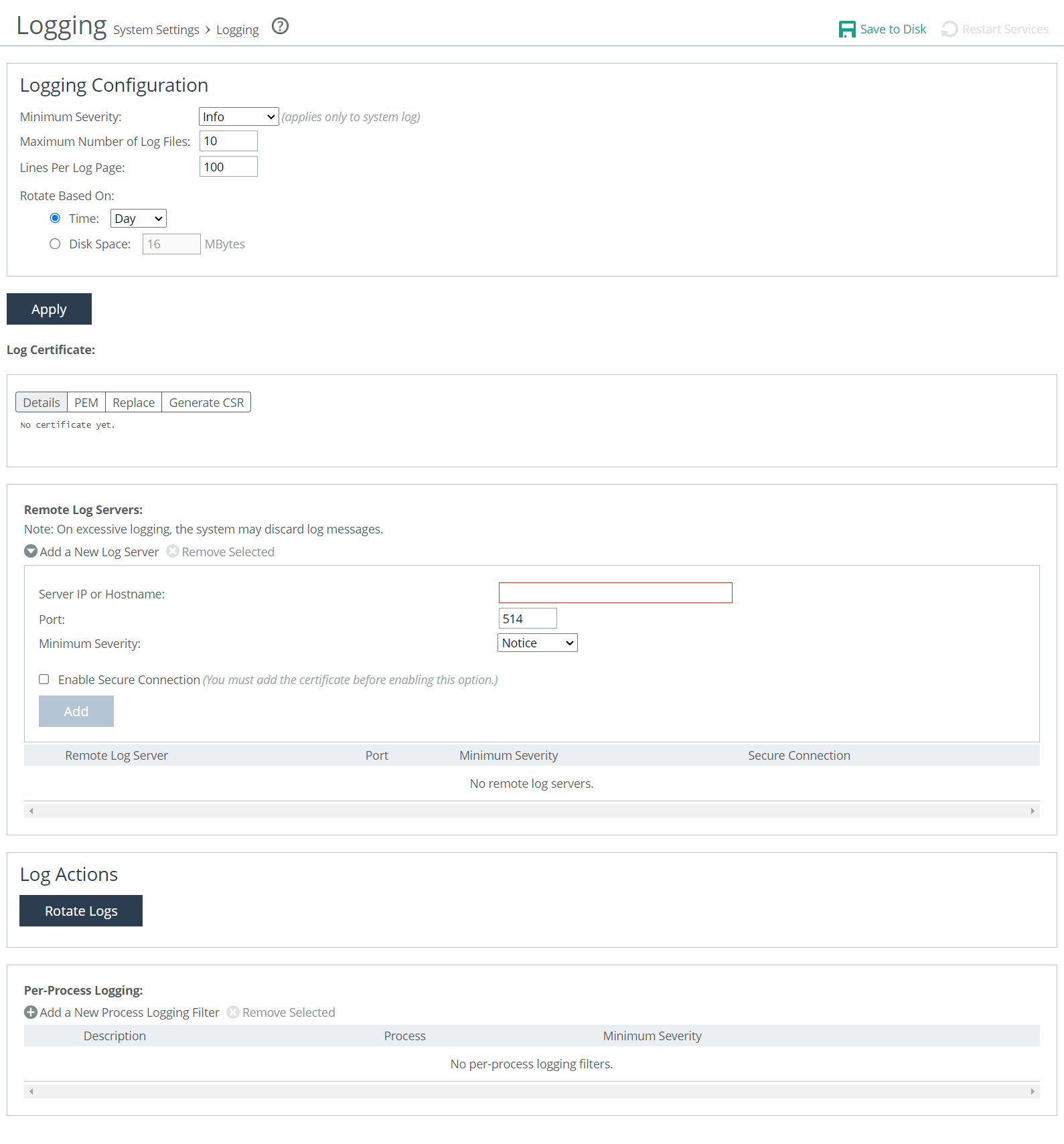
To rotate the logs manually, under Log Actions, click Rotate Logs. After the logs are rotated, this message appears:
logs successfully rotated
When you click Rotate Logs, your archived file #1 contains data for a partial day because you are writing a new log before the current 24-hour period is complete.
Under Logging Configuration, these configuration options are available:
Minimum Severity
Sets the minimum severity level for the system log messages. The log contains all messages with this severity level or higher. Select one of these levels from the drop-down list:
• Emergency indicates the system is unusable.
• Alert indicates action must be taken immediately.
• Critical indicates conditions that affect the functionality of the SteelHead.
• Error indicates conditions that probably affect the functionality of the SteelHead.
• Warning indicates conditions that could affect the functionality of the SteelHead, such as authentication failures.
• Notice indicates normal but significant conditions, such as a configuration change. This is the default setting.
• Info indicates informational messages that provide general information about system operations.
This control applies to the system log only. It doesn’t apply to the user log.
Maximum Number of Log Files
Specifies the maximum number of logs to store. The default value is 10.
Lines Per Log Page
Specifies the number of lines per log page. The default value is 100.
Rotate Based On
Specifies the rotation option:
• Time specifies Day, Week, or Month from the drop-down list. The default setting is Day.
• Disk Space specifies how much disk space, in megabytes, the log uses before it rotates. The default value is 16 MB.
The log file size is checked at 10-minute intervals. If there’s an unusually large amount of logging activity, it’s possible for a log file to grow larger than the set disk space limit in that period of time.
Adding or replacing a log certificate
To import or replace a log certificate, under Log Certificate select the Replace tab.
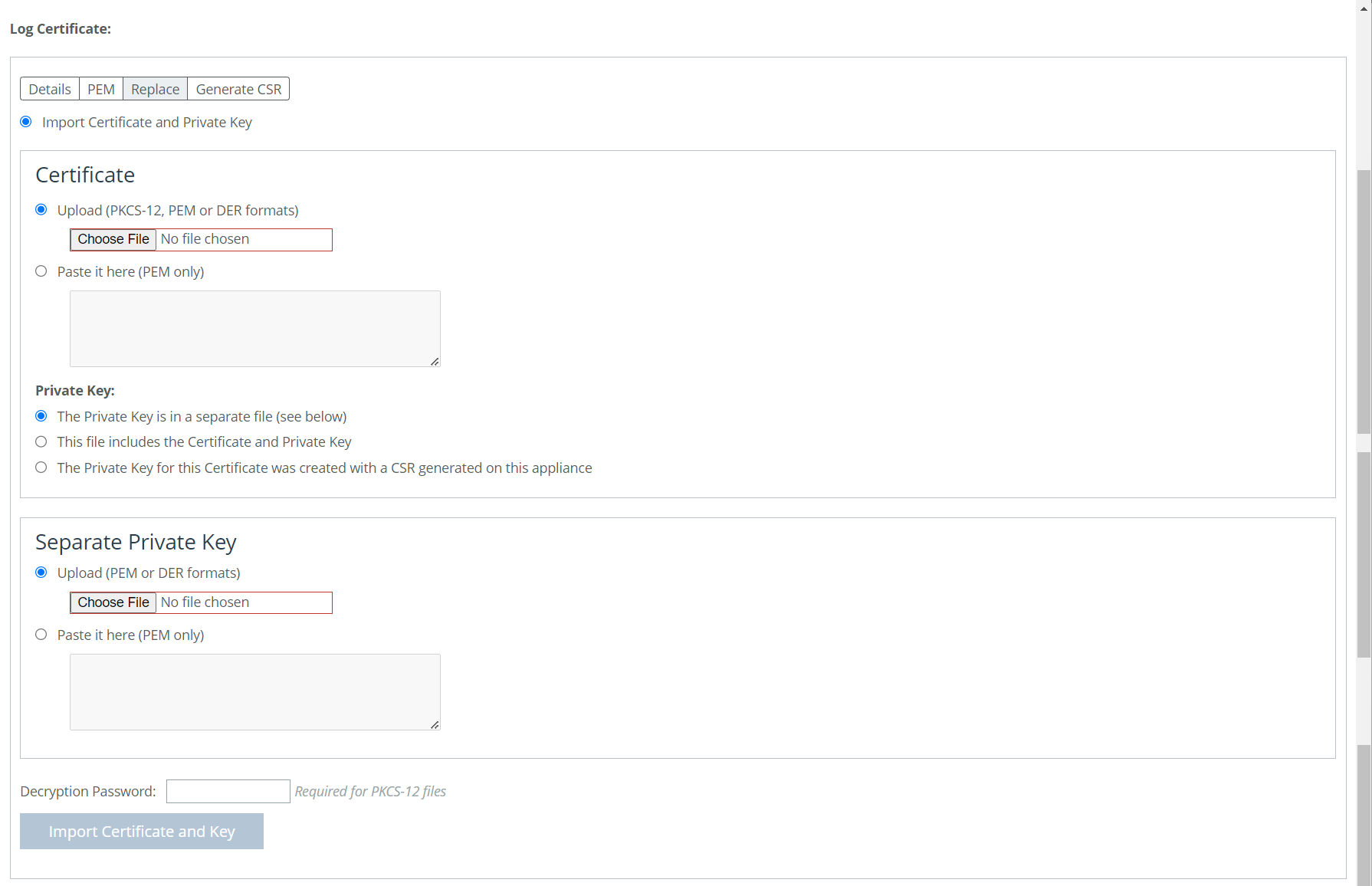
Importing or Replacing a Log Certificate
These options are available for importing a log certificate:
Import Certificate and Private Key
Imports the certificate and key. The page displays controls for browsing to and uploading the certificate and key files. You can also use the text box to copy and paste a PEM file. The private key is required regardless of whether you are adding or updating the certificate.
Under Certificate select from the following options:
Upload
Browses to the local file in PKCS-12, PEM, or DER formats.
Paste it here (PEM only)
Allows you to copy and then paste the contents of a PEM file.
Private Key
Selects the private key origin. You can choose from the following private key options:
• The Private Key is in a separate file (see below). You can either upload it or copy and paste it.
• This file includes the Certificate and Private Key.
• The Private Key for this Certificate was created with a CSR generated on this appliance.
Separate Private Key
Upload (PEM or DER formats)
Browses to the local file in PEM or DER formats.
Paste it here (PEM only)
Pastes the contents of a PEM file.
Decryption Password
Specifies the decryption password, if necessary. Passwords are required for PKCS-12 files, optional for PEM files, and never needed for DER files.
To generate a CSR, under Log Certificate select the Generate CSR tab. These configuration options are available:
Common Name
Specifies the common name (hostname).
Organization Name
Specifies the organization name (for example, the company).
Organization Unit Name
Specifies the organization unit name (for example, the section or department).
Locality
Specifies the city.
State
Specifies the state. Do not abbreviate.
Country
Specifies the country (2-letter code only).
Email Address
Specifies the email address of the contact person.
Generate CSR
Generates the Certificate Signing Request.
Adding or removing a remote log server
Remote logging supports secured and unsecured connections to remote logging servers. Secured connections are established using TLS with Reliable Event Logging Protocol (RELP). A log server certificate must be installed before a secure remote logging server can be enabled. For secure remote logging, certificates and keys are moved to the appliance’s secure vault. Ensure that the vault is unlocked before adding certificates and keys. If it is not, they will not be stored in the vault.
The default port number for secure remote logging is 514.
Remote Log Servers
adds a new remote log server from the drop-down menu.
Server IP or Hostname
specifies the server IP address or hostname of the remote log server.
Port
Specifies the port. If you are upgrading from a release that did not include a port number option, you’ll need to remove the remote log server and then add it back, specifying a port. The default is 514.
Minimum Severity
Specifies the minimum severity level for the log messages. The log contains all messages with this severity level or higher. Select one of these levels from the drop-down list:
• Emergency indicates system is unusable.
• Alert indicates action must be taken immediately.
• Critical indicates conditions that affect the functionality of the SteelHead.
• Error indicates conditions that probably affect the functionality of the SteelHead.
• Warning indicates conditions that could affect the functionality of the SteelHead, such as authentication failures.
• Notice indicates normal but significant conditions, such as a configuration change. This is the default setting.
• Info indicates informational messages that provide general information about system operations.
Enable secure connection
Enables secure remote logging. A log server certificate must be installed before a secure remote logging server can be enabled.
Filtering logs by application or process
You can filter a log by one or more applications or one or more processes on the Logging page. This is particularly useful when capturing data at a lower severity level where a SteelHead might not be able to sustain the flow of logging data the service is committing to disk.
Under Per-Process Logging, these configuration options are available:
Add a New Process Logging Filter
Displays the controls for adding a process level logging filter.
Process
Selects a process to include in the log from the drop-down list:
• alarmd—Alarm manager, which processes all alarms, including their thresholds and severity.
• collectord—Application visibility NetFlow collector.
• cifs—CIFS optimization.
• cmcfc—SCC automatic registration utility.
• rgp—SCC connector, which handles SCC appliance communication.
• rgpd—SCC client daemon, the connection manager.
• cli—Command-line interface.
• mgmtd—Device control and management, which directs the entire device management system. It handles message passing between various management daemons, managing system configuration, and general application of system configuration on the hardware underneath through the hardware abstraction layer daemon (hald).
• http—HTTP optimization.
• hald—Hardware abstraction layer daemon, which handles access to the hardware.
• notes—Lotus Notes optimization.
• mapi—MAPI optimization.
• nfs—NFS optimization.
• pm—Process manager, which handles launching of internal system daemons and keeps them running.
• qosd—QoS scheduler and DPI engine.
• rscored—REST API core services.
• rstild—REST translation interface layer.
• sched—Process scheduler, which handles one-time scheduled events.
• ssl—SSL optimization.
• statsd—Statistics collector, which handles queries, storage, and trending of system statistics.
• wdt—Watchdog timer, the motherboard watchdog daemon.
• webasd—web application process, which handles the web user interface.
• domain auth—Windows domain authentication.
Minimum Severity
Specifies the minimum severity level for the log messages. The log contains all messages with this severity level or higher. Select a level from the drop-down list:
• Emergency indicates the system is unusable.
• Alert indicates action must be taken immediately.
• Critical indicates conditions that affect the functionality of the SteelHead.
• Error indicates conditions that probably affect the functionality of the SteelHead.
• Warning indicates conditions that could affect the functionality of the SteelHead, such authentication failures.
• Notice indicates normal but significant conditions, such as a configuration change.
• Info indicates informational messages that provide general information about system operations.
Add
Adds the filter to the list. The process now logs at the selected severity and higher level.
About the date and time settings
Settings for the system date and time are under Administration > System Settings: Date/Time.
Date/Time page
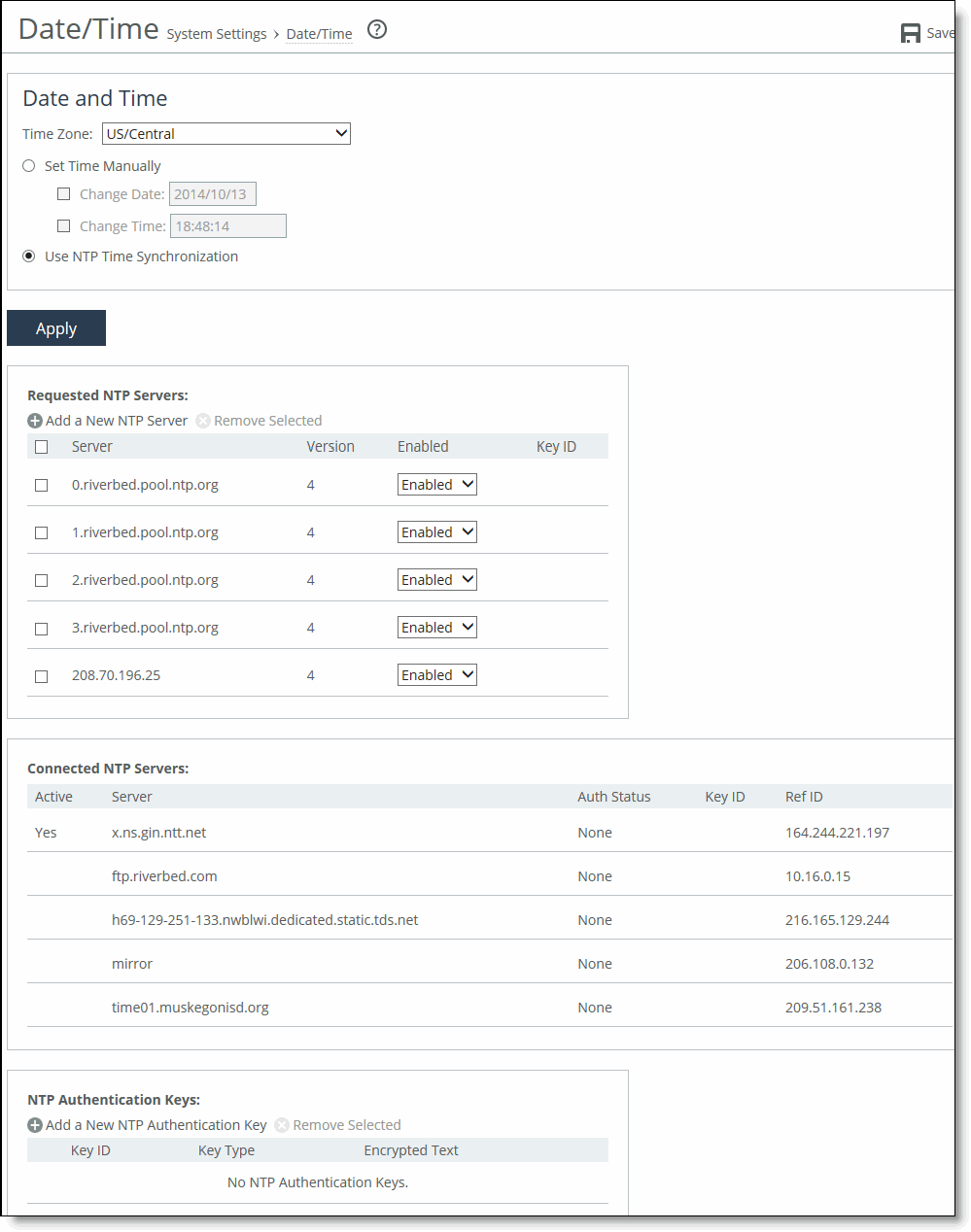
You can either set the system date and time by entering it manually or assigning an NTP server to the SteelHead. By default, the appliance uses the Riverbed-provided NTP server and these public NTP servers:
• 0.riverbed.pool.ntp.org
• 1.riverbed.pool.ntp.org
• 2.riverbed.pool.ntp.org
• 3.riverbed.pool.ntp.org
Setting the date and time manually
Under Date and Time, click Set Time Manually. These configuration options are available:
Time Zone
Specifies a time zone from the drop-down list. The default value is GMT. If you change the time zone, log messages retain the previous time zone until you reboot.
Change Date
Specifies the date in this format: yyyy/mm/dd
Change Time
Specifies 24-hour clock time in this format: hh:mm:ss
Using Network Time Protocol time synchronization
Under Date and Time, click Use NTP Time Synchronization.
As a best practice, configure your own internal NTP servers; however, you can use the Riverbed-provided NTP server and public NTP servers. The hard-coded IP address that is preconfigured into every SteelHead is 208.70.196.25. This IP address and the public NTP servers are enabled by default and appear in the requested NTP server list.
Current NTP server status
NTP server state information appears in these server tables:
• Requested NTP server table displays all of the configured NTP server addresses.
• Connected NTP server table displays all of the servers to which the SteelHead is actually connected.
When you request a connection to an NTP server in a public NTP server pool, the server IP address doesn’t map to the actual NTP server to which the SteelHead connects. For example, if you request *.riverbed.pool.ntp.org, querying the pool address doesn’t return the IP address of the pool hostname, but instead returns the IP address of an NTP server within its pool. For example, when resolving 0.riverbed.pool.ntp.org returns the first NTP server, the connected NTP server table displays the IP address of this first NTP server.
This information appears after an NTP server name:
• Authentication information; unauthenticated appears after the server name when it isn’t using authentication.
• When RiOS has no NTP information about the current server, nothing appears.
NTP authentication
NTP authentication verifies the identity of the NTP server sending timing information to the SteelHead. RiOS 8.5 and later support MD5-based Message-Digest Algorithm symmetric keys and Secure Hash Algorithm (SHA1) for NTP authentication. MD5 is a widely used cryptographic hash function that produces a 128-bit (16-byte) hash value. SHA1 is a set of related cryptographic hash functions. SHA1 is considered to be the successor to MD5.
NTP authentication is optional.
Configuring NTP authentication involves these tasks that you can perform in any order:
• Configure a key ID and a secret pair.
• Configure the key type.
• Configure the NTP server with the key ID.
NTP servers
The default NTP configuration points to the Riverbed-provided NTP server IP address 208.70.196.25 and these public NTP servers:
• 0.riverbed.pool.ntp.org
• 1.riverbed.pool.ntp.org
• 2.riverbed.pool.ntp.org
• 3.riverbed.pool.ntp.org
We recommend synchronizing the SteelHead to an NTP server of your choice.
Adding an NTP server
Under Requested NTP servers on the Date/Time page, these configuration options are available:
Add a New NTP Server
Displays the controls to add a server.
Hostname or IP Address
Specifies the hostname or IP address for the NTP server. You can connect to an NTP public server pool: for example, 0.riverbed.pool.ntp.org. When you add an NTP server pool, the server is selected from a pool of time servers. Starting with RiOS 9.5, you can use IPv6 addresses.
Version
Indicates the NTP server version from the drop-down list: 3 or 4.
Enabled/Disabled
Specifies Enabled from the drop-down list to connect to the NTP server. Select Disabled from the drop-down list to disconnect from the NTP server.
Key ID
Specifies the MD5 or SH1 key identifier to use to authenticate the NTP server. The valid range is from 1 to 65534. The key ID must appear on the trusted keys list.
Add
Adds the NTP server to the server list.
NTP authentication keys
NTP authentication uses a key and a shared secret to verify the identity of the NTP server sending timing information to the SteelHead. RiOS encrypts the shared secret text using MD5 or SHA1, and uses the authentication key to access the secret.
Adding an NTP authentication key
In the Date/Time page, these configuration options are available:
Add a New NTP Authentication Key
Displays the controls to add an authentication key to the key list. Both trusted and untrusted keys appear on the list.
Key ID
Specifies the secret MD5 or SHA1 key identifier for the NTP server. The valid range is from 1 to 65534.
Key Type
Selects the authentication key type: MD5 or SHA1.
Secret
Specifies the shared secret. You must configure the same shared secret for both the NTP server and the NTP client.
The MD5 shared secret:
• is limited to 16 alphanumeric characters or fewer, or exactly 40 characters hexadecimal.
• can’t include spaces or pound signs (#)
• can’t be empty
• is case sensitive
The SHA1 shared secret:
• is limited to exactly 40 characters hexadecimal
• can’t include spaces or pound signs (#)
• can’t be empty
• is case sensitive
The secret appears in the key list as its MD5 or SHA1 hash value.
Add
Adds the authentication key to the trusted keys list.
NTP key information
NTP keys appear in a list that includes the key ID, type, secret (displays as the MD5 or SHA1 hash value), and whether RiOS trusts the key for authentication.
You can only remove a key from the trust list using the CLI command ntp authentication trustedkeys. For details, see the Riverbed Command-Line Interface Reference Guide.
About monitored ports
Settings for the TCP ports to monitor are under Administration > System Settings: Monitored Ports. The ports you specify appear in the Traffic Summary report. Make sure the description you specify helps you identify the type of traffic on the port.
Monitored Ports page
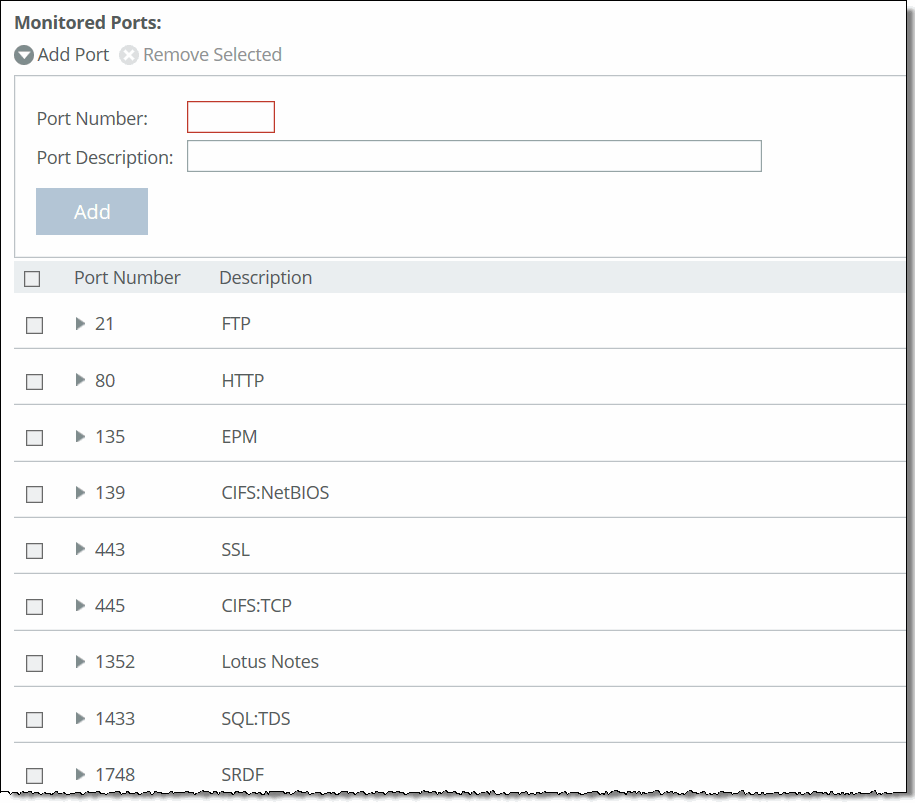
The SteelHead automatically discovers all the ports in the system that have traffic. Discovered ports, with a label (if one exists), are added to the Traffic Summary report. If a label doesn’t exist then an unknown label is added to the discovered port. To change the unknown label to a name representing the port, you must add the port with a new label. All statistics for this new port label are preserved from the time the port was discovered.
By default, traffic is monitored on ports 21 (FTP), 80 (HTTP), 135 (EPM), 139 (CIFS:NetBIOS), 443 (SSL), 445 (CIFS:TCP), 1352 (Lotus Notes), 1433 (SQL:TDS), 1748 (SRDF), 3225 (FCIP), 3226 (FCIP), 3227 (FCIP), 3228 (FCIP), 7830 (MAPI), 7919 (IP Blade), 8777 (RCU), 8778 (SMB Signed), 8779 (SMB2), 8780 (SMB2 Signed), 8781 (SMB3), 8782 (SMB3 Signed), 8783 (SMB3 Encrypted), and 10566 (SnapMirror).
These configuration options are available:
Add Port
Displays the controls to add a new port.
Port Number
Specifies the port to be monitored.
Port Description
Specifies a description of the type of traffic on the port.
Add
Displays the controls for adding a port.
To modify a monitored port, click the right arrow next to the port. These configuration options are available:
Port Description
Specifies a description of the type of traffic on the port.
Apply
Applies your settings to the running configuration.
About SNMP settings
Settings for configuring the SNMP contact and trap receiver to allow events to be reported to an SNMP entity are under Administration > System Settings: SNMP Basic.
SNMP Basic page
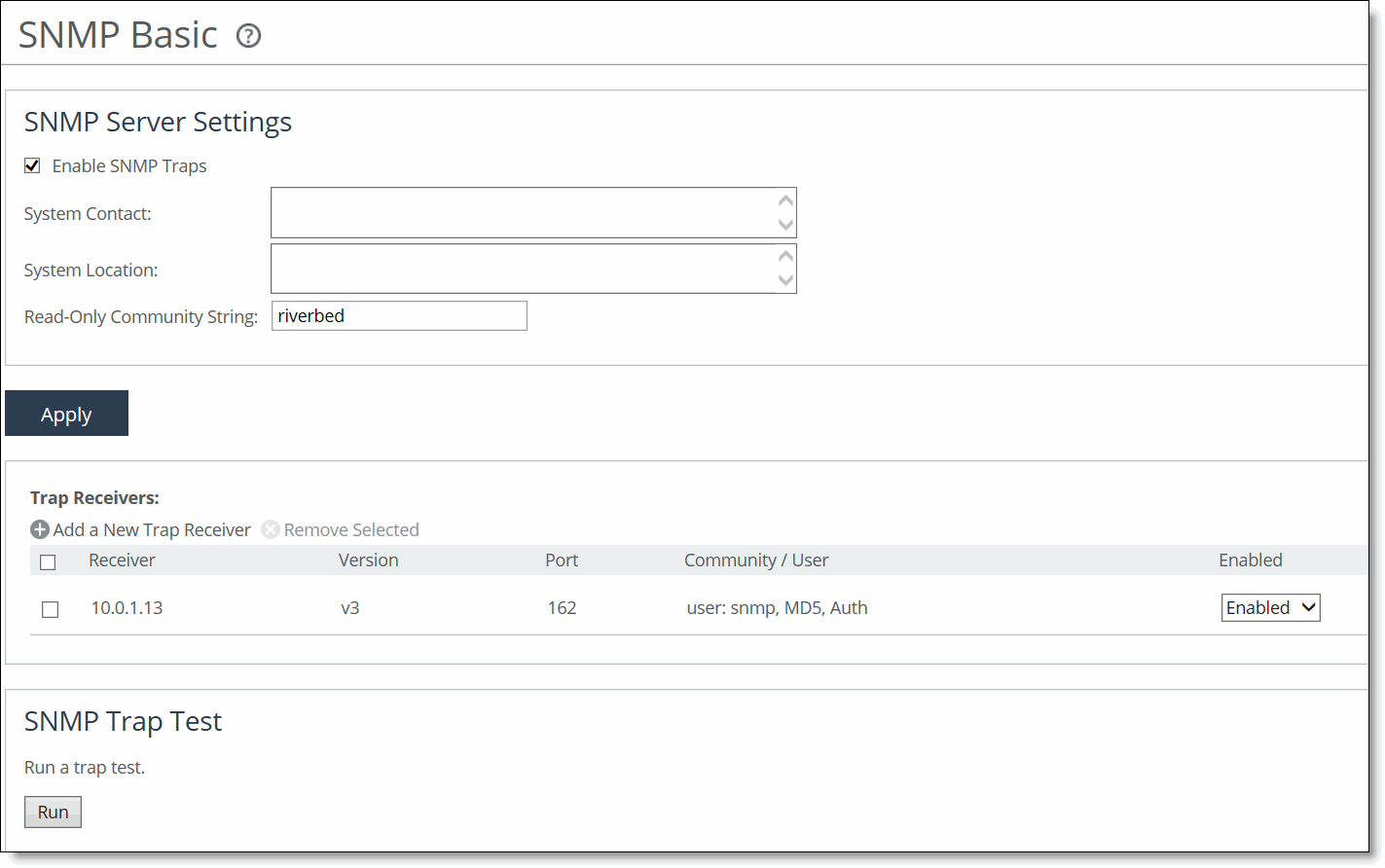
Traps are messages sent by an SNMP entity that indicate the occurrence of an event. The default system configuration doesn’t include SNMP traps.
RiOS provides support for these SNMP versions:
• Version 1
• Version 2c
• SNMP Version 3, which provides authentication through the User-based Security Model (USM).
• View-Based Access Control Mechanism (VACM), which provides richer access control.
• SNMP Version 3 authentication using AES 128 and DES encryption privacy.
You set the default community string on the SNMP Basic page.
Setting general SNMP parameters
Under SNMP Server Settings, these configuration options are available:
Enable SNMP Traps
Enables event reporting to an SNMP entity.
System Contact
Specifies the username for the SNMP contact.
System Location
Specifies the physical location of the SNMP system.
Read-Only Community String
Specifies a password-like string to identify the read-only community: for example, public. This community string overrides any VACM settings. Community strings can’t contain the pound sign (#).
Adding or removing a trap receiver
Under Trap Receivers, these configuration options are available:
Add a New Trap Receiver
Displays the controls to add a new trap receiver.
Receiver
Specifies the destination IPv4 or IPv6 address or hostname for the SNMP trap.
Destination Port
Specifies the destination port.
Receiver Type
Indicates SNMP v1, v2c, or v3 (user-based security model).
Remote User
(Appears only when you select v3.) Specifies a remote username.
Authentication
(Appears only when you select v3.) Indicates either Supply a Password or Supply a Key to use while authenticating users.
Authentication Protocol
(Appears only when you select v3.) Specifies an authentication method from the drop-down list:
• MD5 specifies the Message-Digest 5 algorithm, a widely used cryptographic hash function with a 128-bit hash value. This is the default value.
• SHA specifies the Secure Hash Algorithm, a set of related cryptographic hash functions. SHA is considered to be the successor to MD5.
Password/Password Confirm
(Appears only when you select v3 and Supply a Password.) Specifies a password. The password must have a minimum of eight characters. Confirm the password in the Password Confirm text box.
Security Level
(Appears only when you select v3.) Determines whether a single atomic message exchange is authenticated. Select one of these levels from the drop-down list:
• No Auth doesn’t authenticate packets and doesn’t use privacy. This is the default setting.
• Auth authenticates packets but doesn’t use privacy.
• AuthPriv authenticates packets using AES 128 and DES to encrypt messages for privacy.
A security level applies to a group, not to an individual user.
Privacy Protocol
(Appears only when you select v3 and AuthPriv.) Indicates either the AES or DES protocol from the drop-down list. AES uses the AES128 algorithm.
Privacy
(Appears only when you select v3 and AuthPriv.) Indicates Same as Authentication Key, Supply a Password, or Supply a Key to use while authenticating users. The default setting is Same as Authentication Key.
Privacy Password
(Appears only when you select v3 and Supply a Password.) Specifies a password. The password must have a minimum of eight characters. Confirm the password in the Privacy Password Confirm text box.
MD5/SHA Key
(Appears only when you select v3 and Authentication as Supply a Key.) Specifies a unique authentication key. The key is either a 32-hexadecimal digit MD5 or a 40-hexadecimal digit SHA digest created using md5sum or sha1sum.
Privacy MD5/SHA Key
(Appears only when you select v3 and Privacy as Supply a Key.) Specifies the privacy authentication key. The key is either a 32-hexadecimal digit MD5 or a 40-hexadecimal digit SHA digest created using md5sum or sha1sum.
Community
(For v1 or v2 trap receivers.) Specifies the SNMP community name. For example, public or private v3 trap receivers need a remote user with an authentication protocol, a password, and a security level.
Enable Receiver
Enables the new trap receiver. Clear the check box to disable the receiver.
Add
Adds a new trap receiver to the list.
About SNMPv3
SNMPv3 provides additional authentication and access control for message security. For example, you can verify the identity of the SNMP entity (manager or agent) sending the message.
Settings for creating users for SNMPv3 are under Administration > System Settings: SNMP v3.
SNMP v3 page
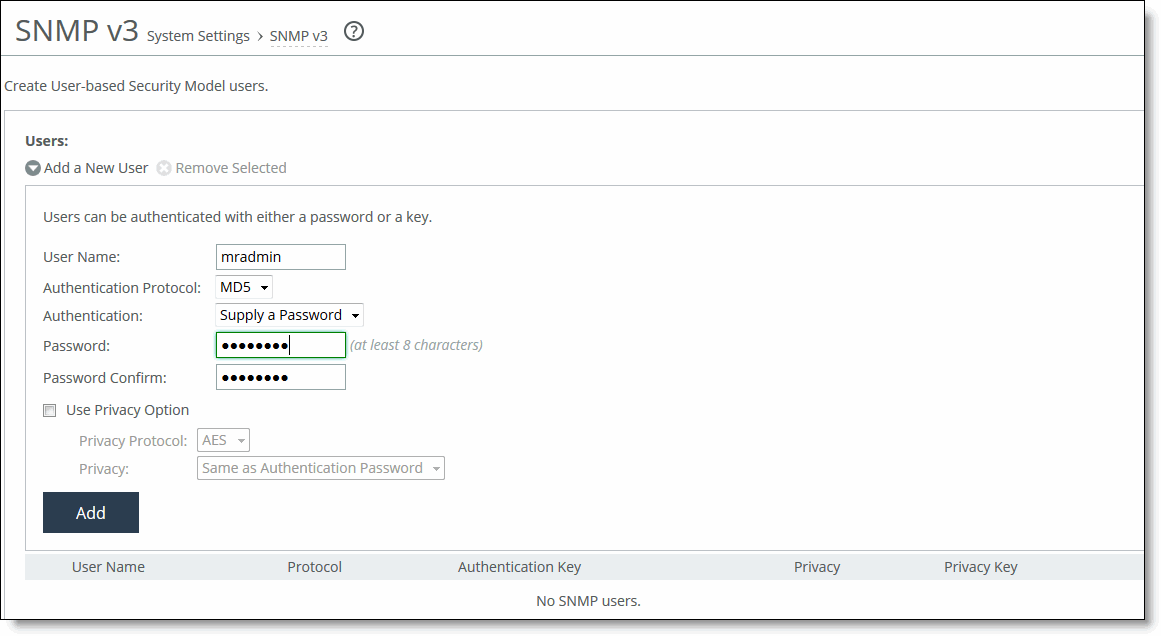
RiOS 7.0 and later support SNMPv3 message encryption for increased security.
Using SNMPv3 is more secure than SNMPv1 or v2; however, it requires more configuration steps to provide the additional security features.
These are the basic configuration steps:
1. Create the SNMP-server users. Users can be authenticated using either a password or a key.
2. Configure SNMP-server views to define which part of the SNMP MIB tree is visible.
3. Configure SNMP-server groups, which map users to views, allowing you to control who can view what SNMP information.
4. Configure the SNMP-server access policies that contain a set of rules defining access rights. Based on these rules, the entity decides how to process a given request.
Creating users for SNMPv3
These configuration options are available:
Add a New User
Displays the controls to add a new user.
User Name
Specifies the username.
Authentication Protocol
Indicates an authentication method from the drop-down list:
• MD5—Specifies the Message-Digest 5 algorithm, a widely used cryptographic hash function with a 128-bit hash value. This is the default value.
• SHA—Specifies the Secure Hash Algorithm, a set of related cryptographic hash functions. SHA is considered to be the successor to MD5.
Authentication
Indicates either Supply a Password or Supply a Key to use while authenticating users.
Password/Password Confirm
Specifies a password. The password must have a minimum of eight characters. Confirm the password in the Password Confirm text box.
Use Privacy Option
Indicates to use SNMPv3 encryption.
Privacy Protocol
Indicates either the AES or DES protocol from the drop-down list. AES uses the AES128 algorithm.
Privacy
Indicates Same as Authentication, Supply a Password, or Supply a Key to use while authenticating users. The default setting is Same as Authentication.
Privacy Password
(Appears only when you select Supply a Password.) Specifies a password. The password must have a minimum of eight characters. Confirm the password in the Privacy Password Confirm text box.
Key
(Appears only when you select Supply a Key.) Specifies a unique authentication key. The key is an MD5 or SHA-1 digest created using md5sum or sha1sum.
MD5/SHA Key
(Appears only when you select Supply a Key.) Specifies a unique authentication key. The key is either a 32-hexadecimal digit MD5 or a 40-hexadecimal digit SHA digest created using md5sum or sha1sum.
Add
Adds the user.
SNMP authentication and access control
The features in this page apply to SNMPv1, v2c, and v3 unless noted otherwise:
Security Names
Identifies an individual user (v1 or v2c only).
Secure Groups
Identifies a security-name, security model by a group, and referred to by a group-name.
Secure Views
Creates a custom view using the VACM that controls who can access which MIB objects under agent management by including or excluding specific OIDs. For example, some users have access to critical read-write control data, while some users have access only to read-only data.
Security Models
Identifies the SNMP version associated with a user for the group in which the user resides.
Secure Access Policies
Defines who gets access to which type of information. An access policy is composed of <group-name, security-model, security-level, read-view-name>.
An access policy is the configurable set of rules, based on which the entity decides how to process a given request.
About secure usernames
Settings for secure usernames are under Administration > System Settings: SNMP ACLs.
SNMP ACLs page - security names
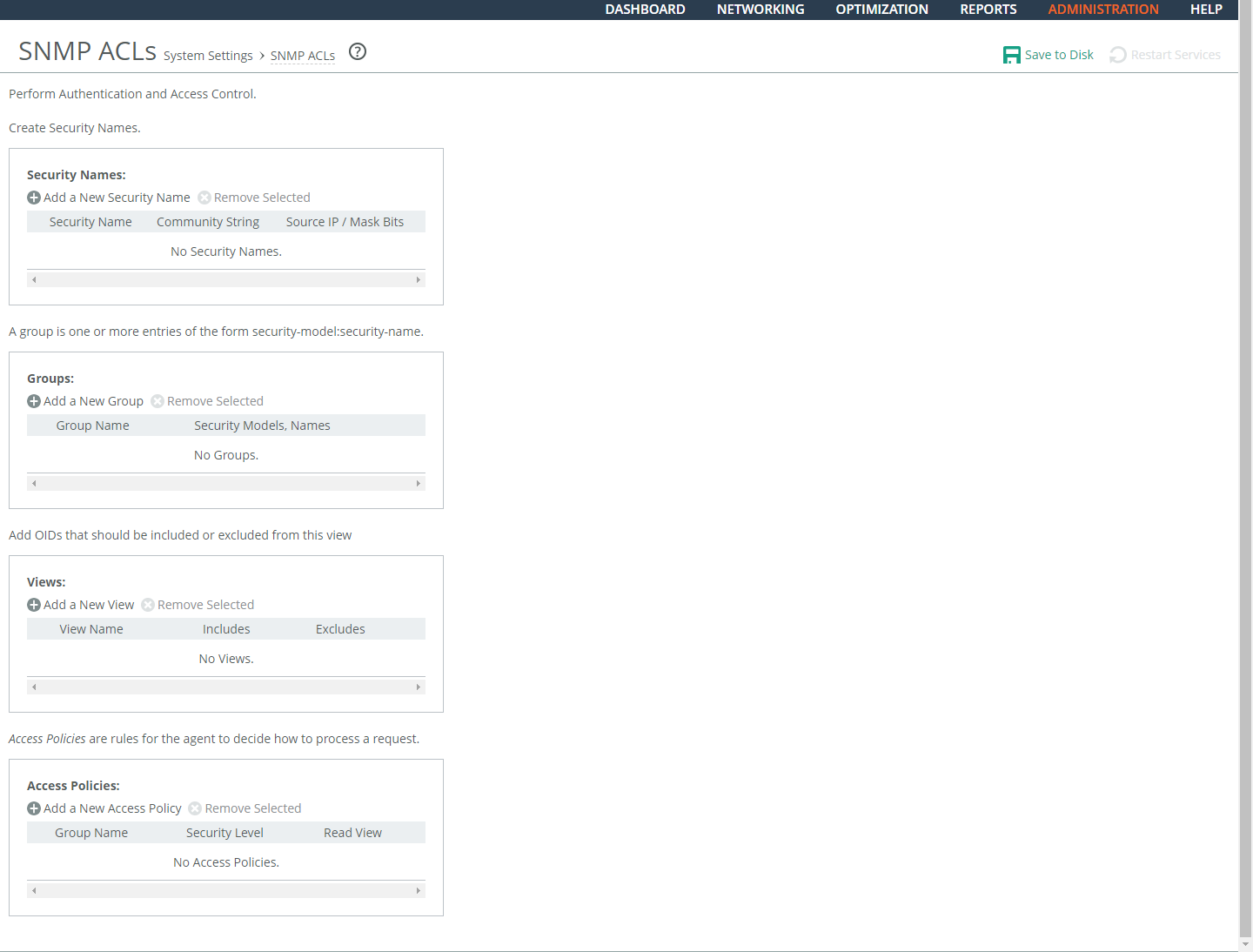
Under Security Names, these configuration options are available:
Add a New Security Name
Displays the controls to add a security name.
Security Name
Specifies a name to identify a requestor allowed to issue gets and sets (v1 and v2c only). The specified requestor can make changes to the view-based access-control model (VACM) security name configuration. This control doesn’t apply to SNMPv3 queries. To restrict v3 USM users from polling a particular subnet, use the RiOS Management ACL feature, located in the Administration > Security: Management ACL page. Traps for v1 and v2c are independent of the security name.
Community String
Specifies the password-like community string to control access. Use a combination of uppercase, lowercase, and numerical characters to reduce the chance of unauthorized access to the SteelHead. Community strings don’t allow printable 7-bit ASCII characters, except for white spaces. Also, the community strings can’t begin with a pound sign (#) or a hyphen (-). If you specify a read-only community string (located in the SNMP Basic page under SNMP Server Settings), it takes precedence over this community name and allows users to access the entire MIB tree from any source host. If this is not desired, delete the read-only community string. To create multiple SNMP community strings on a SteelHead, leave the default public community string and then create a second read-only community string with a different security name. You can also delete the default public string and create two new SNMP ACLs with unique names.
Source IP Address and Mask Bits
Specifies the host IPv4 or IPv6 address and mask bits to which you permit access using the security name and community string.
Add
Adds the security name.
Setting secure groups
In the SNMP ACLS page under Groups, these configuration options are available:
Add a New Group
Displays the controls to add a new group.
Group Name
Specifies a group name.
Security Models and Name Pairs
Enables you to click the + button and select a security model from the drop-down list:
• v1 or v2c displays another drop-down menu. Select a security name.
• v3 (usm) displays another drop-down menu. Select a user.
To add another Security Model and Name pair, click the plus sign (+).
Add
Adds the group name and security model and name pairs.
Setting secure views
In the SNMP ACLS page under Views, these configuration options are available:
Add a New View
Displays the controls to add a new view.
View Name
Specifies a descriptive view name to facilitate administration.
Includes
Specifies the Object Identifiers (OIDs) to include in the view, separated by commas. For example, .1.3.6.1.4.1. By default, the view excludes all OIDs. You can specify .iso or any subtree or subtree branch. You can specify an OID number or use its string form. For example, .iso.org.dod.internet.private.enterprises.rbt.products.steelhead.system.model
Excludes
Specifies the OIDs to exclude in the view, separated by commas. By default, the view excludes all OIDs.
Add
Adds the view.
Adding an access policy
In the SNMP ACLS page under Access Policies, these configuration options are available:
Add a New Access Policy
Displays the controls to add a new access policy.
Group Name
Specifies a group name from the drop-down list.
Security Level
Determines whether a single atomic message exchange is authenticated. Select one of these from the drop-down list:
• No Auth doesn’t authenticate packets and doesn’t use privacy. This is the default setting.
• Auth authenticates packets but doesn’t use privacy.
• AuthPriv authenticates packets using AES or DES to encrypt messages for privacy.
A security level applies to a group, not to an individual user.
Read View
Specifies a view from the drop-down list.
Add
Adds the policy to the policy list.