About Routine Management
After an appliance is properly deployed and configured, typically there is very little maintenance or further management required. However, there may be times when you’ll need to stop and restart the service, configure an automated job, change security settings, or perform other activities.
Starting, stopping, and restarting the optimization service
Settings for starting, stopping, and restarting the optimization service are under Administration > Maintenance: Services. This page also lets you reset the optimization service alarm if it has been triggered.
The optimization service runs in the background and performs tasks as needed, with many commands starting automatically when the system boots up. If you make changes to your configuration, it's important to restart the service to apply them.
Keep in mind that restarting the optimization service will interrupt any current network connections being handled by the SteelHead.
To manage the optimization service, click Stop, Start, or Restart under the Optimization Service section. To clear data from the RiOS data store, click Clear Data Store.
The reset option will only appear after RiOS has triggered the alarm. When it does, click Reset Service alarm.
Configuring scheduled jobs
Settings to view completed, pending, inactive jobs, as well as jobs that were not completed because of an error are under Administration > Maintenance: Scheduled Jobs. You can also delete a job, change its status, or modify its properties.
Jobs are commands that are scheduled to execute at a time you specify.
You can use the Management Console to:
• schedule an appliance reboot or shut down.
• generate multiple TCP trace dumps on a specific date and time.
To schedule all other jobs, you must use the Riverbed CLI.
For details about scheduling jobs using the CLI, see the Riverbed Command-Line Interface Reference Guide.
Scheduled Jobs page
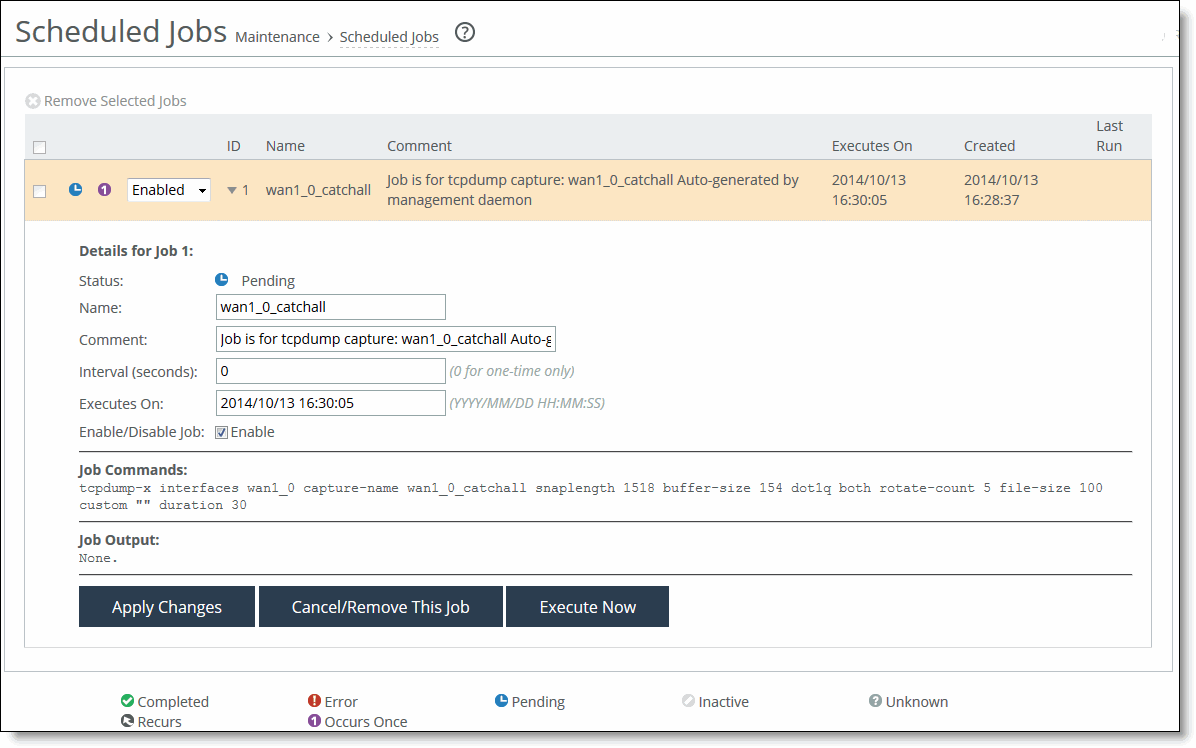
Select Enabled or Disabled from the drop-down list to enable or disable the job. Select the Job ID number to display details about the job.
Under Details for Job <#>, these configuration options are available:
Name
Specifies a name for the job.
Comment
Specifies a comment.
Interval (seconds)
Specifies the number of seconds between job recurrences. Specify 0 to run the job one-time only.
Executes on
Specifies the start time and end time using this format: yyyy/mm/dd hh:mm:ss
Enable/Disable Job
Enables or disables the job. Select the check box to enable the job, clears the check box to disable the job.
Interval (seconds)
Specifies how often the job runs. The default value is 0, which runs the job once.
Executes On
Specifies the date on which the job runs.
Enable/Disable Job
Enables the job to run at the specified date or clear to prevent the job from running.
Apply Changes
Applies the changes to the current configuration.
Cancel/Remove This Job
Cancels and removes the job.
Execute Now
Runs the job.
Remove Selected Jobs
Removes the job. Select the check box next to the name and click Remove Selected Jobs.
Viewing system permissions
Settings to display your system permissions and add or change your login password are under Administration > System Settings: My Account.
These configuration options are available under Password:
Change Password
Allows you to add or change your login password.
New Password/Confirm New Password
Specifies a password in the text box. Retype the password in the Confirm New Password text box.
Old Password
Appears when password policy is enabled and the Minimum Character Difference Between Passwords value is greater than 0. Non-administrators must specify the old password.
Administrators are never required to enter an old password when changing an account password.
After you click Apply, the permissions list displays the roles and permissions assigned to your username.
For details about setting user permissions, see
Managing user permissions.
The My Account page includes a way to clear user preferences if any user settings result in an unsafe state and the Management Console can’t display the page.
User preferences are set for individual users and don’t affect the appliance configuration.
To restore the user preferences for the current user, choose My Account to display the My Account page. Under User Preferences, click Restore Defaults.
Managing configuration files
Each SteelHead appliance has two types of configurations: the active (running) configuration and the saved (written) configuration. When you click Apply in the Management Console, your changes are applied to the active configuration, but they are not saved permanently. To make your changes permanent, you must click Save, which writes the configuration to disk. These saved settings take effect after restarting the optimization service.
Every time you save a configuration, the current running configuration is backed up. For example, if your configuration is named myconfig, saving it will create a backup called myconfig.bak, and myconfig will be updated with the new settings.
The Configuration Manager tool helps manage these files by saving backups or active configurations. It also includes an Import Configuration feature, which is useful in two common situations:
• Replacing a SteelHead appliance—You can import the network settings from the old appliance (excluding licenses) to the new one and switch configurations after disconnecting the old unit.
• Large deployments—You can create a template configuration on one SteelHead and import it to others, avoiding the need to manually configure each appliance.
Configurations page
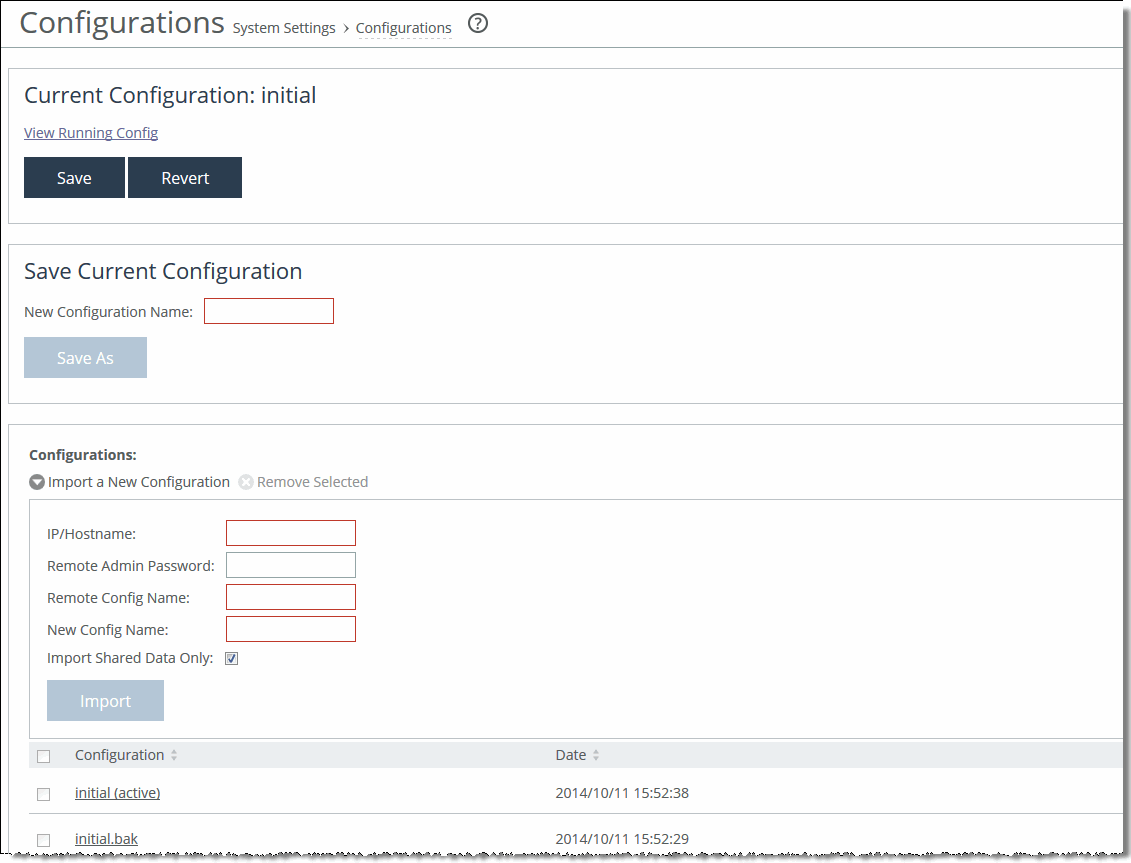
Under Current Configuration: <filename>, these configuration options are available:
Current Configuration: <configuration name> View Running Config
Displays the running configuration settings in a new browser window.
Save
Saves settings that have been applied to the running configuration.
Revert
Reverts your settings to the running configuration.
Save Current Configuration
Specifies a new filename to save settings that have been applied to the running configuration as a new file, and then click Save.
To import a configuration from another appliance, these configuration options are available:
Import a New Configuration
Displays the controls to import a configuration from another appliance.
IP/Hostname
Specifies the IP address or hostname of the SteelHead from which you want to import the configuration.
Remote Admin Password
Specifies the administrator password for the remote SteelHead.
Remote Config Name
Specifies the name of the configuration you want to import from the remote SteelHead.
New Config Name
Specifies a new, local configuration name.
Import Shared Data Only
Takes a subset of the configuration settings from the imported configuration and combines them with the current configuration to create a new configuration. Import shared data is enabled by default.
Add
Activates the imported configuration and makes it the current configuration when the Import Shared Data Only check box is selected This is the default. When the Import Shared Data Only check box is not selected, adds the imported configuration to the Configuration list. It doesn’t become the active configuration until you select it from the list and click Activate.
Change Active Configuration
Activates the configuration from the drop-down list.
Select the configuration name to display the configuration settings in a new browser window.
Configuring general security settings
Settings to prioritize local, RADIUS, and TACACS+ authentication methods for the system and to set the authorization policy and default user for RADIUS and TACACS+ authorization systems are under Administration > Security: General Settings.
Make sure to put the authentication methods in the order in which you want authentication to occur. If authorization fails on the first method, the next method is attempted, and so on, until all of the methods are attempted.
To set TACACS+ authorization levels (admin or read-only) to allow certain members of a group to log in, add this attribute to users on the TACACS+ server:
service = rbt-exec {
local-user-name = “monitor”
}
where you replace monitor with admin for write access.
For details about setting up RADIUS and TACACS+ servers, see the SteelHead Deployment Guide.
Perform this task to set general security settings:
These configuration options are available under Authentication Methods:
Authentication Methods
Specifies the authentication method. Select an authentication method from the drop-down list. The methods are listed in the order in which they occur. If authorization fails on the first method, the next method is attempted, and so on, until all of the methods have been attempted.
For RADIUS/TACACS+, fallback only when servers are unavailable
Prevents local login if the RADIUS or TACACS+ server denies access, but allow local login if the RADIUS or TACACS+ server is not available.
Safety Account
Creates a safety account so that admin or sys admin users can login to the SteelHead even if remote authentication servers are unreachable. A safety account increases security and conforms to US National Institute of Standards and Technology (NIST) requirements. Only the selected safety account will be allowed to login in cases where the AAA server isn’t reachable. (Only one user can be assigned to the safety account.) Settings to create a system administrator user are under Administrator > Security: User Permissions. For details, see
Managing user permissions.Safety Account User
Selects the user from the drop-down list.
Authorization Policy
Appears only for some Authentication Methods. Optionally, select one of these policies from the drop-down list:
• Remote First checks the remote server first for an authentication policy, and only checks locally if the remote server doesn’t have one set. This is the default behavior.
• Remote Only only checks the remote server.
• Local Only only checks the local server. All remote users are mapped to the user specified. Any vendor attributes received by an authentication server are ignored.
Managing user permissions
Settings to change the administrator or monitor user passwords and define users are under Administration > Security: User Permissions.
Accounts
The system uses different types of user accounts based on what actions a user is allowed to perform. There are two main user types: Admin and Monitor. An Admin (system administrator) has full access to all features. Admins can change configuration settings, manage users, restart services, reboot the SteelHead, and view reports. Admins can also assign or remove system administrator roles for other users, but not for themselves.
A Monitor user has limited access. They can view reports and user logs, and change their own password, but they cannot modify settings, view sensitive logs, or manage cryptographic tools.
You can create new users, assign passwords, and set their roles with different levels of permissions:
• Read-only: Can view settings but cannot make any changes.
• Read/Write: Can both view and change settings for specific features.
• Deny: Cannot view or change any settings for a specific feature.
For example, user Jane might be allowed to change settings for QoS and SSL, user John can only view those settings, and user Joe has no access to them at all.
The menu items a user sees depend on their permissions. Any options they don't have access to will be hidden or disabled. If a user tries to access a restricted feature, they'll be directed to the User Permissions page.
Managing password policy
Settings to change the password policy and strength are under Administration > Security: Password Policy.
Selecting a password policy
You can choose one of these password policy templates, depending on your security requirements:
Strong
Sets the password policy to more stringent enforcement settings. Selecting this template automatically prepopulates the password policy with stricter settings commonly required by higher security standards such as for the Department of Defense.
Basic
Reverts the password policy to its predefined settings so you can customize your policy.
Password Policy page
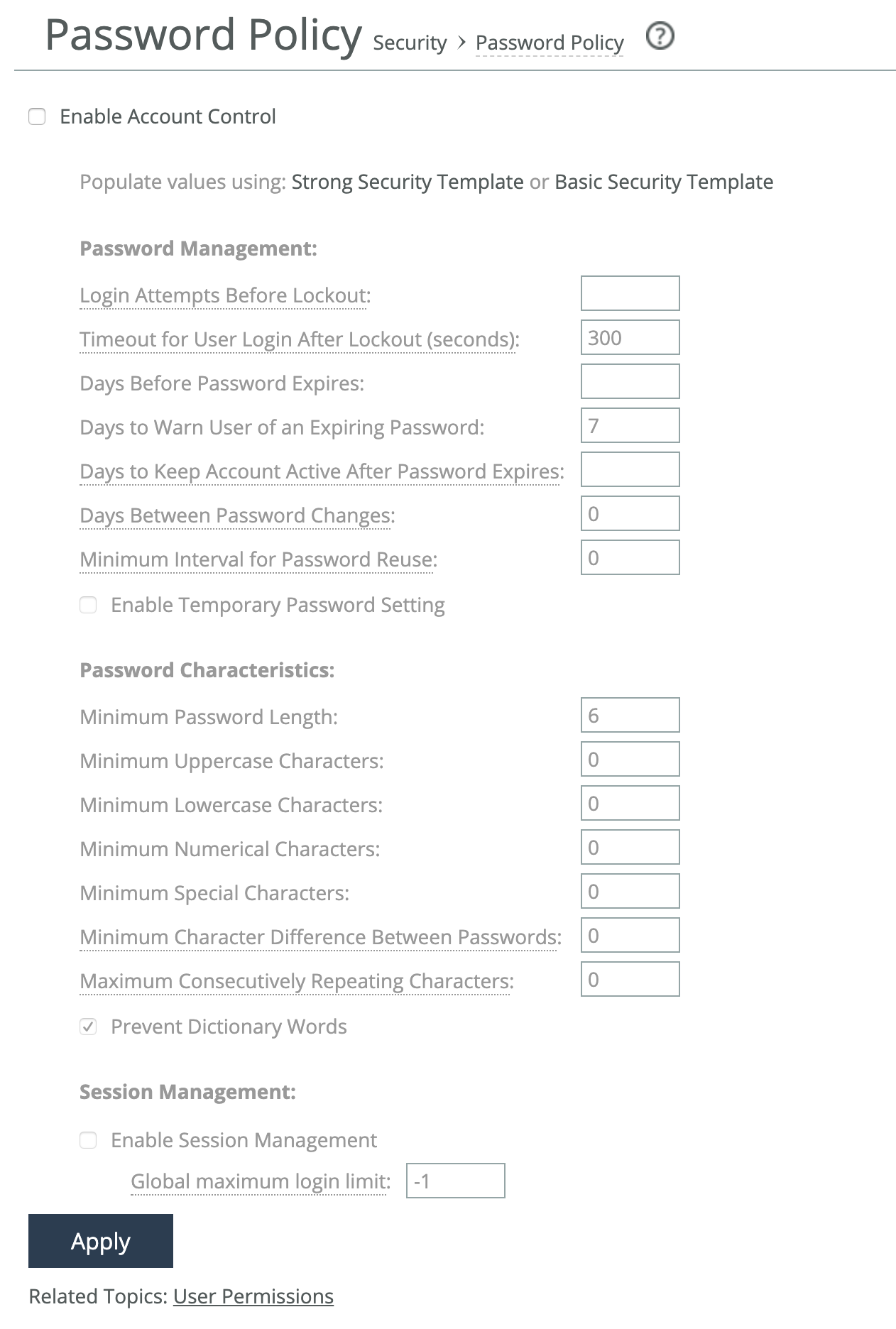
To enforce a password policy, select Enable Account Control. This makes password usage mandatory for all users. Once account control is enabled, all existing passwords immediately expire, and users are required to create new passwords that meet the defined policy requirements.
The password policy also sets a maximum password age. After the specified number of days, passwords will expire automatically. When a user tries to log in with an expired password, they are redirected to the Expired Password page and prompted to create a new one. Once the new password is set, the system logs the user into the Management Console automatically.
RiOS doesn’t allow empty passwords when account control is enabled.
Optionally, select either the Basic or Strong template.
When you select the basic template, the system prepopulates the page with the secure settings. Also, the system prompts a user logging into the SteelHead after 60 days to change their password. By default, RiOS locks out a user logging into the SteelHead after 300 days without a password change. After the system locks them out, an administrator must unlock the user account. For more details on unlocking user accounts, see
Unlocking an account.
Under Password Management, these configuration options are available:
Login Attempts Before Lockout
Specifies the maximum number of unsuccessful login attempts before temporarily blocking user access to the SteelHead. The user is prevented from further login attempts when the number is exceeded. The default for the strong security template is 3. The lockout expires after the amount of time specified in Timeout for User Login After Lockout elapses.
Timeout for User Login After Lockout
Specifies the amount of time, in seconds, that must elapse before a user can attempt to log in after an account lockout due to unsuccessful login attempts. The default for the strong security template is 300.
Days Before Password Expires
specifies the number of days the current password remains in effect. The default for the strong security template is 60. To set the password expiration to 24 hours, specify 0. To set the password expiration to 48 hours, specify 1. Leave blank to disable password expiration.
Days to Warn User of an Expiring Password
Specifies the number of days the user is warned before the password expires. The default for the strong security template is 7.
Days to Keep Account Active After Password Expires
Specifies the number of days the account remains active after the password expires. The default for the strong security template is 305. When the time elapses, RiOS locks the account permanently, preventing any further logins.
Days Between Password Changes
Specifies the minimum number of days before which passwords can’t be changed.
Minimum Interval for Password Reuse
Specifies the number of password changes allowed before a password can be reused. The default for the strong security template is 5.
Enable Temporary Password Setting
Specifies a temporary password to improve security and to conform to NIST requirements. A temporary password can be enabled only if Account Control is enabled. If a temporary password is set, then the password set by the Admin or Sys Admin for the new user shall expire on the first log in of the new user. A password expired page will appear for new users after the first login. If a temporary password is set and the Admin or Sys Admin resets the password for the existing user, the password will expire at the first log in after the reset. A password expired page will appear for existing users upon the first login after a password reset.
Under Password Characteristics, these configuration options are available:
Minimum Password Length
Specifies the minimum password length. The default for the strong security template is 14 alphanumeric characters.
Minimum Uppercase Characters
Specifies the minimum number of uppercase characters required in a password. The default for the strong security template is 1.
Minimum Lowercase Characters
Specifies the minimum number of lowercase characters required in a password. The default for the strong security template is 1.
Minimum Numerical Characters
Specifies the minimum number of numerical characters required in a password. The default for the strong security template is 1.
Minimum Special Characters
Specifies the minimum number of special characters required in a password. The default for the strong security template is 1.
Minimum Character Differences Between Passwords
Specifies the minimum number of characters that must be changed between the old and new password. The default for the strong security template is 4.
Maximum Consecutively Repeating Characters
Specifies the maximum number of times a character can occur consecutively.
Prevent Dictionary Words
Prevents the use of any word that is found in a dictionary as a password. By default, this control is enabled.
Applying Session Management
Enable session management to limit the number of concurrent sessions on the appliance for all users regardless of role. Limiting the number of concurrent sessions adds a layer of security that helps to reduce the risk of Denial of Service (DoS) attacks.
Session management can be set for the appliance web interface and CLI access separately. Also, you can set a global limit and user-level limits. The default value (-1) is unlimited.
Concurrent session limitation is based on locally mapped users.
Perform this task to enable session management and set global limits:
1. Choose Administration > Security: Password Policy.
2. Under Session Management, select Enable Session Management.
3. Enter the maximum number of concurrent sessions for all users.
Perform this task to set user-level limits:
1. Choose Administration > Security: User Permissions.
2. Do one of these actions:
– Select Add New Account.
– Select a user account
3. Enter the maximum number of concurrent web interface sessions for this user or role.
4. Enter the maximum number of concurrent CLI interface sessions for this user or role.
Unlocking an account
RiOS temporarily locks out an account after a user exceeds the configured number of login attempts. Account lockout information appears on the Administration > Security: User Permissions page.
When an account is locked out, the lockout ends after:
• The configured lockout time elapses.
—or—
• The administrator unlocks the account. RiOS never locks out administrator accounts.
Perform this task to unlock an account:
1. Log in as an administrator (admin).
2. Choose Administration > Security: User Permissions page and click Clear Login Failure Details.
When users log in to their account successfully, RiOS resets the login failure count.
Resetting an expired password
RiOS temporarily locks out an account when its password expires. Passwords expire for one of these reasons:
• An administrator enables account control.
• The expiration time for a password elapses.
• An administrator disables a user account and then enables it.
• An administrator uses a CLI command to encrypt a password.
After a user password expires, users must update their password within the number of days specified in Days to Keep Account Active After Password Expires. The default value is 305 days. After the time elapses, RiOS locks the account permanently, preventing any further logins.
Perform this task to reset the password and unlock the account:
1. Log in as an administrator (admin).
2. Choose Administration > Security: User Permissions page and click Clear Login Failure Details.
3. Type and confirm the new password and click Change Password.
The password reset feature is separate from the account lockout feature.
Setting RADIUS servers
Settings for RADIUS server authentication are under Administration > Security: RADIUS.
RADIUS is an access control protocol that uses a challenge and response method for authenticating users.
Enabling this feature is optional.
Settings to prioritize local, RADIUS, and TACACS+ authentication methods for the system and to set the authorization policy and default user for RADIUS and TACACS+ authorization systems are under Administration > Security: General Settings.
For details about setting up RADIUS and TACACS+ servers, see the SteelHead Deployment Guide.
RADIUS page
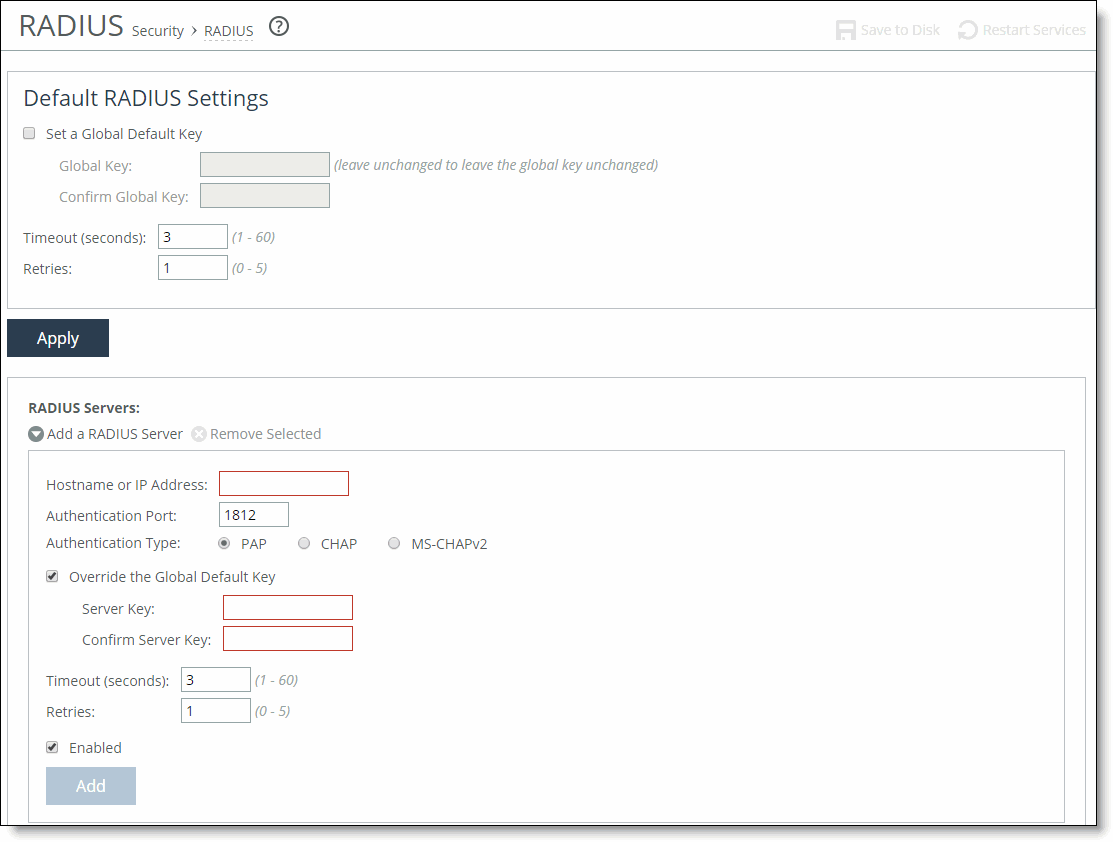
Under Default RADIUS Settings, these configuration options are available:
Set a Global Default Key
Enables a global server key for the RADIUS server.
Global Key
Specifies the global server key.
Confirm Global Key
Confirms the global server key.
Timeout
Specifies the time-out period in seconds (1 to 60). The default value is 3.
Retries
Specifies the number of times you want to allow the user to retry authentication. The default value is 1.
These options are available to add a new RADIUS server:
Add a RADIUS Server
Displays the controls for defining a new RADIUS server.
Hostname or IP Address
Specifies the hostname or server IP address. RiOS doesn’t support IPv6 server IP addresses.
Authentication Port
Specifies the port for the server.
Authentication Type
Specifies one of these authentication types:
• Password Authentication Protocol (PAP) validates users before allowing them access to the RADIUS server resources. PAP is the most flexible protocol but is less secure than CHAP.
• Challenge-Handshake Authentication Protocol (CHAP) provides better security than PAP. CHAP validates the identity of remote clients by periodically verifying the identity of the client using a three-way handshake. This validation happens at the time of establishing the initial link and might happen again at any time. CHAP bases verification on a user password and transmits an MD5 sum of the password from the client to the server.
• MS-CHAPv2 provides a more secure authentication protocol than PAP or CHAP. MS-CHAPv2 is the Microsoft version of the Challenge-Handshake Authentication Protocol.
Override the Global Default Key
Overrides the global server key for the server.
Server Key
Specifies the override server key.
Confirm Server Key
Confirms the override server key.
Timeout
Specifies the time-out period in seconds (1 to 60). The default value is 3.
Retries
Specifies the number of times you want to allow the user to retry authentication. Valid values are from 0 to 5. The default value is 1.
Enabled
Enables the new server.
Add
Adds the RADIUS server to the list.
If you add a new server to your network and you don’t specify these fields at that time, RiOS applies the global settings.
To modify RADIUS server settings, click the server IP address in the list of Radius Servers. Use the Status drop-down list to enable or disable a server in the list.
Configuring SAML
Settings for SAML are under Administration > Security: SAML.
Security Assertion Markup Language (SAML) 2.0 is an XML-based standard that acts as an authentication interface between a SteelHead and an identity provider (IdP). You can use the IdP to provide additional requirements for authentication, such as a multifactor authentication based on a common access card (CAC) or personal identity verification (PIV).
When a SteelHead receives a login request, it determines if SAML is enabled. If SAML is enabled, user authentication through AAA is disabled and the SteelHead redirects the authentication request to the IdP. The IdP authenticates the user and redirects the user to the SteelHead, which allows access.
SAML authentication process
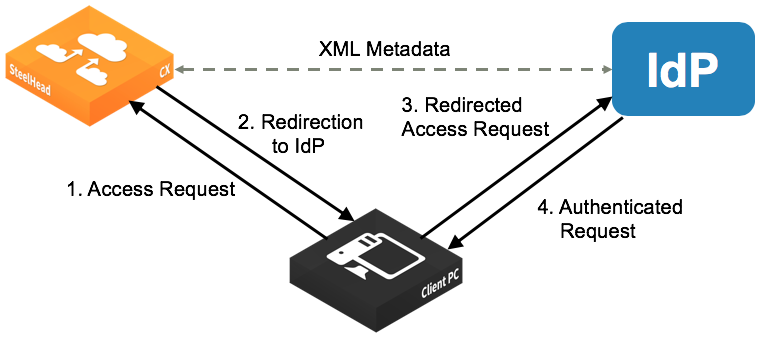
To enable IdP authentication, you configure the SteelHead and the IdP with XML metadata that provides detailed appliance identification. The metadata also establishes a trust relationship between the SteelHead and the IdP.
Administrators must add users to the IdP server to provide them login access, and those users need to correspond to SteelHead users. You can have one-to-one mapping of users between IdP and SteelHead, or you can have multiple users on IdP map to single account on the SteelHead, such as the admin account. (You have to create individual user accounts on the SteelHead for one-to-one mapping as the user accounts determine the access permissions.)
If a user who has not been set up in the IdP tries to log in to the SteelHead, the login fails on the IdP login page. (This failed login is not tracked in the SteelHead logs.) If the user has been set up but their user mapping has not been defined in the IdP, the login succeeds but the SteelHead displays an error page (instead of the dashboard).
SAML authentications are only available in the Management Console web interface; they are not available through the CLI. Users can log in to a SAML-enabled SteelHead through the CLI but they are authenticated using the local, RADIUS, or TACACS+ authentication methods.
If you cannot log in using SAML (for example, if the IdP server is unavailable), you can log in through the CLI and disable SAML using the no aaa saml command. Once SAML is disabled, you revert to the previously configured authentication method for the web interface. For command details, see the Riverbed Command-Line Interface Reference Guide.
You must be logged in as the administrator to enable or disable SAML.
IdP Configuration section of the SAML page
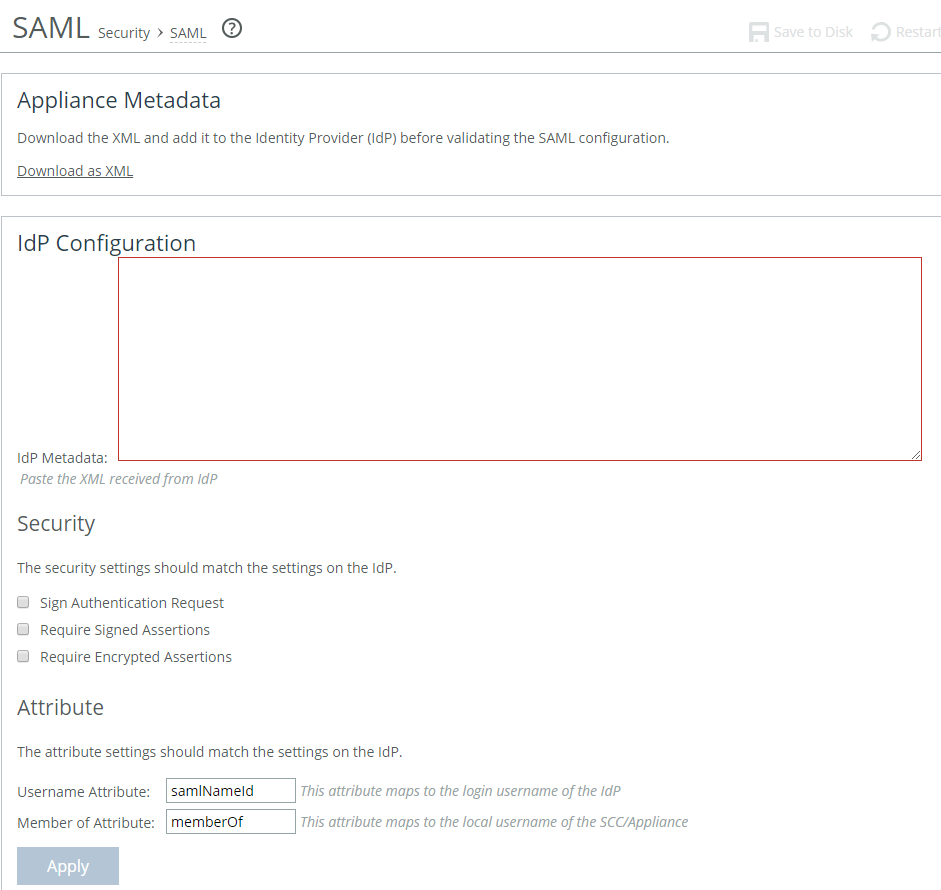
Under Appliance Metadata, click Download XML to download the SteelHead metadata in XML format.
The sp_metadata.xml file downloads to your local machine.
Configure the appliance in your IdP. Refer to the documentation for your IdP for specific instructions. In general, you complete these steps:
1. Log in to the IdP website.
2. Upload the metadata from the sp_metadata.xml file and provide any other required details.
3. When the configuration is complete, download the IdP metadata.
In the management console, under SAML > IdP Configuration, these configuration options are available:
IdP Metadata
Is where you paste the IdP metadata you copied or received from the IdP website.
Security Settings
Should match the IdP settings.
Sign Authentication Request
Specifies that the SteelHead sign the SAML authentication request sent to the identity provider. Signing the initial login request sent by SteelHead allows the identity provider to verify that all login requests originate from a trusted service provider.
Requires Signed Assertions
Indicates IdP signs the assertion response. Some SAML configurations require signed assertions to improve security.
Requires Encrypted Assertions
Specifies that the SAML identity provider encrypts the assertion section of the SAML responses. Even though all SAML traffic to and from SteelHead is already encrypted by the use of HTTPS, this option adds another layer of encryption.
Username Attribute
Specifies the name of the IdP variable that carries the username. The Username attribute is mandatory and must be sent by your identity provider in the SAML response to align the login with a configured SteelHead account.
Member of Attribute
Specifies the name of the IdP variable that carries the role of the user. The role must match with a local SteelHead user. This setting is mandatory. If you use the default memberOf attribute, the SteelHead only attempts to match against the first entry in the IdP memberOf attribute list. If you require more control, we recommend creating a custom attribute. For details, go to Knowledge Base article S33447.
Click Apply to save your configuration settings, and under Validate the IdP Configuration, click Validate. The IdP Validation window appears.
Click Go to IdP. The IdP login page opens. Then log in to the IdP website. The page indicates if your IdP configuration was successful.
After successful validation, return to the SAML page in the management console and select the Enable SAML check box and click Apply.
If the validation status on the SteelHead page does not update after a successful validation, reload the page to refresh the status.
With SAML enabled, all web login requests are redirected to the IdP.
If you make changes to the SAML settings after you validate the IdP configuration, you need to validate again with the new settings and enable SAML again.
Configuring TACACS+ access
Settings for TACACS+ server authentication are under Administration > Security: TACACS+.
TACACS+ is an authentication protocol that allows a remote access server to forward a login password for a user to an authentication server to determine whether access is allowed to a given system.
Enabling this feature is optional.
Settings to prioritize local, RADIUS, and TACACS+ authentication methods for the system and to set the authorization policy and default user for RADIUS and TACACS+ authorization systems are under Administration > Security: General Settings.
For details about configuring RADIUS and TACACS+ servers to accept login requests from the SteelHead, see the SteelHead Deployment Guide.
TACACS+ page
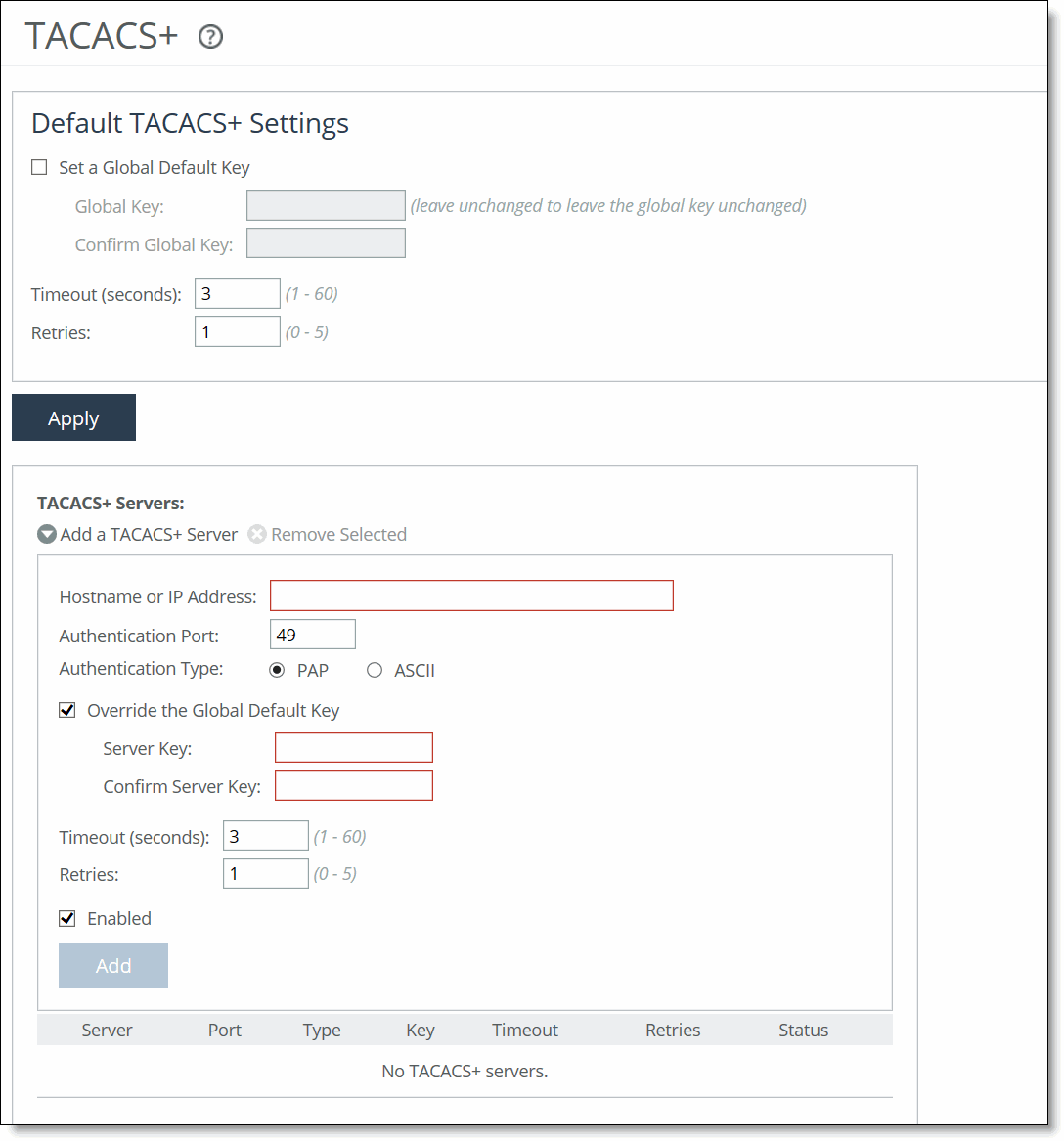
Under Default TACACS+ Settings, these configuration settings are available:
Set a Global Default Key
Enables a global server key for the server.
Global Key
Specifies the global server key.
Confirm Global Key
Confirms the global server key.
Timeout
Specifies the time-out period in seconds (1 to 60). The default value is 3.
Retries
Specifies the number of times you want to allow the user to retry authentication. Valid values are from 0 to 5. The default is 1.
To add or remove a TACACS+ server, these configuration settings are available:
Add a TACACS+ Server
Displays the controls for defining a new TACACS+ server.
Hostname or IP Address
Specifies the hostname or server IP address.
Authentication Port
Specifies the port for the server. The default value is 49.
Authentication Type
Indicates either PAP or ASCII as the authentication type. The default value is PAP.
Override the Global Default Key
Overrides the global server key for the server.
Server Key
Specifies the override server key.
Confirm Server Key
Confirms the override server key.
Timeout
Specifies the time-out period in seconds (1 to 60). The default is 3.
Retries
Specifies the number of times you want to allow the user to retry authentication. Valid values are from 0 to 5. The default is 1.
Enabled
Enables the new server.
Add
Adds the TACACS+ server to the list.
If you add a new server to your network and you don’t specify these fields, the system automatically applies the default settings.
Unlocking the secure vault
Settings to unlock and change the password for the secure vault are under Administration > Security: Secure Vault.
The secure vault contains sensitive information from your SteelHead configuration, including SSL private keys, the RiOS data store encryption key, and delegate user configuration details. RiOS encrypts and secures these configuration settings on the disk at all times using AES 256-bit encryption.
Initially the secure vault is keyed with a default password known only to RiOS. This default password allows the SteelHead to automatically unlock the vault during system start up. You can change the password, but the secure vault doesn’t automatically unlock on start up. To optimize SSL connections or to use RiOS data store encryption, the secure vault must be unlocked.
Under Unlock Secure Vault, these configuration options are available:
Password
Enables you to specify a password. Initially the secure vault is keyed with a default password known only to RiOS. The default password allows the SteelHead to automatically unlock the vault during system start up. You can change the password, but the secure vault doesn’t automatically unlock on start up. To optimize SSL connections, use RiOS data store encryption, or delegate users, you must unlock the secure vault.
Unlock Secure Vault
Unlocks the vault.
Under Change Password, these configuration options are available:
Current Password
Specifies the current password. If you are changing the default password that ships with the product, leave the text box blank.
New Password
Specifies a new password for the secure vault.
New Password Confirm
Confirms the new password for the secure vault.
Change Password
Changes the password for the secure vault.
Configuring a management ACL
Settings to secure access to a SteelHead using an internal management access control list (ACL) are under Security: Management ACL.
SteelHeads are subject to the network policies defined by a corporate security policy, particularly in large networks. Using an internal management ACL, you can:
• restrict access to certain interfaces or protocols of a SteelHead.
• restrict inbound IP access to a SteelHead, protecting it from access by hosts that don’t have permission without using a separate device (such as a router or firewall).
• specify which hosts or groups of hosts can access and manage a SteelHead by IP address, simplifying the integration of SteelHeads into your network.
The management ACL provides these safeguards to prevent accidental disconnection from the SteelHead and the SCC:
• It detects the IP address you are connecting from and displays a warning if you add a rule that denies connections to that address.
• It always allows the default SteelHead ports 7800, 7801, 7810, 7820, and 7850.
• It always allows a previously connected SCC to connect and tracks any changes to the IP address of the SCC to prevent disconnection.
• It converts well-known port and protocol combinations such as SSH, Telnet, HTTP, HTTPS, SNMP, and SOAP into their default management service and protects these services from disconnection. For example, if you specify protocol 6 (TCP) and port 22, the management ACL converts this port and protocol combination into SSH and protects it from denial.
• It tracks changes to default service ports and automatically updates any references to changed ports in the access rules.
Management ACL page
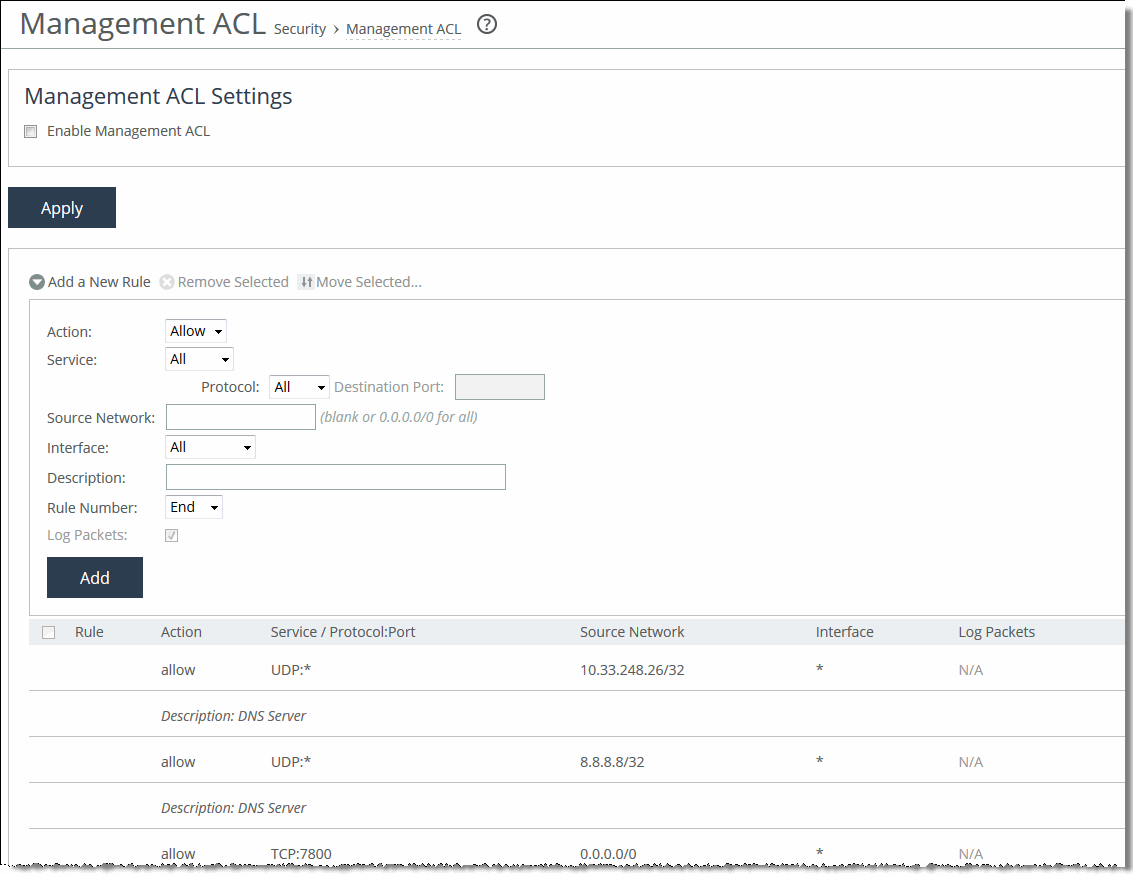
Under Management ACL Settings, select Enable Management ACL to secure access to a SteelHead using a management ACL.
If you add, delete, edit, or move a rule that could disconnect connections to the SteelHead, a warning message appears. Click Confirm to override the warning and allow the rule definition. Use caution when overriding a disconnect warning.
ACL management rules
The management ACL contains rules that define a match condition for an inbound IP packet. You set a rule to allow or deny access to a matching inbound IP packet. When you add a rule on a SteelHead, the destination specifies the SteelHead itself, and the source specifies a remote host.
The ACL rules list contains default rules that allow you to use the management ACL with DNS caching. These default rules allow access to certain ports required by this feature. The list also includes default rules that allow access to the SCC.
Under Management ACL Settings, these configuration options are available:
Add a New Rule
Displays the controls for adding a new rule.
Action
Specifies one of these rule types from the drop-down list:
• Allow allows a matching packet access to the SteelHead. This is the default action.
• Deny denies access to any matching packets.
Service
Indicates Specify Protocol, or HTTP, HTTPS, SOAP, SNMP, SSH, Telnet. When specified, the Destination Port is dimmed.
Protocol
(Appears only when Service is set to Specify Protocol.) Specifies All, TCP, UDP, or ICMP from the drop-down list. The default setting is All. When set to All or ICMP, the Service and Destination Ports are dimmed.
Source Network
Specifies the source subnet of the inbound packet: for example, 1.2.3.0/24.
Destination Port
Specifies the destination port of the inbound packet, either a single port value or a port range of port1-port2, where port1 must be less than port2. Leave it blank to specify all ports.
Interface
Specifies an interface name from the drop-down list. Select All to specify all interfaces.
Description
Describes the rule to facilitate administration.
Rule Number
Specifies a rule number from the drop-down list. By default, the rule goes to the end of the table (just above the default rule). SteelHeads evaluate rules in numerical order starting with rule 1. If the conditions set in the rule match, then the rule is applied, and the system moves on to the next packet. If the conditions set in the rule don’t match, the system consults the next rule. For example, if the conditions of rule 1 don’t match, rule 2 is consulted. If rule 2 matches the conditions, it’s applied, and no further rules are consulted. The default rule, Allow, which allows all remaining traffic from everywhere that has not been selected by another rule, can’t be removed and is always listed last.
Log Packets
Tracks denied packets in the log. By default, packet logging is enabled.
Add
Adds the rule to the list. The Management Console redisplays the Rules table and applies your modifications to the running configuration, which is stored in memory.
Usage notes
• When you change the default port of services such as SSH, HTTP, HTTPS, on either the client-side or server-side SteelHead and create a management ACL rule denying that service, the rule will not work as expected. The SteelHead on the other end (either server or client) of an in-path deployment doesn’t know that the default service port has changed, and consequently optimizes the packets to that service port. To work around this problem, add a pass-through rule to the client-side SteelHead for the management interfaces. The pass-through rule prevents the traffic from coming from the local host when optimized.
• A management ACL rule that denies access from port 20 on the server-side SteelHead in an out-of-path deployment prevents data transfer using active FTP. In this deployment, the FTP server and client can’t establish a data connection because the FTP server initiates the SYN packet and the management rule on the server-side SteelHead blocks the SYN packet. To work around this problem:
– use passive FTP instead of active FTP. With passive FTP, the FTP client initiates both connections to the server. For details about active and passive FTP, see
About QoS for FTP.
—or—
– add a rule to either allow source port 20 on the server-side SteelHead or allow the IP address of the FTP server.
To restore the default ACL management rule for the DNS caching, add a DNS Caching ACL rule with these properties and values under Management ACL Settings:
• Type: Allow
• Protocol: UDP
• Destination Port: 53
• Rule Number: 1
• Description: DNS Caching
Configuring web settings
Settings to modify the Management Console web user interface and certificate settings are under Administration > Security: Web Settings.
Under Web Settings, these configuration options are available:
Default Web Login ID
Specifies the username that appears in the authentication page. The default value is admin.
Web Inactivity Timeout
Specifies the number of idle minutes before time-out. The default value is 15. A value of 0 disables the inactivity time-out. If the maximum session count is exceeded, the last recently used session will be expired regardless of its idle time. The web session inactivity time-out and the CLI interface inactivity time-out are configured separately:
• To set the CLI interface inactivity time-out for the current and future login sessions run the cli default auto-logout <time-period-in-minutes> command.
• To set the CLI interface inactivity time-out for the current session only run the cli session auto-logout <time-period-in-minutes> command.
• To view the CLI settings run the show cli command.
Allow Session Timeouts When Viewing Auto-Refreshing Pages
Is enabled by default, which stops the automatic updating of the report pages when the session times out. Disabling this feature poses a security risk. When you disable this feature, you are logged in indefinitely on pages that are automatically refreshed, such as reports.
Managing web SSL certificates
Settings to modify web certificates are under Administration > Security: Web Settings.
RiOS provides these security features to manage SSL certificates used by the SteelHead appliance Management Console through HTTPS:
• Generate the certificate and key pairs on the SteelHead. This method overwrites the existing certificate and key pair regardless of whether the previous certificate and key pair was self-signed or user added. The new self-signed certificate lasts for one year (365 days).
• Create certificate signing requests from the certificate and key pairs.
• Replace a signed certificate with one created by an administrator or generated by a third-party certificate authority.
Under Web Certificate, select the Details tab. These SteelHead identity certificate details appear:
Issued To/Issued By
Specifies these options:
• Common Name specifies the common name of the certificate authority.
• Email specifies the email address of the certificate administrator.
• Organization specifies the organization name (for example, the company).
• Locality specifies the city.
• State specifies the state.
• Country specifies the country.
• Serial Number specifies the serial number (Issued To, only).
Validity
Specifies these options:
• Issued On specifies the date the certificate was issued.
• Expires On specifies the date the certificate expires.
Fingerprint
Specifies the SSL fingerprint.
Key
Specifies these options:
• Type specifies the key type.
• Size specifies the size in bytes.
To replace an existing certificate, under Web Certificate, select the Replace tab. These configuration options are available:
Import Certificate and Private Key
Imports the certificate and key. The page displays controls for browsing to and uploading the certificate and key files. You can also use the text box to copy and paste a PEM file. The private key is required regardless of whether you are adding or updating the certificate.
Certificate Upload
Browses to the local file in PKCS-12, PEM, or DER formats.
Paste it here (PEM)
Allows you to copy and then paste the contents of a PEM file.
Private Key
Selects the private key origin. The Private Key is in a separate file (see below). You can either upload it or copy and paste it. This file includes the Certificate and Private Key. The Private Key for this Certificate was created with a CSR generated on this appliance.
Separate Private Key
Upload (PEM or DER formats)
Browses to the local file in PEM or DER formats.
Paste it here (PEM only)
Pastes the contents of a PEM file.
Decryption Password
Specifies the decryption password, if necessary. Passwords are required for PKCS-12 files, optional for PEM files, and never needed for DER files.
To generate a CSR, under Web Certificate, select the Generate CSR tab. These configuration options are available:
Common Name
Specifies the common name (hostname).
Organization Name
Specifies the organization name (for example, the company).
Organization Unit Name
Specifies the organization unit name (for example, the section or department).
Locality
Specifies the city.
State
Specifies the state. Do not abbreviate.
Country
Specifies the country (2-letter code only).
Email Address
Specifies the email address of the contact person.
Generate CSR
Generates the Certificate Signing Request.
Enabling REST API access
You enable access to the Riverbed REST API in the Administration > Security: REST API Access page. REST API is enabled by default.
Representational State Transfer (REST) is a framework for API design. REST builds a simple API on top of the HTTP. It is based on generic facilities of the standard HTTP protocol, including the six basic HTTP methods (GET, POST, PUT, DELETE, HEAD, INFO) and the full range of HTTP return codes. You can discover REST APIs by navigating links embedded in the resources provided by the REST API, which follow common encoding and formatting practices.
You can invoke the REST API to enable communication from one Riverbed appliance to another through REST API calls, for example, a SteelCentral NetProfiler retrieving a QoS configuration from a SteelHead.
For all uses you must preconfigure an access code to authenticate communication between parties and to authorize access to protected resources.
The REST API calls are based on the trusted application flow, a scenario where you download and install an application on some host, such as your own laptop. You trust both the application and the security of the host onto which the application is installed.
For example, suppose you install a Python script on a Linux box that queries QoS policies on a SteelHead and prints a summary as text output. You install the script under your home directory and configure the script with credentials to access the SteelHead. Once set up, you can simply log in to the Linux box and run the script. Because you already preconfigured credentials with the SteelHead, you can run the script without any user interaction after logging in. This trusted application flow enables you to schedule execution through cron or chain it with other scripts that process the text data and combine it with other functionality.
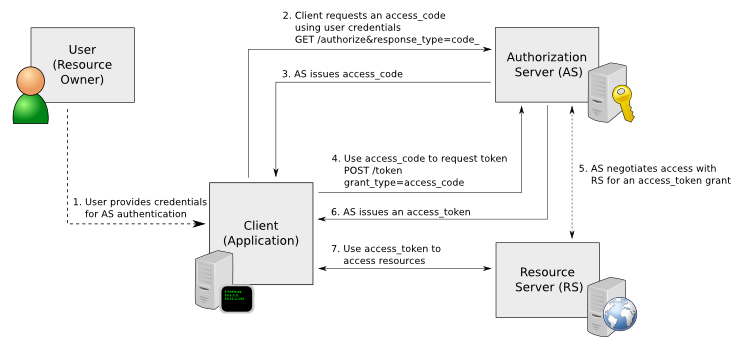
This basic authentication sequence assumes you have already downloaded the Python script and installed it on a Linux box:
REST API Access Authentication Sequence
REST API Access page
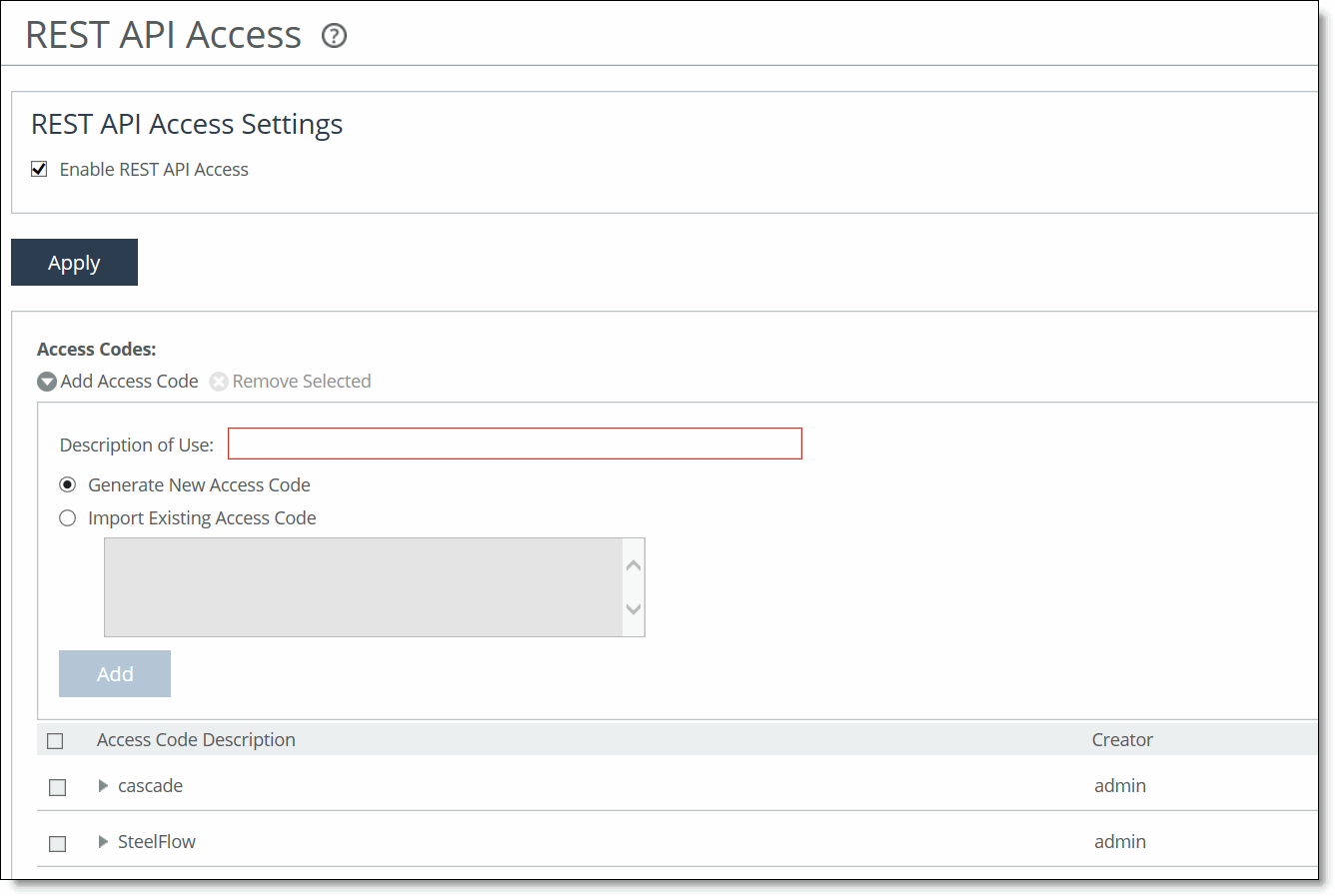
Under REST API Access Settings, select the Enable REST API Access check box.
Before an appliance can access the REST API, you must preconfigure an access code for the system to use to authenticate access.
To preconfigure the access code, click Add Access Code. Under Access Codes, type a description such as the hostname or IP address of the appliance you are using.
To create a code, select Generate New Access Code. To use an existing code, select Import Existing Access Code. Click Add. The access code description appears in the access code table along with the name of the user who created it.
Click the access code description to display the access code. Copy the access code from the text field into a text editor such as Notepad.
To use the access code in your external script, copy the access code copied from the Management Console REST API Access page into the configuration file of your external script. The script uses the access code to make a call to the appliance or system to request an access token. The appliance/system validates the access code and returns an access token for use by the script. Generally, the access token is kept by the script for a session only (defined within your script), but note that the script can make many requests using the same access token. These access tokens have some lifetime—usually around an hour—in which they’re valid. When they expire, the access code must fetch a new access token. The script uses the access token to make REST API calls with the appliance or system.
Configuring an External Certificate
You configure external certificates under Administration > Security: External Certificate. The External Certificates page displays the certificate details.
The external certificate must be enabled on both the SteelHead and the managing SCC appliances at the same time. Enabling this feature on only the SteelHead or only the SCC will result in the appliances disconnecting until the external certificate is enabled on both.
These configuration options are available under External certificate configuration:
Enable the external certificate
Adds the external certificate first before selecting this check box then click Apply.
The following options are available under Certificate:
Details
Issued To/Issued By
Specifies these options:
• Common Name specifies the common name of the certificate authority.
• Email specifies the organization email.
• Organization specifies the organization name (for example, the company).
• Locality specifies the city.
• State specifies the state.
• Country specifies the country.
Validity
Specifies these options:
• Issued On specifies the date the certificate was issued.
• Expires On specifies the date the certificate expires.
Signature Algorithm
Specifies the signature algorithm.
Fingerprint
Specifies the SSL fingerprint.
Key
Specifies these options:
• Type specifies the key type. The default value is RSA.
• Size specifies the key size. The default value is 2048.
To view the certificate in PEM format, under Certificate, select the PEM tab. The certificate appears in PEM format.
Import
Imports the certificate and key. The page displays controls for browsing to and uploading the certificate and key files. You can also use the text box to copy and paste a PEM file. The private key is required regardless of whether you’re adding or updating the certificate.
Certificate
Specifies the action:
• Upload—Browse to the local file in PKCS-12, PEM, or DER formats.
• Paste it here (PEM)—Copy and then paste the contents of a PEM file.
To generate a CSR, under Certificate, select the Generate CSR tab and complete these configuration options:
Common Name (required)
Specifies the common name (hostname) of the peer.
Organization Name
Specifies the organization name (for example, the company).
Organization Unit Name
Specifies the organization unit name (for example, the section or department).
Locality
Specifies the city.
State
Specifies the state. Don’t abbreviate.
Country (2-letter code)
Specifies the country (2-letter code only).
Email Address
Specifies the email address of the contact person.
Generate CSR
Generates the Certificate Signing Request.