About Secure Connections
When properly configured, Riverbed appliances keep your application and network traffic secure, even in a post-quantum computing era. To do this, appliances form trusted peering relationships and communicate with each other through secure inner channel connections. Similarly, appliances form secure outer channel connections to the servers and client endpoints from which they intercept traffic. Trust relationships among entities are built by verifying, validating, and authenticating each other’s identity using certificate authority (CA) certificates and certificate keys.
You can configure appliances to securely accelerate traffic using SSL/TLS and other secure protocols, traffic that does not use secure protocols, and IPsec traffic. SSL/TLS secures traffic at the transport layer where end-to-end connections between entities are established and maintained, such as communication between a client web browser and an application hosted on a data center server. IPsec is used to authenticate and encrypt traffic at the network layer between network devices, and to create virtual private networks (VPNs).
About TLS optimization
Transport Layer Security (TLS) is the successor to Secure Sockets Layer (SSL) and is used to secure internet communication. Enabling TLS optimization allows Riverbed appliances to accelerate encrypted traffic, such as HTTPS. This feature was introduced in SteelHead 9.10.1 and SteelHead Mobile 6.3.1, and it requires a separate license to function. While you can enable TLS optimization even if it’s not licensed, it will only work once both enabled and licensed.
TLS works by using encrypted certificates to authenticate the identities of entities, ensuring secure communication. In a typical web application, the client authenticates the server by checking the server’s certificate, which is signed by a trusted Certificate Authority (CA).
Riverbed secure connections
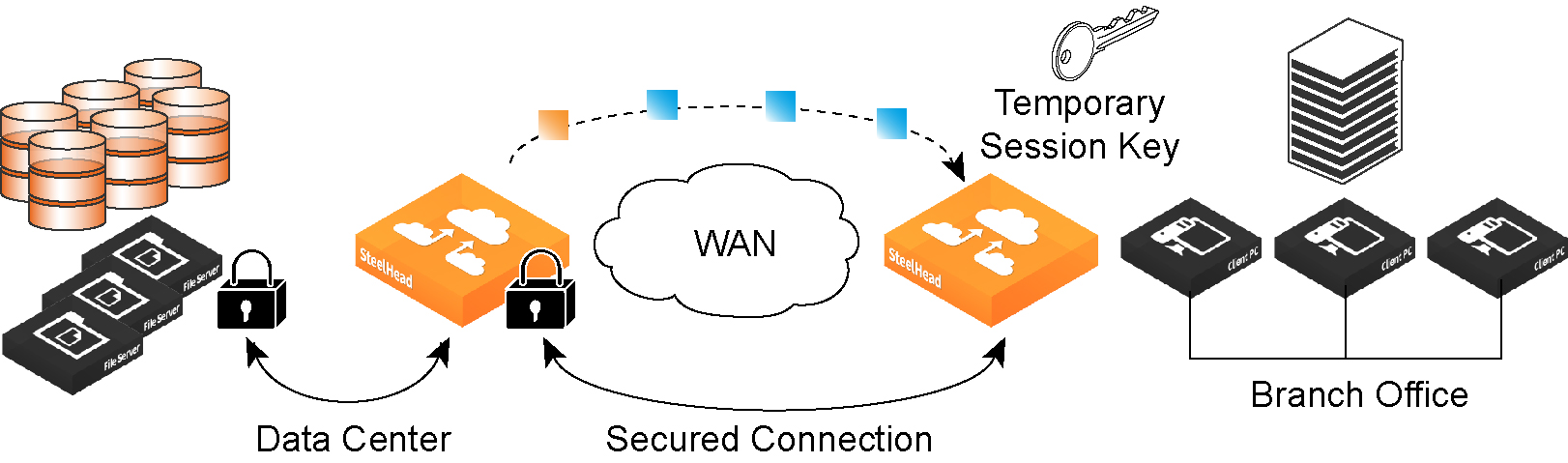
Riverbed appliances create a trust relationship with each other to securely exchange information, so no changes are required to the client and server applications or proxy configurations. When a secure connection is established, the appliances manage the handshake process. This includes establishing trust and negotiating a session key for data transfer.
For TLS optimization, Server Name Indication (SNI) must be used during the TLS handshake. This process is initiated by the client. If you're using customized or nonstandard applications, contact Riverbed Support for optimization assistance.
With TLS acceleration, the server-side and client-side SteelHeads set up independent sessions with the server and client. When a client connects securely to a server, the SteelHead checks if the server's certificate matches one in its certificate pool. If a match is found, subsequent connections to that server are optimized. If no match is found, the connection is added to a bypass list, and no optimization occurs for future connections to that server-client pair.
The appliances store all SSL/TLS settings, certificates, and private keys in secure vaults. These vaults protect your certificates when the appliance is powered off. The vault is unlocked with a password when the appliance is powered on, and SSL traffic is only optimized after the vault is unlocked.
Preparing to configure TLS optimization
The license for TLS optimization also activates data store encryption and enables the appliance to create secure channels while optimizing encrypted MAPI and SMB-signed traffic, even if the appliances aren’t configured for optimizing SSL traffic.
1. Connect to the Management Console using HTTPS to protect your SSL private keys and certificates.
2. On the client-side and server-side appliances, ensure you have a valid Enhanced Cryptography License Key or SSL/TLS Optimization license. To verify your license, see
Viewing system permissions. If you don’t have a valid Enhanced Cryptography License Key or SSL License, go to Knowledge Base article
S28361 for instructions on how to get one.
3. Back up your private keys and CA-signed certificates.
Configuring appliances for secure connections
This topic provides basic configuration steps to enable appliances to use secure peer-to-peer connections.
3. On the server-side SteelHead, configure a proxy certificate and private key for the SSL back-end server. See
About server certificates.
4. Create an in-path rule on the client-side SteelHead. For in-path configurations, set the preoptimization policy to SSL. If you want to enable the HTTP latency optimization module for connections to the specified server, create an additional in-path rule and set the latency optimization policy to HTTP. For out-of-path configurations, create a fixed-target in-path rule that identifies the connections which to apply SSL acceleration. Set VLAN tagging to All, preoptimization policy to SSL, data reduction to Normal, latency optimization to HTTP (or None for applications that use SSL but are not HTTP-based), and neural framing to Always. See
About Peering, Autodiscovery, In-Path Rules, and Service Ports.
6. If your organization uses internal CAs to sign their SSL server certificates, you must import each of the certificates (in the chain) on to the server-side appliance. You must perform this step if you use internal CAs because the appliance’s default list of well-known CAs doesn’t include your internal CA certificate. See
About server certificates.
About SSL main settings
The main SSL/TLS optimization settings are under Optimization > SSL: SSL Main Settings. Complete the configuration on client-side and server-side appliances, and then restart the service.
Enable TLS Optimization
Enables optimization of secure traffic, which accelerates applications that use TLS for encryption. Using in-path rules, you can choose to enable TLS optimization only on certain sessions (based on source and destination addresses, subnets, and ports), on all sessions, or on no sessions at all. A TLS session that is not optimized simply passes through unmodified. Disabled by default.
Enable TLS Profiling
Enables reporting for SSL/TLS connections.
OCSP Stapling Support
Enables Online Certificate Status Protocol (OCSP) stapling. OCSP is an alternative approach to obtain certificate status from the OCSP servers instead of the origin server’s Public Key Infrastructure (PKI). Enable this setting on server-side appliances.
• Off disables OCSP. Disabled by default.
• Strict bypasses the connection if the origin server does not support OCSP.
• Strict AIA bypasses the connection if the certificate included an Authority Information Access (AIA) field but the origin server failed to send an OCSP response. If the certificate did not include an AIA field and the origin server failed to send an OCSP response, the connection is not dropped because the server-side appliance does not expect an OCSP response.
• Loose does not bypass the connection if the origin server does not support OCSP.
About automatically generated and signed certificates
SteelHead appliances can automatically generate self-signed certificates when they encounter requests for traffic from a host that doesn't have a matching server proxy certificate. In this process, the appliance with the signing Certificate Authority (CA) certificate clones the certificate sent by the initiating appliance, signs it with its local CA, and then sends it back to the initiating appliance. This allows the initiating appliance to recognize the certificate as signed by a trusted CA, enabling continued acceleration. The signing appliance saves an entry in its CA trusted root store, which persists even after a restart.
Additionally, a secondary appliance can be set up to provide failover support for this feature. If the primary appliance experiences an outage, the secondary appliance can take over certificate generation until the primary appliance is operational again.
This process is similar to SSL Simplification in SteelHead Mobile, with the key difference being that the CA certificate of the signing appliance must be installed on all its peer appliances. Either server-side or client-side appliances can serve as the signing appliance, and this feature can even be implemented on a remote appliance or a non-Riverbed entity.
About server certificates
Server certificate settings are under Optimization > SSL: Server Certificates.
Generally, you install certificates and their private keys on server-side appliances, and you can either use CA-signed certificates or create self-signed ones. The appliance supports uploading certificates in PKCS-12, PEM, and DER formats, or you can paste PEM-format certificates and keys directly into the Management Console. Bulk import/export is supported, though you'll need the decryption password for importing and have the option to include private keys and revocation lists when exporting.
If your certificate includes private keys, you must specify that during installation. If the keys are separate from the certificates, you need to add them individually. Starting from RiOS 9.16.0, both ECDSA and RSA signing are supported.
To generate self-signed certificates and keys, you'll need to specify an RSA cipher level. Wildcards (for example, *.mydomain.com) can be used in the common name for easier configuration.
You can optionally enable exportability for certificates and keys, which is useful for backing them up or transferring them to other appliances. However, to maintain high security, you can disable the ability to export certificates and keys permanently. This action cannot be undone unless you perform a factory reset or clear the secure vault. If export is disabled, you also cannot copy secure vault contents, and newly added certificates and keys will be marked as non-exportable.
For organizations with their own Certificate Authority (CA), you can configure the server-side appliance to use your CA to generate and sign server proxy certificates. Client-side appliances must have your CA’s certificate added as a trusted entity, and this configuration is done through the CLI, not SCC. For larger networks, we recommend using SCC or the bulk import/export feature to simplify trusted peer configuration.
About secure peers
Peered appliances work together to accelerate and secure various types of traffic, including SSL/TLS, MAPI, SMB, and Citrix. They can also accelerate non-secure protocol traffic, and IPsec can be used to secure communication between them if needed.
Traffic acceleration happens between peered appliances. To do this securely, the appliances must first establish trust with one another. They create a secure inner channel, which is the encrypted connection between the two appliances. The outer channel refers to the connection between clients and client-side appliances, and between servers and server-side appliances.
We recommend using the secure inner channel instead of IPsec for securing traffic. Each appliance comes with a built-in, self-signed certificate and private key that uniquely identifies it. When setting up the secure inner channel, the appliances authenticate one another by exchanging certificates and then negotiate encryption keys for each intercepted connection. Once trust is established, secure inner connections are created to match all outer connections.
You can manually set peer relationships between appliances using fixed-target rules, but more commonly, the client-side appliance automatically discovers the server-side peer when it first connects to a server. Each appliance keeps a peering table that stores information about its peers—such as certificates, IP addresses, and hostnames. You have the option to accept or reject peering requests at any time.
Once peering is set up, the appliances use their secure inner channels to send encrypted data that corresponds to the outer channel traffic being accelerated.
About secure peering settings
Settings for secure peers are under Optimization > SSL: Secure Peering (SSL).
If you are securing encrypted MAPI, SMB-signed, or Citrix traffic, further configuration is required on the Management Console pages for those protocols.
The time setting among peers must be identical. We recommend using NTP time synchronization or manually synchronizing their clocks.
Secure peering settings
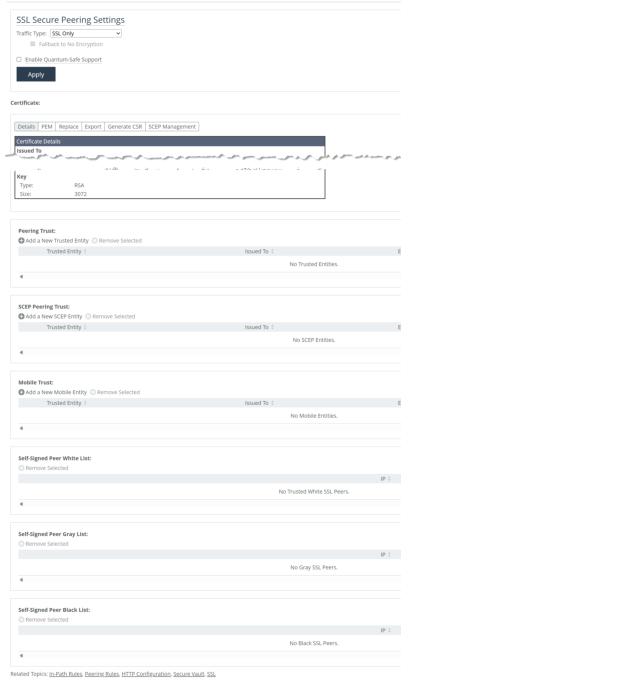
Select a traffic type. Client-side and server-side appliances authenticate each other and encrypt traffic of the selected type. Changing the traffic type requires a service restart.
SSL Only
Encrypts and optimizes all SSL traffic, such as HTTPS on port 443. This is the default value.
SSL and Secure Protocols
Encrypts and optimizes all traffic traveling over Citrix, SSL, SMB-signed, and encrypted MAPI.
All
Encrypts and optimizes all traffic, except pass-through traffic.
Selecting All can cause up to a 10-percent performance decline in higher-capacity appliances. Take this performance metric into account when sizing a complete, secure peering environment.
Fallback to No Encryption
Specifies that the appliance optimizes but doesn’t encrypt connections when it’s unable to negotiate a secure, encrypted inner channel connection with the peer. Disable to pass through connections that don’t have a secure encrypted inner-channel connection with the peer. This option is enabled by default. This setting requires a service restart.
Use caution when disabling this setting, as doing so specifies that you strictly don’t want traffic optimized between nonsecure appliances. Consequently, connections might be dropped. For example, when this setting is disabled and All is selected as the traffic type, the appliance will not optimize the connection when a secure channel is unavailable and might drop it.
We strongly recommend enabling this setting on client-side and server-side appliances, especially in mixed version deployments. This option applies only to non-SSL traffic and is unavailable when the traffic type is SSL Only.
Enable Quantum-Safe Support
Enables post-quantum cryptography (PQC) protection for inner-channel connections between server-side and client-side appliances. This feature provides protection against “harvest now, decrypt later” attacks by utilizing a hybrid key exchange method that employs classical and quantum safe module lattice-based key encapsulation (ML-KEM) standards available in OpenSSL 3.5 and later. Disabled by default.
About peer trust tables
Appliances maintain lists of peers in their peering trust tables. You can manually add trusted peers and accept or decline the trust relationship with any listed peer requesting a secure inner channel.
Secure peering trust tables
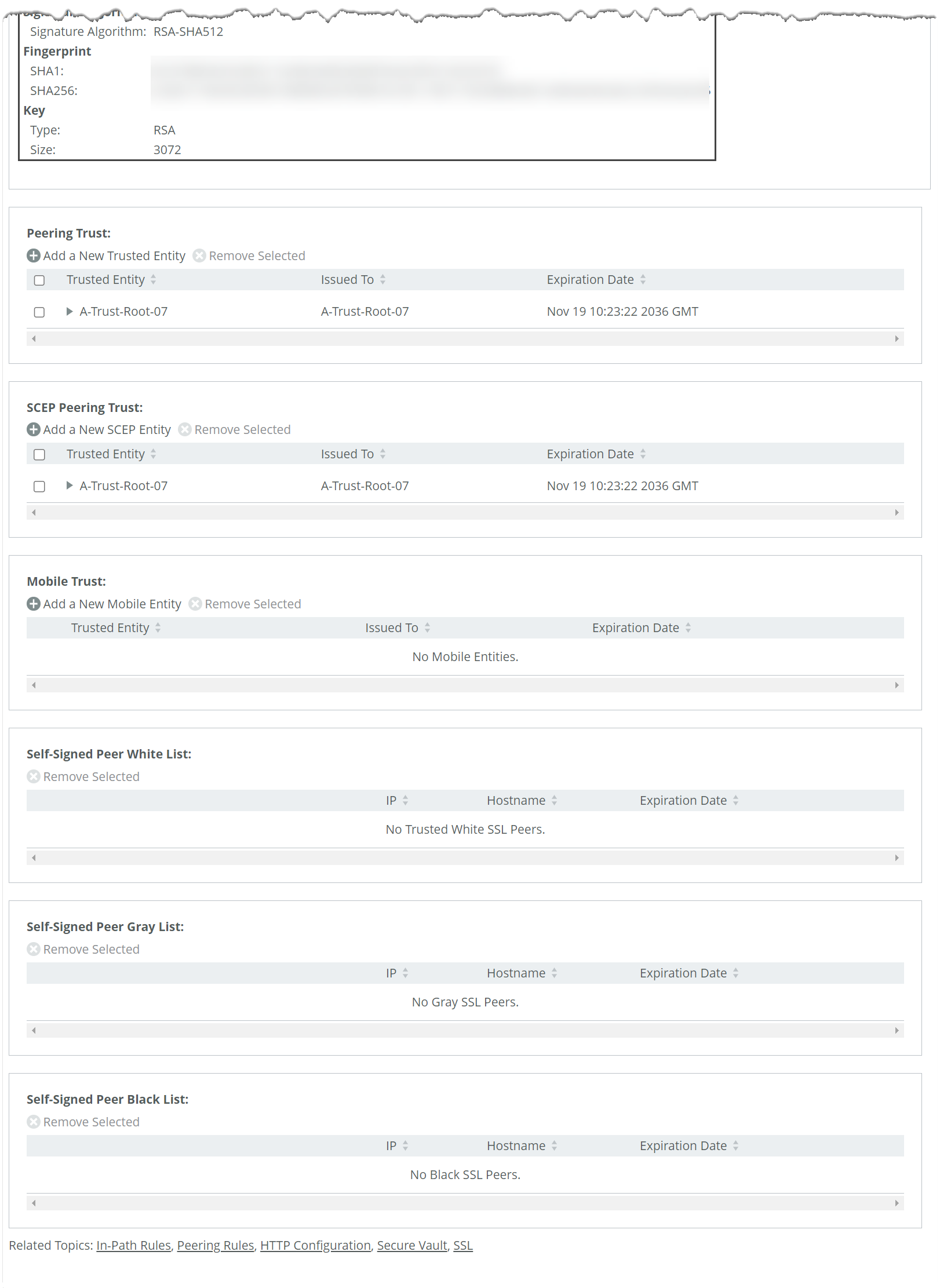
Peering trust
Lists all trusted peers. You can view any listed peer’s certificate details and certificate (PEM format).
SCEP peering trust
Lists the subset of peers that can use simple certificate enrollment protocol (SCEP) certificates:
• URL specifies the URL of the SCEP responder. Example: http://<Iip-address>/certsrv/mscep/mscep.dll
• Maximum Number of Polls specifies the maximum number of polls before the SteelHead cancels the enrollment. The peering certificate is not modified. The default value is 5. A poll is a request to the server for an enrolled certificate by the SteelHead. The SteelHead polls only if the server responds with pending. If the server responds with fail then the SteelHead doesn’t poll.
• Poll Period specifies the poll frequency in minutes. The default value is 5.
• Change Challenge Passphrase specifies the challenge password phrase.
• Enable Auto Enrollment enables automatic reenrollment of a certificate to be signed by a CA using SCEP.
• Expiration Threshold specifies the amount of time (in days) to schedule reenrollment before the certificate expires. The range is from 1 to 60 days. The default value is 30 days.
• Update SCEP Settings updates the SCEP settings.
Mobile trust
Manages trusted SteelHead Mobile Controller appliances, which are authorized to sign certificates for SteelHead Mobile endpoint software. Peer appliances are sorted into three color-coded lists based on trust status:
• White list—Trusted peers
• Black list—Untrusted peers
• Gray list—Unknown peers (typically newly discovered ones attempting to form secure connections)
Each entry in these lists may include details such as the appliance's public key, certificate, certificate expiration date, IP address, and hostname. You can change an appliance’s status manually by:
• moving a peer from the gray or black list to white means you trust it.
• moving a peer from the white or gray list to black means you do not trust it.
Before trusting a peer from the gray list, always verify the certificate fingerprint to protect against potential man-in-the-middle attacks.
If the same certificate is listed in both the trusted entity list and a self-signed peer list, deleting it from one will automatically remove it from the other.
About certificate authorities
A Certificate Authority (CA) is a trusted third party that issues digital certificates and manages public keys used for secure communication. When a CA issues a certificate, it confirms that the public key in the certificate belongs to the entity named in the certificate (like a person, server, or organization). If you trust the CA and can verify its signature, you can trust that the public key belongs to the right entity.
Before adding a CA, it’s important to confirm that it’s legitimate. A fake or compromised CA can issue fraudulent certificates and put your network security at risk.
You may need to add a CA if:
• your organization uses an internal CA.
• your certificate is signed by a CA (root or intermediate) that isn’t already trusted.
• a trusted CA’s certificate has expired or been revoked and needs replacing.
How you replace an expiring certificate depends on the type:
• Peer certificate—For details, go to Knowledge Base article
S17054.
• Root CA certificate—For details, go to Knowledge Base article
S30418.
• Proxy certificate—For details, go to Knowledge Base article
S34687.
Usually, you don’t need to add anything if your CA is already in the trusted list. But if you do need to add a CA, you can upload the certificate file or paste it directly into the Management Console. You can also import multiple certificates at once and assign a local name to each one.
You can manage and update the appliance’s trusted root certificate store from this same page.
Appliances include a pool of preimported certificates from common, trusted CAs. The default list of CAs, as well as settings for adding CAs, is under Optimization > SSL: Certificate Authorities.
Adding or Removing a Certificate Authority
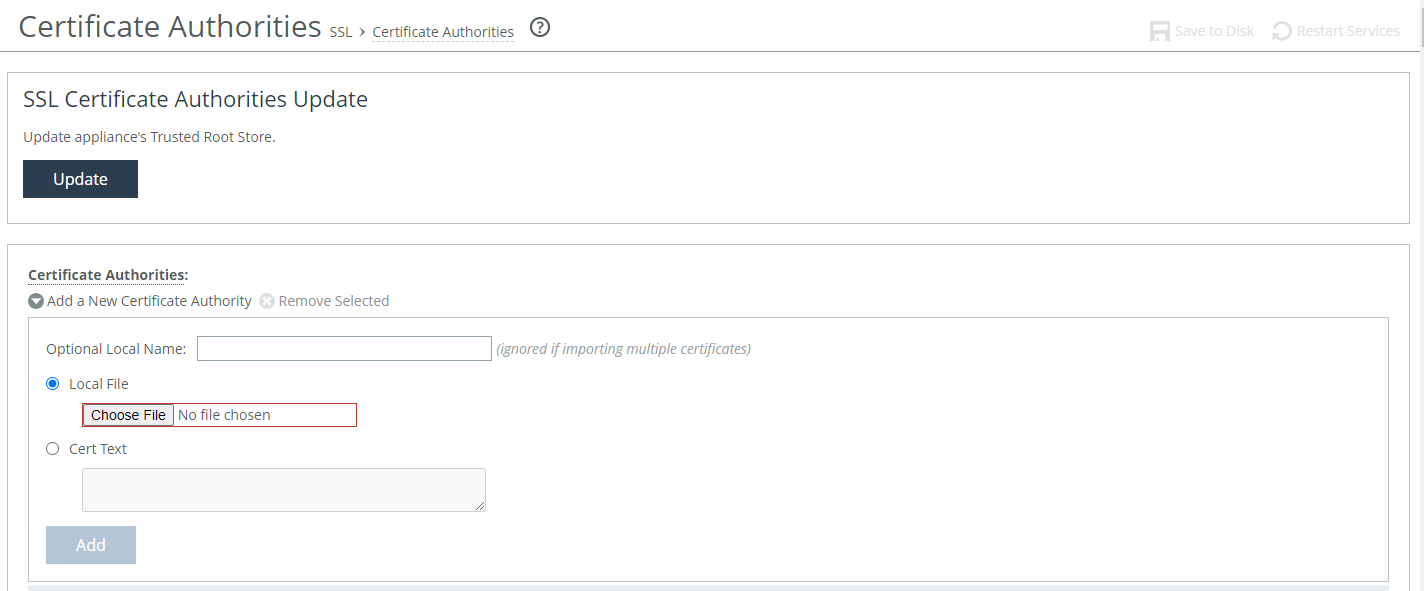
Under Certificate Authorities, see the following options:
Add a New Certificate Authority
Click to add a new CA.
Optional Local Name
Selecting an optional local name for the CA is available when uploading a single certificate at a time.
Local File
Browse your local system for the CA file.
Cert Text
Optionally, you can paste the certificate directly into the management console.
Add
Click to add the CA.
About certificate revocation lists
Certificate revocation list (CRL) management settings are under Optimization > SSL: CRL Management. Configure on server-side appliances.
CRL management settings for common CAs
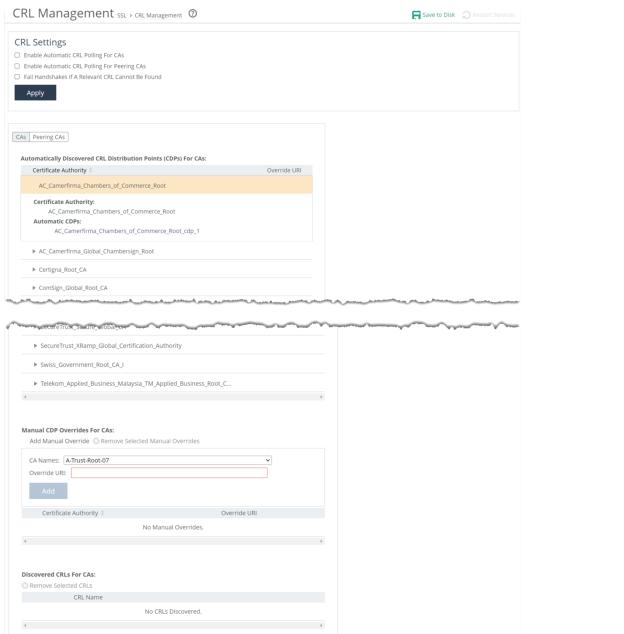
CRLs are lists of digital certificates that have been revoked by their Certificate Authorities (CAs) before their expiration dates and should no longer be trusted. CAs issue digitally signed CRLs on a regular basis, and users can retrieve them as needed. These lists are often made available through CRL Distribution Points (CDPs).
Regularly checking CRLs helps maintain the integrity and security of digital certificates. To support this, you can enable polling on your appliance so it automatically checks CRLs during certificate handshake verifications and regularly checks for updates.
Polling can be enabled for:
• common and configured CAs listed under Optimization > SSL: Certificate Authorities
• peer CAs listed under Optimization > SSL: Secure Peering (SSL)
You can also choose to make handshakes fail if the appliance can’t find the required CRL. This setting applies to both common and peering CAs.
When CRL distribution points are discovered automatically, they’re added to a list where you can view detailed information like URIs, CRL details, and access history. You can also manually override any CDP information. Keep in mind, not all CAs use CDPs, so only a subset of CAs will appear in this list.
Similarly, automatically discovered CRLs are also added to a list, and you can manually manage these entries by selecting or removing them as needed.
Viewing SSL connection reports
Reports for secure connections are under Optimization > SSL: <entity> Details. TLS profiling must be enabled under the main settings.
These reports include host, server, and client views, each showing secure connections between the local appliance and other entities. The reports display the amount of traffic, acceleration performance, connection errors, and current status.
Server reports show connections by IP address, while host reports use hostnames, which is useful when a hostname maps to multiple IPs—for example, “outlook.com.” Client reports show connections by client IP address and include similar data.
Each report provides the IP address or hostname, number of completed connections, LAN traffic (including accelerated, pass-through, and bypassed traffic), and optimized LAN/WAN traffic. It also shows the round-trip time (RTT) for the inner channel, the total number of connection errors, and the connection’s current status:
• Active means the connection is being accelerated.
• Bypass means acceleration isn’t happening due to an error.
• Filtered means the appliance has temporarily stopped accelerating the connection but will try again during the next evaluation.
The evaluation time is shown for filtered connections, but left blank for active or blocked ones.
If a connection fails, the appliance allows traffic to pass through without acceleration for up to five minutes. For MAPI, SMB-signed, and Citrix traffic, failed connections are only passed through if Failback to No Encryption is disabled.
About SSL Simplification
SSL Simplification refers to deployments where SteelHead Mobile automatically provides certificates and brokers access to client certificates supporting client authenticated connections. This feature provides a simplified, modular, and automated platform for managing security certificates. When the feature is enabled on client SteelHeads that interoperate with SteelHead SaaS 1.5.1 and later, TLS transport is used.
This feature includes these components:
• Transport Layer Security (TLS) blade–This component handles SSL/TLS optimization and manages the communication between endpoint applications and SSL agents.
• Agent software–Similar to a hardware security module (HSM), this component provides access to certificates. The agent autogenerates its own certificates or connects with the server-side SteelHead certificate repository. This component includes a transport layer that automatically peers and communicates with other agents.
Agents create and manage certificates for their respective client to use for traffic optimization. Currently, the feature can be deployed in these ways:
• SteelHead Mobile is deployed on end-user systems as an agent. The SteelHead Mobile communicates with a client-side SteelHead, which in turn communicates with the server-side SteelHead. Optimization is handled by the client-side and server-side SteelHeads. Certificate management is handled by the SSL SteelHead Mobile.
• SteelHead Mobile is deployed on end-user systems to accelerate traffic and acts as an agent. The SteelHead Mobile communicates directly with the server-side SteelHead. Optimization is handled by the SteelHead Mobile and the server-side SteelHead, and certificate management is handled by the SteelHead Mobile.
Deployment options
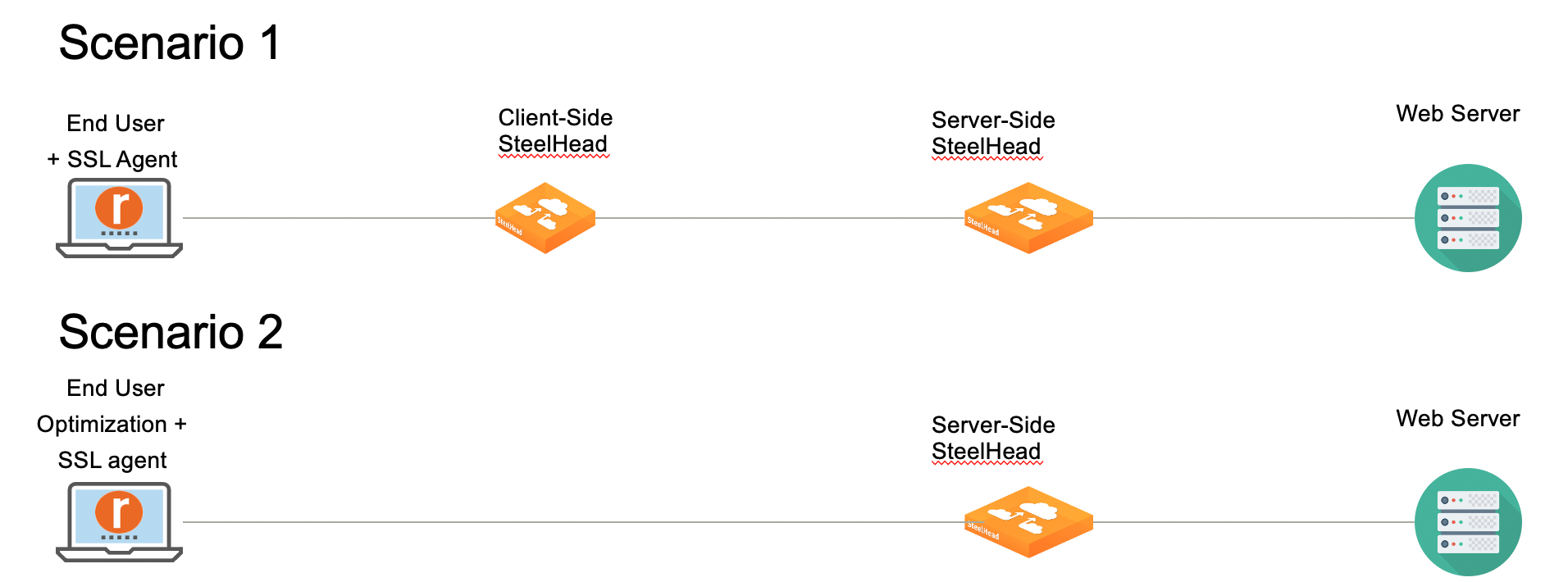
Scenario 1 illustrates a SteelHead Mobile deployed as an agent. The client endpoint device initiates an SSL/TLS connection with the client-side SteelHead, which is received through the TLS blade. The TLS blade requests a certificate from its peer-certificate services layer. This layer is aware that it is connected to a SteelHead Mobile that is acting as an SSL agent and fetches the appropriate certificate from the certificate services layer there, and then returns the certificate to the TLS blade. The SSL/TLS session is authenticated. Using the client session key, the system decrypts the data, optimizes it, reencrypts it using the peering SteelHead’s secure peering session key, and then sends it to the server-side SteelHead.
Topology where the SteelHead Mobile is deployed in end-user devices as an SSL agent.
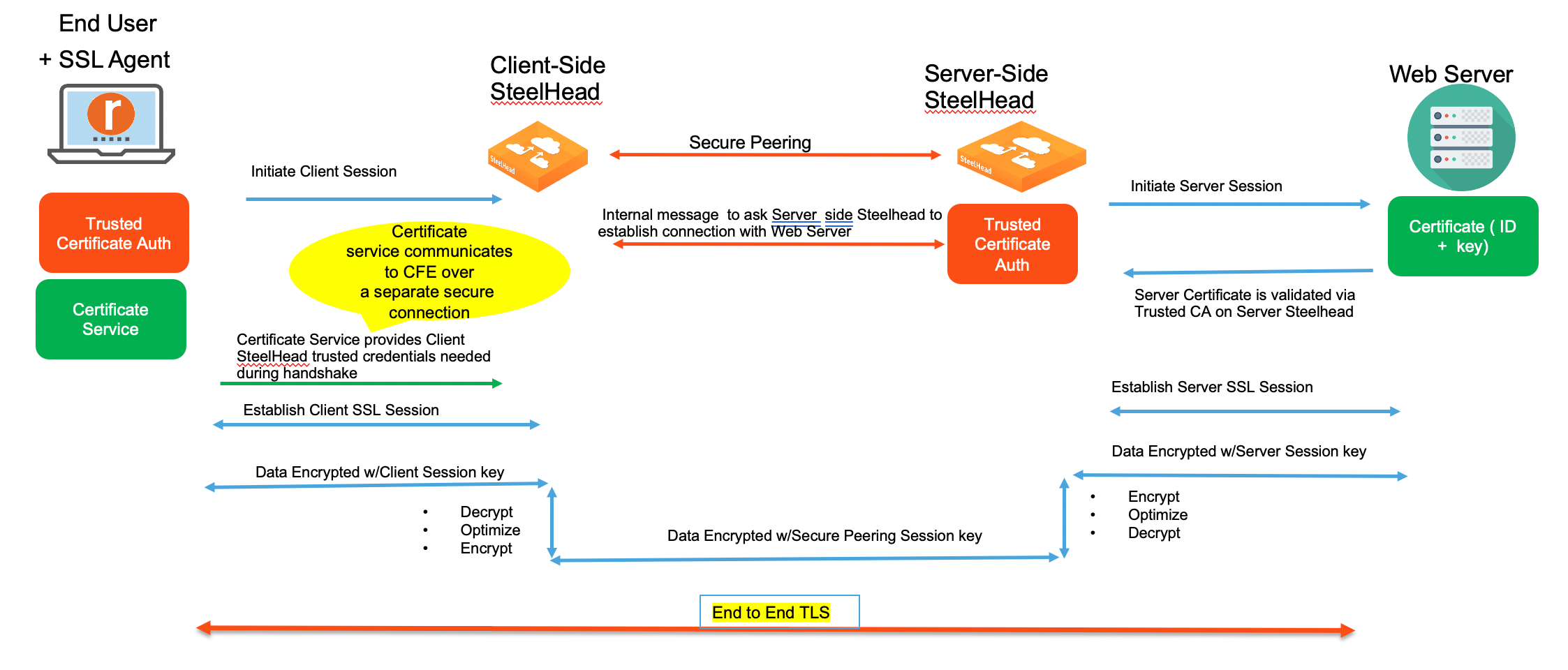
The feature uses one method for certificate selection: Server Name Indication (SNI). This method is an improvement over the traditional system, which relies on exact matches between addresses and certificates and bypass tables when mismatches occur. Under the traditional system, mismatches would sometimes result in dropped connections. With SNI, destination domains and their certificates can be matched at the start of the connection handshake; when there is no match, the connection is simply passed through—no dropped connections.
Requirements for SteelHead Mobile as an SSL agent
This feature requires SteelHead 9.12 or later and SteelHead Mobile 6.2.2 or later.
• TLS enabled on the server-side and client-side SteelHeads, and on the SteelHead Mobile.
• Secure Peering configured between:
– the client-side SteelHead and the SteelHead Mobile Controller.
– the client-side SteelHead and the server-side SteelHead.
• SSL enabled on the SteelHead Mobile.
• Location awareness enabled on the SteelHead Mobile.
• In-path rules configured as auto-discovery on the SteelHead Mobile Controller for all SSL traffic.
Requirements for SteelHead Mobile as an optimization and SSL agent
• TLS enabled on the server-side SteelHead and the SteelHead Mobile.
• SSL enabled on the SteelHead Mobile.
• Secure Peering configured between the SteelHead Mobile Controller and the server-side SteelHead.
Configuring TLS optimization with SSL Simplification
You must configure this feature on the SteelHead Mobile using the SteelHead Mobile Controller and on the client-side SteelHead using the SteelHead Management Console. For more information, see
About the Management Console, and the
SteelHead Mobile User Guide.
Perform this task to configure the feature on SteelHead Mobile:
1. Log in to the SteelHead Mobile Controller.
2. Choose Manage > Services: Policies and select the policy you want to modify.
3. Select the SSL tab.
4. Under TLS Optimization, select Enable TLS Optimization.
5. Click Update Policy.
6. Choose Administration > SSL Peering and add any peering trust certificates or certificate authority (CA) required by the server-side SteelHead.
– For SteelHead Mobile as an SSL agent, add the client-side SteelHead peering certificate.
– For SteelHead Mobile as an SSL and optimization agent, add the server-side SteelHead peering certificate.
7. Choose Manage > Policies, and select the policy you want to modify.
8. Select the In-Path Rules tab.
9. Select Add a New In-Path Rule.
10. Define an in-path rule for SSL optimization that is similar to an in-path rule on the SteelHead. For SteelHead Mobile an SSL agent, define the in-path rule as AutoDiscover only.
11. Click Update Policy.
12. Select the SSL tab:
– Ensure that SSL is enabled.
– Confirm that the peering trust elements are displayed in the Effective List of all the Peering Certificates. If they are not listed, update your SSL peers.
13. Select the Location Awareness tab and perform these actions:
– Enable latency-based location awareness.
– Increase the latency timeout to accommodate the round-trip time (RTT) between the SteelHead Mobile and the client-side SteelHead.
– Ensure Branch Warming is not enabled.
14. Click Update Policy.
Perform this task to configure the feature on SteelHead:
1. Log in to the Management Console.
2. Choose Optimization > SSL: SSL Main Settings.
3. Enable TLS optimization.
4. Apply your changes, save them, and then restart the acceleration service.
About TLS profiling
You enable TLS profiling in the SSL main settings. After you’ve enabled it, you can see profiling information such as host, server, and client details.
Host details
View TLS profiling host details information here.
Server details
View TLS profiling server details information here.
Client details
View TLS profiling client details information here.