About Data Stores
Appliance data stores are essential to the acceleration service. They store data references that help reduce and speed up WAN traffic. When data enters the appliance, it's broken into segments, indexed, and stored. If the same data is seen again, only references to it—rather than the full data—are sent across the WAN. This significantly reduces bandwidth use and improves performance.
Data store settings let you configure options like encryption, syncing with other appliances, branch warming, and notifications for when the store wraps around.
After changing these settings, you need to restart the acceleration service. To confirm the changes are working, check the Networking or Optimization reports.
About data stores
Data stores are essential for acceleration because they hold both data segments and scalable data referencing (SDR) references. As traffic passes through the SteelHead network, it is broken into segments, indexed, and stored. When previously seen data appears again, only lightweight references are sent across the WAN—eliminating the need to retransmit the actual data.
About data store settings
Data store settings are under Optimization > Data Replication: Data Store.
Data store settings
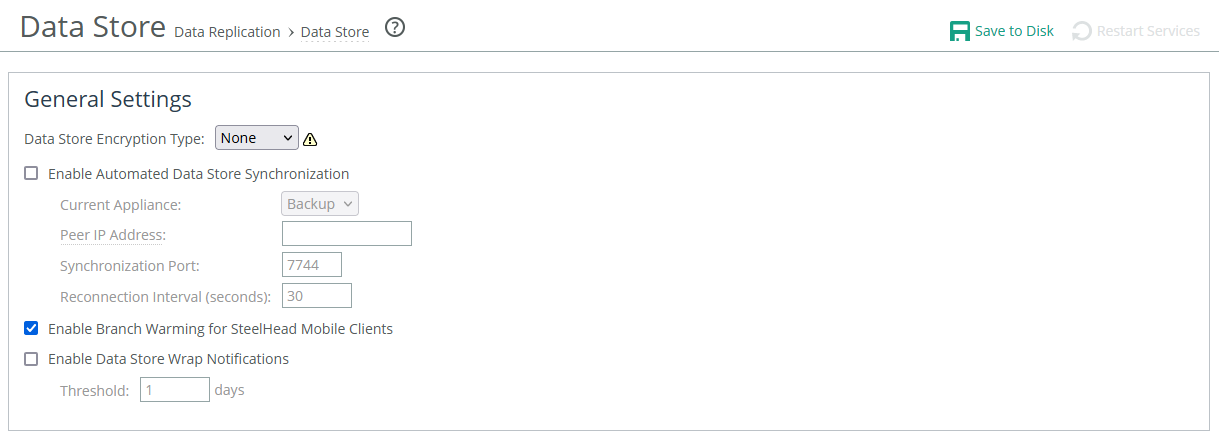
You must clear the data store for any changes to these settings to take effect.
Clearing the data store is irreversible—the stored data cannot be recovered. After clearing, restarting the service, or rebooting the appliance, all data transfers will start cold. Performance will gradually improve as the system builds up warm data references over time.
Data store encryption type
Sets the AES encryption strength for the data store. Choosing "None" disables encryption. To apply any changes—whether enabling, changing, or disabling encryption—you must clear the data store and restart the optimization service.
Enable automated data store synchronization
Enables automatic synchronization between two appliances. Designate one appliance as the primary and the other as the backup. The backup’s data store will be overwritten by the primary’s. Ensure both appliances are network-connected, and configure synchronization from the Management Console of the primary appliance.
Current appliance
Specifies whether the appliance is primary or backup.
Peer IP address
Specifies the IP address of the peer appliance. You can use either the primary interface address or the auxiliary interface address if the peer is configured to use it instead of the primary.
Synchronization port
Specifies the destination TCP port number used when establishing a connection to synchronize data. The default value is 7744.
Reconnection interval
Specifies the number of seconds to wait for reconnection attempts. The default value is 30.
Enable branch warming for clients
Enables branch warming.
Enable data store wrap notifications
Enables wrap notifications.
About data store encryption
Encrypting the data store helps protect sensitive data if an appliance is lost, stolen, or compromised. The encryption makes it difficult for unauthorized users to access the stored data. Before enabling encryption, you must unlock the secure vault, which holds the encryption key.
For maximum security, enable both data store encryption and TLS optimization. Data store synchronization traffic is not encrypted.
Encryption can affect performance; stronger encryption usually means lower performance. Choose an encryption level that balances your security needs with acceptable performance. Consider your network setup, the sensitivity of the data, and how much performance you're willing to trade for better security.
Downgrade limitations
Appliances can use encrypted data stores created within the same major software version, but not in future versions. For example, an encrypted data store created in version 8.0.2 works with 8.0.3, but not with 8.5.
Before downgrading to an earlier version, you must set the encryption type to None, clear the data store, and restart the service. After you clear the data store, the data is removed from persistent storage and can’t be recovered.
If you downgrade to a previous software version and there’s a mismatch with the encrypted data store, the status bar indicates that the data store is corrupt. You can either use the backup software version after clearing the data store and rebooting the service, or return to the software version in use when the data store was encrypted, and continue using it.
About data store synchronization
For maximum redundancy and performance, use data store synchronization between a primary and backup appliance. This ensures that if an appliance fails, there’s no loss of bandwidth savings, as the data segments and references are replicated on the backup appliance.
Data store synchronization works with physical in-path, virtual in-path, or out-of-path deployments. It requires setting up two SteelHeads: one as the primary and the other as the backup. The synchronization traffic uses the primary or auxiliary network interfaces, not the in-path interfaces.
Data store synchronization is a bidirectional operation, regardless of which deployment model you use. The SteelHead primary and backup designation is only relevant in the initial configuration, when the primary SteelHead’s data store essentially overwrites the backup appliance’s data store. The synchronization primary and its backup:
• must have the same hardware or virtual model.
• must be running the same software version.
• don’t have to be in the same physical location. If they’re in different physical locations, they must be connected with a fast, reliable LAN connection with minimal latency.
After configuring the appliances, restart the optimization service on the backup appliance. The primary restarts automatically. The data stores are actively kept synchronized.
If one of the synchronized SteelHeads is under high load, some data might not be copied.
About branch warming
On the server-side appliance, branch warming improves performance by keeping track of data segments created while SteelHead Mobile users are in a SteelHead-enabled branch office. When the user leaves the branch office, the SteelHead Mobile endpoint software provides warm performance. Warm performance in networking refers to the enhanced efficiency and reduced latency that occurs when previously transferred data or segments are reused, rather than retransmitted across the network. It is particularly important in environments with acceleration technologies like WAN optimization, where data is stored and indexed for quick access, improving the speed of future data transfers. This feature is enabled by default.
Data transferred by one endpoint at the branch is stored in the branch SteelHead’s data store. This benefits all endpoints at the branch, as they can access this "warm" data, improving performance.
These requirements must be met for branch warming to work:
• Enable latency-based location awareness and branch warming on the SteelHead Mobile Controller.
• Enable branch warming and enhanced autodiscovery on both the client-side and server-side SteelHeads.
• Client-side and server-side SteelHeads must be deployed in-path.
Branch warming doesn’t improve performance for SSL connections, out-of-path with fixed-target rules deployments, and SteelHead Mobile endpoints that communicate with multiple server-side appliances in different scenarios. For example, if a SteelHead Mobile home user peers with one server-side SteelHead after logging in through a VPN network and peers with a different server-side SteelHead after logging in from the branch office, branch warming doesn’t improve performance.
About data store wrap notifications
Data store wrap notifications alert you when data in the data store is replaced with new data before the specified time period. The feature helps track when data is overwritten, which could indicate potential issues or just regular updates. This feature helps you monitor and manage the data store more effectively, ensuring you stay informed about potential changes in your data handling.
The default time for data replacement is set to 1 day. This means that if data is replaced before a day has passed, the notification will be triggered.
Clearing the data store
Appliances write data references to the data store until it reaches capacity. You must clear the data store:
• after enabling, disabling, or changing encryption.
• before downgrading to an earlier software version.
• to redeploy an active-active synchronization pair.
• after testing or evaluating the appliance.
• after receiving a “data store corruption” or “data store clean required” alarm message.
About data store performance
Data store performance settings are under Optimization > Data Replication: Performance.
Segment Replacement Policy
Determines how data is replaced in the data store. The default policy works well for most appliances, but in some cases, changing the policy can improve performance. We recommend that the segment replacement policy is the same on both the client-side and server-side SteelHeads.
LRU
Replaces the least recently used data in the data store, which improves hit rates when the data aren’t equally used. This is the default value.
FIFO
Replaces data in the order received (first in, first out). This can be useful for optimizing data stores for high-throughput workloads like data replication (DR) or data center tasks over high-bandwidth WAN connections. For DR workloads, we recommend using separate appliances from those used for other application traffic to maintain consistent performance. This approach ensures data reduction benefits while improving the overall data store performance.
Adaptive Data Streamlining Modes
These modes help the appliance manage and adjust resource use to boost LAN throughput. The default setting typically gives the best data reduction, and changes should only be made with guidance from Riverbed Support.
Use caution with the SDR-Adaptive Legacy setting, especially if you’re optimizing NFS with prepopulation.
SDR-M mode is not compatible with data store synchronization.
If you change the streamlining mode, restart the service on both the client-side and server-side appliances, and check the Optimized Throughput report to see if the change improved performance.
Default
Is enabled by default and works for most implementations.
SDR-adaptive legacy
Includes the default features and adds balancing between read and write operations. It also monitors both disk I/O response times and CPU load. By analyzing performance trends, it intelligently combines disk-based and non-disk-based data reduction methods to maintain steady throughput, even during heavy disk or CPU usage.
SDR-adaptive advanced
Automatically adjusts to different data workloads to maximize LAN-side throughput. It uses a smart switching system that aims to reduce bandwidth usage while maintaining high performance, based on the available WAN bandwidth.
SDR-M
Performs data reduction entirely in memory, avoiding disk read/write operations. This can lead to higher LAN-side throughput by eliminating disk latency. It’s ideal for SAN replication environments and works best between two identical high-end SteelHead models. If used with different models, the smaller one may limit performance. After enabling SDR-M on both the client and server appliances, restart both to prevent performance issues. If SDR-M is selected as the adaptive data streamlining mode, the Clear the Data Store option will not be available when restarting the optimization service, as SDR-M doesn’t affect the data store disk.
CPU settings
Allows you to adjust the compression level, enable adaptive compression, and balance connection loads across multiple cores. These features help handle high-traffic loads by reducing compression, boosting throughput, and making better use of Long Fat Network (LFN) bandwidth.
Compression Level
Controls the balance between data compression and LAN throughput speed. Lower levels offer faster throughput with slightly less compression. Level 1 uses the least compression and the least CPU, while Level 9 offers maximum compression but uses more CPU. The default is Level 6. For high-throughput environments, like data center-to-data center replication, we recommend setting it to Level 1.
Adaptive Compression
Dynamically monitors LZ data compression performance for each connection. If it’s not performing well, it temporarily disables compression (sets it to level 0). It helps improve overall LAN throughput by optimizing WAN throughput. By default, this feature is disabled.
Multi-Core Balancing
Ensures even distribution of workload across all CPUs, thereby maximizing throughput by keeping all CPUs busy. Core balancing is useful when handling a small number of high-throughput connections (approximately 25 or fewer). By default, this setting is disabled and should be enabled only after careful consideration.