About Reports
This section describes how to navigate and customize reports, and it describes the reports that you can generate. Clear your browser cache and cookies after you upgrade SCC software to ensure reports appear correctly.
About navigating and customizing reports
Time-series reports are designed to make data exploration easier by presenting information in a chronological layout that offers contextual insight. Reports can appear in either a single-pane or dual-pane format. In dual-pane layouts, both panes are synchronized along the x-axis, and each pane supports two y-axes—one on the left and one on the right. The plot area is the central space where data visualizations appear. Most reports use simple line graphs, but area graphs are used when appropriate. Area graphs include two types: layered series, which appear with transparent colors and overlap visually, and stacked area series, which use opaque colors to represent data components that sum to a meaningful total.
Typical report with plot area (1), control panel (2), and navigator (3)
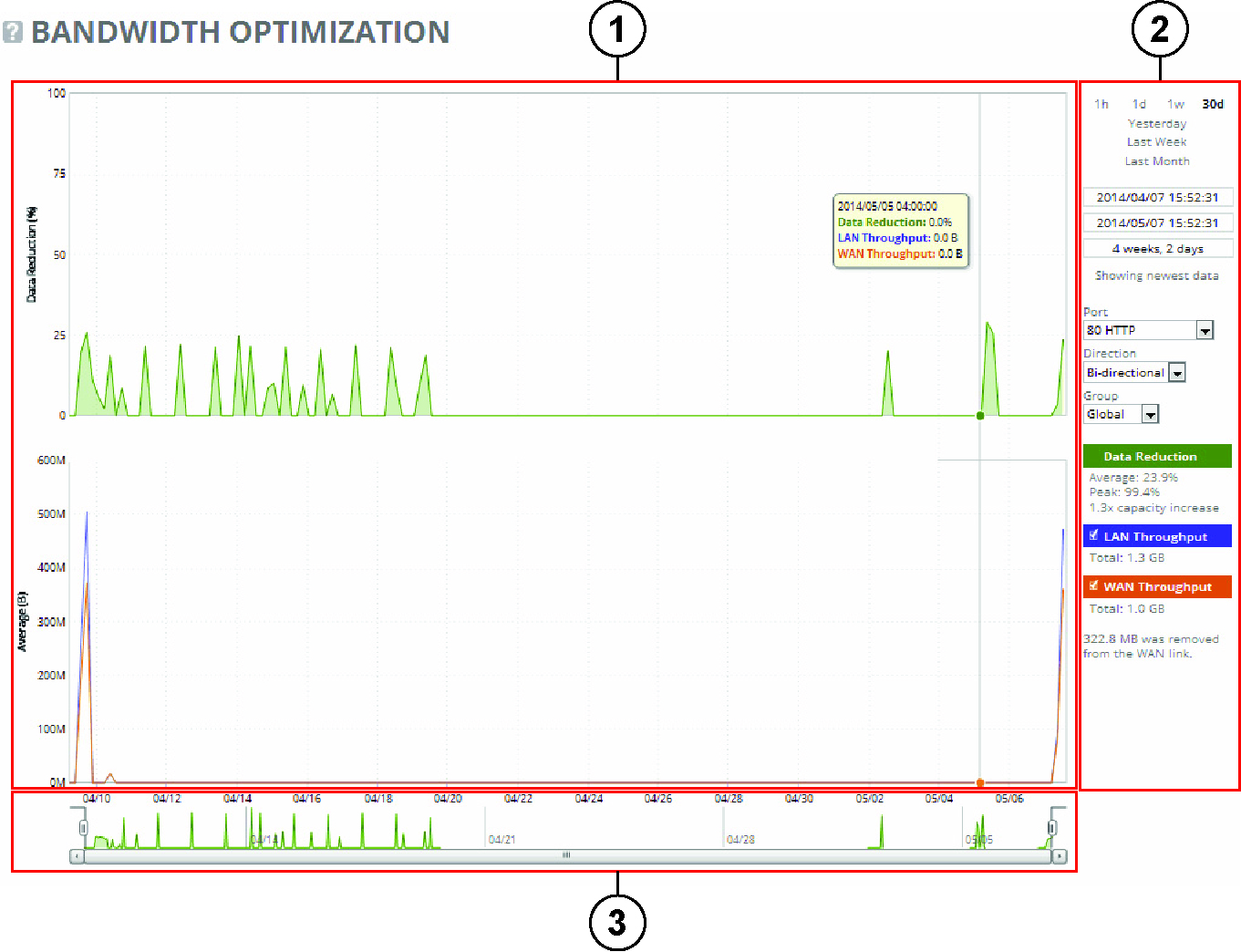
You can mouse over a specific data point to see what the y values and exact time stamp were in relation to peaks.
The control panel allows users to configure chart display options, including how much data is shown, visual properties, and the inclusion of summary statistics. Available time intervals include 1 hour, 1 day, 1 week, 30 days, Yesterday, Last Week, and Last Month. The currently active interval appears in bold, and any link representing a larger time span than the available data appears dimmed. Below the interval links, chart window controls offer precise management of the visible data range. These include fields for the chart’s start time, end time, and duration. When the chart window is attached to the most recent data, it auto-refreshes every 10 seconds—useful for monitoring live changes. If detached, a link labeled “Show newest data” allows users to reattach the window. All text fields validate inputs immediately and update the chart when changes are applied.
Custom controls appear below the chart window settings. These are report-specific and trigger a full data reload when altered. While data is reloading, the control panel becomes temporarily inactive, and an “updating” message appears in the chart area. The chart legend, found alongside the plot, displays the names and colors of each data series. Users can toggle the visibility of individual series using check boxes. The legend also shows live-updating statistics based on the current chart window, including both individual and composite values derived from multiple series.
Above the scroll bar is the navigator, a smaller display showing one data series. It provides a quick overview of the dataset and allows users to adjust the visible range by dragging or clicking. The chart window can be resized here, with a minimum size of five minutes. The display in the navigator may differ from the main chart, particularly if the selected series differs from more prominent ones shown in the main view.
All user-specific settings, including the chart window and control panel configurations, are saved automatically and persist even after logging out or closing the browser. Settings are stored per user, and a warning appears if multiple users are logged in, as preferences may be overwritten. The system remembers the most recent chart window and applies it to other reports.
While data can be retained and visualized for up to one month, the level of detail decreases as time passes due to performance and storage considerations.
When a report display includes the total classes, the data series appear as translucent; selected classes appear as opaque. The navigator shadows the total sent series. When the report display includes selected classes and remote sites, the navigator shadows the first nonempty sent series. A data series can be empty if you create a QoS class but it hasn’t seen any traffic yet.
Selecting a parent class displays its child classes. For example, the report for an HTTP class with two child classes named WebApp1 and WebApp2 displays statistics for HTTP, WebApp1, and WebApp2.
When a selected class has descendant classes, the report aggregates the statistics for the entire tree of classes. It displays the aggregated tree statistics as belonging to the selected class.
About data grouping
Reports use data grouping to improve readability when dealing with dense data. Grouping replaces multiple points with a single aggregated point using functions like average, sum, or maximum (high). The granularity of grouped data adapts based on zoom level. Supported granularities include 5, 10, 15, and 30 minutes, along with hourly intervals (1 to 12 hours) and 1-day increments. When grouping is active, mousing over a point displays the start time of the grouped interval and the aggregated value.
Each report uses grouping differently. For instance, the Bandwidth Optimization report uses sum for throughput and average for data reduction. The Optimized Throughput report uses average for general data and high for peak values. The Connection History report uses maximum for core metrics and average for others. Connection Pooling uses sum, while SnapMirror and SRDF reports use a combination of high and average functions based on series type.
About time intervals and data for specific times
Users can interact with data directly in the plot area. Mousing over reveals tooltips with timestamps, series names, and unit-based values. The chart also highlights work hours (8:00 AM to 5:00 PM weekdays) with a white background, while nonwork hours appear in gray. Zooming is accomplished by clicking and dragging across the plot area. The chart window and control panel update accordingly. To show or hide a data series, users can check or uncheck boxes next to series names. However, some series cannot be hidden (for example, Data Reduction) to preserve report integrity.
You can customize reports using a time interval of 1 hour (1h), 1 day (1d), 1 week (1w), 30 days (30d), yesterday, last week, or last month. Time intervals that don’t apply to a particular report are dimmed. For a custom time interval, enter the start time and end time using the format yyyy/mm/dd hh:mm:ss
Because the system aggregates data on the hour, request hourly time intervals. For example, setting a time interval to 08:30:00 to 09:30:00 from 2 days ago doesn’t create a data display, whereas setting a time interval to 08:00:00 to 09:00:00 from 2 days ago will display data.
When you request a custom time interval to view data beyond the aggregated granularity, the data isn’t visible because the system is no longer storing the data. For example, these custom time intervals don’t return data because the system automatically aggregates data older than seven days into two-hour data points:
• Setting a one-hour time period that occurred two weeks ago.
• Setting a 75-minute time period that occurred more than one week ago.
You can quickly see the newest data and see data points as they’re added to the chart dynamically. To display the newest data, click Show newest data.
About exporting reports
Reports can be exported via email, URL, or downloadable files. Users can choose formats such as HTML, PDF, or CSV. Per-appliance export options are available, with one CSV file generated per appliance if selected. Users can export immediately or schedule exports for future times and intervals. Printable views are accessible via a link at the bottom of the report page.
About the Connection History report
Th Connection History report is under Reports > Networking: Connection History.
Connection History report
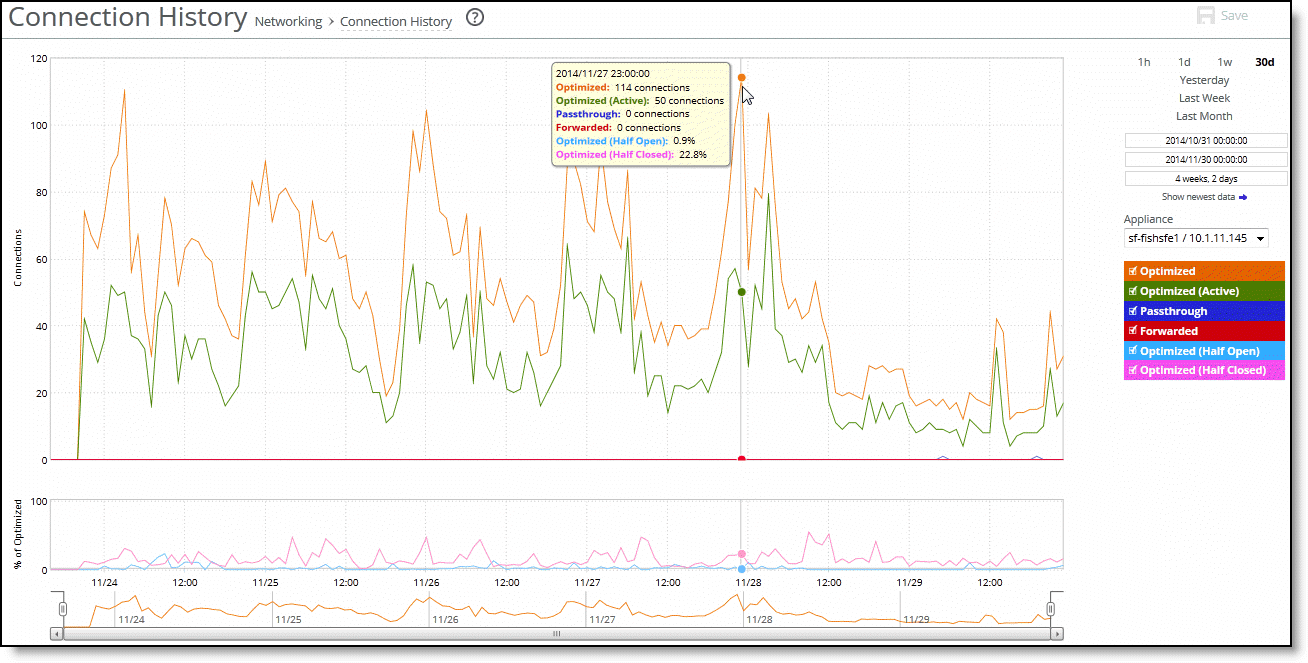
The Connection History report shows connection counts for a variety of connection types for the time period specified. Time Interval and Group options are available to customize the report. This report includes IPv6 and packet-mode optimized traffic. The report contains these statistics that summarize connection activity:
Optimized
Displays the total connections, including half-open, half-closed (where half-open and half-closed are TCP connection states), idle, established and optimized.
Optimized (Active)
Displays the total active connections that are established and optimized.
Passthrough
Displays the total connections passed through, unoptimized.
Forwarded
Displays the total number of connections forwarded by the connection-forwarding neighbor managing the connection.
Optimized (Half Open)
Displays the percentage of half-opened connections represented in the optimized connection total. A half-open connection is a TCP connection that hasn’t been fully established. Half-open connections count toward the connection count limit on the SteelHead because, at any time, they can become a fully open connection. If you’re experiencing a large number of half-opened connections, consider a more appropriately sized SteelHead.
Optimized (Half Closed)
Displays the percentage of half-closed active connections represented in the optimized connection total. Half-closed connections are connections that the SteelHead has intercepted and optimized but are in the process of being disconnected. These connections are counted toward the connection count limit on the SteelHead. Half-closed connections can remain if the client or server doesn’t close their connections cleanly. If you’re experiencing a large number of half-closed connections, consider a more appropriately sized SteelHead.
The navigator shadows the optimized series.
The Connection History report answers these questions:
• How many connections were optimized?
• How many connections were passed through, unoptimized?
• What is the percentage of half-opened connections represented in the total optimized connections?
• What is the percentage of half-closed connections represented in the total optimized connections?
About the Connection Forwarding report
The Connection Forwarding report is under Reports > Networking: Connection Forwarding.
Connection Forwarding report
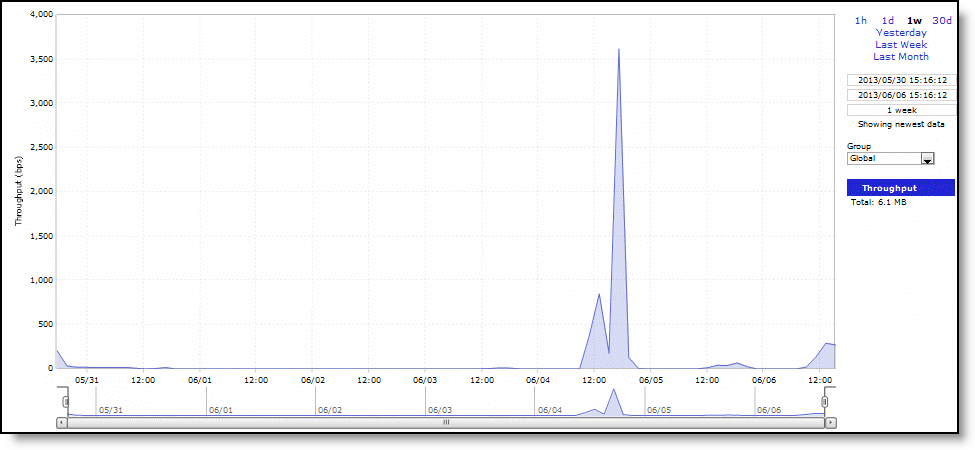
The Connection Forwarding report summarizes the data throughput between an appliance and a specified neighbor or all neighbors. Time Interval and Group options are available to customize the report.
Throughput
Displays the throughput in bits per second. The navigator shadows the throughput series.
You configure neighbors when you enable connection forwarding.
About the Connection Pooling report
The Connection Pooling report is under Reports > Networking: Connection Pooling.
Connection Pooling report
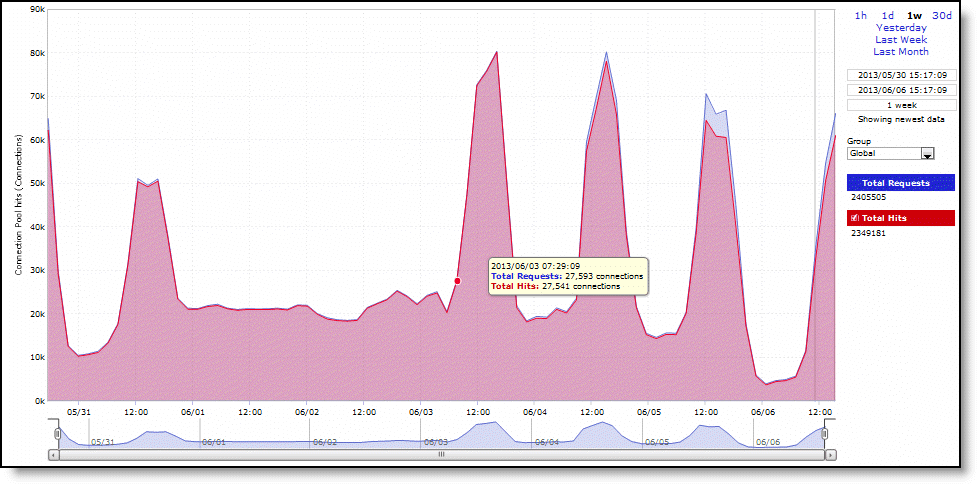
The Connection Pooling report summarizes the current pool of connections to peer appliances. Time Interval and Group options are available to customize the report. The Connection Pooling report contains these statistics that summarize connection pooling activity:
Total Requests
Displays the total number of requests for connections to peer appliances.
Total Hits
Displays the total number of successful connections and connections that are serviced by already existing inner channel connections.
Connection Pool hits (Connections)
Displays the total number of successful connections and connections that are serviced by already existing inner channel connections.
The connection pool holds many idle TCP connections up to the maximum pool size. When a client requests a new connection to a previously visited server, the pool manager checks the pool for unused connections, returns one if available, and then replenishes the pool with another idle connection.
About the Outbound QoS report
The Outbound QoS report is under Reports > Networking: Outbound QoS.
Outbound QoS report
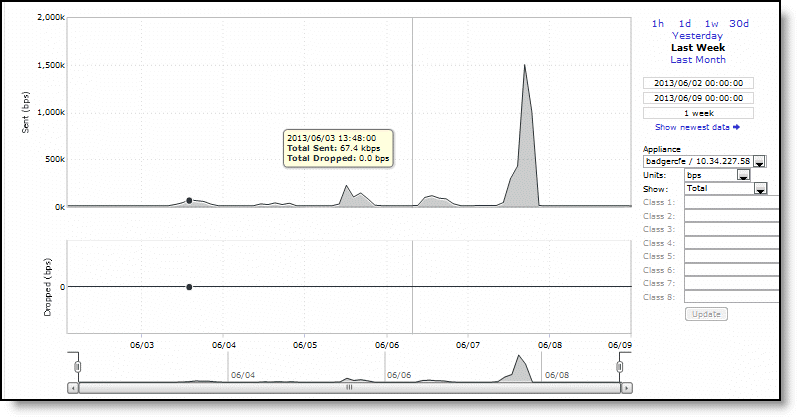
The Outbound QoS report summarizes the number of bits per second or packets per second transmitted for either a set of QoS classes (up to seven) or an aggregate total of all classes for the time period specified. You view Time Interval, Units, Classes, and other options are available to customize the report.
The Outbound QoS report answers these questions:
• Is outbound QoS working correctly?
• How many bits or packets per second were transmitted over the WAN for the QoS classes?
• How many bits or packets per second were sent and dropped for the QoS classes?
If you choose a SteelHead running RiOS 9.0.x or later, these reports will not display data. SCC 9.0.x and later don’t support QoS reports for SteelHeads running RiOS 9.0.x or later. Log in to the SteelHead to view QoS data.
About the Inbound QoS report
You view the Inbound QoS report under Reports > Networking: Inbound QoS.
Inbound QoS report
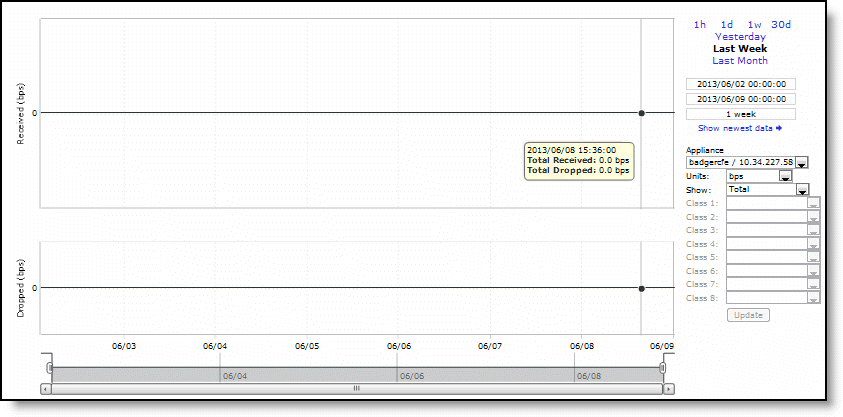
The Inbound QoS report displays received and dropped throughput traffic for a variety of inbound QoS class configurations (up to seven) or an aggregate total of all classes for the time period specified. Time Interval, Units, Classes, and other options are available to customize the report.
The Inbound QoS report answers these questions:
• How many bits or packets per second were transmitted over the WAN for the QoS classes?
• How many bits or packets per second were received and dropped for the QoS classes?
If you choose a SteelHead running RiOS 9.0.x, the QoS report will not display data. SCC 9.0.x doesn’t support QoS reports for SteelHeads RiOS 9.0.x. Log in to the SteelHead to view QoS data.
About the Optimized Throughput report
The Optimized Throughput report is under Reports > Optimization: Optimized Throughput.
Optimized Throughput report
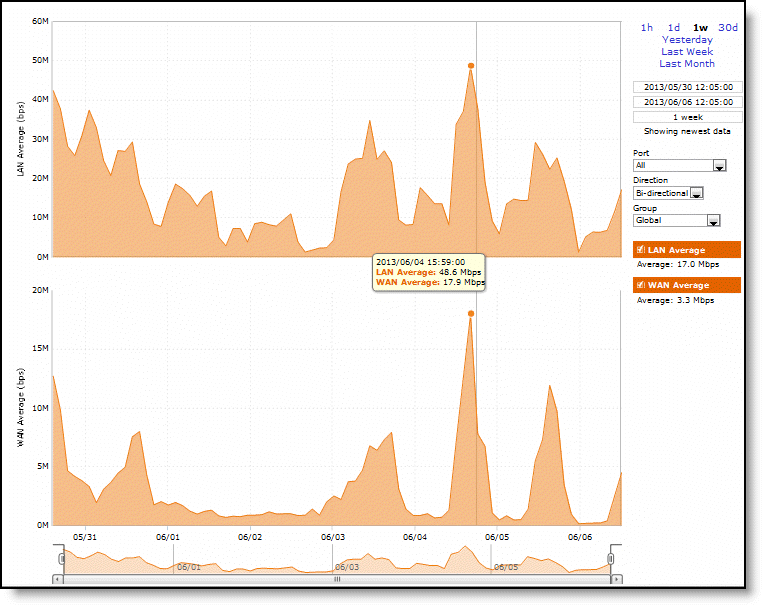
The Optimized Throughput report summarizes the throughput for the port, traffic direction, and time period specified. Time Interval, Port, Direction, and Group options are available to customize the report. Optimized LAN and WAN Link Throughput graphs include these statistics that describe data activity for the application and the time period you specify:
LAN Average (bps)
Displays the average throughput. RiOS calculates the LAN average at each data point by taking the number of bytes transferred, converting that to bits, and then dividing by the granularity. For instance, if the system reports 100 bytes for a data point with a 10-second granularity, RiOS calculates:
100 bytes * 8 bits/byte / 10 seconds = 80 bps
This means that 80 bps was the average throughput over that 10-second period. The average that appears below the LAN Average is an average of all displayed averages.
WAN Average (bps)
Displays the average throughput. RiOS calculates the WAN average at each data point by taking the number of bytes transferred, converting that to bits, and then dividing by the granularity. For instance, if the system reports 100 bytes for a data point with a 10-second granularity, RiOS calculates:
100 bytes * 8 bits/byte / 10 seconds = 80 bps
This means that 80 bps was the average throughput over that 10-second period. The average that appears below the WAN Average is an average of all displayed averages.
The navigator shadows the WAN Peak series.
The Optimized Throughput report answers these questions:
• What was the average WAN and LAN throughput?
• What was the peak WAN and LAN throughput?
The Optimized Throughput report displays these data granularities:
• Last 1 hour's worth of data is available at 10-second granularity.
• Last 1 day's worth of data is available at five-minute granularity.
• Last 1 week's worth of data is available at one-hour granularity.
• Last 1 month's worth of data is available at two-hour granularity.
About the Bandwidth Optimization report
The Bandwidth Optimization report under Reports > Optimization: Bandwidth Optimization.
Bandwidth Optimization report
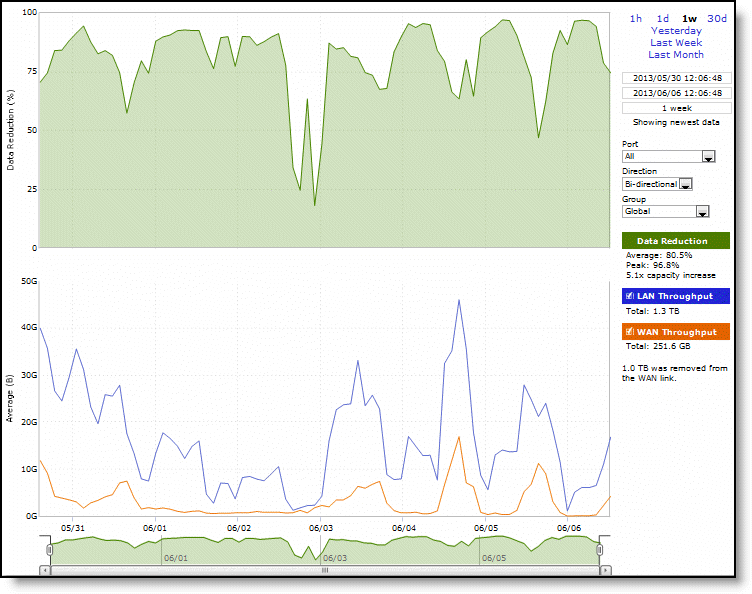
The Bandwidth Optimization report summarizes the overall inbound and outbound bandwidth improvements for your network. Time Interval, Port, Direction, and Group options are available to customize the report.
Bandwidth Optimization report
The values in the data reduction graph of the Bandwidth Optimization report for WAN and LAN Throughput are divided by 1000 rather than 1024. Thus, the calculated values for data reduction will be slightly higher than you might expect.
The Bandwidth Optimization report includes these statistics that describe bandwidth activity for the time period you specify:
Data Reduction%
Displays the peak and total decrease of data transmitted over the WAN, according to this calculation:
(Data In – Data Out)/(Data In)
It displays the capacity increase x-factor below the peak and total data reduction percentages.
WAN and LAN Throughput
Specifies one of these options, depending on that direction you select:
• Bi-Directional—Traffic flowing in both directions.
• WAN-to-LAN—Inbound traffic flowing from the WAN to the LAN.
• LAN-to-WAN—Outbound traffic flowing from the LAN to the WAN.
The navigator shadows the data reduction series.
The Bandwidth Optimization report answers these questions:
• How much data reduction has occurred?
• How much data was removed from the WAN link?
• How much data was sent/received through the LAN/WAN ports?
The Optimized Throughput report displays these data granularities:
• Last 1 hour's worth of data is available at 10-second granularity.
• Last 1 day's worth of data is available at five-minute granularity.
• Last 1 week's worth of data is available at one-hour granularity.
• Last 1 month's worth of data is available at two-hour granularity.
About the Traffic Summary report
The Traffic Summary report is under Reports > Optimization: Traffic Summary.
Traffic Summary report
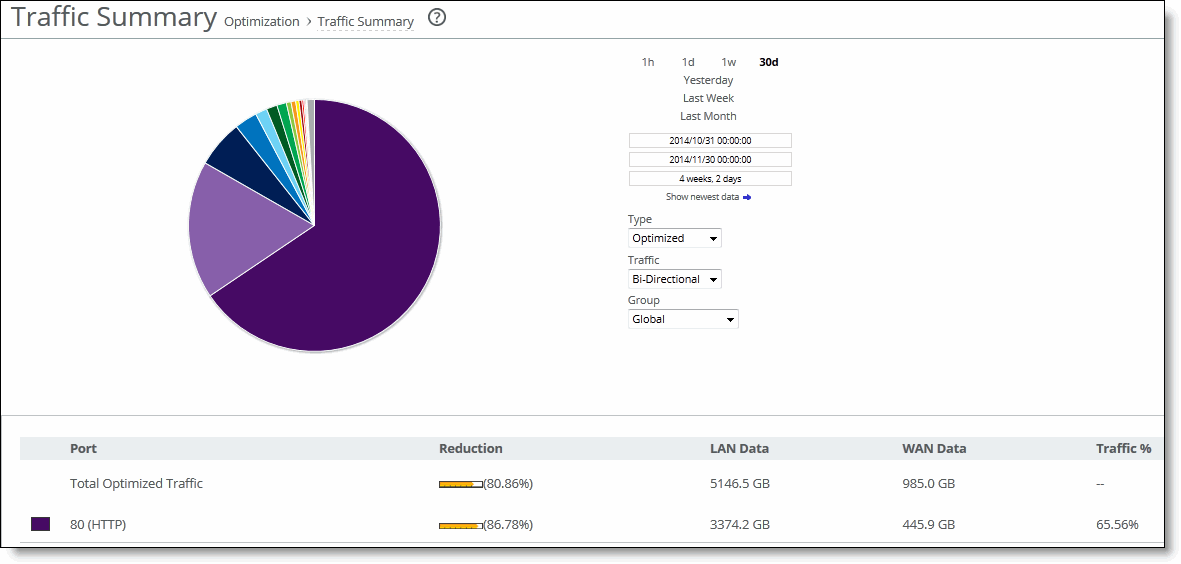
The Traffic Summary report provides a percentage breakdown of the amount of traffic going through the system by the port and type of traffic. Time Interval, Type, Traffic, and Group options are available to customize the report.
The SCC automatically discovers all the ports in the system that have traffic. The discovered port along with a label (if one exists) is added to the report. If a label doesn’t exist, then an unknown label is added to the discovered port.
If you want to change the unknown label to a name representing the port, you must add the port with a new label. All statistics for this new port label are preserved from the time the port was discovered.
The Traffic Summary report displays a maximum of 16 colors for ports. If you have more than 16 ports, the colors in the report wrap from the beginning.
The Traffic Summary report provides these statistics that describe data activity for the application and the time period you specify:
Port
Displays the TCP/IP port number and application for each row of statistics.
Reduction
Displays the amount of data reduction.
LAN Data
Displays the amount of traffic through the LAN.
WAN Data
Displays the amount of traffic on the WAN.
Traffic%
Displays the percentage of the total traffic each port represents.
The Traffic Summary report answers these questions:
• How much data reduction has occurred?
• What was the percentage of the total traffic for each port?
The Riverbed reporting functionality polls bandwidth and connection metrics every 15 seconds and reports on performance for periods up to one month. Every 15-second sample is used for calculating its average and peak value. However, due to performance and disk space considerations, data representation in reports for periods longer than the last five minutes are interpolated between data points obtained by aggregating more than one 15-second sample. The display granularity decreases with time passed since data was sampled.
About the Performance Details report
The Performance Details report under Reports > Optimization: Performance Details.
Performance Details report
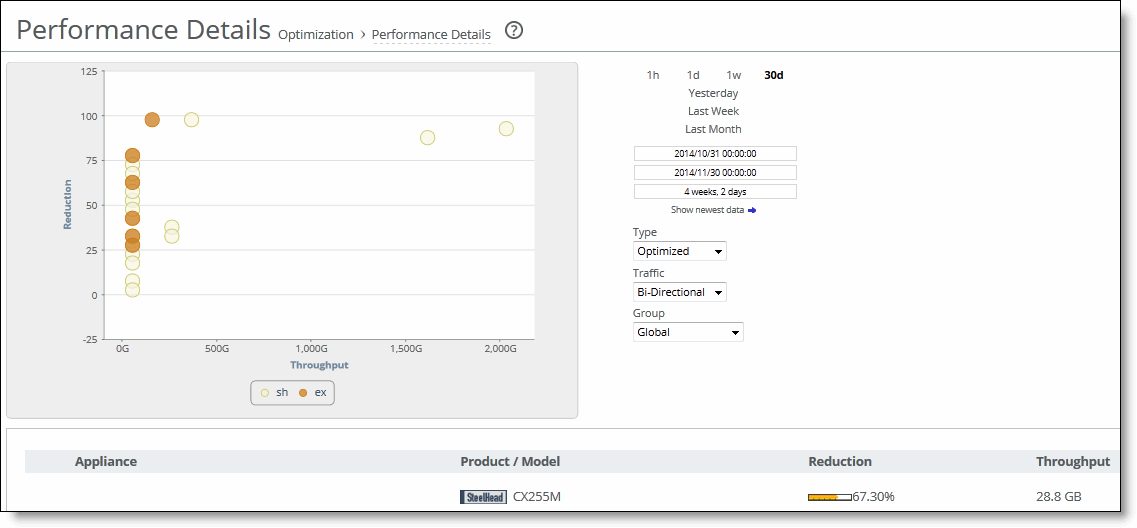
The Performance Details report displays details about the performance of the appliances such as product, model, reduction, and throughput. Time Interval, Port, Direction, and Group options are available to customize the report.
The Performance Details report answers these questions:
• What is the appliance name?
• What is the product name?
• What is the model number?
• What is the reduction size?
• What is the throughput?
About the DNS Cache Hits report
The DNS Cache Hits report displays the rate of DNS cache hits and misses for the time period specified. You view the DNS Cache Hits report under Reports > Optimization: DNS Cache Hits. Time Interval and Group options are available to customize the report.
Cache hits is unavailable in cloud appliances models. This feature may become available in future releases of those models.
For information about navigating and customizing reports, see
About navigating and customizing reports.DNS Cache Hits report
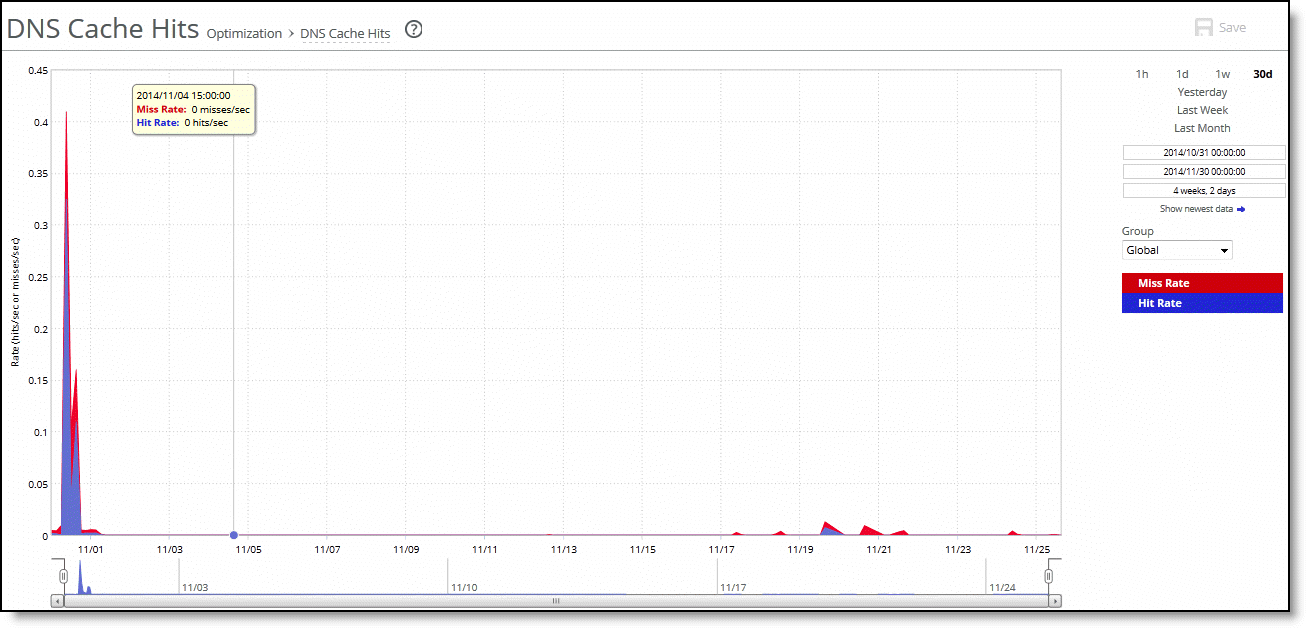
The DNS Cache Hits report contains these statistics that summarize DNS activity:
Miss Rate
Displays the rate of cache misses.
Hit Rate
Displays the rate of cache hits.
The navigator shadows the hit rate series.
The DNS Cache Hits report answers these questions:
• What was the rate of DNS requests that were cached?
• What was the rate of DNS requests that were not cached?
About the DNS Cache Utilization report
The DNS Cache Utilization report displays the size of the DNS cache in terms of DNS entries and bytes for the time period specified. You view the DNS Cache Utilization report under Reports > Optimization: DNS Cache Utilization. Time Interval and Group options are available to customize the report.
Cache utilization is unavailable in cloud appliances models. This feature may become available in future releases of those models.
For information about navigating and customizing reports, see
About navigating and customizing reports.DNS Cache Utilization report
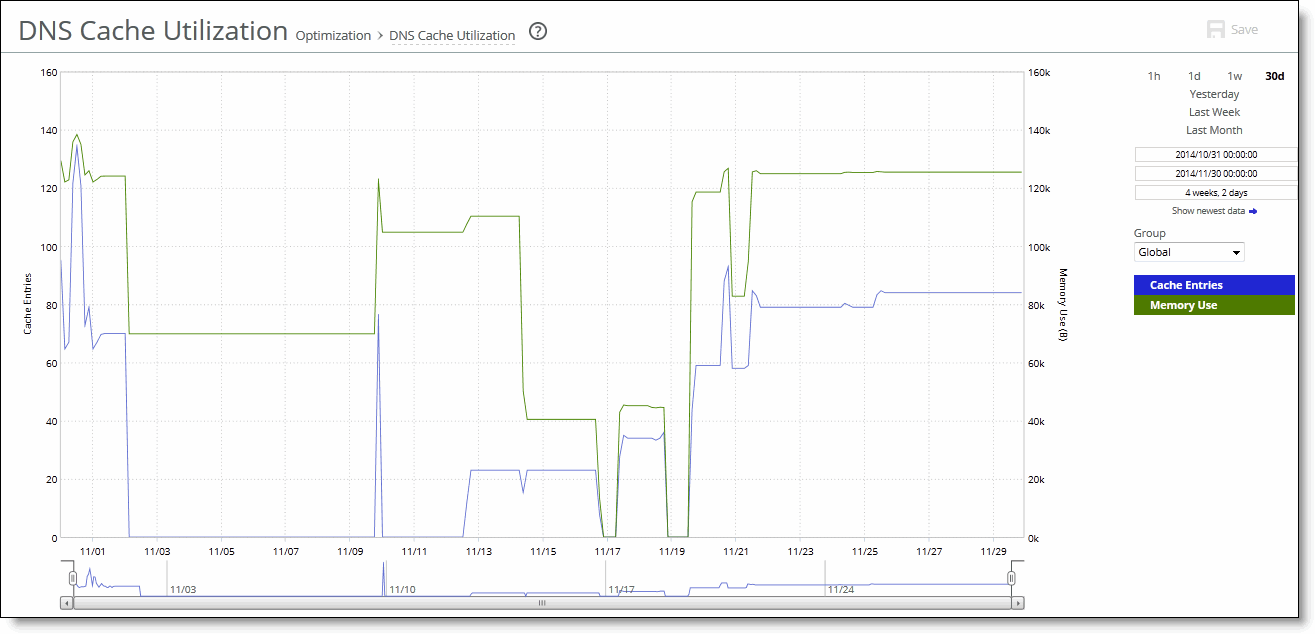
The DNS Cache Utilization report contains these statistics that summarize DNS cache activity:
Cache Entries
Displays the number of DNS entries in the cache.
Memory Use
Displays the cache memory used in bytes.
The DNS Cache Utilization report answers these questions:
• How much cache memory is used?
• How many DNS entries are in the cache?
About the HTTP report
The HTTP report displays the hit rates for HTTP optimization for the time period specified. You view the HTTP report under Reports > Optimization: HTTP. Time Interval and Group options are available to customize the report.
HTTP optimization is unavailable in cloud appliances models. This feature may become available in future releases of those models.
For information about navigating and customizing reports, see
About navigating and customizing reports.HTTP report
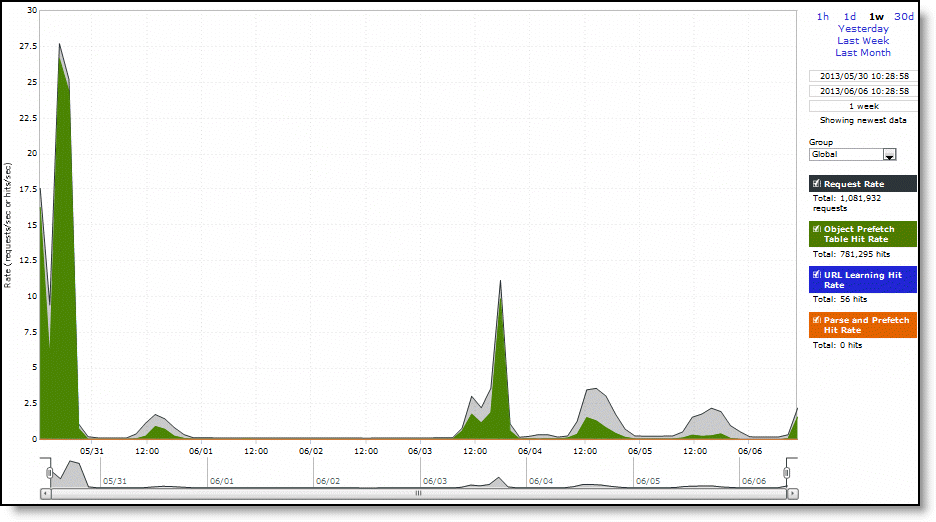
The HTTP report graph displays these statistics that summarize HTTP data activity:
Request Rate
Displays the rate of HTTP objects, URLs, and object prefetch requests.
Object Prefetch Table Hit Rate
Displays the hit rate of stored object prefetches per second. The SteelHead stores object prefetches from HTTP GET requests for cascading style sheets, static images, and Java scripts in the Object Prefetch Table.
URL Learning Hit Rate
Displays the hit rate of found base requests and follow-on requests per second. The SteelHead learns associations between a base request and a follow-on request. Instead of saving each object transaction, the SteelHead saves only the request URL of object transactions in a Knowledge Base and then generates related transactions from the list.
Parse and Prefetch Hit Rate
Displays the hit rate of found and prefetched embedded objects per second. The SteelHead determines that objects are going to be requested for a given web page and prefetches them so that they’re readily available when the client makes its requests.
The navigator shadows the object prefetch table hit rate series.
About the NFS report
The NFS report summarizes NFS optimization statistics for the time period specified. You view the NFS report under Reports > Optimization: NFS. Time Interval and Group options are available to customize the report.
For information about navigating and customizing reports, see
About navigating and customizing reports.NFS report
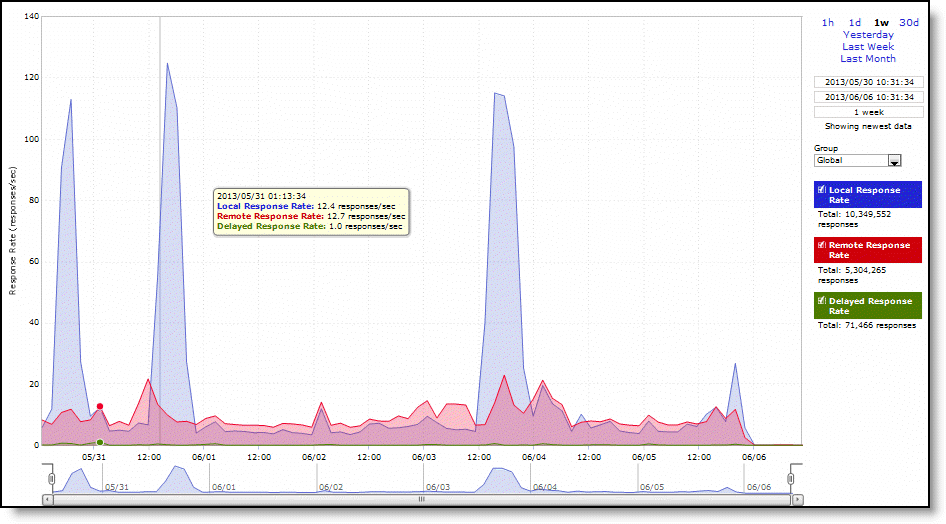
The NFS report contains these statistics that summarize NFS activity:
Local Response Rate
Displays the number of NFS calls that were responded to locally.
Remote Response Rate
Displays the number of NFS calls that were responded to remotely (that is, calls that traversed the WAN to the NFS server).
Delayed Response Rate
Displays the delayed calls that were responded to locally but not immediately (for example, reads that were delayed while a read ahead was occurring and were responded to from the data in the read ahead).
The NFS report answers these questions:
• How many NFS calls were answered locally and remotely?
• How many delayed responses occurred for NFS activity?
About the SnapMirror report
The SnapMirror report displays how much benefit SnapMirror optimization is providing for a given filer (or all filers) and traffic type in the time period specified. You view the SnapMirror report under Reports > Optimization: SnapMirror. You can use this report to view optimization outcomes for not just a filer, but also all volumes for a single filer, or a single filer for a single volume or qtree. You can drill down to specific optimization statistics for a volume or a qtree. Time Interval, Filer (Volume), Traffic Type, and Appliance options are available to customize the report.
SnapMirror captures and reports only traffic flowing in the LAN-to-WAN direction.
For information about navigating and customizing reports, see
About navigating and customizing reports.SnapMirror report
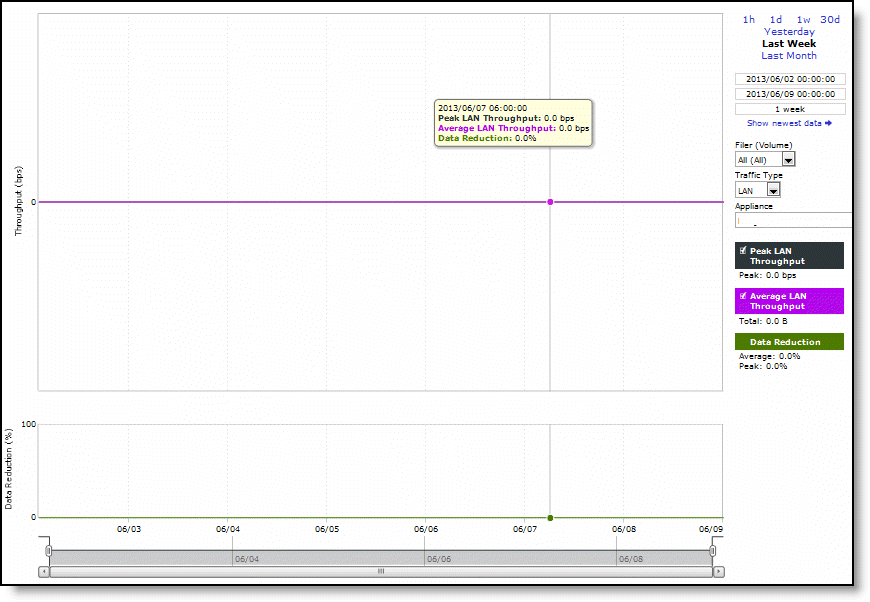
The SnapMirror report contains this information:
Peak LAN/WAN Throughput
Displays the peak LAN/WAN data activity. The system stores peak statistics in terms of bytes transferred over the LAN, but calculates the normal throughput using a granularity of 10 seconds.
Average LAN/WAN Throughput
Displays the average LAN/WAN data activity. The system stores nonpeak statistics as the number of bytes transferred over the LAN/WAN, and calculates the throughput by converting bytes to bits and then dividing the result by the granularity. For instance, if the system reports 100 bytes for a data point with a 10-second granularity, RiOS calculates:
100 bytes * 8 bits/byte / 10 seconds = 80 bps
This means that 80 bps was the average throughput over that 10-second period.
The total throughput shows the data amount transferred during the displayed time interval.
Data Reduction
Displays the percentage of total decrease in overall data transmitted (when viewing all SnapMirror filers). The system calculates data reduction as (total LAN data - total WAN data) / total LAN data.
About the SRDF report
The SRDF report presents information regarding optimized throughput and data reduction for EMC's Symmetrix Remote Data Facility (SRDF) protocol. You view the SRDF report under Reports > Optimization: SRDF. The report measures only LAN-side traffic on an encoding appliance. You can view a summary of performance statistics for all optimized SRDF traffic, as well as drill into metrics for a specific EMC Symmetrix array or an individual remote data facility (RDF) group within an array. Time Interval and Appliance options are available to customize the report.
You can also check the total optimized SRDF traffic throughput under Reports > Optimization: Optimized Throughput.
For information about navigating and customizing reports, see
About navigating and customizing reports.The SRDF report contains this information:
Data Reduction
Displays the percentage of total decrease in overall data transmitted (when viewing all Symmetrix RDF groups).
WAN/LAN Throughput
Displays the total throughput transmitted over the WAN and LAN.
When the report display includes all Symmetrix RDF group or a single RDF group for a single Symmetrix ID, the navigator shadows the LAN/WAN throughput series. When the report display includes all RDF groups for a single Symmetrix ID, navigator shadows the group 1 LAN/WAN throughput series.
About the SSL Servers report
The SSL Servers report summarizes the SSL server connection requests and connection rate for the time period specified. You view the SSL Servers report under Reports > Optimization: SSL Servers. Time Interval and Group options are available to customize the report.
For information about navigating and customizing reports, see
About navigating and customizing reports.The SSL Servers report contains this information:
Requested Connection Rate
Displays the rate of requested SSL connections.
Established Connection Rate
Displays the rate established SSL connections.
The navigator shadows the requested connection rate series.
The SSL Servers report answers these questions:
• What is the rate of established SSL connections?
• What is the rate of connection request SSL connections?
About web proxy reports
The Web Proxy page provides these reports:
• Optimization Report—Lists LAN and WAN data transfer and cache-hit ratio for sites, site types, or appliances. The cache-hit ratio is aggregated across all SteelHeads. The reports display data points for the time range you select within the last 30 days.
• Top 25 Report—Displays the top 25 domain requests by number and top 25 domains by size for sites or site types or appliances. The reports display domains for the time range you select within the last 30 days.
• HTTPS Bypass List—Lists the HTTPS domains that are not optimized due to certificate errors ordered by cache size. This report helps you identify domains that can be whitelisted. For more details, see
Adding domains to whitelists. You view optimized web proxy sites or site types under Reports > Optimization: Web Proxy.
For information about navigating and customizing reports, see
About navigating and customizing reports.Web Proxy Optimization report
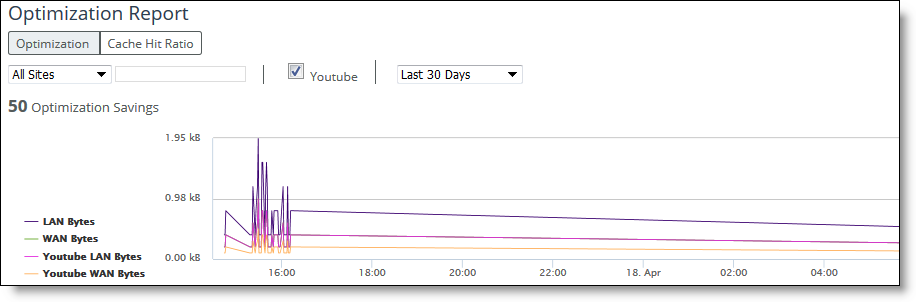
Click Optimization or Cache Hit Ratio to select the type of report. Then select one of these options to filter the report data:
All Sites
Displays data reports of all the sites.
Site
Displays reports of all appliances that belong to a site. Select Site and then enter the name of the site in the text box.
SiteType
Displays reports of all appliances that belong to a site type. Select Site Type and then select the site type from the drop-down list.
Appliances
Displays reports that are specific to that appliance. Select an appliance from the drop-down list.
YouTube
Displays statistics on the YouTube traffic. YouTube caching is handled as a special case given its growing popularity in the enterprise and is enabled by default in SCC.
Time Interval
Indicates the time interval. All reports include statistics for the last 30 days. Select a report time interval of the last 15 minutes, 1 hour, 1 day, 7 days, 15 days, or enter a custom time interval.
For a custom time interval, select the Customize Date... option. You can type the start date and end date using the yyyy/mm/dd format. You can also select the dates from the calendar. The From date cannot be older than the last 30th day. For example, if the To date is May 30th the From date cannot be older than May 1st.
Click Cache Hit Ratio to view the cache-hit report.
You view the top 25 domains for web proxy sites or site types under Reports > Optimization: Web Proxy.
Web Proxy Top 25 report
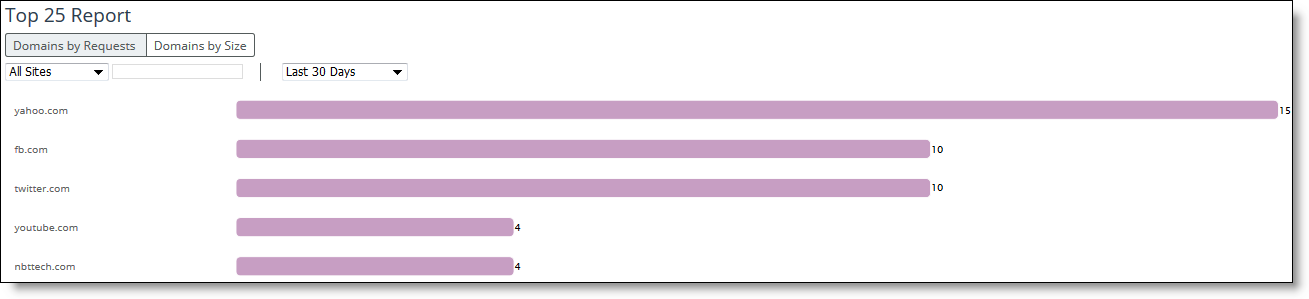
Click Domains by Requests or Domains by Size to display the type of report.
These options are available to filter the report data:
All Sites
Displays data reports of all the sites.
Site
Displays reports of all appliances that belong to a site. Select Site and then enter the name of the site in the text box.
SiteType
Displays reports of all appliances that belong to a site type. Select Site Type and then select the site type from the drop-down list.
Appliances
Displays reports that are specific to that appliance. Select an appliance from the drop-down list.
Time Interval
Specifies a report time interval of the last 15 minutes, 1 hour,1 day, 7 days, 15 days, or enter a custom time interval. All reports include statistics for the last 30 days.
For a custom time interval, select the Customize Date... option. You can type the start date and end date using the yyyy/mm/dd format. You can also select the dates from the calendar. The From date cannot be older than the last 30th day. For example, if the To date is May 30th the From date cannot be older than May 1st.
You view the list of bypassed HTTPS domains under Reports > Optimization: HTTPS Bypass List.
Select the date range, to display the list of hostnames of bypassed HTTPS connections from domains that are not whitelisted and the data consumed by each domain.
HTTPS Bypass List

About the Data Store Status report
The Data Store Status report contains a link to the Appliance Details report which summarizes the data store status for the appliance. For details, see
About the Appliance Details report.About the Data Store SDR-Adaptive report
The Data Store SDR-Adaptive report summarizes:
• how much adaptive compression is occurring in the RiOS data store using legacy mode. The report combines both the percentage due to local and remote adaptive compression (as signaled by the peers)
• the percentage of the traffic, in bytes, that’s adapted to in-memory-only (or transient), compared to the total SDR traffic (SDR-adaptive mode).
You view the Data Store SDR-Adaptive report under Reports > Data Store: SDR-Adaptive. Time Interval and Group options are available to customize the report.
For information about navigating and customizing reports, see
About navigating and customizing reports.Data Store SDR-Adaptive report
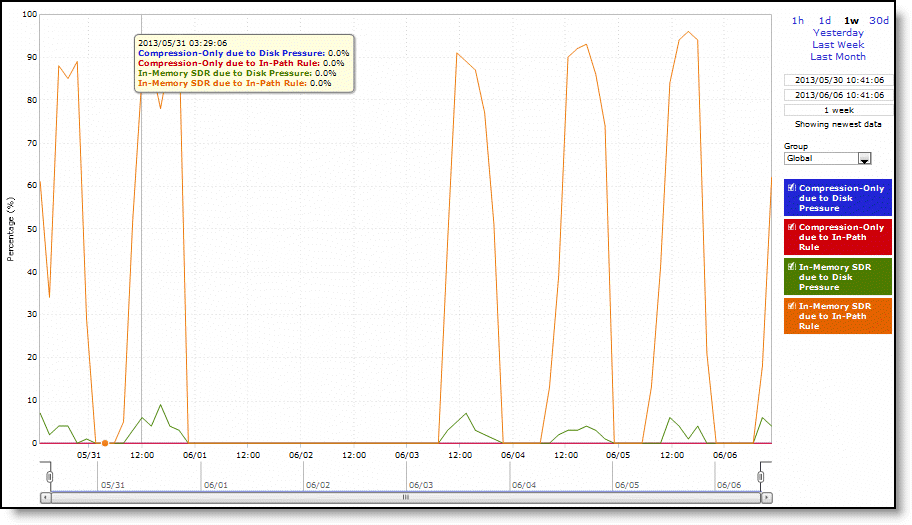
The Data Store SDR-Adaptive report contains these statistics that summarize RiOS data store adaptive compression activity, shown as a percent of total SDR data:
Compression-Only due to Disk Pressure
Displays the adaptive compression occurring due to disk pressure.
Compression-Only due to In-Path Rule
Displays the adaptive compression occurring due to in-path rule.
In-Memory SDR due to Disk Pressure
Displays the in-memory SDR due to disk pressure.
In-Memory SDR due to In-Path Rule
Displays the maximum in-memory SDR due to in-path rule.
About Data Store Disk Load report
The Data Store Disk Load report summarizes the data store disk load due to SDR only as related to the benchmarked capacity of the data store. Consider any value under 90 as healthy. Any value higher than a sustained load over 90 is considered high and can indicate disk pressure. A red line with shading appears at the top of the report to indicate the threshold of 90 and above. When a value is consistently higher than 90, contact Support for guidance on reconfiguring the RiOS data store to alleviate disk pressure. You view the Data Store Disk Load report under Reports > Data Store: Disk Load. Time Interval and Group options are available to customize the report.
For information about navigating and customizing reports, see
About navigating and customizing reports.The Data Store Disk Load report contains this statistic that summarize the RiOS data store disk load:
Disk Load
Displays the RiOS data store disk load.
The Data Store Disk Load report answers these questions:
• Is there any indication of disk pressure?
• What is the disk load at different times of the day?
About the LUN I/O report
The LUN I/O report summarizes the standard I/O data traffic read from and written to the selected LUN for the specified period of time. You view the LUN I/O report under Reports > Branch Services: LUN I/O. Time Interval, LUN Report, LUN, and Appliance options are available to customize the report.
For information about navigating and customizing reports, see
About navigating and customizing reports.The LUN I/O report contains these statistics that summarize the activity:
Total Bytes Read
Displays the total number of bytes read over the WAN.
Average Read Throughput
Displays the average read throughput.
Total Bytes Written
Displays the total number of bytes written over the WAN.
Average Write Throughput
Displays the average write throughput.
Average Read IOPS
Displays the average read IOPS.
Average Write IOPS
Displays the average write IOPS.
Average Read Latency
Displays the average read latency.
Average Write Latency
Displays the average write latency.
The LUN I/O report answers these questions:
• How many megabytes have been written to and read from the selected LUN for the specified period?
• How many operations have been written to and read from the selected LUN for the specified period?
• What are the average read and write latencies for the selected LUN for the specified period?
• How many read hits and misses, in megabytes, were recorded for the selected LUN for the specified period?
• How many uncommitted bytes were recorded for the selected LUN for the specified period?
About the NFS Export I/O report
You can view NFS I/O statistics under Reports > Branch Services: NFS Export I/O. You can select to view a general I/O statistics, statistics on NFS I/O operations per second, or I/O latency. You can also export report data to email or a URL.
About the Initiator I/O report
The Initiator I/O report summarizes the standard I/O data traffic read from and written to the selected initiator for the specified period of time. You view the Initiator I/O report under Reports > Branch Services: Initiator I/O. Time Interval, LUN, Initiator, and Appliance options are available to customize the report.
For information about navigating and customizing reports, see
About navigating and customizing reports.The Initiator I/O report contains these statistics that summarize the activity:
Total Bytes Read
Displays the total number of bytes read over the WAN.
Average Read Throughput
Displays the average read throughput.
Total Bytes Written
Displays the total number of bytes written over the WAN.
Average Write Throughput
Displays the average write throughput.
Average Read IOPS
Displays the average read IOPS.
Average Write IOPS
Displays the average write IOPS.
Average Read Latency
Displays the average read latency.
Average Write Latency
Displays the average write latency.
About the Network I/O report
The Network I/O report summarizes the standard IO data traffic read from and written to the selected Initiator for the time period specified. You view the Network I/O report under Reports > Branch Services: Network I/O. Time Interval and Appliance options are available to customize the report.
For information about navigating and customizing reports, see
About navigating and customizing reports.The Network I/O report contains these statistics that summarize the activity:
Total Bytes Read and Prefetched from Core
Displays the total number of bytes read over the WAN.
Average Read + Prefetch Throughput
Displays the average read throughput.
Total Bytes Written to Core
Displays the total number of bytes written over the WAN.
Average Write Throughput
Displays the average write throughput.
The Network I/O report answers this question:
• How many bytes have been written to and read?
About the Blockstore Metrics report
The Blockstore Metrics report summarizes the standard I/O data traffic read from and written to the selected initiator for the time period specified. You view the Blockstore Metrics report under Reports > Branch Services: Blockstore Metrics. Time Interval, Blockstore Report, LUN, and Appliance options are available to customize the report.
For information about navigating and customizing reports, see
About navigating and customizing reports.The Blockstore Metrics report contains these statistics that summarize the activity:
Hits
Displays the number of hits.
Misses
Displays the number of misses.
Hit Rate
Displays the hit rate.
Bytes Written Blockstore
Displays bytes written blockstore.
Uncommitted Bytes at <date> <time>
Displays uncommitted bytes at a date and time.
Bytes Committed to Core
Displays the bytes committed to Core.
Average Commit Throughput
Displays the average committed throughput.
Average Commit Delay
Displays the average committed delay.
The Blockstore Metrics report answers these questions:
• How many read hits and misses, in megabytes, were recorded for the blockstore for the selected LUN for the specified period?
• How many uncommitted bytes were recorded for the blockstore for the selected LUN for the specified period?
About appliance status
For details about appliance status, see
About the dashboard. About the Unmanaged Appliances report
The Unmanaged Appliances report enables you to export a list of unmanaged appliances using email or a URL. You view the Unmanaged Appliances report under Reports > Topology: Unmanaged Appliances. Various export options are available to customize the report.
For information about navigating and customizing reports, see
About navigating and customizing reports.The Unmanaged Appliances report provides an efficient way to assess the inventory of devices discovered by the SCC in large environments where only a select number of SteelHeads are managed by the SCC. It also enables you to separate the unmanaged devices that you might want to eventually manage from other devices that are owned by different groups, departments, or divisions within the enterprise so that you can assign them to a specific group in the SCC.
The Unmanaged Appliance report:
• collects peer and neighbor information during maintenance windows. If a maintenance window is rescheduled and the new window is less than one hour than the current window, the data will be updated the next day.
• provides a list of all connected/HTTP and disconnected appliances.
If any peer is not found in the connected appliances list, it is added to the list of unmanaged appliances.
For unmanaged appliances, the report doesn’t determine whether it’s managed by another SCC or managed by none.
The Unmanaged Appliances table lists these attributes for each appliance. You can use the filter option to search for the rows in the Unmanaged Appliances table where the cell entry is a string.
Hostname | IP address | Model | Version | Peer/neighbor | Peer/neighbor To |
|---|
vsh-334 | 10.5.160.134 | VCX | 9.2.0 | peer | vsh-580 |
vsh-335 | 10.5.160.140 | VCX | 9.5.0 | peer | sh-23 |
vsh-861 | 10.5.160.130 | — | — | neighbor | sh-23 |
The Unmanaged Appliance table has these restrictions:
• If the SCC registered appliance is a SteelHead or Edge neighbor, the IP address and hostname is displayed.
• If the SCC registered appliance is an Interceptor peer, the IP address, hostname, and version is displayed.
About the Admission Control report
The Admission Control report tracks admission control events (Connection Limit, CPU, MAPI, Memory, Service, and TCP limits) over a time period you specify. Use this report to monitor and diagnose admission control problems in your deployment before they occur. You view the Admission Control report under Reports > Alarms: Admission Control. Various options are available to customize the report.
For information about navigating and customizing reports, see
About navigating and customizing reports.If all appliances are 9.6 or later, you can view frequency of individual alarms.
Data is displayed in different colors. Data is only displayed if an event has occurred.
The Admission Control report contains these statistics that summarize the event activity:
Appliance
Displays the appliance name and IP address.
Appliance Model
Displays the appliance model.
Connection limit
Indicates the system connection limit has been reached. Additional connections are passed through unoptimized.
CPU
Indicates the appliance has entered admission control due to high CPU use. During this event, the appliance continues to optimize existing connections, but new connections are passed through without optimization. The alarm clears automatically when the CPU usage has decreased.
Memory
Indicates the appliance has entered admission control due to memory consumption. The appliance is optimizing traffic beyond its rated capability and is unable to handle the amount of traffic passing through the WAN link. During this event, the appliance continues to optimize existing connections, but new connections are passed through without optimization. No other action is necessary; the alarm clears automatically when the traffic has decreased.
TCP
Indicates the appliance has entered admission control due to high TCP memory use. During this event, the appliance continues to optimize existing connections, but new connections are passed through without optimization. The alarm clears automatically when the TCP memory pressure has decreased.
MAPI
Indicates the total number of MAPI optimized connections has exceeded the maximum admission control threshold. for the alarm to clear.
Service Limit
Indicates that the number of connections receiving unoptimized service has exceeded the supported limit.
Total AC Instances
Indicates the total number of admission control instances.
The Admission Control report answers these questions:
• Why aren’t my SteelHeads healthy and performing optimally?
• How much traffic is a particular SteelHead optimizing?
• How effective is a particular SteelHead at saving bandwidth?
• How many connections could have been optimized if my SteelHead had not been in Admission Control?
The Riverbed system reports on performance for periods up to one month. Due to performance and disk space considerations, the display granularity decreases with time passed since the data was sampled.
About exporting report data
You can export report and log data, and send the export file to an email address, publish it to a URL, or download it. You can specify to collect data globally across all managed appliances, a custom set of managed appliances, and even include Mobile peers. You can also schedule exports for a specific date and time, and set schedule frequency.