About Web Proxy
Web proxy settings are under Manage > Optimization: Web Proxy.
For 10.x, the web proxy option is only applicable to 10.2 and later. Web proxy is not supported in 10.1.
The settings there enable you to configure a web proxy policy, which you can then push to managed appliances by site or site type. You can configure a global proxy profile that applies to all sites, and establish other profiles customized for specific sites or site types. Web proxy settings also allow you to enable HTTPS optimization; create a whitelist of domains, including domains authenticated through Subject Alternate Name (SAN) certificates; and integrate with upstream, parent proxies such as a DMZ proxy or cloud security service.
A single-ended web proxy transparently intercepts all traffic bound to the internet. The web proxy improves performance by providing optimization services such as web object caching and SSL decryption to enable content caching and logging services. The efficient caching algorithm provides a significant advantage for video traffic. The benefit comes in the form of multiple users viewing the same video content, thereby saving significant WAN bandwidth and providing efficient network use. YouTube caching is handled as a special case given its growing popularity in the enterprise.
Web proxy improves performance and reduces congestion on internet traffic. It also provides performance benefits when you access HTTP and HTTPS servers on the internet directly from a branch office. It provides visibility to all internet activity at any given branch as long as that traffic passes through the web proxy. Web proxy is only supported on the SteelHead and the xx70.
You enable the web proxy in a single-ended or asymmetric SteelHead deployment; a server-side SteelHead isn’t required. Both physical and virtual in-path deployments are supported.
Make sure that the DNS configuration and the Primary interface on the managed appliances are both configured and active. Web proxy is critically dependent on DNS resolution, specifically Reverse DNS lookups sourced from the Primary interface, for appropriate HTTP and HTTPS proxy services to occur. Because the SteelHead must successfully resolve hostnames to be cached and proxied the Primary interface of the SteelHead must be configured with valid IP address and DNS information. In addition, the interface must be in an active state, even when it isn’t used by your supported deployment model.
HTTPS integrates with the certificate authority (CA) service on the SCC to generate server certificates and decrypt traffic for a predefined whitelist.
You can view web proxy connections in the managed appliance’s Current Connections report as a new connection type: web proxy. Log messages display SEPIA_YES if web proxy is successful.
Web proxy supports IPv4 only.
About HTTP web proxies
The HTTP web proxy has these characteristics:
• The cache sizes range from 50 GB to 500 GB on SteelHeads.
• The cache content is persistent after reboots and service restarts.
• There is no individual object size limitation.
• The request logging format provides visibility, debugging, and diagnostics information.
• You can use the Web proxy with virtual in-path deployments such as WCCP and PBR.
The in-path rule table includes a default web proxy rule set to Auto. By default, all traffic not specified in user-configured rules is web proxied for internet-bound traffic. This includes all traffic destined to public IP addresses not included in Request for Comments (RFC) 1918 on port 80 and 443.
Only IPv4 is supported for web proxy. Legacy Cloud Accelerator takes priority over web proxy when web proxy is configured as Auto.
If you need a more fine-grained rule for public IP addresses, then you must add a new in-path rule with these options:
• Type: Auto Discover
• Web Proxy: Auto
• Source Subnet: IPv4 address or subnet
• Destination Subnet: IPv4 address or subnet
• Port: No matter what port is specified, only port 80 and 443 traffic is directed to the web proxy
If you need an in-path rule for private or intranet IP addresses, specify these options:
• Type: Pass Through
• Web Proxy: Force
• Port: Any port or port-label specified is proxied. This value results in plain TCP proxying without optimizations if the traffic isn’t detected to be HTTP or HTTPS.
About HTTPS optimization
HTTPS optimization enables caching and acceleration of content that’s SSL encrypted. HTTPS optimization is required for YouTube caching. Server certificates are autogenerated and autorenewed based on the SCC’s domain whitelist. The decrypting key and certificate are stored in the secure vault on the client-side appliances. HTTPS optimization requires these items and has these characteristics:
• Certificate Authority (CA) service must be configured on the SCC.
• Client-side appliances must access internet traffic from the in-path interface
• CA certificate must be trusted by all clients and client browsers.
• CA certificate has a default validity of 365 days.
• CA certificates are automatically renewed when within two days of expiration.
• CA certificate validity checks occur every 24 hours.
• If a CA certificate can’t be renewed, the default behavior is to no longer serve the expired certificate.
• If renewal fails, an error is logged, and traffic is neither decrypted nor accelerated for that domain.
YouTube caching
YouTube caching is enabled by default. Caching for YouTube uses a heuristic algorithm based on observed traffic flow that automatically learns the key to cache YouTube traffic. Because YouTube traffic is typically encrypted, HTTPS optimization must be enabled, and you must add these domains to the HTTPS domain whitelist:
• *.googlevideo.com
• *.youtube.com
You can view YouTube cache usage statistics. YouTube caching is not supported on Firefox and mobile browsers.
In-path pass-through rule
There is a default pass-through rule for all secure ports traffic above the default in-path rule that prevents all traffic to port 443 from being intercepted.
If HTTPS proxying is required, then the pass-through rule must be added above the secure ports rule, to direct SSL traffic to the web proxy with these options:
• Type: Pass Through
• Web Proxy: Force
• Port: Any port or port-label specified is proxied. This value results in plain TCP proxying without optimizations if the traffic isn’t detected to be HTTP or HTTPS.
About object caching
Web object caching includes all objects delivered through HTTP and HTTPS that can be cached, including large video objects like static VoDs and YouTube video. The size of objects that can be cached is limited only by the total available cache space, determined by the managed appliance’s model. The proxy cache is separate from the appliance’s data store. When objects for a given website are already present in the cache, the system terminates the connection locally and serves the content from the cache. This saves the connection setup time and also the bytes to be fetched over WAN.
The maximum size of a single object is unlimited. An object remains in the cache for the amount of the time specified in the cache control header. When the time limit expires, the SteelHead evicts the object from the cache. The cache sizes range from 50 GB to 800 GB.
About web proxy profiles
The global profile settings apply to all sites. You also can create custom profiles for specific sites or site types. Custom profiles fully override the global profile for the specified sites or site types.
A custom profile must be associated with an existing site or site type. For example, Site1 can’t be deleted from Sites and Networks if Site1 is a part of a custom profile that only has Site1 as its member. However, Site1 can be deleted from Sites and Networks if Site1 is a part of a profile that has multiple sites associated with it, for example Site1 and Site2. These rules apply to site types as well.
About HTTPS whitelists and SAN-authenticated domains
The HTTPS whitelist enables you to specify a list of domains that you want to decrypt for HTTPS caching. The domain names can either be hostnames (for example, myhost.riverbed.com) or wildcard domain names (for example, *.riverbed.com). You can optionally choose to include all domains authenticated through a SAN.
SAN certificates is a digital security certificate which allows multiple hostnames to be protected by a single certificate. SAN certificates are also known as Unified Communication Certificates (UCC), multi-domain certificates, or Exchange certificates.
Whitelist exceptions when upgrading to version 9.5 or later
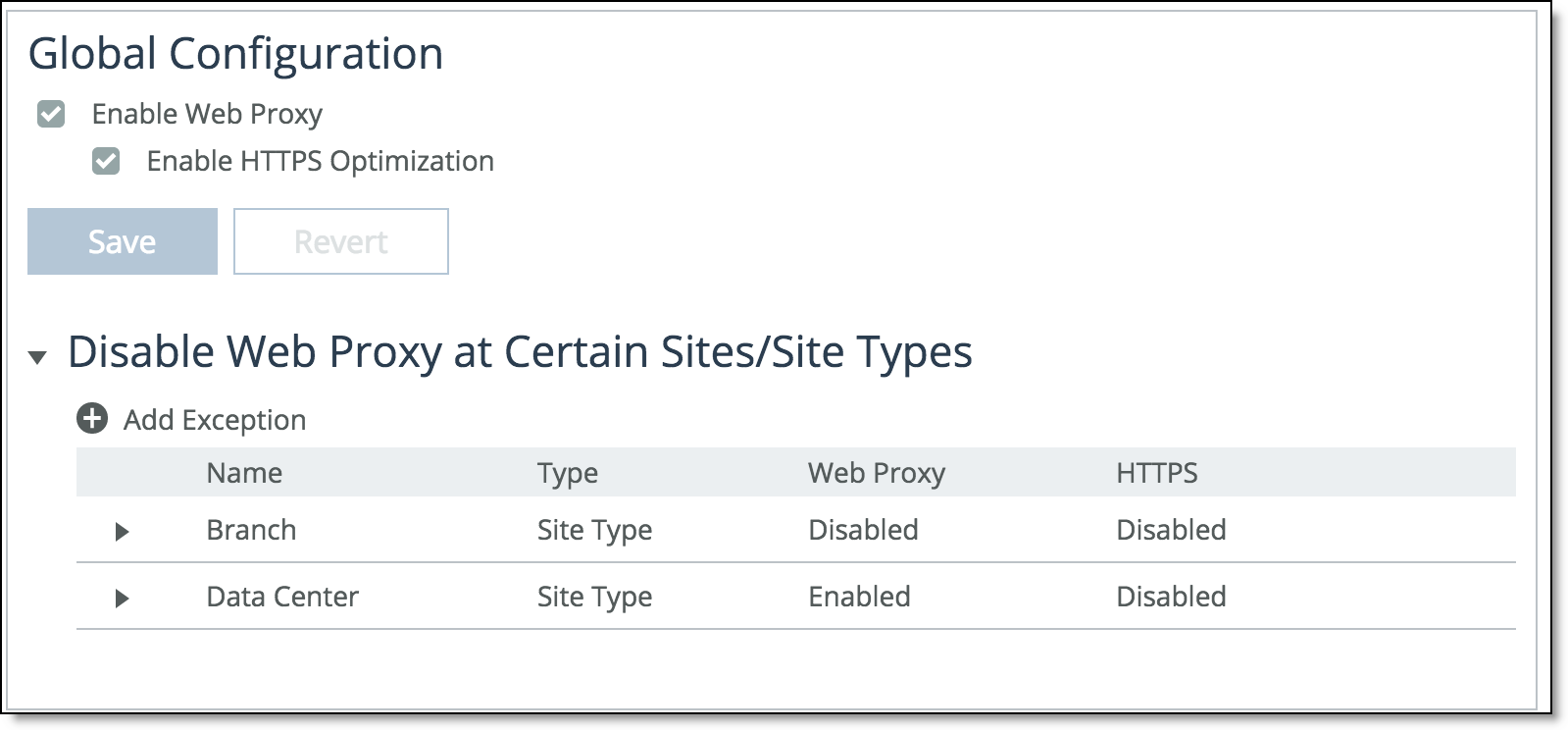
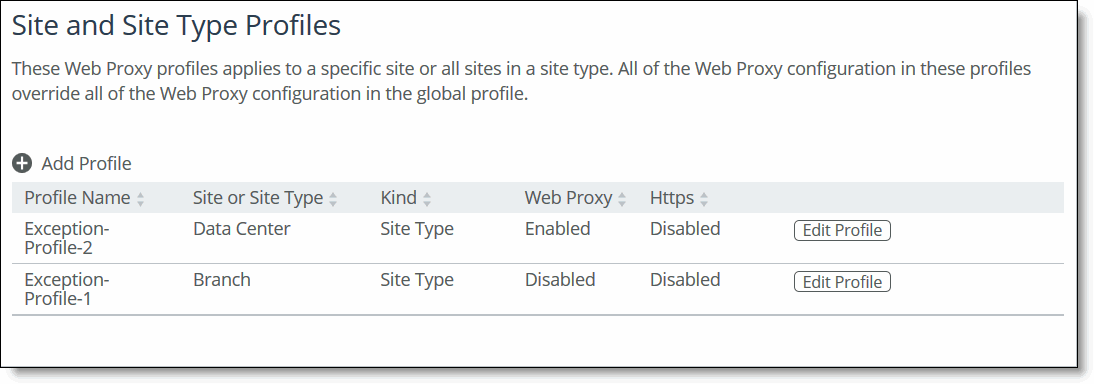
In SCC 9.5 and later, you can no longer configure exceptions to the whitelist. Instead, you can create custom profiles, each with their own whitelists that will override the global profile’s whitelist. After an upgrade to 9.5 or later, all exceptions to the whitelist are treated as a separate custom profile.
Before you upgrade, the whitelist exceptions are listed in the Exceptions list.
Before upgrade exceptions list
After you upgrade to SCC 9.5, all your whitelist exceptions are listed as such in the Site and Site Type Profiles list.
After upgrade exceptions listed under profiles
About parent proxy chaining
Many enterprises use proxy servers or cloud security services to enhance network performance and security. Parent proxy chaining enables you to configure managed appliances to connect to your upstream proxy services. When enabled, the feature also provides local caching to save bandwidth, which reduces additional round trips if content can be served from the cache.
You can enable the feature in either automatic mode or manual mode. Regardless of the mode you choose, you must import the Certificate Authority (CA) of the parent proxy on to the client-side managed appliances if the parent proxy is intercepting and decrypting HTTPS connections. See the SteelHead User Guide.
This feature is disabled by default.
When the system doesn’t detect a certificate and the packets are tunneled, an error will appear in the system logs. You can view top domains and top URLs in the Web Proxy report.
You can only have one mode configured on at a time. DNS resolution must succeed on managed appliances for parent proxy chaining to function properly.
Automatic parent proxy chaining
In automatic mode, you need only enter servers to the whitelist. Clients connect transparently to the HTTP and HTTPS servers. The client opens a connection to the specific parent proxy with which it is configured to connect and uses that connection to multiplex all of its requests. Automatic mode doesn’t cache non SSL traffic. No traffic is optimized if the parent proxy feature is not enabled and the client has an explicit proxy defined.
Use this mode when your clients are configured with a proxy auto-config (PAC) file or have an explicit proxy defined in browser settings.
Manual parent proxy chaining
In manual mode, you need to provide an ordered, comma-separated list of HTTP and HTTPS servers. The managed appliance’s proxy redirects client requests to the appropriate parent proxy for the traffic type, HTTP or HTTPS. The appliance proxy attempts to redirect to the first parent proxy listed. If it is not available, the traffic is routed to the next listed parent proxy and so forth. If none of the parent proxies are available, the connection is black-holed. You can have the same parent proxy listed under HTTP and HTTPS. The same parent proxies can have multiple ports. You can list a maximum of five parent proxies.
Optionally, you can specify domains the traffic to which you do not want redirected to the parent proxy. Traffic to the excepted domains will flow through the managed appliance’s proxy only.
You can also configure load-balance mode using the web-proxy CLI command, where load-balance selects the parent proxies in a round-robin fashion:
web-proxy parent manual mode {[failover] | [load-balance]}
Local caching isn’t affected in manual mode.
Configuring web proxy settings
1. Enable web proxy.
2. Optionally, enable HTTPS optimization.
3. Optionally, add domains to the whitelist.
Enabling HTTPS optimization
1. Enable HTTPS optimization.
2. If necessary, define a pass-through rule for port 443 traffic and push it to managed appliances.
Adding domains to whitelists
Under HTTPS Whitelist, add domains. Optionally, include all SAN-authenticated domains.
Configuring custom profiles
1. Under Site of Site Type Profile section, add a profile.
2. Enter a name for the profile.
3. Choose whether to start a blank profile, or duplicate an existing one as a starting point.
4. Choose to create the profile for a specific site, or for all sites of a specific type.
You can edit existing profiles by clicking the edit button in the profile’s entry row.
Configuring a manual parent proxy
1. Expand the Parent Proxy Configuration section, and then select Manual.
2. Under HTTP Servers and HTTPS Servers enter a comma-separated list of parent proxy servers.
3. Optionally, add domains to exclude from the parent proxy. Traffic to the listed domains will not go through the parent proxy.
Configuring automatic parent proxy chaining
1. Expand the Parent Proxy section, and then select Automatic.
2. Enter a comma-separated list of the IP address or hostnames of your trusted parent proxy servers.
About push settings and status
You can push your settings to the managed appliances within your configured sites or site types from the Policy Push Control section. After you initiate a push, the operation’s status is displayed under Push Status.
When you perform a policy push, the SCC is the primary configuration; any local changes made on SteelHeads are overwritten.
Configuring policy push settings
1. Under Policy Push Control, click Include in Push to expand the page.
2. Under Push to Appliances, select site or site types.
3. Click the text box to display a list of your configured sites or site type options, and then select one. You can see more details about items you add by clicking the link in the item’s tile.
You can view the current status of your pushes under Push Status. Click More to display the Operation History page.