About Cloud Products
Riverbed cloud appliances accelerate the migration of data and applications to the cloud, while speeding access to that data from anywhere. Compatibility with industry leading cloud environments eliminates vendor lock-in.
As you migrate services to the cloud, and later broaden your application and data footprint there, our cloud appliances ensure you will meet application performance service level agreements (SLAs), regardless of network latency and enterprise bandwidth limitations. Our cloud products ensure seamless public-cloud integration through features like:
• transparent cloud interception.
• a flexible cloud pricing model.
• portal-based management.
• elastic sizing and cloning.
• interoperability with virtual and cloud appliances, SteelHead physical appliances, and Riverbed products.
For product model specifications, go to the product family specification sheet.
About Riverbed cloud services
The Riverbed cloud services system consists of these components:
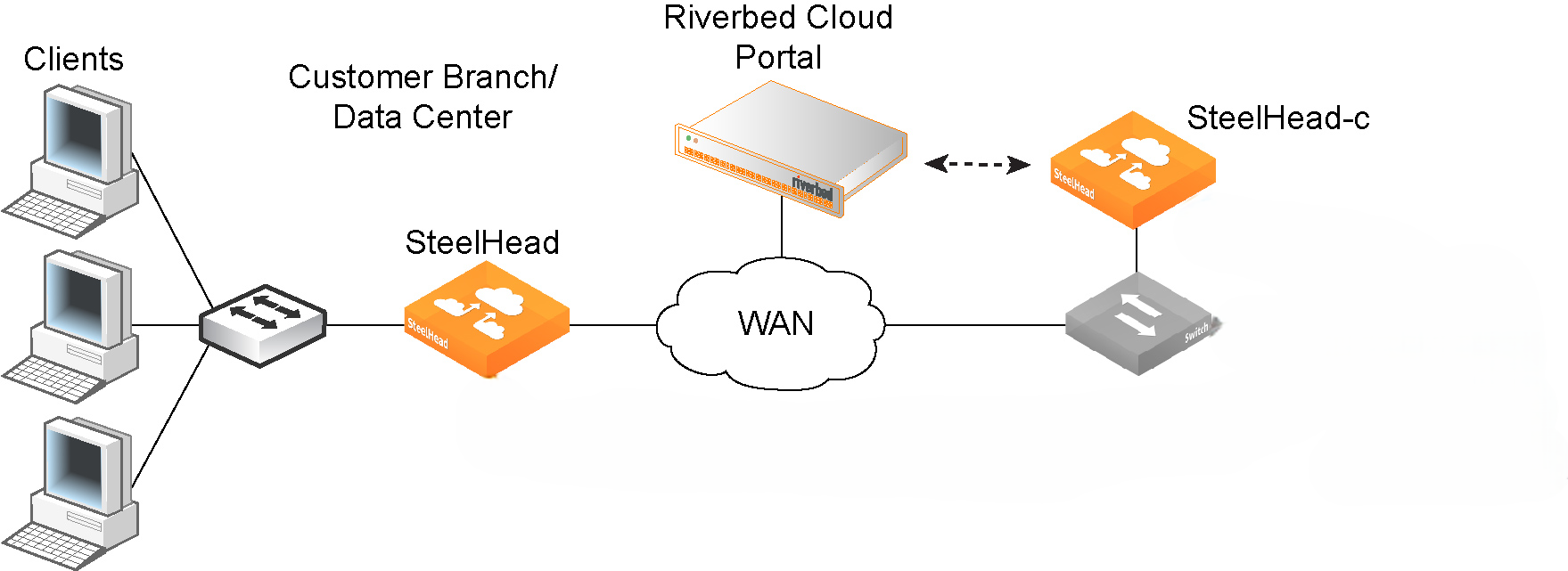
• Cloud Portal provides a web portal hosted and managed by Riverbed. The Cloud Portal manages licensing, deployment, and discovery of your appliances.
• SteelHead SaaS Manager and SteelHead Cloud are virtual, cloud-ready form factors of SteelHead that are purpose-built for compatibility with a variety of cloud vendors.
• User-Defined Routing (UDR) allows you to create custom routes, overriding default system routes to control network traffic flow between subnets, on-premises networks, and the internet, using route tables associated with subnets
The Cloud Portal uses elastic scaling technology. As a result, the portal is not always served from a static IP address. Ensure that all appliances that you want to communicate with the Cloud Portal are configured to use DNS and hostnames for the portal.
Riverbed cloud services
About supported deployments
This section illustrates the client-server deployments that Riverbed cloud services support.
Riverbed cloud services do not support clients in the cloud in a network address translated (NATed) environment.
Figure: Servers in the cloud behind a SteelHead Cloud in a NATed environment shows a deployment in which the server-side resources are behind a SteelHead Cloud in a NATed environment.
Servers in the cloud behind a SteelHead Cloud in a NATed environment
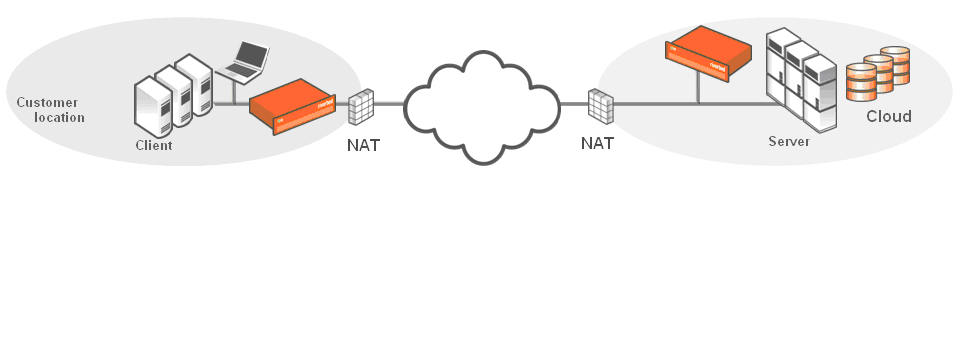
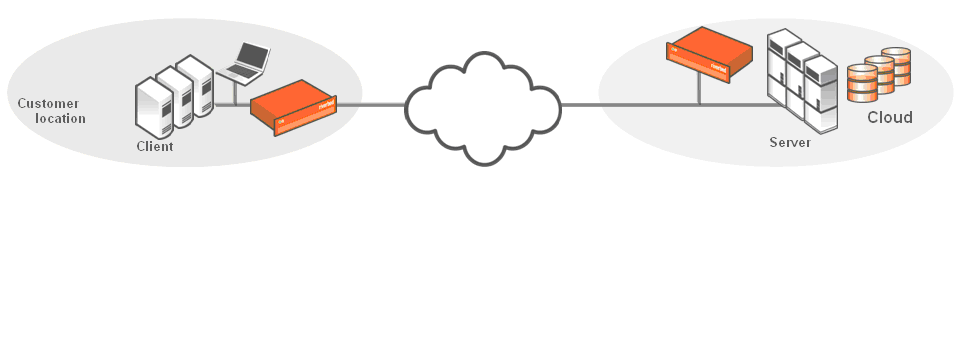
Figure: Servers in the cloud behind a SteelHead Cloud and
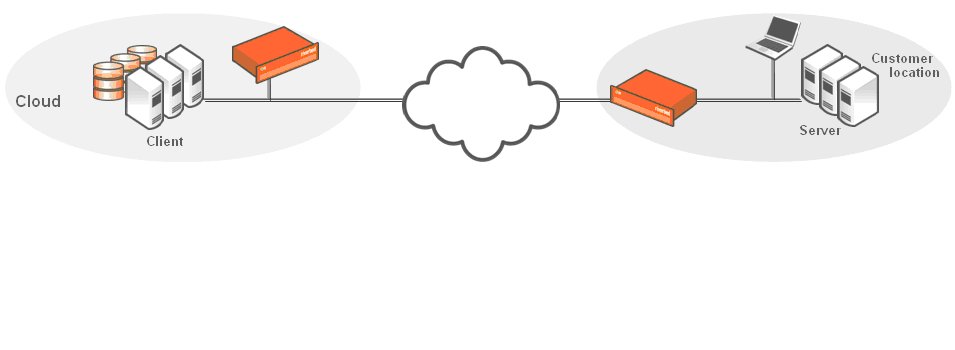
Figure: Clients in the cloud behind a SteelHead Cloud show deployments where the network does not have NAT. For example, when you use an Amazon Virtual Private Cloud (VPC).
Servers in the cloud behind a SteelHead Cloud
Clients in the cloud behind a SteelHead Cloud
About appliance models and required resources
Each appliance instance requires at least two virtual disks. One disk stores the appliance’s configuration and management resources (this disk is automatically deployed when you create the appliance); the other disk serves as the data store (you must manually add this disk). In AWS, virtual disk drives are referred to as Elastic Block Stores (EBS). We recommend SSD drives.
Appliance images are available on multiple cloud marketplaces. The Cloud Portal supports licensing and simple management for appliances deployed into AWS and Azure platforms, providing they have web access to the portal.
Hybrid networking features such as path selection and secure transport are not supported. Also, SCPS licenses are not supported.
About deployment considerations
These features are not supported:
• PFS. It is easier and simpler for you to run a separate file server instance in the cloud and not use the SteelHead for Proxy File Service (PFS).
• WAN visibility mode. Appliances currently support only correct addressing. They do not support full transparency and port transparency.
• CIFS prepopulation. Typically, you configure prepopulation on the remote branch appliance instead of the cloud appliance.
About Microsoft Azure considerations
Multiple network interface cards (NICs), policy-based routing (PBR), and web cache communication protocol (WCCP) are not supported.
Some appliance models for Azure use multiple disks with Fault Tolerant Storage (FTS) to achieve their large data store capacity. Because of this different disk layout, upgrading to these models requires clearing the data store.
About Amazon AWS considerations
Deployments into AWS do not support:
• simplified routing and connection forwarding. Appliances deployed into AWS are configured in a unique out-of-path method using one interface. Simplified routing and connection forwarding do not apply.
• WCCP/PBR/L4. Appliances deployed into AWS use a unique redirection mechanism that enables deployments in any cloud environment. WCCP/PBR/L4 redirection are supported when made available by the cloud provider. Amazon EC2 does not support these traditional redirection mechanisms.
About VMware ESXi considerations
Deployments into ESXi do not support:
• automatic peering. Appliances deployed with Web Cache Communication Protocol (WCCP) or policy-based routing (PBR) support automatic peering.
• simplified routing. Appliances deployed with WCCP or PBR do not support simplified routing.
Reduced data store feature
This feature is only supported on appliances deployed into ESXi.
The reduced data store feature checks if the licensed amount of disk space is allocated for the data store. If less than the maximum amount of licensed disk space has been provisioned, the software creates a 30-GB data store. This allows you to create an appliance that requires less disk space but still provides WAN acceleration. The acceleration performance is impacted when you do not allocate maximum disk space for the data store. Performance depends on the size of your working data set.
The appliance uses either the maximum amount of licensed disk space or 30 GB. If you allocate a disk space that is less than the maximum, but more than 30 GB, the appliance uses only 30 GB, disregarding your specified amount. If you allocate less than 30 GB, the appliance does not function correctly.
To increase the data store size from 30 GB to a larger size, you must delete the existing disk and create a new one. Doing this reverts the data store to a “cold” state; performance improves as the appliance executes subsequent data transfers.
About licensing through Cloud Portal
SteelHead Cloud licenses come in three FLEX types, based on the maximum throughput each can support:
• FLEX-50 (formerly Tier 2): supports up to 50 Mbps
• FLEX-200 (formerly Tier 3): supports up to 200 Mbps
• FLEX-2000 (formerly Tier 5): supports up to 2000 Mbps
Licenses for cloud appliances are stored on the Cloud Portal. Each license is associated with a one-time token unique to it. To obtain a one-time token, you must have an account on the Cloud Portal. Typically, Riverbed will establish a user account on the portal for you after you purchase a cloud product, and Riverbed will send you an email with details and login information about your account. After your account is established, you can log in and view your purchased licenses. Select a license to view details about it, including the one-time token associated with it.
To obtain a one-time token, log in to the Cloud Portal. Select the Cloud Appliances tab and select Licenses to display the Licenses page. Select the serial number of an unprovisioned license to display the License Details page. Copy the one-time token displayed on the License Details page.
For virtual appliances that cannot be provisioned through the portal, the token must manually be applied to the appliance.
Upgrading appliance models
To upgrade appliances to models that do not require a higher-capacity virtual machine, simply purchase a license for the new model. The appliance detects any change in the license associated with it when it communicates with the licensing portal.
Upgrade to a model that requires a higher-capacity virtual machine by performing this task:
1. Purchase a license for the new model.
2. Deprovision the original appliance and its underlying virtual machine.
3. Provision a new virtual machine that meets the requirements of the new model.
4. Obtain the image for the new model, and install it on the virtual machine.
Downgrading a SteelHead Cloud model is as simple as downgrading the license to that of a lower-end model.
Upgrading appliance software
The appliance’s IP addresses will change. Ensure that you update any rules or configurations that depend on it such as fixed-target rules for on-premise appliances that peer with your cloud appliances, on-premise firewall configurations, or security group configurations.
9.16 and earlier appliances cannot be upgraded to 10.0 and later. Similarly, 10.0 appliances cannot be upgraded to 10.1 and later. You must deploy new appliances to run 10.0 and later.
Upgrade and downgrade virtual or cloud appliance operating system software in the same manner as physical appliances by using the Software Upgrade page in an appliance’s Management Console.
In some cases, you may be able to upgrade or downgrade the software of appliances deployed into AWS through the Cloud Portal by performing this task:
1. Log in to the portal and select the Cloud Appliances tab. If your user account is associated with multiple companies, select the company that contains the appliance you want to upgrade.
2. Select Appliances, and then select the name of the appliance you want to upgrade or downgrade.
3. Select the Summary tab, and stop the appliance.
4. Select a version from the Version drop-down list, and then click Update Details.