About Application Protocols, Authenticated Connections, and Domain Controllers
SteelHead accelerates several application-specific protocols. Acceleration of secure traffic may require communication between the server-side SteelHead and domain controllers.
Enabling acceleration or adjusting protocol settings usually requires a service restart. For some models and protocols, a separate license may be needed. With feature-tier licensing, you can configure and enable acceleration even if it's not licensed, but it will only work once both the feature is enabled and licensed.
About secure traffic authentication
Several protocols support secure traffic acceleration. When enabling secure traffic optimization, you must choose an authentication method: NTLM or Kerberos. SteelHead handles end-to-end authentication between peers, as well as between the server-side appliance and the Windows domain controller. Disabled by default. Configured on server-side appliances. Service restart required.
NTLM authentication has two modes: transparent and delegation. Transparent mode optimizes signed or encrypted packets with transparent authentication. Transparent mode requires that you either configure service accounts for the user domains on the server-side appliance or you join the server-side appliance to relevant Windows domains. We recommend using Transparent Mode.
Delegation mode re-signs packets using Kerberos delegation. Delegation mode requires that you join the server-side appliance to relevant Windows domains.
NTML authentication supports all Windows clients and servers with NTLM enabled.
About Server Message Block
SMB2/3 acceleration optimizes file sharing between Windows clients and servers. For encrypted traffic, SMB signing must be enabled on the server-side SteelHead. This allows for latency and bandwidth optimization, even for encrypted, SMB-signed traffic.
SMB 3.02 is qualified for use with signed, unsigned, and encrypted traffic over both IPv4 and IPv6. However, authenticated connections between a server-side SteelHead and a domain controller are only supported over IPv4.
Delegation mode signing has been deprecated.
About SMB2 and SMB3 settings
SMB2 and SMB3 settings are under Optimization > Protocols: SMB2/3.
Enable SMB2 Optimization and Enable SMB3 Optimization
Improves both latency and bandwidth for file transfers. These optimizations include techniques such as cross-connection caching, read-ahead, write-behind, and batch prediction, which help ensure low-latency transfers. The appliance maintains data integrity, ensuring that the client always receives data directly from the servers.
SMB2 and SMB3 optimization are enabled by default. Both SMB2 and SMB3 optimizations should be configured on both the client-side and server-side appliances.
Enable DFS Optimization
Enables optimization for Distributed File System (DFS) file shares. Configure on the client-side appliances.
Enable Secured Traffic Optimization
Enables optimization of signed or encrypted traffic. Kerberos and NTLM authentication options are supported.
About SMB signing
SMB signing is a security feature in Windows that ensures the integrity of messages, preventing man-in-the-middle attacks by adding a unique signature to each message. This signature ensures the messages cannot be tampered with during file sharing.
When secure traffic optimization is enabled on a server-side appliance, SteelHead reduces latency in file access while maintaining these security signatures. It still provides bandwidth optimizations like SDR, LZ compression, and TCP optimizations, even with signed messages.
However, SMB signing can significantly reduce performance gains since it prevents the appliance from applying full optimization on connections. While SMB signing does offer security, many enterprises already rely on other security measures, such as firewalls and internal servers, which means SMB signing might add minimal extra security but at a high performance cost.
You should enable secure traffic optimization when Windows clients or servers have one of the these settings:
• SMB2/SMB3 signing set to required.
• SMB3 secure dialect negotiation is enabled.
• SMB3 encryption is enabled.
The secure traffic optimization is compliant with Microsoft’s SMB signing protocols. It works with Windows domain security, supporting both native and mixed mode domains, and allows the server-side appliance to join the Windows trust domain. This trust relationship can be between parent-child, grandparent-child, or sibling domains.
Even if the client system and target server are in different domains, as long as there’s a trust relationship between them, appliances can accelerate signed traffic. For maximum security, we recommend you configure appliances as SSL peers, ensuring encrypted, signed traffic over the WAN.
SMB signing requires that the Windows domain functionality be at the Windows 2003 level or higher.
Viewing SMB connections
SMB connections appear in the Current Connections report with these labels:
• SMB 2.0 and SMB 2.0.2 connections show as SMB20 or SMB21-SIGNED.
• SMB 2.1 connections show as SMB21 or SMB21-SIGNED.
• SMB 3.0 and SMB 3.0.2 connections show as SMB30 if there are protocol errors, or SMB30-ENCRYPTED or SMB30-SIGNED.
• SMB 3.1.1 connections show as SMB31 if there are protocol errors, or SMB31-ENCRYPTED or SMB31-SIGNED. In release 9.15.1 and later, if a connection has protocol errors/blacklisted, it will show up as SMB-BLACKLISTED.
When some shares are marked for encryption and others aren’t, if a connection accesses both encrypted and nonencrypted shares, the report shows the connection as SMB30-ENCRYPTED or SMB31-ENCRYPTED.
• All unsupported SMB dialects show as SMB-UNSUPPORTED.
About HTTP acceleration
HTTP settings are under Optimization > Protocols: HTTP. Configure the settings on client-side appliances.
SteelHead accelerates most HTTP and HTTPS applications, including customer relationship management, enterprise resource planning, financial, document management, and intranet portals.
Enable HTTP Optimization
Globally enables specific optimizations and features related to HTTP/HTTPS traffic.
Enable SaaS User Identity (Office 365)
Enables the display of user names for connections going to Office 365, typically when users are authenticated with single sign-on using ADFS. Additional configuration is required for SSL.
Enable Object Caching
Globally enables the object caching feature, which parses the base HTML page and prefetches any embedded objects to the client-side appliance. When the browser requests an embedded object, the appliance serves the request from the cached results, eliminating the round-trip delay to the server. Cached objects can be images, style sheets, or any Java scripts associated with the base page and located on the same host as the base URL. Requires cookies.
Enable Web Proxy
Enables the transparent interception of internet-bound traffic using a single-ended web proxy.
For HTTPS (HTTP over SSL) acceleration, you must configure a specific in-path rule that enables both SSL optimization and HTTP optimization.
Server subnet and host settings
These settings allow you to define static acceleration schemes for specific subnets and hosts. Automatically configured subnets and hosts are also shown in the same table. You can filter the list to display static, automatic, or items currently under evaluation. For items being evaluated automatically, the default evaluation period is 1000 transactions. These configurations should be set on client-side appliances.
These settings apply when HTTP optimization is enabled, regardless of entries in the Subnet or Host list. In the case of overlapping subnets, specific list entries take precedence over the default settings. If no specific rule matches, the default rule is applied.
Strip compression
Removes compression headers to increase appliance data reduction performance.
HTTP2
Enables parsing of HTTP2 traffic. Disable for SDR-only.
Object caching
Enables a lookup table of prefetched objects so that they can be more efficiently retrieved the data store.
About stream splitting
Stream splitting is a feature that improves the efficiency of live and on-demand video streaming over WAN connections. When enabled, SteelHead appliances can split and optimize Silverlight Smooth Streaming, Adobe Flash HTTP Dynamic Streaming, and Apple HTTP Live Streaming (HLS). It supports Microsoft Silverlight videos and extensions. For Adobe Flash streams, you’ll need to configure the origin server before enabling stream splitting.
This feature is especially useful in branch offices where many users might request the same live video stream. Normally, each client would make a separate request for the same video fragment, leading to multiple redundant data transfers across the WAN. With stream splitting, the client-side SteelHead detects when a request for a video fragment is already in progress and temporarily delays any duplicate requests. Once the fragment is received, the appliance sends the same data to all users who requested it, so only one copy travels over the WAN. This approach reduces bandwidth use and helps keep viewers in sync when watching the same live content.
Stream splitting doesn't reduce the number of server connections (sockets), but it significantly cuts down the number of identical requests. Without it, every client requests the same fragment independently; with it, only one request per fragment is needed.
For this to work, HTTP optimization must be enabled on both client-side and server-side appliances. The client-side appliance does not need to be restarted. You can also prepopulate videos during off-peak times using the protocol http prepop list url command, allowing for smoother playback later.
You can monitor the performance of this feature through the Live Video Stream Splitting report.
About MAPI
Establish secure peering between the client-side and server-side appliance peers, setting the traffic type to All. SteelHead uses the secure inner channel between peer appliances to securely send MAPI traffic.
For out-of-path deployments where you want to accelerate MAPI Exchange by destination port, you’ll need to define a fixed-target in-path rule on the client-side appliance:
• Port 135—The Microsoft Endpoint Mapper (EMP) port.
• Port 7830—The SteelHead port used for Exchange traffic.
• Port 7840—The SteelHead port used for Exchange Directory NSPI traffic.
For Exchange Server clusters that use load balancers such as Client Access Server (CAS) to provide dynamic MAPI port mappings, you’ll need to do one of these actions on the client-side SteelHead:
• Enable port transparency for MAPI traffic.
• Enable full transparency for MAPI traffic.
• Disable MAPI port remapping using the no protocol mapi port-remap enable command. Requires service restart.
About MAPI settings
MAPI settings are under Optimization > Protocols: MAPI.
Enable MAPI over HTTP Optimization
Enables bandwidth and latency optimization for the MAPI over HTTP transport protocol. You must also create an in-path rule using the Exchange Autodetect latency optimization policy to differentiate and optimize MAPI over HTTP traffic. Configure on client-side appliances.
Viewing MAPI connections
MAPI connections appear in the Current Connections report using these labels:
• MAPI-OA for Outlook Anywhere connections
• eMAPI-OA for encrypted MAPI connections. Encrypted Outlook Anywhere connections appear in the system log with an RPCH prefix.
• MAPI-HTTP for MAPI over HTTP connections.
About NFS
NFS acceleration improves performance in high-latency environments by prefetching data and temporarily storing it on the client-side SteelHead. This stored data is then used to quickly respond to client requests, reducing perceived delay. Starting with RiOS version 9.16.0, NFS optimization supports both IPv6 and IPv4. Earlier versions support only IPv4.
On the server-side SteelHead, NFS settings remain inactive until the appliance connects to an NFS server. Once connected, it receives the NFS configuration from the client-side appliance for that specific connection.
NFS settings are applied globally to all NFS servers and volumes by default. However, you can set overrides for individual servers or volumes as needed. If you configure a server-specific override, it applies to all volumes on that server—unless you also configure volume-specific settings.
NFS acceleration does not support out-of-path deployments. Additionally, latency optimization is not available for NFS versions 2 and 4. However, features like bandwidth optimization, Scalable Data Referencing (SDR), and Lempel-Ziv (LZ) compression are still supported.
About NFS settings
NFS settings are under Optimization > Protocols: NFS.
NFS settings
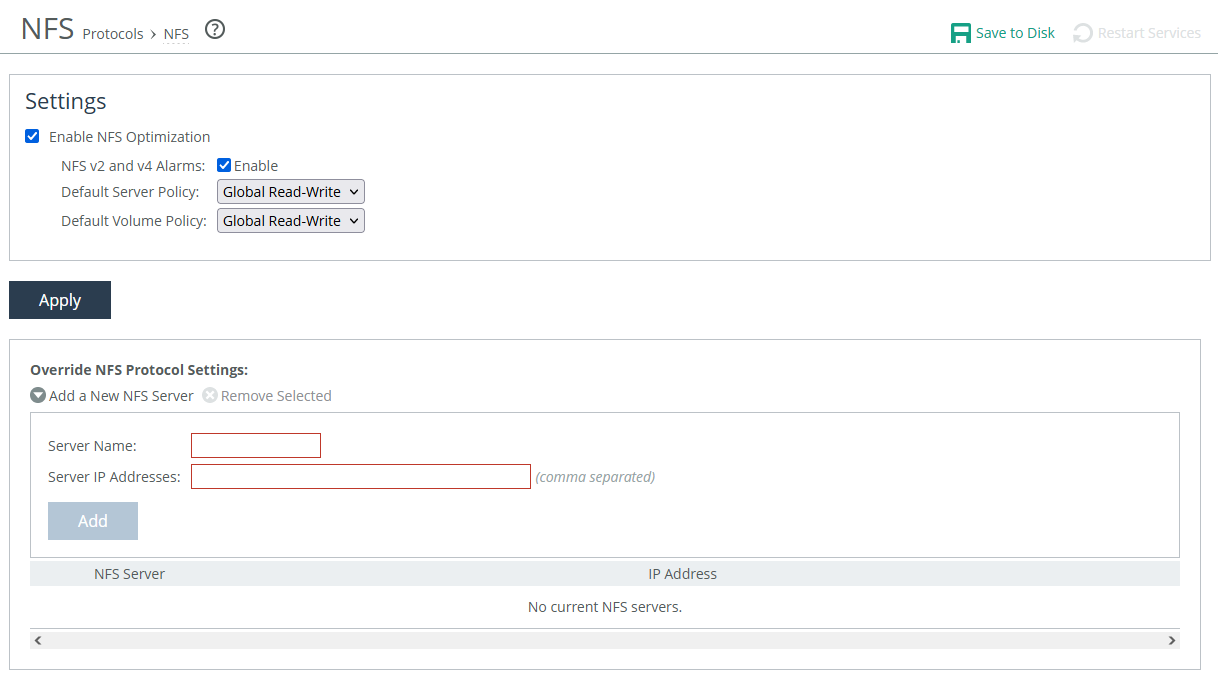
Enable NFS Optimization
Provides latency optimization for NFS in high latency environments. Enabled by default.
NFS v2 and v4 Alarms
Enables an alarm that triggers when the appliance detects NFSv2 and NFSv4 traffic. The triggered alarm changes the appliance’s health status to Needs Attention until you reset the alarm. The option to reset the alarm appears only after it has been triggered.
Default Server Policy and Default Volume Policy
Specifies policies used to configure connections to servers or volumes that don’t already have one.
Custom
Specifies a custom policy.
Global Read-Write
Provides data consistency rather than performance. All of the data can be accessed from any client, including LAN-based NFS clients (which don’t go through SteelHeads) and clients using other file protocols such as CIFS. This option severely restricts the optimization that can be applied without introducing consistency problems. This is the default value.
Read-only
Specifies that clients can read data from NFS servers or volumes but can’t make changes.
Server and volume overrides
Add specific servers to the override table, and then edit their settings to create server and volume-specific configurations that override the default settings. The appliance uses the global settings or all other NFS servers and volumes.
Server Name
Specifies a display label for the server.
Server IP Addresses
Specifies the IP addresses of the server, separated by commas. If you have configured IP aliasing (multiple IP addresses) for an NFS server, specify all of the server IP addresses.
Default Server Policy and Default Volume Policy
Are the same as for the global settings.
Default Volume
Enables the default volume configuration for the server.
Volume override settings appear after you add a server. For convenience while configuring volume-specific settings, an uneditable list of volumes available on the selected NFS server also appears.
FSID
Specifies the volume File System ID. An FSID is a number NFS uses to distinguish mount points on the same physical file system. Because two mount points on the same physical file system have the same FSID, more than one volume can have the same FSID.
Policy
Specifies the policy used for the volume. Options are functionally the same as those in the global settings.
Root Squash
Turns off acceleration for the root user on NFS clients. When the root user accesses an NFS share, its ID is squashed (mapped) to another user (most commonly “nobody”) on the server. Root squash improves security because it prevents clients from giving themselves access to the server file system.
Permission Cache
Enables the permission cache, where the SteelHead stores file read data and uses it to respond to client requests. For example, if a user downloads data and another user tries to access that data, the appliance ensures that the second user has permission to read the data before releasing it.
Default Volume
Enables the default volume configuration for this server.
About NAT IP address mapping
For cloud appliances, you can setup NAT IP address mapping. These settings are located under Optimization > Cloud > NAT IP Address Mapping.
NAT address mapping enables you to map private IP addresses to public IP addresses. You can enable and disable the mapping feature, and you can create multiple mappings. This feature is useful to enhance security as private IP addresses are hidden behind the public one, and to streamline configuration as you can map multiple private IP addresses to a single public one.
About SteelHead SaaS
SteelHead SaaS settings are under Optimization > SaaS: SteelHead SaaS. Not available in cloud appliances.
SteelHead SaaS improves performance for several SaaS applications. Accelerating SaaS applications requires configuration on @the SteelHead SaaS Manager (SSM). You’ll also need to:
• register the SSM on your client-side appliances or SteelHead Mobile endpoints.
• define in-path rules for your SaaS applications that enable the SSM to associate the IP address of the SaaS service cluster in the cloud with appliances or endpoints, and then associates the SaaS service cluster with the accelerated application.
• whitelist appliances on the SSM.
SteelHead SaaS requires an additional license, which is installed on the SSM. Using SteelHead SaaS with SteelHead CX model 3080 requires the Standard license tier or higher on the appliance.
We strongly recommend that you configure and push SaaS acceleration policies from a controller appliance to managed, client-side appliances, particularly with large scale deployments and production networks with many appliances. You’ll need to register the controller appliance with SSM and whitelist it there. On the controller, create policies that enable SaaS acceleration and SSL/TLS optimization, and include in-path rules for your SaaS applications.
To register the SSM on an appliance, you’ll first need to obtain a registration token from the SSM. Apply the token to the appliance, and enter the hostname and port number for the SSM.
About Windows domain authentication
Enabling secure traffic optimization requires communication between server-side SteelHeads and domain controllers. When properly configured, SteelHead can accelerate secure connections in Microsoft environments where:
• Windows file servers use signed SMB (or SMB2/3) for file sharing to Microsoft Windows clients.
• Microsoft Exchange Servers provide encrypted MAPI connections to Microsoft Outlook clients.
• Microsoft Internet Information Services (IIS) servers serve HTTP or HTTP-based web applications.
About joining a Windows domain or workgroup
A server-side SteelHead can join a Windows domain or a workgroup under Optimization > Active Directory: Domain Join. The Domain Join page provides a central place for a SteelHead to join a Windows domain.
The SteelHead can join a single Windows domain to use these features:
• MAPI 2007 encrypted traffic optimization authentication. For details, see
About MAPI.
• MAPI Exchange as a hosted service.
SteelHead includes an automatic way to join the domain and deploy the server-side SteelHead in the Active Directory. For details, see
About Active Directory easy configuration.
About adding a WinSec Controller
WinSec Controller (WSC) is the recommended option for highly secured environments where Microsoft's tiered security model needs to be adhered to. For WinSec Controller configuration details, see the WinSec Controller User Guide.
Adding a WinSec Controller
You add a WinSec Controller in the Optimization > Active Directory: WinSec Controllers page.
Add a New WinSec Controller
Select this to add a new WinSec Controller.
Server
The server address of the WinSec Controller.
Port
The port over which the WinSec Controller listens to requests from the SteelHead. The default port is 7890.
Priority
Sets the priority given to the new WinSec Controller. The priority determines the order in which the SteelHead will contact all configured WinSec Controllers. The controller with the lowest priority number, e.g. priority 1, is considered primary, subsequent numbers, e.g. 2, 3, and so on, are designated backups.
WinSec Controllers Stats
Host
The IP or hostname and port of the controller.
Status
Shows if the controller is “ok” or “failed”. This can indicate connection issues.
Priority
The designated priority set in configuration.
Request Latency
The request latency refers to the time taken for a SteelHead to send a request to the WinSec Controller and receive a response.
Probe Latency
The probe latency refers to the time taken for the SteelHead to check if the WinSec Controller is alive and responsive. This is measured in milliseconds.
SPN Lookups
When a SteelHead requests a server Kerberos key, it sends the Service Principal Name (SPN) to the WinSec Controller. The WinSec Controller uses the SPN to determine the server domain, replication user, and domain controller. An SRV DNS query is used to find all domain controllers for the server domain. The controller performs an LDAP search to retrieve the server's Distinguished Name (DN) from the domain controller. The DN is then used to fetch the server key for Kerberos authentication.
SPN Failures
Server key replication and AD authentication failures.
Connection Errors
These errors are typically related to network configuration, firewall rules, license management, or traffic optimization settings.
Probe Failures
Where the SteelHead is unable to successfully probe the health of a configured WinSec Controller.
Last Updated
WinSec Controller current version.
Domain and local workgroup settings
SteelHeads offer two modes for user authentication: Domain mode and Local Workgroup mode.
Local Workgroup mode is simpler and doesn't require joining a Windows domain. Instead, you define a workgroup and manually add users who need access. This mode is useful in environments where domain integration isn't needed or wanted. However, it has limitations—it doesn't support SMB signing, authentication for MAPI 2007 encrypted traffic, or hosted MAPI Exchange services. Additionally, user permissions configured in Local Workgroup mode may not match those on the origin file server, and account management must be done locally on each SteelHead.
Domain mode is more integrated and is ideal for enterprise environments. It allows the SteelHead to join a Windows domain (usually your company’s domain), enabling centralized authentication via a domain controller (DC), which can be at the remote site or in the main data center. You’ll need to ensure that Active Directory service accounts with replicate directory privileges are configured on the appliance for the user domains and server domains which need to be optimized.
Domain mode also supports one-way domain trusts, including for Windows 7 clients, without requiring registry changes. If you plan to use Microsoft Exchange online services, the server-side SteelHead must be joined to the same domain as the client or a trusted domain. This is supported in Active Directory integrated mode (Windows 2008 and later). For Domain Mode configuration steps, see:
Joining a SteelHead to a Windows domain.
Configuring a Windows domain in Local Workgroup mode
You configure a Windows domain in Local Workgroup mode in the Domain Join page.
Under Domain/Local, select Local Workgroup Settings.
Domain Join page displaying local workgroup settings
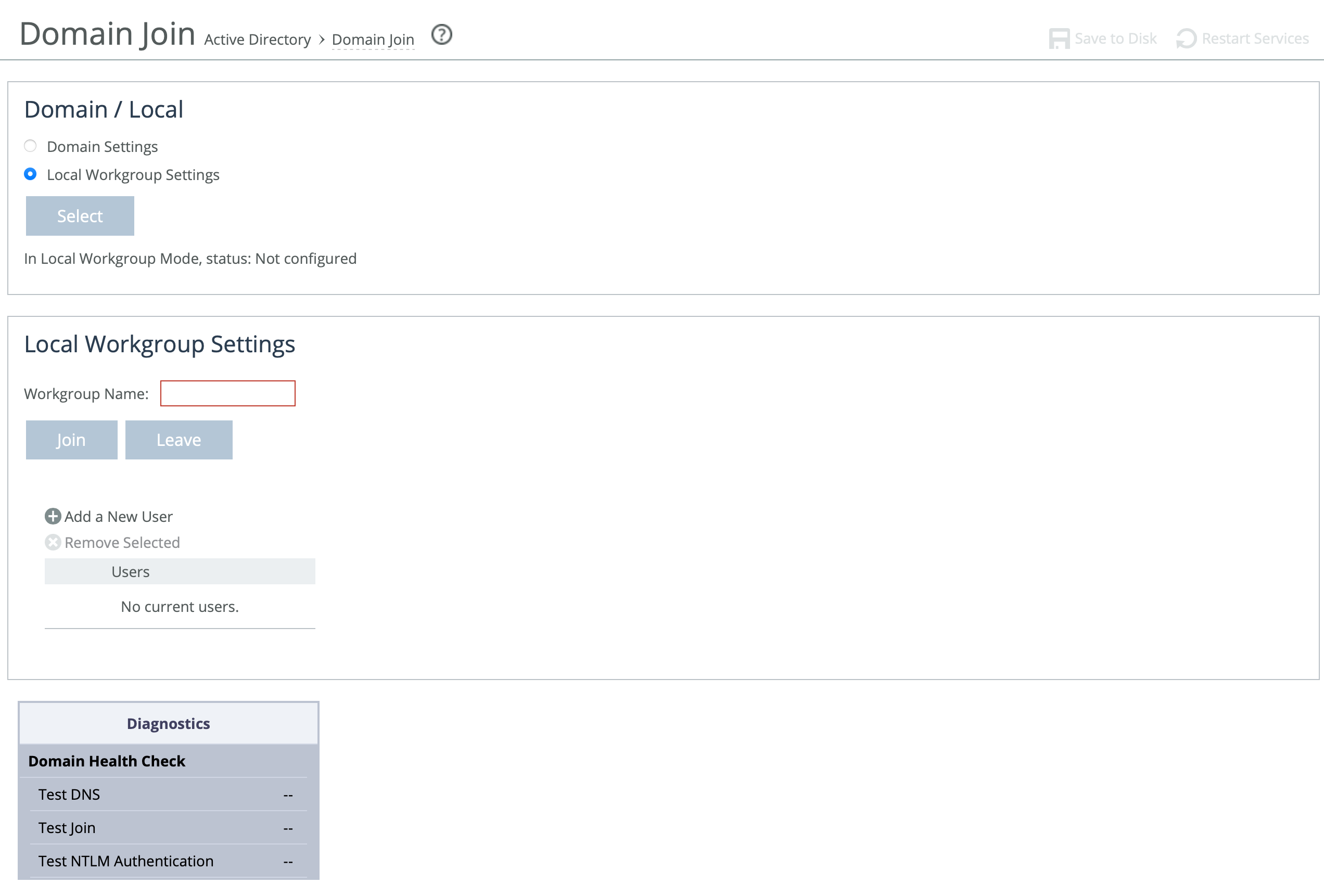
These options are available to configure Windows domain in Local Workgroup mode:
Workgroup Name
Specifies a local workgroup name. If you configure in local workgroup mode, the SteelHead doesn’t need to join a domain. Local workgroup accounts are used by clients when they connect to the SteelHead. Starting with RiOS 9.5, this name is not case sensitive.
Add a New User
Displays the controls to add a new user to the local workgroup.
User
Specifies the login to create a local workgroup account so that users can connect to the SteelHead.
Password/Password Confirm
Specifies and confirms the user account password.
Joining a SteelHead to a Windows domain
When joining a SteelHead to a Windows domain, follow a few key guidelines to ensure a successful connection. First, synchronize the SteelHead’s time with the domain time, keeping it within 5 minutes for NTLM authentication or 30 seconds for Kerberos. Using an NTP server helps keep the SteelHead’s time accurate. Make sure the Primary (management) interface is connected to the LAN and has access to DNS, NTP, and Active Directory, as all domain functions use this interface.
For DNS configuration, verify that both A and reverse lookup records exist for the SteelHead’s primary interface. Set the Active Directory DNS server on the SteelHead to enable domain controller lookups. Add the domain suffix (for example, domain.riverbed.com) to the DNS Settings section on the Networking > Host Settings page. Also, ensure that Windows clients use this DNS server. To support SMB signing, the server-side SteelHead must be resolvable via DNS.
If unauthorized domain join attempts occur, configure the SteelHead to ignore trusted domains and explicitly specify only the desired domains. The SteelHead hostname must be 15 characters or fewer, and the FQDN should match what’s configured for all Windows clients. Before joining the domain, make sure the SteelHead’s hostname doesn’t already exist in the Active Directory. If it's in an Organizational Unit (OU) instead of the default container, check there.
For RiOS 9.5 and earlier, SMB1 (CIFS) must be enabled on the domain controller. RiOS 9.6 and later support SMB2/3. Joining the domain for Kerberos requires a Windows user with permission to add a workstation; NTLM requires permission to add a domain controller. Don’t use a limited user account—use one that can assign the SteelHead to the correct group or OU and update the userAccountControl attribute. Domain admin credentials are not stored on the SteelHead after the join is complete.
When specifying the domain username, enter just the username (for example, username), not the domain prefix (for example, DOMAIN\username). If using a non-admin Windows account, precreate a computer account for the SteelHead and assign extra privileges.
For Kerberos in restricted trust environments (such as Office 365 or managed service providers), use a one-way trust configuration and ensure the required ports are open to all domain controllers. (For more detailed steps, see the SteelHead Deployment Guide - Protocols or these related Knowledge Base articles: S25759, S27002, S30252, S22468, S18097.)
Protocol | Port |
|---|
SMB1, SMB2/3 | TCP 139 (legacy Windows implementations)
445 (more recent Windows implementations) |
LDAP | TCP/UDP 389 |
Kerberos | TCP/UDP 88 |
DNS | UDP 53 |
SMB1-Named-Pipes, SMB2/3-Named-Pipes | TCP 445 |
EPM/RPC | TCP 135 |
Configuring a SteelHead in Domain mode
A server-side SteelHead can join a Windows domain under Optimization > Active Directory: Domain Join.
Domain Join page
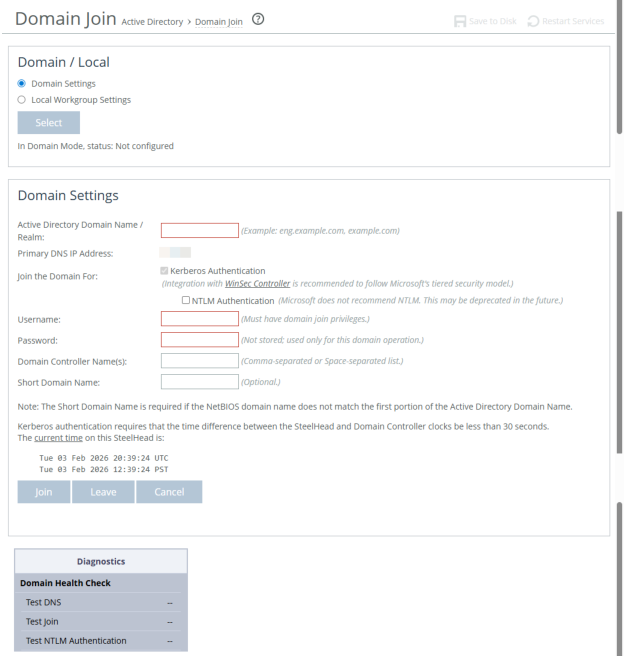
Under Domain/Local, click Domain Settings, click Select.
These options are available to configure Windows domain in Domain mode:
Active Directory Domain Name/Realm
Specifies the domain in which to make the SteelHead a member. Typically, this is your company domain name. RiOS supports Windows 2000 or later domains.
RiOS doesn’t support nondomain accounts other than administrator accounts. If you create Local mode shares on a nonadministrator account, your security permissions for the share aren’t preserved on the origin-file server.
Primary DNS IP Address
Displays the primary DNS IP set in the DNS Settings page. To modify this entry, click the IP address.
Join the Domain For:
Kerberos Authentication
Enables Kerberos authentication with the domain controller.
NTLM Authentication
This is deprecated. We recommend you do not enable this feature.
Note that if there are SMB connections with NTLM authentication in the network, they could be blackholed by the SteelHead. Also, if Kerberos Authentication fails, the fallback to NTLM Authentication will not be attempted by the SteelHead.
Username
Specifies the username. The credentials used to join the domain must have domain join privileges. For Kerberos support, use any user account that has permission to join a workstation to the domain. For NTLM support, use any user account that has permission to join a domain controller to the domain. Domain administrator credentials are not strictly required but we recommend using them. Domain administrator credentials are required when you join the domain as an Active Directory integration.
The system does not cache user credentials after the join operation; credentials are deleted after the operation.
Password
Specifies the password. This control is case sensitive.
Domain Controller Name(s)
Specifies the hosts that provide user login service in the domain, separated by commas. (Typically, with Windows 2000 Active Directory Service domains, given a domain name, the system automatically retrieves the DC name.) We recommend specifying the domain controller names in environments where there’s varying latency between the SteelHead and the domain controllers.
Short Domain Name
Specifies the short domain (NetBIOS) name if it doesn’t match the first portion of the Active Directory domain name. Case matters; NBTTECH is not the same as nbttech.
Join/Leave
Joins the domain or leaves the domain. If you are in domain mode and have joined a domain, you can’t change to local workgroup mode until you leave the domain.
Rejoin
Rejoins the domain.
Cancel
Cancels any current domain action that is in progress, such as joining or leaving a domain.
Domain Health Check
Use this to check the status of your connection to the domain, the DNS configuration and the NTLM user authentication settings. For more details on these diagnostics, see Checking domain health. When you have successfully joined the domain, the status updates to In a Domain.
Troubleshooting a domain join failure
This section describes common problems that can occur when joining a Windows domain.
A built-in domain health tool helps to identify, diagnose, and report possible problems with a SteelHead within a Windows domain environment.
System time mismatch
The number one cause of failing to join a domain is a significant difference in the system time on the Windows domain controller and the SteelHead. When the time on the domain controller and the SteelHead don’t match, this error message appears:
lt-kinit: krb5_get_init_creds: Clock skew too great
We recommend using NTP time synchronization to synchronize the client and server clocks. It is critical that the SteelHead time is the same as on the Active Directory controller. Sometimes an NTP server is down or inaccessible, in which case there can be a time difference. You can also disable NTP if it isn’t being used and manually set the time. You must also verify that the time zone is correct.
Select the primary DNS IP address to view the Networking: Host Settings page.
Invalid domain controller IP
A domain join can fail when the DNS server returns an invalid IP address for the Domain Controller. When a DNS misconfiguration occurs during an attempt to join a domain, these error messages appear:
Failed to join domain: failed to find DC for domain <domain name>
Failed to join domain: No Logon Servers
Additionally, the Domain Join alarm triggers and messages similar to these appear in the logs:
Oct 13 14:47:06 bravo-sh81 rcud[10014]: [rcud/main/.ERR] - {- -} Lookup for bravo-sh81.GEN-VCS78DOM.COM Failed
Oct 13 14:47:06 bravo-sh81 rcud[10014]: [rcud/main/.ERR] - {- -} Failed to join domain: failed to find DC for domain GEN-VCS78DOM.COM
When you encounter this error, choose Networking > Networking > Host Settings and verify that the DNS settings are correct.
About Active Directory easy configuration
Under Optimization > Active Directory: Auto Config, this page provides a set of Management Console widgets that help simplify the SteelHead configuration necessary to accelerate traffic in a secure environment, and a set of domain health status commands help to troubleshoot and report possible problems with an appliance within a Windows domain environment.
Easy Config configures the appliance to join the Windows Active Directory Domain.
Auto Config configures the following accounts and privileges:
Configure Delegation Account
Configures the deployed delegation account with AD delegation privileges. This is a legacy configuration that has been deprecated.
Add Delegation Servers
Configures a list of Exchange and CIFS servers with permission to delegate AD access privileges.
Remove Delegation Servers
Removes Exchange and CIFS servers from the list. This is a legacy configuration that has been deprecated.
Before you join SteelHead to a domain, verify these items:
• Fully qualified domain name (FQDN), which must be the same as the name that appears in your domain name service (DNS).
• Domain’s short (NetBIOS) name. You must explicitly specify the short name if it doesn’t match the far left portion of the FQDN.
• Primary or auxiliary interface for the server-side SteelHead is routable to the DNS and the domain controller.
• For CIFS, ping the server-side SteelHead, by name, from a CIFS server joined to the same domain that the SteelHead has joined.
• For CIFS, You must be able to ping the domain controller, by name, from the server-side SteelHead. If you can’t, ensure that the appliance’s host settings for DNS are correct.
After you raise the domain level, you may not be able to lower it.
When joining an appliance to a domain, it is vital to set the correct time zone. The most common reason for failing to join a domain is a significant difference in the system time between the Windows domain controller and the SteelHead. When the time on the domain controller and the appliance don’t match, this error message appears:
lt-kinit: krb5_get_init_creds: Clock skew too great
We recommend using Network Time Protocol (NTP) servers for synchronization.
For details, go to Knowledge Base article S25759.
Easy configuration automatic domain authentication configuration simplifies the server-side SteelHead configuration for enabling acceleration in a secure environment. Using this widget automates the majority of the required configuration tasks, avoiding the need to perform step-by-step operations in different configuration tools and using the command line on Windows Active Directory platforms.
After successfully running the easy configuration module, you can enable the secure traffic optimization feature. Easy configuration configures the appliance's domain authentication in the simplest yet widest supported settings. It performs these tasks:
• Tests the DNS configuration.
• Joins the appliance to the specified domain.
• Enables selected settings, such as SMB signing.
If any of the steps fail during the configuration, the system automatically rolls back to the previous configuration.
When you integrate the server-side appliance in this way, it doesn’t provide any Windows domain controller functionality to any other machines in the domain and doesn’t advertise itself as a domain controller or register any SRV records (service records). In addition, the appliance doesn’t perform any replication nor hold any Active Directory objects. The appliance has just enough privileges so that it can communicate with the domain controller and then use transparent mode for NTLM authentication.
About Active Directory easy configuration settings
Easy Config settings are under Optimization > Active Directory: Auto Config. Configure on server-side appliances.
Configure Domain Authority
Select this join the domain using easy config. Join the domain with either Kerberos and NTLM or simply Kerberos.
Kerberos Authentication
Enables Kerberos authentication.
NTLM Authentication
Deprecated. We recommend you do not enable this feature.
Username
Specifies the username for the credentials used to join the domain. These must have domain join privileges. For Kerberos support, use any ordinary user account that has permission to join a workstation to the domain. For NTLM support, use any user account that has permission to join a domain controller to the domain. Domain administrator credentials are not strictly required but recommended. The appliance doesn’t cache credentials after it joins.
Password
Specifies the password for the domain administrator account. Case sensitive.
Domain/Realm
Specifies the fully qualified domain name (FQDN) of the domain controller. Typically, this is your company domain name. Windows 2000 or later domains are supported.
Domain Controller
Specifies the hosts that provide user login service in the domain, separated by commas. Typically with Active Directory Service domains, the system automatically retrieves the domain controller name when given a domain name.
Short Domain Name
Specifies the short (NETBIOS) domain name. You can identify the short domain name by pressing Ctrl+Alt+Delete on any member server listed in the domain controller. You must explicitly specify the short domain name if it doesn’t match the leftmost portion of the FQDN.
Enable SMB2 and SMB2/3 Signing
Enables optimization on SMB2/3-signed connections.
Viewing configuration status
After running easy configuration, the status indicates one of these states:
• Success—Completed successfully with no errors.
• Failed—Failed and was not carried out.
• In Progress—Actively running. In this state, the browser constantly polls the back end to see if the operation has completed. Once the operation completes, the browser stops polling.
A status of Not Started indicates the operation has never been executed on this appliance.
Last Run displays the amount of time elapsed since the last execution and then the time and date the operation completed. The time is meaningful only if the status is success or failed.
Logging Data displays log output for the operation, useful for troubleshooting a failed attempt. Errors are highlighted red, warnings yellow. Two log files follow an operation:
• The summary log contains the highlights of the full log.
• The full log contains a detailed record of the operation.
Select the Summary and Full Log tabs to view the logging data. The system displays a line count for the number of lines in the logging data. The system omits the tab if the log file is empty.
For the summary and full log tabs, an abbreviated form of the time stamp appears in the left margin of each line. Mouse over a time stamp and view the entire time stamp in a tooltip. Not all log lines have time stamps, because some of the logging data is generated by third-party (non-Riverbed) applications.
About Active Directory Service Accounts
On the Optimization > Active Directory: Service Accounts page you can configure service accounts with directory replication privileges for secure protocols such as Kerberos and NTLM without needing to join the domain or configure users with delegation rights. To add a new service account on SteelHead, first you need to configure an Active Directory (AD) user with replication privileges, the user must be granted Replicating Directory Changes and Replicating Directory Changes All in the AD. Please see Microsoft documentation for the most current information on Active Directory configurations.
Active Directory Service Accounts settings
You add a service account on the SteelHead on the Optimization > Active Directory: Service Accounts page. Configure the service account on server-side appliances. The service account is used for secure protocol optimization and is not limited to domain join scenarios. In RiOS versions 10.2.0a and later the service account can optimize both Kerberos and NTLM traffic.
Add a New Service Account
Select this to add a new service account.
Active Directory Domain Name
Add the active directory domain name for traffic optimization.
Service Account Domain Name
Add the domain name that the service account belongs to if different than the AD domain name.
Service Account Name
Choose a name for the service account. This account must be granted replication privileges in the Active Directory domain controller.
Password/Password Confirm
Create a password for your new service account and confirm it.
Enable Kerberos support for restricted trust environments
Enables end-to-end Kerberos Authentication support for environments with restricted authority. This includes trust models with split resource management active directory domains such as Office 365 or other managed service providers.
Apply
Click apply and the new service account is added to the list.
NTLM Delegation
If you are using NTLM delegation user mode, ensure that the delegation user is properly configured and that all required permissions are set in Active Directory. Also, be aware that NTLM Delegation support may be deprecated or require additional administrative steps depending on your version.
Users with Delegation Rights
Add a New User
Active Directory Domain Name
The domain name of the Active Directory. Service accounts must be granted delegation privileges in the Active Directory.
Username
A username for the service account.
Password/Password Confirm
Create a password and confirm it.
Delegation Mode
Select Manual or Auto.
Manual allows you to:
Allow delegated authentication to these servers (Delegate-Only)
Specify the IPs of the servers in a comma-separated list.
Allow delegated authentication to all servers except the following (Delegate-All-Except):
Specify the IPs of the servers in a comma-separated list.
While in Auto mode it will only allow you to specify the exceptions.
After adding, you can test the service account from Reports > Diagnostics: Domain Health Check, Test Delegation Setup.