About TCP, SCPS, and SkipWare
Transport settings manage Transmission Control Protocol (TCP) and Space Communications Protocol Standards (SCPS), which are especially important for satellite networks.
SCPS-TP (Transport Protocol) was developed by NASA and USSPACECOM for high-latency, low-bandwidth networks like satellite and wireless environments. Today, SCPS is widely used in both government and private sectors.
Riverbed products support SCPS and include SkipWare, a proprietary technology that detects changes in bandwidth allocation and dynamically adjusts transmission windows for optimal performance.
SCPS features require a license. Once installed, SkipWare is enabled automatically, regardless of other transport acceleration settings.
Only users with the Optimization Service role can modify SCPS settings. Until the SCPS license is installed, related settings are dimmed in the Management Console.
About SCPS connections
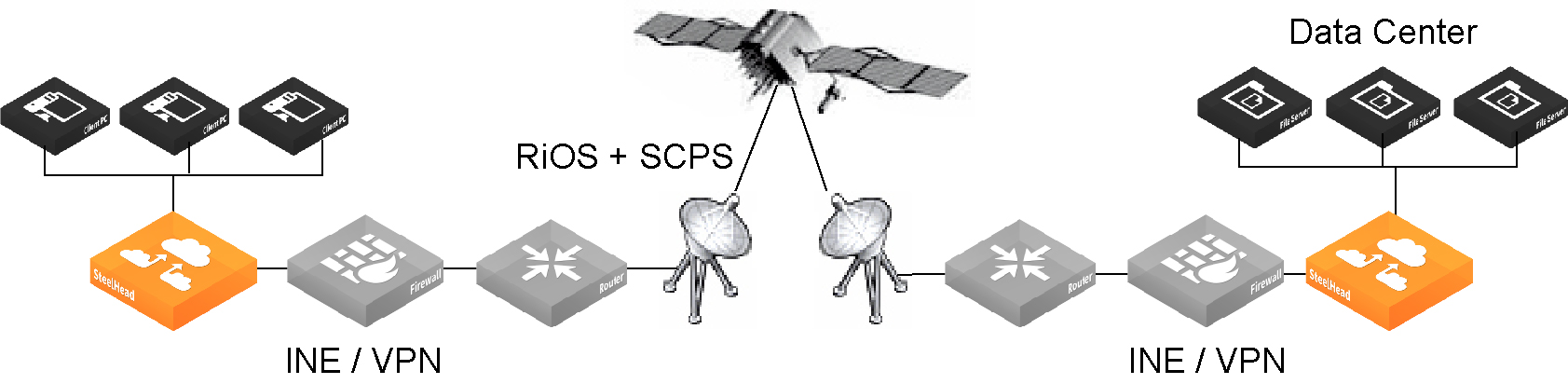
You can deploy SCPS connections using either a double-ended or single-ended topology. For a double-ended SCPS connection, appliances at both ends must support SCPS. This setup enables full optimization, including SDR (Scalable Data Referencing) and LZ (Lempel-Ziv compression). All licensed product features are supported in this configuration, which is best suited for scenarios requiring maximum acceleration and efficiency, especially in high-latency networks like satellite links. This deployment type ensures optimized performance and full use of Riverbed acceleration capabilities.
SCPS double-ended connection
A single-ended interception (SEI) connection involves one SteelHead paired with a third-party device running TCP-PEP, which communicates using SCPS to accelerate traffic across high-latency links. The SteelHead can be placed in the data center or branch office. This is called a single-ended connection because only one SteelHead intercepts traffic.
SCPS single-ended connection
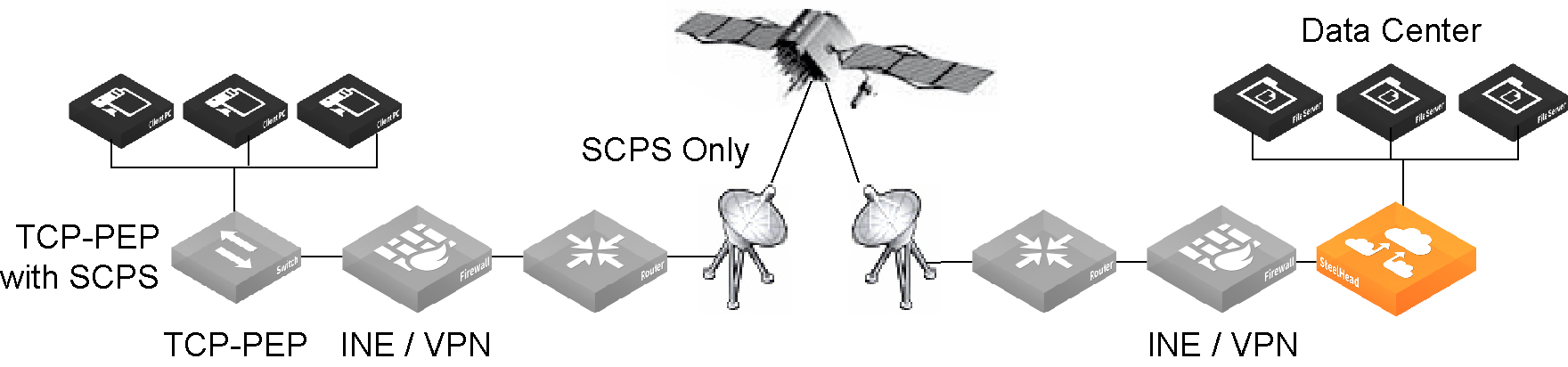
A SteelHead in a single-ended connection deployment:
• accelerates only sender-side TCP.
• supports virtual in-path deployment such as WCCP and PBR.
• can’t initiate SCPS connections on server-side, out-of-path appliances.
• supports kickoff.
• supports autodiscovery failover (IPv6 supported).
• supports high-speed TCP.
• doesn’t support connection forwarding.
SEI connections count toward the connection count limit on the SteelHead.
Use single-ended connection rules to determine whether to enable or pass-through SCPS connections.
In SEI configurations where the SteelHead initiates the SCPS connection on the WAN (typically on the client side), we recommend you add an in-path pass-through rule for connections from the client to the server. Although this rule is optional, it can significantly speed up the connection setup process. Without it, the SteelHead attempts to probe for a peer appliance. When no peer is found, the appliance enters a failover state, which delays optimization. By explicitly allowing the traffic to pass through, the SteelHead bypasses the need for autodiscovery and failover, resulting in a faster and more efficient setup.
In contrast, for SEI configurations where the SteelHead terminates the SCPS connection (typically on the server side), an in-path pass-through rule is not required. This is because, in such deployments, the SteelHead evaluates only the single-ended connection rules table and ignores the in-path rules altogether. This simplifies the configuration and reduces unnecessary rule management on the terminating side.
When server-side network asymmetry occurs in SEI configurations, the behavior of the SteelHead differs from that of non-SCPS deployments. In SEI, the server-side SteelHead detects the asymmetry and logs a "bad RST" entry in its asymmetric routing table. This is unlike standard configurations, where the client-side SteelHead usually detects the asymmetry. The key distinction here is that in SEI deployments, each SteelHead independently detects and logs asymmetric conditions without relying on communication with other SteelHeads. As a result, if autodiscovery is disabled, the system defaults to a TCP proxy-only connection between the client-side SteelHead and the server, rather than attempting further optimization across an asymmetric WAN path.
About transport settings
Transport settings are under Optimization > Network Services: Transport Settings.
Transport settings
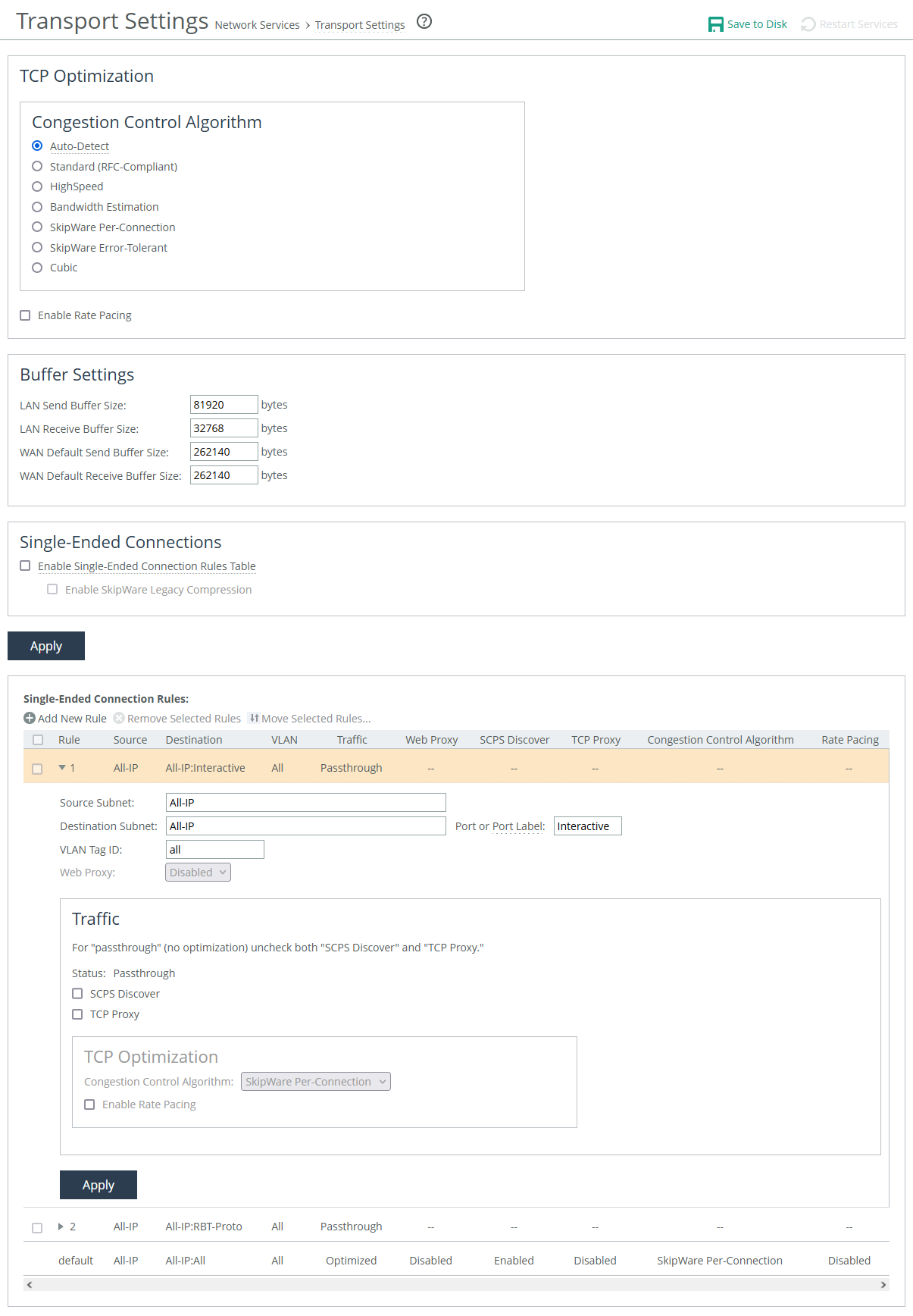
After applying your settings, you can verify whether the changes have had the desired effect by reviewing the Current Connections report. This report provides a summary of established connections that are being optimized through SCPS.
SCPS connections are categorized as typical established, optimized, or single-ended optimized connections. To view specific details about a connection, simply click on it within the report.
In the SCPS connection detail report, you’ll see either SCPS Initiate or SCPS Terminate listed under the Connection Information section, depending on whether the SteelHead initiated or terminated the SCPS connection. Additionally, under the Congestion Control section, the report displays the specific congestion control method that the connection is currently using.
TCP optimization
Auto-Detect
Identifies the optimal TCP configuration by using the same mode as the peer appliance for inner connections. It defaults to SkipWare when negotiated, or standard TCP for all other cases.
If your environment consists of a mix of different network types connecting to a hub or server-side SteelHead, you can enable this setting on your hub appliance. This allows the hub appliance to reflect the various transport optimization mechanisms used by your remote site appliances.
Appliances advertise their automatic TCP detection capabilities to peers through their out-of-band (OOB) connections.
Standard (RFC-Compliant)
Applies data and transport streamlining to non-SCPS TCP connections. When enabled, this setting forces peers to use standard TCP as well. It also clears any previously set advanced bandwidth congestion control settings.
HighSpeed
Enables high-speed TCP optimization, designed to make more complete use of long fat pipes (high-bandwidth, high-delay networks). However, it should not be enabled for satellite networks.
We recommend enabling high-speed TCP optimization only after carefully evaluating whether it will benefit your specific network environment. Additionally, this feature can be enabled using the tcp highspeed enable command.
Bandwidth Estimation
Uses an intelligent algorithm along with a modified slow-start algorithm to optimize performance in long, lossy networks like satellite, cellular, microwave, or Wi-Max networks. This feature is a sender-side modification of TCP and is compatible with other TCP stacks.
Estimation is based on the analysis of ACKs and latency measurements. The modified slow-start enables faster ramp-up in high-latency environments compared to traditional TCP. The intelligent bandwidth estimation algorithm allows it to learn effective transmission rates for use during modified slow start. Additionally, it can differentiate between bit error rate (BER) loss and congestion-derived loss, managing both types appropriately.
Bandwidth estimation offers good fairness and friendliness toward other traffic on the same network path.
SkipWare Per-Connection
Applies TCP congestion control to each SCPS-capable connection. The congestion control uses:
• a pipe algorithm that gates when a packet should be sent after receipt of an ACK.
• the NewReno algorithm, which includes the sender's congestion window, slow start, and congestion avoidance.
• time stamps, window scaling, appropriate byte counting, and loss detection.
This transport setting uses a modified slow-start algorithm and a modified congestion-avoidance approach. When enabled, SCPS per-connection ramps up flows faster in high-latency environments and handles lossy scenarios while remaining reasonably fair and friendly to other traffic. SCPS per-connection is especially effective in satellite networks, offering high performance.
We recommend enabling per-connection if the error rate in the link is less than approximately 1 percent.
SkipWare Error-Tolerant
Accelerates SCPS and provides error-rate detection and recovery. This setting allows per-connection congestion control to tolerate some loss due to corrupted packets (bit errors), without reducing throughput, using a modified slow-start algorithm and a modified congestion-avoidance approach. It requires significantly more retransmitted packets to trigger this congestion-avoidance algorithm than the SkipWare per-connection setting. Error-tolerant TCP acceleration assumes that the environment has a high BER and that most retransmissions are due to poor signal quality instead of congestion. This method maximizes performance in high-loss environments, without incurring the additional per-packet overhead of a forward error correction (FEC) algorithm at the transport layer.
SCPS error tolerance is a high-performance option for lossy satellite networks. Use caution when enabling this feature, particularly in channels with coexisting TCP traffic. It can be quite aggressive and adversely affect channel congestion with competing TCP flows. We recommend enabling this feature if the error rate in the link is more than approximately 1 percent.
Cubic
Enables the Cubic congestion control algorithm, which offers better performance and faster recovery after congestion events than NewReno, the previous local default.
Rate pacing
Enable Rate Pacing
Sets a global data-transmit limit on the link rate for all SCPS connections or when an appliance is paired with a third-party device running TCP-PEP (Performance Enhancing Proxy). By default, rate pacing is disabled.
Rate pacing works by combining MX-TCP with your chosen congestion-control method. It monitors the actual link rate, adjusting the MX-TCP rate accordingly to prevent congestion, packet bursts, and congestion loss as it exits the slow-start phase. The slow-start phase increases the transmission window size gradually as the network throughput is determined.
Without congestion, the slow-start phase ramps up to the MX-TCP rate and stabilizes. When congestion is detected, whether from other traffic, a bottleneck, or a variable modem rate, the congestion-control method activates to avoid issues and allows for faster exit from the slow-start phase.
To use rate pacing, the client-side appliance informs the server-side appliance, which should have its TCP optimization set to auto-detect for automatic configuration negotiation. You should also configure an MX-TCP QoS rule to apply the correct rate limit. If the QoS rule is missing, rate pacing will not be applied, and the congestion-control method will take over.
You cannot delete the MX-TCP QoS rule when rate pacing is enabled.
Buffer
The buffer settings support high-speed TCP and are also used in data protection scenarios to improve performance.
LAN send buffer size
Specifies size used to send data out of the LAN. The default is 81920.
LAN receive buffer size
Specifies size used to receive data from the LAN. The default is 32768.
WAN default send buffer size
Specifies size used to send data out of the WAN. The default is 262140.
WAN default receive buffer size
Specifies size used to receive data from the WAN. The default is 262140.
About high-speed TCP
High-speed TCP (HS-TCP) is designed for high-bandwidth, high-latency networks (also known as long fat networks, or LFNs). It optimizes connections by accelerating traffic over WAN links with large bandwidth but high latency. HS-TCP is automatically activated when the Bandwidth Delay Product (BDP) exceeds 100 packets.
To calculate the BDP and determine if HS-TCP should be enabled, use this formula to calculate the WAN buffer size:
buffer size in bytes = 2 * bandwidth (in bits per sec) * delay (in sec) / 8 (bits per byte)
If the calculated number is greater than the default (256 KB), enable HS-TCP with the correct buffer size. For a link of 155 Mbps and 100 ms round-trip delay:
• Bandwidth = 155 Mbps = 155000000 bps
• Delay = 100 ms = 0.1 sec
• BDP = 155 000 000 * 0.1 / 8 = 1937500 bytes
• Buffer size in bytes = 2 * BDP = 2 * 1937500 = 3 875 000 bytes.
To configure high-speed TCP, enable the high speed congestion control algorithm, increase the WAN and LAN buffers, and then enable in-path support.
About single-ended connection rules
Enable Single-Ended Connection Rules Table
Activates or deactivates all rules in the Single-Ended Interception (SEI) rules table. By default, it is disabled. When disabled, you can still add, move, or remove rules, but they won't take effect until the table is enabled.
The appliance uses the rules to determine whether to enable or pass through SCPS connections. When receiving an SCPS connection on the WAN, the appliance only evaluates the SEI rules table. To pass through an SCPS connection, we recommend setting both an in-path rule and a single-ended connection rule.
Two default rules appear in the list. Both bypass acceleration and pass through matched connections. The first rule matches connections destined to ports listed in the Interactive port label. The second matches connections destined to ports listed in the RBT-Proto port label.
You can also enforce rate pacing for SEI connections where no peer appliance or SCPS device is involved, and SCPS is not negotiated. To enforce rate pacing for a connection, create a rule enabling TCP proxy, select a congestion method for the rule, and then configure a QoS rule (with the same client/server subnet) to use MX-TCP. The appliance then accelerates WAN or LAN-originated proxied connections using MX-TCP.
About single-ended connection rule settings
Position
Specifies the rule’s location in the list.
Source and destination subnets
Specifies IP address and subnet mask for the traffic source or destination.
Port or Port Label
Specifies the destination port number, port label, or all ports.
VLAN tag ID
Specifies a numerical ID from 0 to 4094 that identifies a specific VLAN. Enter all to match all VLANs, or untagged to match untagged connections. Passed-through traffic maintains existing VLAN tags. The default is 0.
Web proxy
Specifies whether matching connections are sent to a web proxy. Requires that the appliance has web proxy enabled.
About traffic settings
These settings determine the action that the rule takes on matching SCPS and TCP connections.
Traffic
Specifies the action that the rule takes on an SCPS connection. When an option is enabled, web proxy settings become available. Multiple selections are allowed. SCPS discover and TCP proxy are disabled by default, which passes through traffic unoptimized.
SCPS discover
Accelerates matching SCPS connections.
TCP proxy
Accelerates matching TCP connections.
The TCP optimization settings for single-ended connection rules are similar to the global settings.