About Prioritizing and Directing Traffic Flow
Many organizations utilize hybrid network architectures that combine private MPLS-based WAN networks with public networks, such as the internet and cloud provider networks. Quality of service (QoS) and path selection enables you to maximize your network resources across those environments through traffic prioritization, resource reservation, and traffic matching onto specific uplinks.
Quality of service is a network reservation system. It enables you to prioritize specific data flows while minimizing network usage by noncritical applications.
Path selection enables you to ensure the right traffic travels the right path by choosing a predefined WAN gateway for certain traffic flows. This granular path manipulation enables better use and more accurate control of traffic flow across multiple WAN pathways.
Your network topologies and application properties form reusable building blocks for use in QoS, path selection, and web proxy features. On an SCC, you can protect network traffic by reusing these building blocks with the secure transport feature. In addition, the SCC application statistics collector provides visibility into the throughput for optimized and pass-through traffic flowing in and out of managed appliances across your network.
QoS is currently supported for outbound IPv6 traffic and both inbound and outbound IPv4 traffic.
About sites, networks, and uplinks
By configuring topologies, you provide your local appliance with the information it needs to connect to wider networks. You can create multiple topologies by saving different setting values to different appliance configurations. For example, you might enter setting values specific to an MPLS network, and then save them to an appliance configuration named “MPLS”. Later, you might enter setting values specific to connecting to a cloud network, and then save them to a “Cloud” configuration. You can switch between the appliance’s running configuration to a different one in the administration section of the Management Console.
Topology configurations are shareable across appliances. Peered appliances sharing topology information among each other use this information to determine possible remote paths for path selection and precompute the estimated end-to-end bandwidth for QoS, based on remote uplinks.
Use topologies as building blocks to simplify configuration. They provide to appliances the network point-of-view to all sites, including each site’s networks and uplinks.
Topology overview
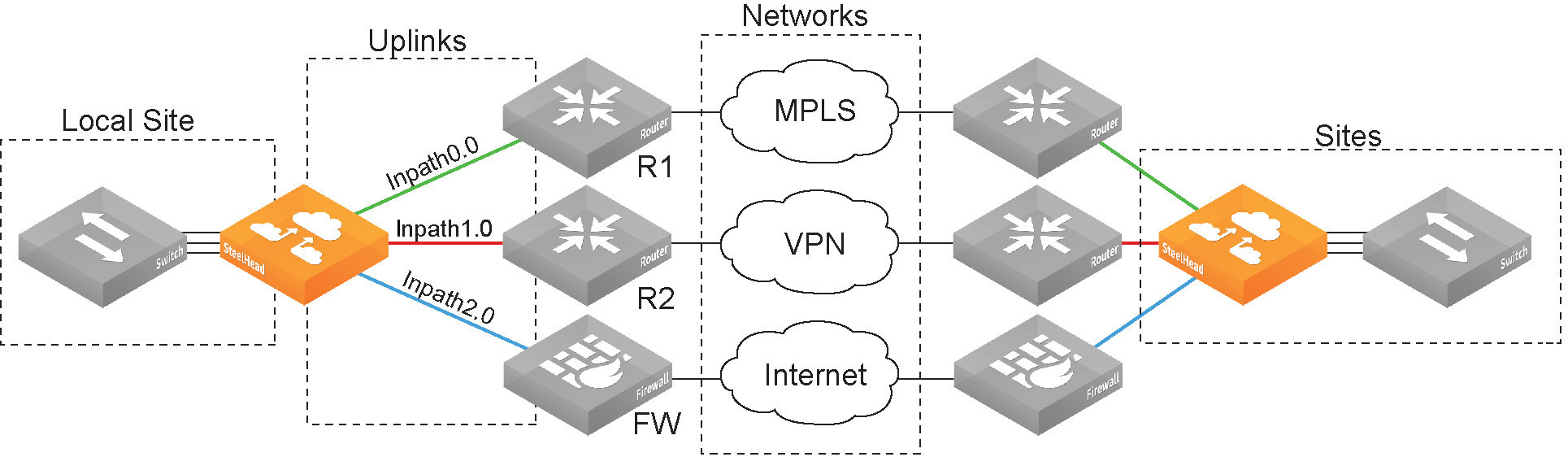
Networks
Define the carrier-provided WAN connections: MPLS, VSAT, or internet.
Sites
Define the discrete physical locations on the network. A site can be a single floor of an office building, a manufacturing facility, or a data center. Sites can be linked to one or more networks. The local sites use the WAN in the network definition to connect to the other sites. The default site is a catch-all site that is the only site needed to backhaul traffic. Use sites with path selection, QoS, and secure transport features.
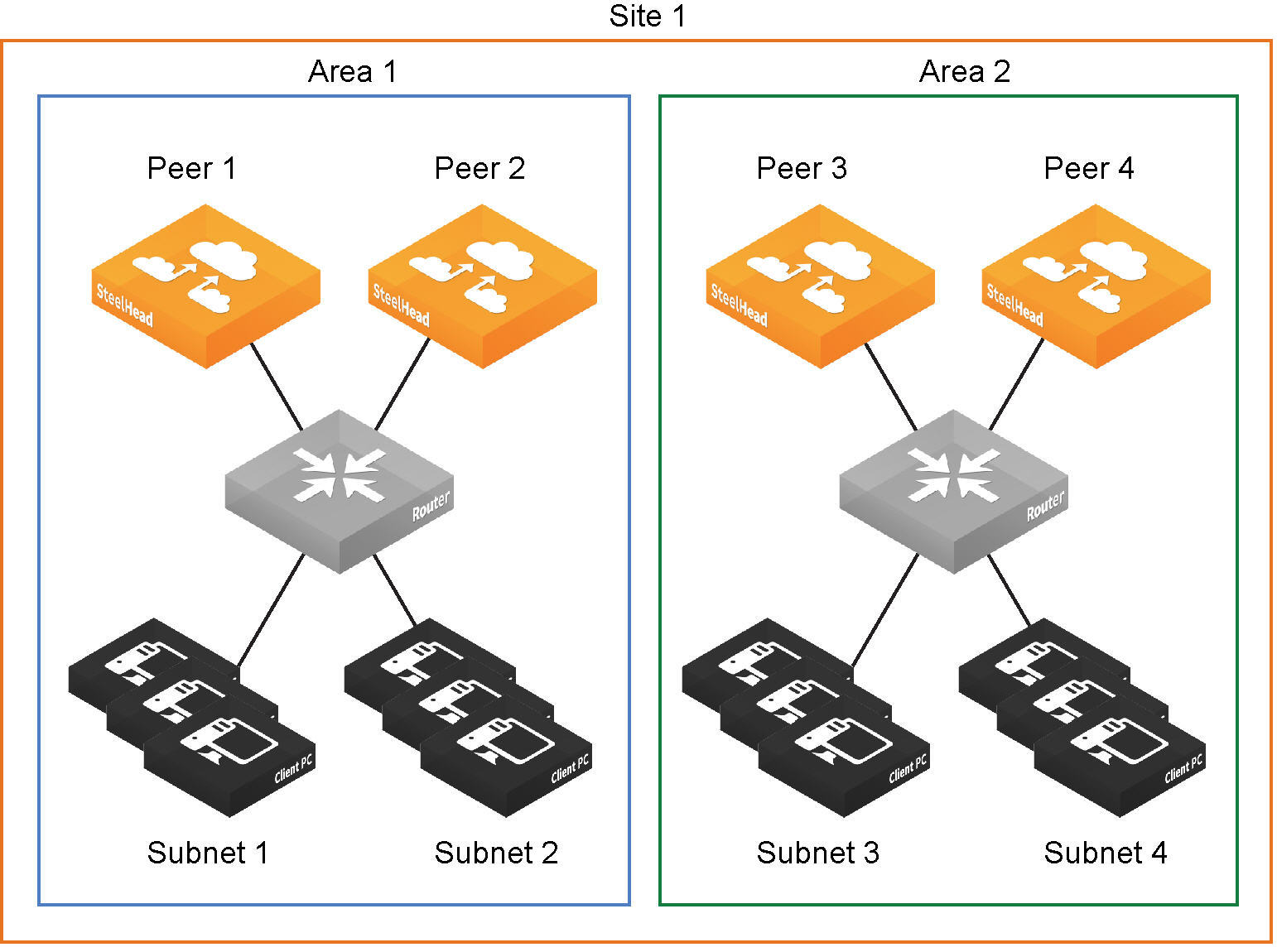
Areas
Are useful in cases where peered appliances connect to subnets within a network that don’t communicate with each other. Use the command-line interface to configure areas.
Site definition divided into areas
Uplinks
Define the last network segment connecting their local site to a network. You define carrier-assigned characteristics, such as upload and download bandwidth and latency, to an uplink. Uplinks must be directly (L2) reachable by at least one appliance in the local network. They don’t need to be physically in-path.
About Quality of Service
As a reservation system, QoS enables you to allocate scarce network resources across multiple traffic types of varying importance. Using QoS, you can accurately control application traffic by bandwidth and sensitivity to delay. You configure QoS by defining networks and sites, applications and application groups, classification hierarchies, rules, and profiles.
The local appliance’s network and site configurations are used in QoS and path selection to properly shape and direct traffic on your network. Networks represent the WAN networks (MPLS, VSAT, internet) used for site-to-site communication. Sites represent collections of resources that share common WAN uplinks. The networks and sites you configure on the local appliance appear in its QoS and path selection Management Console pages.
Application definitions help you pinpoint, categorize, and assign a business priority to the traffic of specific or groups applications. Appliances include many predefined applications and application groups. You can add your own custom definitions, and customize the default ones.
QoS classes define minimum and maximum bandwidth allocation for shaping, queue protocol, differentiated services code point (DSCP) behavior, and priority for application traffic. Classes are assigned to applications through QoS rules and profiles. Classification occurs during connection setup for optimized traffic, before acceleration. QoS shaping and enforcement occurs after acceleration has begun.
QoS profiles are self-contained sets of classes and rules. Each profile represents a fully customizable class-shaping hierarchy where you can view the class layout and details at a glance. Apply profiles to sites to shape traffic to and from remote sites.
Sites provide the local appliance with the IP addresses of all existing subnets (including non-SteelHead sites). It’s important to define all remote subnets in the enterprise so they can be matched with the correct QoS profile. A default site is used as a catch-all for traffic that is not assigned to another site and for backhaul traffic.
By design, QoS is applied to both pass-through and optimized traffic; however, you can choose to classify either pass-through or optimized traffic. QoS is implemented in appliance’s operating system; it’s not a part of the optimization service. When the optimization service is disabled, all the traffic is pass-through and is still shaped by QoS. Flows can be incorrectly classified if there are asymmetric routes in the network when any of the QoS features are enabled.
It’s important to allocate the correct amount of bandwidth for each traffic class. The amount you specify reserves a predetermined amount of bandwidth for each traffic class. Bandwidth allocation is important for ensuring that a given class of traffic can’t consume more bandwidth than it is allowed. It’s also important to ensure that a given class of traffic has a minimum amount of bandwidth available for delivery of data through the network.
You configure QoS on client-side and server-side appliances to control the prioritization of different types of network traffic and to ensure that SteelHeads give certain network traffic; for example, Voice over IP (VoIP) has higher priority over other network traffic.
About exporting QoS and application statistics to flow collectors
You can export QoS and application statistics to flow collectors. Collectors aggregate information for network profilers, which summarize and display graphical visualizations of the statistics.
About QoS considerations
We recommend the maximum classes, rules, and sites shown in this table for optimal performance and to avoid delays while changing the QoS configuration.
The QoS bandwidth limits are global across all WAN interfaces and the primary interface. Traffic that passes through the appliance but isn’t destined to the WAN isn’t subject to the QoS bandwidth limit. Examples of traffic that isn’t subject to the bandwidth limits include routing updates, DHCP requests, and default gateways on the WAN-side of the SteelHead that redirect traffic back to other LAN-side subnets.
Appliance model | Recommended maximum configurable root bandwidth (Mbps) | Recommended maximum classes | Recommended maximum rules | Recommended maximum sites |
|---|
255-P | 6 | 300 | 300 | 50 |
255-U | 10 | 300 | 300 | 50 |
255-L | 12 | 300 | 300 | 50 |
For the following appliance models, the network services flows and WAN capacity replace the maximum configurable QoS root bandwidth in previous versions.
For the GX 10000, the total number of classes and rules cannot exceed 4,000.
Appliance model | Network services flows | Network services WAN capacity (Mbps) | Recommended maximum classes | Recommended maximum rules | Recommended maximum sites |
|---|
5080-B010 | 160,000 | Unrestricted | 3,000 | 3,000 | 500 |
7080-B010 | 160,000 | Unrestricted | 3,000 | 3,000 | 500 |
7080-B020 | 320,000 | Unrestricted | 3,000 | 3,000 | 500 |
7080-B030 | 800,000 | Unrestricted | 3,000 | 3,000 | 500 |
GX 10000 | 768,000 | Unrestricted | 2,000 | 2,000 | 500 |
QoS is currently supported for outbound IPv4 and IPv6 traffic shaping or application-based classification. Currently, QoS is only supported for inbound IPv4 traffic and is not supported for inbound IPv6 traffic.
You can also configure appliances to reflect an existing traffic class from the LAN-side to the WAN-side of the appliance.
By default, the setup of optimized connections and the out-of-band control connections aren’t marked with a DSCP value. Existing traffic marked with a DSCP value is classified into the default class. If your existing network provides multiple classes of service based on DSCP values, and you are integrating a SteelHead into your environment, you can use the Global DSCP feature to prevent dropped packets and other undesired effects.
About subnet side rules
The appliance processes the subnet side LAN rules before the QoS outbound rules.
Certain virtual in-path network topologies where the LAN-bound traffic traverses the WAN interface might require that the local appliance bypass LAN-bound traffic so that it’s not included in the rate limit determined by the recommended maximum root bandwidth.
The following figure illustrates topologies where the default LAN gateway or router is accessible over the WAN interface of the SteelHead. If there are two clients in the local subnet, traffic between the two clients is routable after reaching the LAN gateway. As a result, this traffic traverses the WAN interface of the appliance.
In-path configuration where default LAN gateway is accessible over the appliance’s WAN interface

In a QoS configuration for these topologies, suppose you’ve created several classes and the root class is configured with the WAN interface rate. The remainder of the classes use a percentage of the root class. In this scenario, the LAN traffic is rate limited because the appliance classifies it into one of the classes under the root class. You can use the LAN bypass feature to exempt certain subnets from QoS enforcement, bypassing the rate limit. The LAN bypass feature is enabled by default and comes into effect when subnet side rules are configured.
Filtering LAN traffic from WAN traffic with subnet side rules
1. Enable QoS shaping.
2. Add a subnet side rule, specifying the client-side appliance subnet and specifying that the subnet address is on the LAN side of the appliance.
View the QoS reports and verify that the traffic classification is correct.
About QoS for FTP
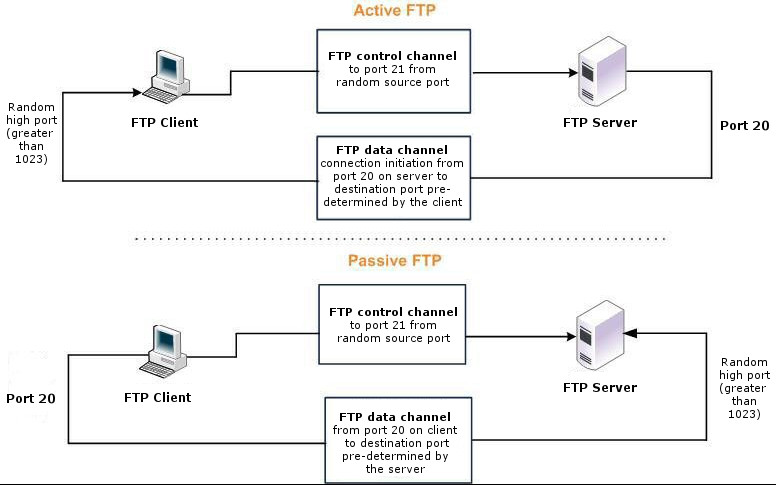
When configuring QoS classification for FTP, the QoS rules differ depending on whether the FTP data channel is using active or passive FTP. Active versus passive FTP determines whether the FTP client or the FTP server select the port connection for use with the data channel, which has implications for QoS classification.
The application-based shaping doesn’t support passive FTP. Because passive FTP uses random high TCP port numbers to set up its data channel from the FTP server to the FTP client, the FTP data traffic can’t be classified on the TCP port numbers. To classify passive FTP traffic, you can add an application rule where the application is FTP and matches the IP address of the FTP server.
Active FTP classification
With active FTP, the FTP client logs in and enters the PORT command, informing the server which port it must use to connect to the client for the FTP data channel. Next, the FTP server initiates the connection toward the client. From a TCP perspective, the server and the client swap roles. The FTP server becomes the client because it sends the SYN packet, and the FTP client becomes the server because it receives the SYN packet.
Although not defined in the RFC, most FTP servers use source port 20 for the active FTP data channel.
For active FTP, configure a QoS rule on the server-side SteelHead to match source port 20. On the client-side SteelHead, configure a QoS rule to match destination port 20.
You can also use application definitions to classify active FTP traffic.
Passive FTP classification
With passive FTP, the FTP client initiates both connections to the server. First, it requests passive mode by entering the PASV command after logging in. Next, it requests a port number for use with the data channel from the FTP server. The server agrees to this mode, selects a random port number, and returns it to the client. Once the client has this information, it initiates a new TCP connection for the data channel to the server-assigned port. Unlike active FTP, there’s no role swapping and the FTP client initiates the SYN packet for the data channel. The FTP client receives a random port number from the FTP server.
The QoS Classification configuration for passive FTP is the same as active FTP. Except that when configuring QoS Classification for passive FTP, port 20 on both the server-side and client-side appliances indicates the port number used by the data channel, as opposed to the literal meaning of source or destination port 20.
The appliance must intercept the FTP control channel (port 21), regardless of whether the FTP data channel is using active or passive FTP.
Active and passive FTP
About inbound QoS
Inbound QoS allocates bandwidth and prioritizes traffic flowing into the LAN network behind the appliance. Inbound QoS provides the benefits of QoS for environments that can’t meet their QoS requirements with outbound QoS. Some examples of environments that can benefit from inbound QoS are:
• A deployment that doesn’t have a SteelHead located at the traffic source (for example, the traffic comes from the internet or from servers at a site without a SteelHead).
• A deployment that has multiple SteelHeads located at the traffic source (for example, behind an Interceptor cluster). The SteelHeads don’t share bandwidth information with each other. As a result, they can overwhelm the branch office site at the remote location.
• A branch office receiving data from multiple data centers (either with or without SteelHeads). Because the two data centers don’t coordinate the amount of bandwidth sent to the branch office, they can overwhelm the link at the branch office, causing degraded performance.
Configuring inbound QoS focuses on prioritizing types of traffic using rules and classes just like outbound QoS. The inbound configuration is separate from the outbound configuration. You define the applications on the local network and then create their corresponding QoS rules.
Currently inbound QoS is not supported for IPv6 traffic.
Applying policies to the inbound traffic addresses environments in which bandwidth constraints exist at the downstream location. The downstream appliance (where inbound QoS is enabled) dynamically communicates the bandwidth constraints to the client transmitting the traffic. The client slows down the throughput and the traffic adheres to the configured inbound QoS rule. Inbound QoS, just like outbound QoS, isn’t a dual-ended solution. A single appliance performing traffic shaping as needed to avoid network congestion controls inbound WAN traffic on its own.
Rules can match traffic based on VLAN, IP header values, TCP/UDP ports, and application definitions. For example, you can ensure that voice traffic on the WAN is reserved a fixed bandwidth and that it has a higher priority over the recreational internet traffic.
Inbound classes shape the inbound traffic. The class configuration resembles an outbound QoS class configuration. An outbound QoS configuration describes remote sites and applications. Inbound QoS describes the local services and applications and how to shape the inbound traffic.
The inbound traffic shaping configuration includes a default shaping class. The QoS scheduler applies the built-in inbound default class constraints and parameters on traffic not placed in any other class. The default shaping class has a 10 percent minimum bandwidth allocation and a 100 percent maximum bandwidth allocation. You can’t delete the default class; however, you can edit it. These limitations apply to inbound QoS traffic shaping:
• When packet-mode optimization is enabled, the QoS scheduler places UDP4 traffic into the MX-TCP class. All other traffic goes into the proper class.
• You can’t configure inbound QoS in an out-of-path deployment over a primary or auxiliary interface.
• Inbound QoS doesn’t throttle certain flows such as MX-TCP and UDP bulk traffic flows; however, it does provide bandwidth and latency reservation for them.
• While there is no maximum number of inbound QoS rules, The maximum number of inbound QoS classes is 200.
About path selection
You define a path, called an uplink, by specifying a WAN egress point and providing a direction for the egressing packets to take. These steps provide the suggested workflow for configuring path selection:
1. Define applications. Attach a business relevancy to all traffic that goes through your network. Use the preexisting default definitions to identify applications. If the application doesn’t appear in the preexisting application list, you can define a custom application.
2. Define a view of all available networks. The network definition is simply a name (for example, MPLS).
3. Define sites. Provides the SteelHead with the IP addresses of all subnets existing within a site (this applies to non-SteelHead sites as well). It’s important to define all remote subnets in the enterprise so they can be matched with the correct rules. You must define local and remote sites. The site definitions include a list of IP subnets that path selection will use to identify the site. Every subnet must be globally unique, although they can overlap. You also define the default site as a catch-all for traffic that is not assigned to another site. Specify the appliance peers to use for path monitoring. Peers are select distinct IP addresses you choose to poll, in order, to verify path availability.
4. Define uplinks that join the sites to the networks. You must define the local site with the gateway IP address and the in-path interface the uplinks will use to connect to the network. On the SteelHead you are configuring, the local default gateway is the in-path interface. When you configure path selection, if the default gateway is pointing to the LAN side of the SteelHead, we recommend changing the interface to point the gateway to the WAN side of the SteelHead to avoid packet ricochet. The order of sites isn’t important because the longest prefix in the site subnet is matched first.
5. Enable path selection. Choose Network > Network Services: Path Selection, and select Enable Path Selection.
6. Configure path selection rules. Path selection rules direct matching traffic onto specific uplinks. Traffic is matched by a combination of application and destination site.
About sites and networks settings
Settings for the network connectivity view are under Networking > Topology: Sites & Networks.
Sites & Networks page
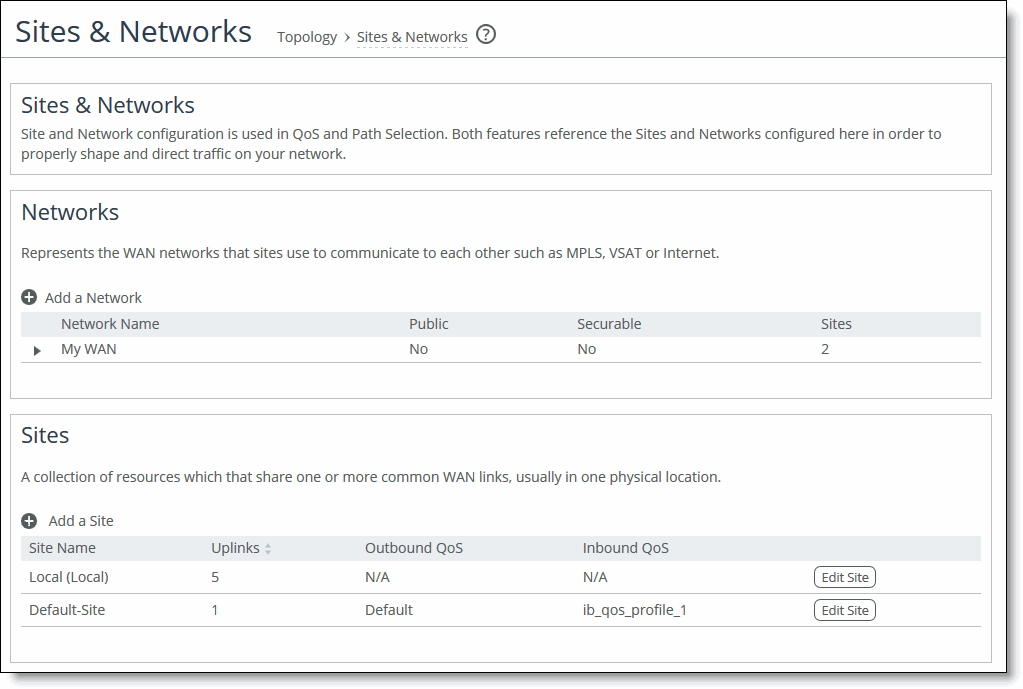
Networks represent the WAN networks that connect sites. Adding a network is simple. Just enter a name and specify whether the network is public. You can’t delete the default network.
A site is a group of subnets that share one or more common uplinks to the WANs that connect sites to each other. By default, each appliance includes a predefined local site and remote site, which you can edit but cannot delete. In site definitions, every subnet must be globally unique, although they can overlap.
When you define sites in the SCC, you don’t have to specify the IP addresses of the managed appliances at each given site, because the SCC dynamically adds them to the site configuration.
Site name
Enter a descriptive name for the site.
Network information
Optionally, enter a subnet IP prefix for a set of IPv4 and IPv6 IP addresses on the site’s LAN-side. Separating multiple subnets with commas. Appliances determine the destination site using a longest-prefix match on the site subnets. For example, if you define site 1 with 10.0.0.0/8 and site 2 with 10.1.0.0/16, then traffic to 10.1.1.1 matches site 2, not site 1. Consequently, the default site defined as 0.0.0.0 only matches traffic that doesn’t match any other site subnets.
You can also specify the IP addresses of peer appliances. This is useful for path selection monitoring and GRE tunneling. Separate multiple peers with commas. The appliance polls the listed peers, in order, to monitor path availability, or considers them the destinations at the end of GRE tunnels. We strongly recommend that you use the remote SteelHead in-path IP address as a peer address when possible.
QoS profiles
Optionally, select QoS profiles to fine-tune traffic behavior for each site.
Uplinks
An uplink represents the last network segment connecting a site to WAN networks. You can define multiple uplinks for a site. Appliances monitor uplink status and, based on this, select the appropriate uplink for each packet. If one uplink fails, the appliance directs traffic through another available uplink. When the original uplink comes back up, the appliance redirects the traffic back to it.
Common uplink settings include name, network, and up and down bandwidth. Uplink settings for the local site have more options than those for other sites. The additional settings allow you to:
• differentiate between in-path and primary interfaces.
• specify a gateway IP address.
• specify a differentiated services code point (DSCP) marking for upstream router packet steering.
• enable generic route encapsulation (GRE) tunneling if the appliance you are configuring is behind a firewall.
• enable uplink status probing, setting a timeout for probe responses and threshold number of packets lost.
You can configure up to 1024 direct uplinks.
We recommend using the same name for an uplink in all sites connecting to the same network. If you later use an SCC to manage the appliance, it will group uplinks by their names. A topology doesn’t allow duplicate uplinks.
For uplink bandwidth settings, the appliance uses the specified bandwidth to precompute the end-to-end bandwidth for QoS. The uplink rate is the bottleneck WAN bandwidth, not the interface speed out of the WAN interface into the router or switch. Different WAN interfaces can have different WAN bandwidths; you must enter the bandwidth link rate correctly for QoS to function properly.
About uplink status probes
Appliances send internet control message protocol (ICMP) pings to dynamically monitor uplink state on a regular schedule (the default is 2 seconds). If the ping responses don’t make it back within the timeout period, the probe is considered lost. If the system loses the threshold number of packets, it considers the uplink to be down and triggers an alarm.
Optionally, select a DSCP marking for the ping packet. You must select this option if the service providers are applying QoS metrics based on DSCP marking and each provider is using a different type of metric. Path selection-based DSCP marking can also be used in conjunction with policy-based routing (PBR) on an upstream router to support path selection in cases where the appliance is more than a single Layer-3 hop away from the edge router. The default marking is preserve. Preserve specifies that the DSCP level or IP ToS value found on pass-through and optimized traffic is unchanged when it passes through the SteelHead.
About tunneled uplinks
Local site uplink settings include the option to enable generic routing encapsulation (GRE) tunnel mode. Enable this feature on uplinks that traverse a stateful firewall between appliances.
Without GRE, traffic attempting to switch midstream to an uplink that traverses a stateful firewall might be blocked. This is because firewalls, which typically need to track TCP connection state and sequence numbers for security reasons, may have only partial or no packet sequence numbers, so it blocks the attempt to switch to the secondary uplink and might drop these packets. To traverse the firewall, The most common examples of midstream uplink switching occur when:
• a high-priority uplink fails over to a secondary uplink that traverses a firewall.
• a previously unavailable uplink recovers and resumes sending traffic to a firewalled uplink.
• path selection is using application definitions to identify the traffic and doesn’t yet recognize the first packets of a connection before traversing a default uplink.
The GRE tunnel starts at the local appliance and ends at the remote one. Both appliances must be running RiOS 8.6.x or later. The tunnel configuration is local. The remote IP address must be a remote appliance’s in-path interface and the remote appliance must have path selection enabled. ICMP responses from the remote appliance use the same tunnel from which the ping is received. The remote appliance must also have GRE tunnel mode enabled if the user wants return traffic to go through a GRE as well.
GRE tunneled traffic can be optimized. GRE acceleration supports hub-and-spoke and spoke-to-spoke topologies, up to a maximum of 100 tunnels.
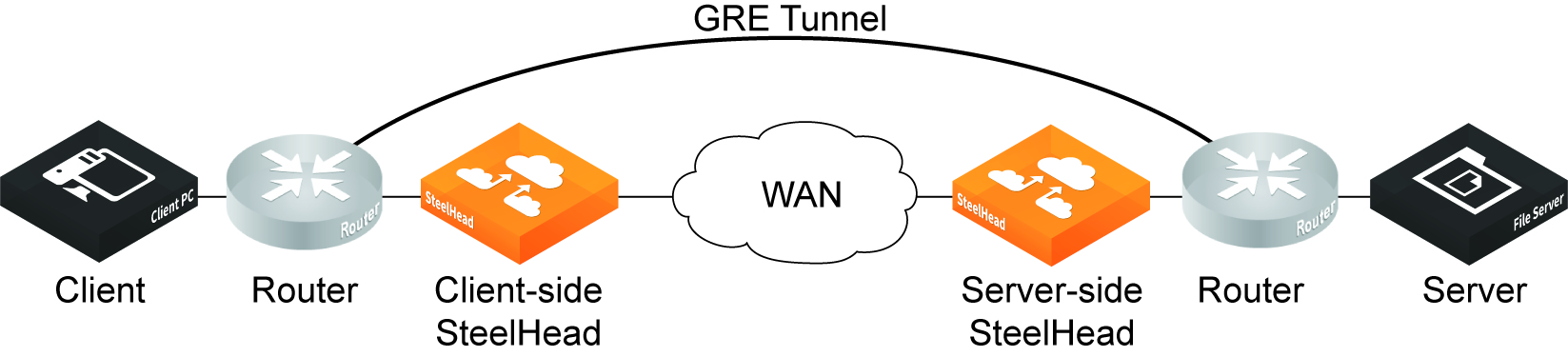
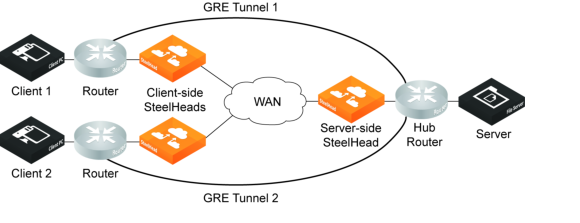
The GRE tunnel must be started and terminated between two routers. In addition, the default route for the appliances should be directed to the WAN. Multiple appliances can be used in a point-to-point tunnel, as long as all of them are inside the tunnel. The following figures show example GRE topologies.
Simple GRE optimization topology
Simple GRE optimization spoke-to-spoke topology
Physical appliance models CX 3080, 5080, 7080 and virtual models on KVM and ESXi platforms support GRE tunnel optimization.
The following features are supported with GRE tunnel optimization:
• TCP optimization and pass-through
• HTTP/HTTPS optimization
• SMB optimization
• NFS optimization
• Video over HTTP/HTTPS optimization
• MAPI optimization
• MX-TCP QoS support
• Simplified routing
• VLAN support
• Full transparency and correct addressing WAN visibility modes
The following features are not supported:
• Asymmetric routing
• QoS classification (except MX-TCP)
• Single-ended interception
• Policy-based routing (PBR)
• UDP and IPv6
• Port transparency WAN visibility mode (full transparency and correct addressing are supported)
• Path selection
• Double interception
• Interceptor support
The following traffic is not optimized with GRE tunnel optimization:
• Out-of-band (OOB) traffic is not optimized. If OOB connections are received from a GRE tunnel, they will be relayed instead of optimized.
• Checksum, key, and sequence numbers are not optimized.
About application definitions
Each appliance includes a default library of many common application definitions, also known as application signatures. Application signatures work with the Application File Engine (AFE) to classify network traffic for QoS at an application level. The AFE uses deep packet inspection (DPI) of application data to identify and classify business-critical and nonessential network traffic. Application signatures classify QoS and provide an efficient and accurate way to identify applications for advanced classification and shaping of network traffic. You can customize any of the default definitions, and add your own applications to the library.
About application definition settings
Definitions for applications are under Networking > App Definitions: Applications.
Application definitions enable you to attach a business relevancy to all traffic that goes through your network. Appliances include many default definitions, which you can edit or add to as needed. Application groups help organize application definitions. For example, among the default groups you’ll find Business Standard, Business Critical, Business Video, Recreational, and so on.
Application definitions help to streamline appliance configuration. Within a definition, you specify parameters such as local and remote subnet addresses, transport and application layer protocols, VLAN tag ID, DSCP, whether the traffic is passed through or optimized, group and category, and business criticality. Application groups enable you to apply rules for multiple applications using just the group, avoiding the need to create separate rules for each individual application.
We strongly recommend that you define applications and push application definitions from an SCC to the managed appliances.
Local subnet and port
Select All IP (IPv4 + IPv6) for all traffic, IPv4 (for IPv4 traffic only) or IPv6 (for IPv6 traffic only) and enter the application traffic’s source subnet IP address and mask, or enter a predefined host label.
If needed, enter a port number or predefined port label. Port ranges are allowed.
Remote subnet and port
Select All IP (IPv4 + IPv6) for all traffic, IPv4 (for IPv4 traffic only) or IPv6 (for IPv6 traffic only) and enter the application traffic’s source subnet IP address and mask, or enter a predefined host label.
Transport layer protocol
Select a transport layer protocol. The default is All.
Application layer protocol
Enter an application layer protocol or an application definition.
VLAN tag ID
VLAN v802.1Q is supported. Configure transport rules to apply to all VLANs or to a specific VLAN. By default, rules apply to all VLAN values unless you specify a particular VLAN ID. Pass-through traffic maintains any preexisting tagging between the LAN and WAN interfaces.
DSCP
Optionally, specify a DSCP value from 0 to 63, or all to use all DSCP values.
Traffic Type
Select Optimized, Passthrough, or All from the drop-down list. The default setting is All.
Application Group
Business Bulk
Captures business-level file transfer applications and protocols, such as CIFS, SCCM, antivirus updates, and over-the-network backup protocols.
Business Critical
Captures business-level, low-latency transactional applications and protocols, such as SQL, SAP, Oracle and other database protocols, DHCP, LDAP, RADIUS, the Riverbed Control Channel (to identify and specify a DSCP value for out-of-band traffic), routing, and other network communication protocols.
Business Productivity
Captures general business-level productivity applications and protocols, such as email, messaging, streaming and broadcast audio/video, collaboration, intranet HTTP traffic, and business cloud services O365, Google apps, SFDC, and others through a white list.
Business Standard
Captures all intranetwork traffic going within local subnets as defined by the uplinks on the SteelHead. Use this class to define the default path for traffic not classified by other application groups.
Business VDI
Captures real-time interactive business-level virtual desktop interface (VDI) protocols, such as PC over IP (PCoIP), Citrix CGP and ICA, RDP, VNC, and Telnet protocols.
Business Video
Captures business-level video conferencing applications and protocols, such as Microsoft Lync and RTP video.
Business Voice
Captures business-level voice over IP (VoIP) applications and protocols (signaling and bearer), such as Microsoft Lync, RTP, H.323 and SIP.
Recreational
Captures all Internet-bound traffic that has not already been classified and processed by other application groups.
Standard Bulk
Captures general file transfer protocols, such as FTP, torrents, NNTP/usenet, NFS, and online file hosting services Dropbox, Box.net, iCloud, MegaUpload, Rapidshare, and others.
Custom Applications
Captures user-defined applications that have not been classified into another application group.
Category
Lowest criticality
Specifies the lowest priority service class.
Low criticality
Specifies a low-priority service class (for example, FTP, backup, replication, other high-throughput data transfers, and recreational applications such as audio file sharing).
Medium criticality
Specifies a medium-priority service class.
High criticality
Specifies a high-priority service class.
Highest criticality
Specifies the highest priority service class.
These are minimum service class guarantees; if better service is available, it’s provided. The service class describes only the delay sensitivity of a class, not how much bandwidth it’s allocated. Typically, you set low priority for high-throughput, non packet-delay sensitive applications like FTP, backup, and replication.
About QoS settings
QoS settings are under Networking > Network Services: Quality of Service.
Before configuring QoS, we recommend that you add any applications to which you want to apply QoS that are not already defined in the default list. All in-path interfaces are enabled for inbound and outbound QoS with the same link rate.
Enable Outbound QoS Shaping
Enables QoS classification to control the prioritization of different types of network traffic and to ensure that the appliance gives certain network traffic (for example, Voice over IP) higher priority than other network traffic. Traffic is not classified until at least one WAN interface is enabled.
Enable Inbound QoS Shaping
Enables QoS classification to allocate bandwidth and prioritize traffic flowing into the LAN network behind the SteelHead. Inbound QoS provides the benefits of QoS for environments that can’t meet their QoS requirements with outbound QoS.
Enable Outbound QoS Marking
Identifies outbound traffic using header parameters such as VLAN, DSCP, and protocols. You can also use Layer-7 protocol information through application definition inspection to apply DSCP marking. The DSCP or IP ToS marking only has local significance. You can set the DSCP or IP ToS values on the server-side appliance to values different to those set on client-side appliances.
Managing QoS settings per interface
QoS is enabled on all in-path interfaces, except the primary interface, by default. You can only enable outbound QoS on the primary interface. Inbound QoS supports in-path interfaces only; it doesn’t support primary or auxiliary interfaces.
Local site uplink bandwidth
Specifies the inbound (down) and outbound (up) bandwidth for local site uplinks. The appliance uses the bandwidth to precompute the end-to-end bandwidth for QoS. The appliance automatically sets the bandwidth for the default site to this value.
You can also access and edit these settings values, in addition to site-specific tasks such as adding an uplink, in the Networking > Topology: Sites & Networks page.
If you want to add an uplink, the settings here are identical to those under sites and networks.
About QoS class settings
Classes are organized in a hierarchical tree structure. All default classes are editable (except root), and you can add custom classes to the tree. QoS classes indicate how delay-sensitive a traffic class is to the QoS scheduler. They define minimum service guarantees; if better service is available, it’s provided. For example, if a class is specified as low priority and the higher-priority classes aren’t active, then the low-priority class receives the highest possible available priority for the current traffic conditions. This parameter controls the priority of the class relative to the other classes.
The service class describes only the delay sensitivity of a class, not how important the traffic is compared to other classes.
If you create QoS profiles, you can modify classes and combine them with rules to define the profile. Below is list of default classes.
• Use RealTime for your highest-priority, bandwidth intensive traffic such as VoIP or video conferencing.
• Interactive is primarily used for interactive traffic class such as Citrix, RDP, telnet, and SSH.
• Use BusinessCritical for high-priority traffic such as thick client applications, ERP, and CRM traffic.
• Use Normal for normal-priority traffic such as internet browsing, file sharing, and email.
• Use LowPriority for low-priority traffic such as FTP, backup, replication, other high-throughput data transfers, and recreational applications such as audio file sharing.
• Use BestEffort for your lowest priority applications.
Class Name
Specify a name for the QoS class.
Minimum Bandwidth %
Specify the minimum amount of bandwidth (as a percentage) to guarantee to a traffic class when there’s bandwidth contention. All of the classes combined can’t exceed 100 percent. During contention for bandwidth, the class is guaranteed the amount of bandwidth specified. The class receives more bandwidth if there’s unused bandwidth remaining.
Excess bandwidth is allocated based on the relative ratios of minimum bandwidth. The total minimum guaranteed bandwidth of all QoS classes must be less than or equal to 100 percent of the parent class.
A default class is automatically created with minimum bandwidth of 10 percent. Traffic that doesn’t match any of the rules is put into the default class. We recommend that you change the minimum bandwidth of the default class to the appropriate value.
You can adjust the value as low as 0 percent.
Maximum Bandwidth %
Specify the maximum allowed bandwidth (as a percentage) a class receives as a percentage of the parent class minimum bandwidth. The limit’s applied even if there’s excess bandwidth available.
Outbound Queue Type
SFQ
Shared Fair Queueing (SFQ) is the default queue for all classes. Determines SteelHead behavior when the number of packets in a QoS class outbound queue exceeds the configured queue length. When SFQ is used, packets are dropped from within the queue in a round-robin fashion, among the present traffic flows. SFQ ensures that each flow within the QoS class receives a fair share of output bandwidth relative to each other, preventing bursty flows from starving other flows within the QoS class.
FIFO
transmits all flows in the order that they’re received (first in, first out). Bursty sources can cause long delays in delivering time-sensitive application traffic and potentially to network control and signaling messages.
MX-TCP
Has very different use cases than the other queue parameters. MX-TCP also has secondary effects that you must understand before configuring:
When optimized traffic is mapped into a QoS class with the MX-TCP queuing parameter, the TCP congestion-control mechanism for that traffic is altered on the SteelHead. The normal TCP behavior of reducing the outbound sending rate when detecting congestion or packet loss is disabled, and the outbound rate is made to match the guaranteed bandwidth configured on the QoS class.
You can use MX-TCP to achieve high-throughput rates even when the physical medium carrying the traffic has high-loss rates. For example, MX-TCP is commonly used for ensuring high throughput on satellite connections where a lower-layer-loss recovery technique is not in use.
Rate pacing for satellite deployments combines MX-TCP with a congestion-control method.
Another use of MX-TCP is to achieve high throughput over high-bandwidth, high-latency links, especially when intermediate routers don’t have properly tuned interface buffers. Improperly tuned router buffers cause TCP to perceive congestion in the network, resulting in unnecessarily dropped packets, even when the network can support high-throughput rates.
You must ensure the following when you enable MX-TCP:
• The QoS rule for MX-TCP must be at the top of QoS rules list.
• Only use MX-TCP for optimized traffic. MX-TCP doesn’t work for unoptimized traffic.
• Do not classify a traffic flow as MX-TCP and then subsequently classify it in a different queue.
• There is a maximum bandwidth setting for MX-TCP that allows traffic in the MX class to burst to the maximum level if the bandwidth is available.
Outbound DSCP
Selects the default DSCP mark for the class. QoS rules can then specify Inherit from Class for outbound DSCP to use the class default.
Select Preserve or a DSCP value from the drop-down list. This value is required when you enable QoS marking. The default setting is Preserve, which specifies that the DSCP level or IP ToS value found on pass-through and optimized traffic is unchanged when it passes through the SteelHead.
The DSCP marking values fall into these classes:
• Expedited forwarding (EF) class forwards packets regardless of link share of other traffic. The class is suitable for preferential services requiring low delay, low packet loss, low jitter, and high bandwidth.
• Assured forwarding (AF) class is divided into four subclasses. The QoS level of the AF class is lower than that of the EF class.
• Class selector (CS) class is derived from the IP ToS field.
Priority
Select a latency priority from 1 through 6, where 1 is the highest and 6 is the lowest. Optionally, add a new class and enter the values for the new class.
• To add an additional class as a peer with the existing classes, click add class at the bottom of the tree.
• To add an additional class as a subclass of an existing class, click add class to the right of the existing class.
Use a hierarchical tree structure to:
• divide traffic based on flow source or destination and apply different shaping rules and priorities to each leaf-class.
• effectively manage and support remote sites with different bandwidth characteristics.
The Management Console supports the configurations of three hierarchy levels. If you need more levels of hierarchy, you can configure them using the CLI. See the documentation for the qos profile class command in the Riverbed Command-Line Interface Reference Guide.
To remove the class, click the x at the corner of the window. To remove a parent class, delete all rules for the corresponding child classes first. When a parent class has rules or children, the x for the parent class is unavailable.
QoS rules
QoS rules assign traffic to a particular QoS class.
You can create multiple QoS rules for a profile. When multiple QoS rules are created for a profile, the rules are followed in the order in which they’re shown in the QoS Profile page and only the first matching rule is applied to the profile.
Appliances support up to 2000 rules and up to 500 sites. When a port label is used to add a QoS rule, the range of ports can’t be more than 2000 ports.
If a QoS rule is based on an application group, it counts as a single rule. Using application groups can significantly reduce the number of rules in a profile.
QoS rules assign traffic to a particular QoS class. Including the QoS rule in the profile prevents the repetitive configuration of QoS rules, because you can assign a QoS profile to multiple sites.
Make sure that you place the more granular QoS rules at the top of the QoS rules list. Rules from this list are applied from top to bottom. As soon as a rule is matched, the list is exited.
Application or Application Group
Specify the application or application group. We recommend using application groups for the easiest profile configuration and maintenance.
QoS Class
Select a service class for the application from the drop-down list, or select Inherit from Default Rule. Choose Inherit from Default Rule to use the class that is currently set for the default rule. The default setting is LowPriority
Outbound DSCP
Select Inherit from Class, Preserve, or a DSCP value from the drop-down list. This value is required when you enable QoS marking. The default setting is Inherit from Class.
Preserve specifies that the DSCP level or IP ToS value found on pass-through and optimized traffic is unchanged when it passes through the SteelHead.
When you specify a DSCP marking value in a rule, it either takes precedence over or inherits the value in a class.
After you save your changes, the newly created QoS rule displays in the QoS rules table of the QoS profile.
Verifying QoS configurations
After you apply your settings, you can verify whether the traffic is categorized in the correct class by choosing Reports > Networking: Outbound QoS and viewing the report. You can verify whether the configuration is honoring the bandwidth allocations by reviewing the QoS reports.
MX-TCP queue policies
When you define a QoS class, you can enable a maximum speed TCP (MX-TCP) queue policy, which prioritizes TCP/IP traffic to provide more throughput for high loss links or links that have large bandwidth and high latency LFNs. Some use case examples are:
• Data-Intensive Applications—Many large, data-intensive applications running across the WAN can negatively impact performance due to latency, packet loss, and jitter. MX-TCP enables you to maximize your TCP throughput for data intensive applications.
• High Loss Links—TCP doesn’t work well on misconfigured links (for example, an under-sized bottleneck queue) or links with even a small amount of loss, which leads to link under-utilization. If you have dedicated point-to-point links and want those links to function at predefined rates, configure the SteelHead to prioritize TCP traffic.
• Privately Owned Links—If your network includes privately owned links dedicated to rate-based TCP, configure the SteelHead to prioritize TCP traffic.
After enabling the MX-TCP queue to forward TCP traffic regardless of congestion or packet loss, you can assign QoS rules that incorporate this policy only to links where TCP is of exclusive importance. These exceptions to QoS classes apply to MX-TCP queues:
• The Link Share Weight parameter doesn’t apply to MX-TCP queues. When you select the MX-TCP queue, the Link Share Weight parameter doesn’t appear. There’s a maximum bandwidth setting for MX-TCP that allows traffic to burst to the maximum level if the bandwidth is available.
• MX-TCP queues apply only to optimized traffic (that is, no pass-through traffic).
• MX-TCP queues can’t be configured to contain more bandwidth than the license limit.
When enabling MX-TCP, ensure that the QoS rule is at the top of QoS rules list. Here are the basic steps for configuring MX-TCP. Enabling this feature is optional.
1. Select each WAN interface and define the bandwidth link rate for each interface.
2. Add an MX-TCP class for the traffic flow. Make sure you specify MX-TCP as your queue.
3. Define QoS rules to point to the MX-TCP class.
4. Enable QoS shaping, and then save your changes. Your changes take effect immediately.
5. Optionally, to test a single connection, change the WAN socket buffer size (to at least the BDP). You must set this parameter on both the client-side and the server-side appliances.
6. Check and locate the inner connection.
7. Check the throughput.
About QoS profiles
You can modify the profile name, QoS class properties, and QoS rule properties in the Networking > Network Services: QoS Profiles page. You can rename a profile name, class, or rule seamlessly without the need to manually update the associated resources. For example, if you rename a profile associated with a site, the system updates the profile name and the profile name within the site definition automatically.
About out-of-band traffic using DSCP marking
When two appliances see each other for the first time, either through autodiscovery or a fixed-target rule, they set up an out-of-band (OOB) splice. This is a control TCP session between the two SteelHeads that the system uses to test the connectivity between the two appliances.
After the setup of the OOB splice, the two SteelHeads exchange information about each other such as the hostname, licensing information, versions, capabilities, and so on. This information is included in the Riverbed control channel traffic.
By default, the control channel traffic isn’t marked with a DSCP value. By marking the control channel traffic with a DSCP or ToS IP value, you can prevent dropped packets and other undesired effects on a lossy or congested network link.
You use the management console to configure the separation of the inner channel setup packets from the OOB packets and mark the OOB control channel traffic with a unique DSCP value.
Before marking OOB traffic with a DSCP value, ensure that the global DSCP setting isn’t in use. Global DSCP marking includes both inner channel setup packets and OOB control channel traffic. This procedure separates the OOB traffic from the inner channel setup traffic.
In the Application or Application Group text box, select Riverbed Control Traffic (Client) if the SteelHead being configured is a client-side SteelHead. Select Riverbed Control Traffic (Server) if the SteelHead being configured is a server-side SteelHead.
OOB packets are marked on the server-side appliance based on the value configured on the client-side appliance if a rule isn’t explicitly configured on the server-side.
Under Outbound DSCP, select a DSCP marking value or a ToS IP value from the drop-down list.
About path selection
You configure path selection in the Networking > Network Services: Path Selection page.
Path selection ensures the right traffic travels the right path, by choosing a predefined WAN gateway for certain traffic flows in real time, based on availability. You define a path, called an uplink, by specifying a WAN egress point and providing a direction for the egressing packets to take. This granular path manipulation enables you to better use and more accurately control traffic flow across multiple WAN circuits.
A common use of path selection is to route voice and video over an expensive, high-quality, multiprotocol label switching (MPLS) link, while offloading less time-sensitive business traffic over a less expensive internet VPN or direct internet link. Enabling internet paths makes efficient use of existing resources by taking advantage of both private and public links. Using path selection provides the right performance levels for your applications and saves on bandwidth costs by optimizing the use of available bandwidth.
The path selection WAN egress control:
• is a transparent operation to the client, server, and any networking devices such as routers or switches.
• identifies and processes both optimized and pass-through traffic.
• supports single and multiple firewalled paths (RiOS 8.6 and later).
• is compatible with all SteelHead transport modes, including fixed-target configuration.
• can be used to encrypt traffic using the secure transport service.
The SCC and an SSL license are required to configure path selection with the secure transport service. You can’t configure path selection with the secure transport service from the SteelHead. For details, see the SteelHead Central Controller User Guide and the SteelHead Central Controller Deployment Guide.
Using paths to steer packets
To configure path selection, you define path selection rules to direct any application to any site.
Path selection rules direct matching traffic onto specific uplinks. Traffic is matched by a combination of application and destination site.
You can create multiple rules for a site. When multiple rules are created for a site, the rules are followed in the order in which they’re shown in the Path Selection page and only the first matching rule is applied to the site.
The network topology definition includes direct uplinks on a SteelHead. A SteelHead uses a direct uplink to steer packets to a specific gateway. The SteelHead can reach the gateway over Layer 2, so it can send packets directly to that gateway.
You configure a direct uplink using a SteelHead in-path IP address and a gateway IP address pair. When you define path selection rules, you specify the uplink preferences for certain traffic.
You must deploy two SteelHeads using path selection to enforce the return uplink. To define the return uplink for traffic and override the original traffic uplink, you must deploy a SteelHead near the return traffic WAN junction point.
For more details on path selection, see the SteelHead Deployment Guide.
Configuring path selection
1. Define your remote sites, associated subnets, uplinks for the local site, the gateway IP address, and peer IP address in the Sites & Network page.
You don’t need to configure uplinks for the remote and default site.
2. Choose Networking > Network Services: Path Selection to display the Path Selection page.
Path Selection page
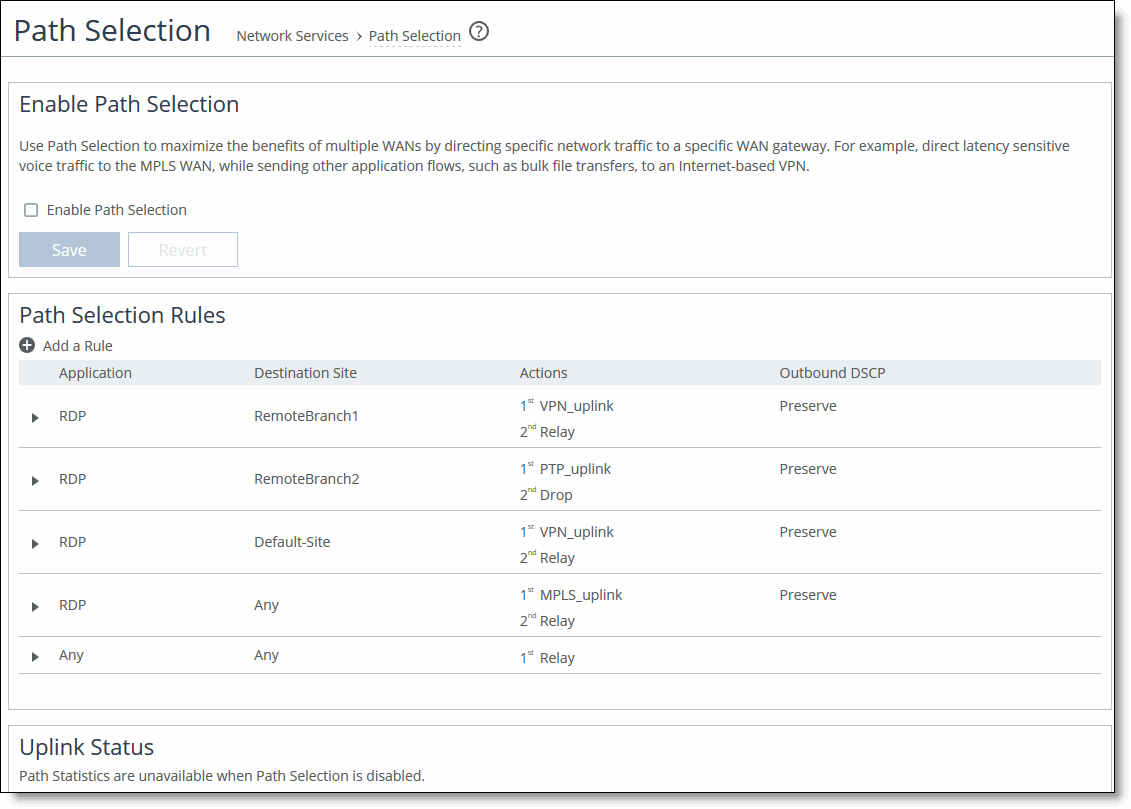
3. Select Enable Path Selection. Path Selection is disabled by default.
4. Under Path Selection Rules, click + Add a Rule.
5. Identify the traffic flow by selecting an application group or application for the Riverbed Application Flow Engine (AFE). Type the first few letters of the application in the Application/Application Group field. As you type the name of an application group or application, a menu appears and lists available applications that match the letters. Select an application from the list. The default setting is any application group or application.
6. Select a destination site from the drop-down list. The default setting is any destination site.
The Any setting combines identifications of all known configured sites, including the default site. Rather than configuring a separate identical path selection rule for every known site, select the Any setting to match the destination address of every configured site. When you select Any, path selection steers the configured application and any matching configured site, or the default site, onto the selected uplink. Using the Any setting reduces the configuration steps required, yet provides a common application steering design.
7. Select the preferred uplink for the application. You can associate up to three uplinks per traffic flow in order of priority: a primary, a secondary, and a tertiary uplink. The uplinks you select cascade from one to the next, based on availability.
8. Select an outbound DSCP marking from the drop-down list. You must select DSCP values if the service providers are applying QoS metrics based on DSCP marking and each provider is using a different type of metric.
9. Optionally, select the default action to take if all the uplinks specified in the rule are down. These settings are available even when no uplinks are selected:
Relay
Sends the traffic unmodified out of the WAN side of whichever in-path it came in on. This is the default setting.
Drop
Drops the packets in case of failure of all three (primary, secondary, tertiary) paths. Select this option when you don’t want the traffic to pass on any of the uplinks specified in the rule, not just the primary.
You don’t have to define default uplinks to drop specific traffic flows; however, you must enable path selection.
The default rule matches any application to any destination that doesn’t match another rule.
10. Click Save to Disk to save your settings permanently.
In QoS, you can define up to three uplinks for a rule and three DSCP values for a site. The DSCP values can steer traffic based on PBR in an upstream router.
You don’t need to restart the SteelHead to enable path selection. At this point, path selection is enabled. Path selection processes new flows after you enable it, but it doesn’t process preexisting flows.
If the primary uplink assigned to a connection becomes unavailable, the SteelHead directs traffic through the next available uplink and triggers the Path Selection Path Down alarm. When the original uplink comes back up, the SteelHead redirects the traffic back to it.
Validating the path selection design
Use these pages to validate your design:
• Choose Networking > Network Services: Path Selection to view the Uplink Status table. Click the uplink name for details such as number of bytes sent, peer availability, and uplink status. The table reports peers that are not actively probed due to more efficient subset probing as unknown, even though the uplink is active and healthy.
• Choose Reports > Networking: Current Connections to display the details per connection.
• Choose Reports > Networking: Interface Counters to see that the traffic in a multi-interface deployment is exiting the correct interface.
To troubleshoot, we recommend taking TCP dump traces on all WAN and LAN interfaces.
Path selection use cases
This section describes several different ways to configure path selection. For more use cases, see the SteelHead Deployment Guide.
Using an interface and next hop IP address to select an uplink
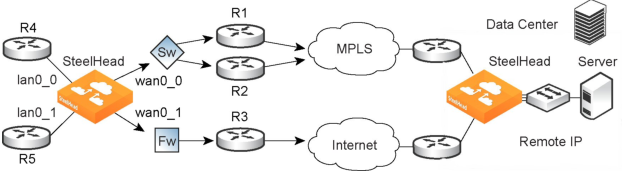
In this configuration, you have multiple uplinks from the SteelHead to the remote data center. The SteelHead selects which uplink to use. For each application, you define the primary uplink as a combination of the outgoing interface (wan0_0 or wan0_1) and the next hop IP address. The system must send the probe packets over the exact uplink that the data packets take.
Path selection by relay interface and next hop IP address
You can define this type of configuration in one of these ways:
Define the uplinks using only the relay interface
In this configuration, you define a primary uplink by specifying the wan0_0 interface and the secondary uplink as the wan0_1 interface. Suppose that the SteelHead selects the primary uplink for the application. In this case, it doesn’t matter whether it sends the packet to path 1 or path 2. In both cases, the SteelHead selects the MPLS uplink.
While probing for the remote IP address from wan0_0, the probe packets use either R1 or R2. The SteelHead can’t monitor both uplinks because it doesn’t know about them. Because it monitors only one uplink, it ensures that all data packets are also sent over that uplink. Assuming that the probe packets are being sent to the remote IP through R1, it can’t use uplink 2 to send data packets toward the server, because this uplink might be down. The SteelHead doesn’t route data packets, but simply uses the next hop learned by probing.
In the case of the secondary uplink, all packets are sent through uplink 2 so there’s no confusion.
Define the uplinks using an interface and the next hop IP address
In this configuration, you specify the next hop as well as the relay interface to use for a given uplink. This is the simplest case, because the SteelHead doesn’t need to learn anything during probing. The SteelHead doesn’t need to route data packets, because they use the next hop specified in the configuration. The SteelHead sends the packets out of the configured relay.
Path selection limitations
• You can’t base a path selection on VLANs.
• You can’t use a wildcard for the relay interface in the path definition. For example, you have to specify a relay interface for a path if you aren’t using PBR.
• You can’t use VLAN transparency for connections rerouted by path selection.
• You can’t configure LAN-side path selection.
• Path selection doesn’t handle ricochet of probe packets across relay interfaces.
• Path selection doesn’t support L2 WANs.
• Fully transparent inner connections might require connection forwarding.
• Path selection doesn’t support IPv6 connections or packet-mode flows.
• You must not install any downstream appliance that does source MAC learning a hop away from the WAN side of the SteelHead. Path selection updates a source MAC address of a packet to that of the relay being used to transmit it (IP addresses are unchanged). If source MAC learning is enabled on a downstream SteelHead that is present at next hop, the packets destined to the original source are updated with the MAC address of the SteelHead. When processing the packet, the SteelHead detects that the destination MAC address is that of itself and sends the packet up its stack instead of relaying it forward.
• Path selection doesn’t support WCCP unless it’s in DSCP-only mode.
• The SteelHead never takes on the router role or the role of a default gateway. Because path selection is transparent, you don’t have to make network design changes to accommodate path selection design.
• Path selection doesn’t react to path selection rule changes for long-lived, locally originated connections such as OOB or connection forwarding cluster and neighbor connections until you restart the optimization service.
• You can’t use path selection with single-ended SCPS connections.
• Path selection doesn’t support EtherChannel.
Configuring path selection in a Interceptor cluster
You can use path selection in Interceptor deployments using the SCC to manage all Interceptors in one centralized location. You can manage Interceptors as:
• individual appliances.
• part of a SteelHead and Interceptor cluster.
RiOS 9.1 extended path selection to operate in Interceptor cluster deployments, providing high-scale and high-availability deployment options. A Interceptor cluster is one or more Interceptors collaborating with one or more SteelHeads to select uplinks dynamically.
SteelHeads select uplinks based on path selection rules and network conditions and instruct a Interceptor to steer the WAN-bound packets to the chosen uplink. A Interceptor redirects all connections that need to be path selected to the SteelHead for the lifetime of the connection, including UDPv4 and TCPv4 optimized and unoptimized connections.
For details on using an SCC to configure Interceptors, see the SteelHead Central Controller User Guide.
Path selection in Interceptor cluster deployment options
You can use path selection in Interceptor cluster deployments by configuring an Interceptor neighbor on a SteelHead. In RiOS 9.1 and later, you can use the SCC to manage all Interceptor configurations in one centralized location. We recommend that you use the SCC to configure Interceptor and SteelHead clusters instead of individually configuring each appliance for these reasons:
• Enables easier configuration, operation, and management because you create one rule in one place for all cluster members (load balancing rules and so on). With one rule replacing many, you reduce the possibility of introducing configuration errors.
• To operate efficiently, path selection with Interceptor clusters (PSIC) requires that cluster channels be set up between the SteelHead and Interceptor appliances. Cluster channels are traditionally configured on the SteelHead. In RiOS 9.2, you can now enable the PSIC auto-channel configuration feature using the SCC to configure the cluster channels and then push the configuration to the appliances. No additional configuration tasks are required.
• You can create a graphical representation of your particular topology.
For details on using the SCC to configure path selection on Interceptors, see the SteelHead Central Controller User Guide, the SteelHead Interceptor Deployment Guide, and the SteelHead Interceptor User Guide.
Configuring path selection on a SteelHead in an Interceptor cluster
When configuring uplinks on the SteelHead for path selection in an Interceptor cluster, the uplink gateway need not be a Layer 2 hop away from the SteelHead, but it must be a Layer 2 hop away from one or more Interceptors in the cluster.
Each SteelHead must be aware of which Interceptor it can use to reach a particular uplink. This is accomplished by configuring a channel that acts as an overlay tunnel between the SteelHead and the Interceptor and allows the SteelHead to reach an uplink. One or more channels must be configured for every uplink. After the SteelHead has this information, RiOS uses the Riverbed encapsulation protocol (RBEP) when communicating with an Interceptor neighbor.
Path selection with Interceptor cluster deployments assumes that:
• every WAN edge gateway in the network must be defined in the uplink configuration on the SteelHead, and at least one Interceptor must be a Layer 2 hop away from each of those uplink gateways.
• every packet to or from such an uplink gateway passes at least one Interceptor in the cluster.
• the uplink gateway doesn’t ricochet any WAN-bound packets toward the LAN, and the SteelHead must have an accurate local site subnet configuration so that the LAN-bound traffic isn’t path selected.
Adding an Interceptor as a SteelHead neighbor requires an optimization service restart, and enabling path selection on a SteelHead also requires an optimization service restart. You can avoid the second optimization service restart on the SteelHead by configuring path selection on all Interceptors in the cluster and then following the procedures in this section. All Interceptors in the cluster must be running version 5.0 or later.
To configure a SteelHead as part of an Interceptor cluster, you must enable connection forwarding multi-interface support to use path selection in an Interceptor cluster. Choose Networking > Network Integration: Connection Forwarding.
Select Enable Connection Forwarding. Select Multiple Interface Support.
Under Neighbor Table, select Add a New Neighbor and add the IP address of the Interceptor. Repeat this step for every Interceptor in the cluster. Click Restart Services.
To configure path selection, choose Networking > Topology: Sites & Networks.
Define your network and your local and remote sites, and enable path selection. These changes don’t require an optimization service restart if you configure the Interceptor prior to this step. The local site requires local subnets and the uplinks. The remote site requires the remote subnet and the remote SteelHead peer. You don’t need to configure uplinks for the remote site. For details, see
About sites and networks settings.
Path selection requires compatible configurations on all appliances in the cluster. When path selection is enabled on an appliance in the cluster while not enabled on another, the system considers the cluster to be incompatible and raises the Cluster Neighbor Incompatible alarm. This alarm provides the reason for the incompatibility and lists the incompatible Interceptors.
The incompatible appliances are also disconnected from each other, resulting in the Multiple Interface Connection Forwarding alarm. This alarm lists the disconnected appliances.
To configure a channel, choose Networking > Network Services: Path Selection Channels. When the SteelHead has an Interceptor neighbor configured and connected, the Path Selection Channels menu option appears.
Under Channel Settings, define a channel using these configuration options:
Add a New Channel
Displays the controls to define a channel.
Gateway IP Address
Specifies the IP address of an uplink that is Layer 2 reachable by at least one interface on an Interceptor appliance.
Interface
Specifies a relay interface over which the SteelHead reaches the uplink. This interface should be the same in-path interface used for the uplink configuration for the Gateway IP Address in the local site.
Neighbor IP Address
Specifies the IP address of an Interceptor in-path interface that is a Layer 2 hop away from the Gateway IP Address.
Timeout
Optionally specifies how much time, in seconds, elapses before the system considers the channel to be unavailable. The default value is 2 seconds. Path selection uses ICMP pings to probe the channels. If the ping responses don’t make it back within this timeout setting and the system loses the number of packets defined by the threshold value, it considers the channel to be down.
Threshold
Optionally specifies how many timed-out probes to count before the system considers the channel to be unavailable. The default is 2 failed packets. This value also determines how many probes the system must receive to consider the channel to be available. Path selection uses ICMP pings to monitor channel availability. If the ping responses don’t make it back within the probe timeout and the system loses the number of packets defined by this threshold, it considers the channel to be down.
After you add the channel to the channel table, the Management Console redisplays the channel table and applies your changes to the running configuration, which is stored in memory.
The channel table displays the configuration parameters apart from the channel status and the paths on which the channels are active.
These limitations apply to SteelHead path selection in an Interceptor cluster:
• You must enable connection forwarding multi-interface support.
• You can’t add a cluster channel when a GRE-tunneled path is in use. Existing paths must not use the GRE tunnel mode.
• Do not add a cluster channel when a secure uplink is in use.