Figure: Overview of redirection packet process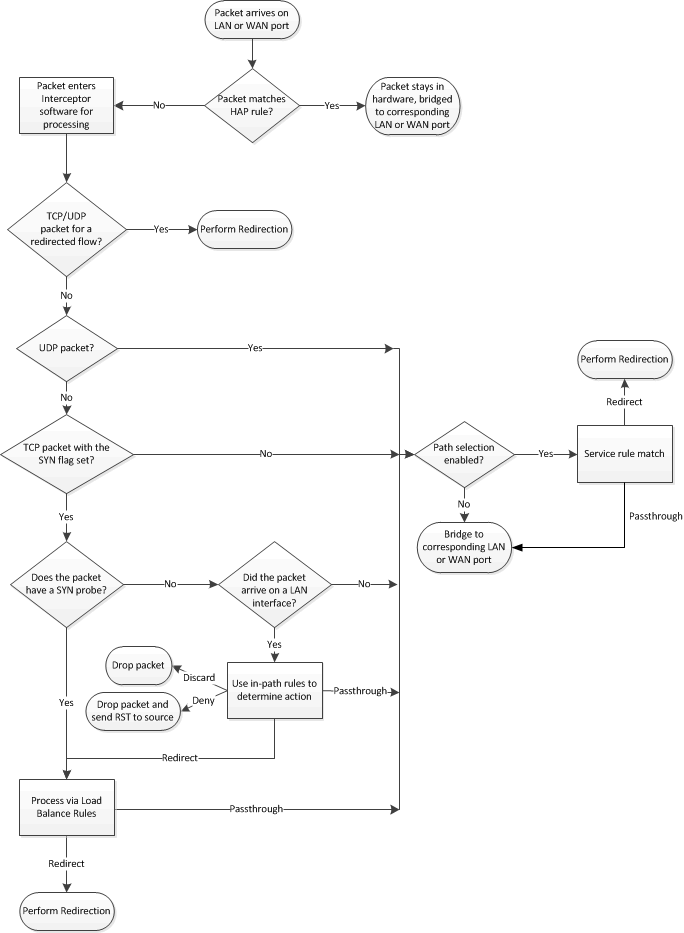
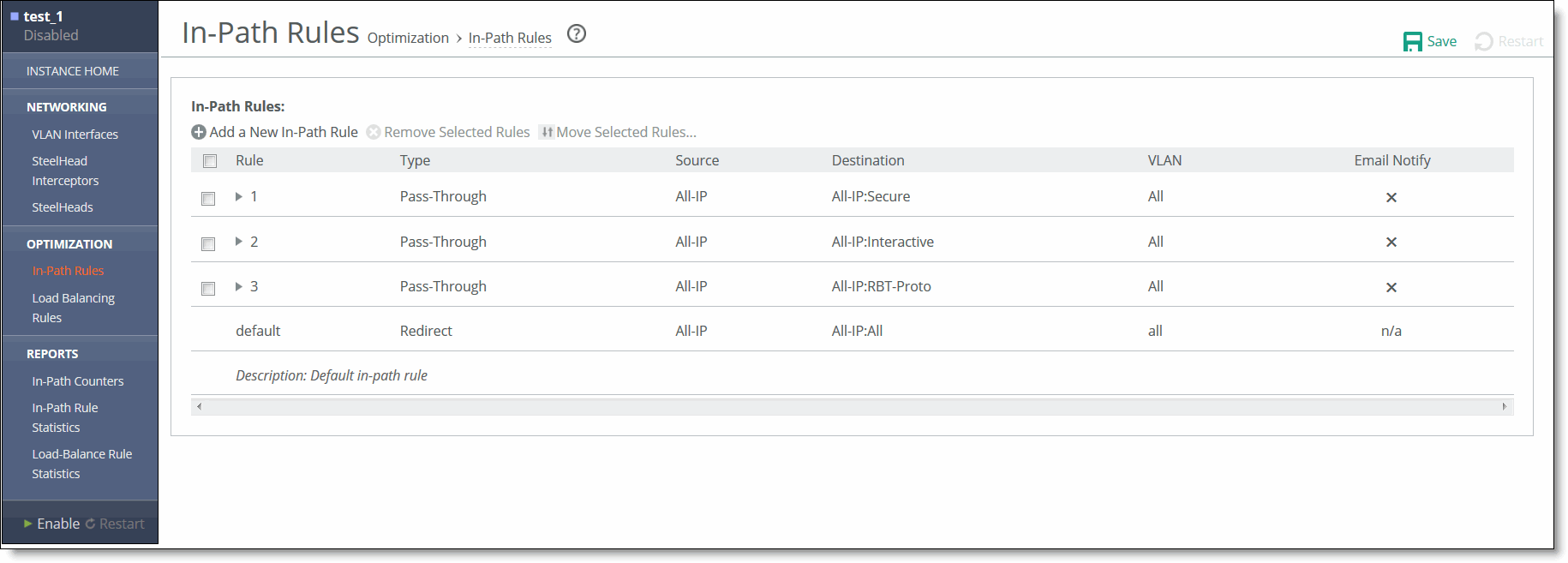
Control | Description |
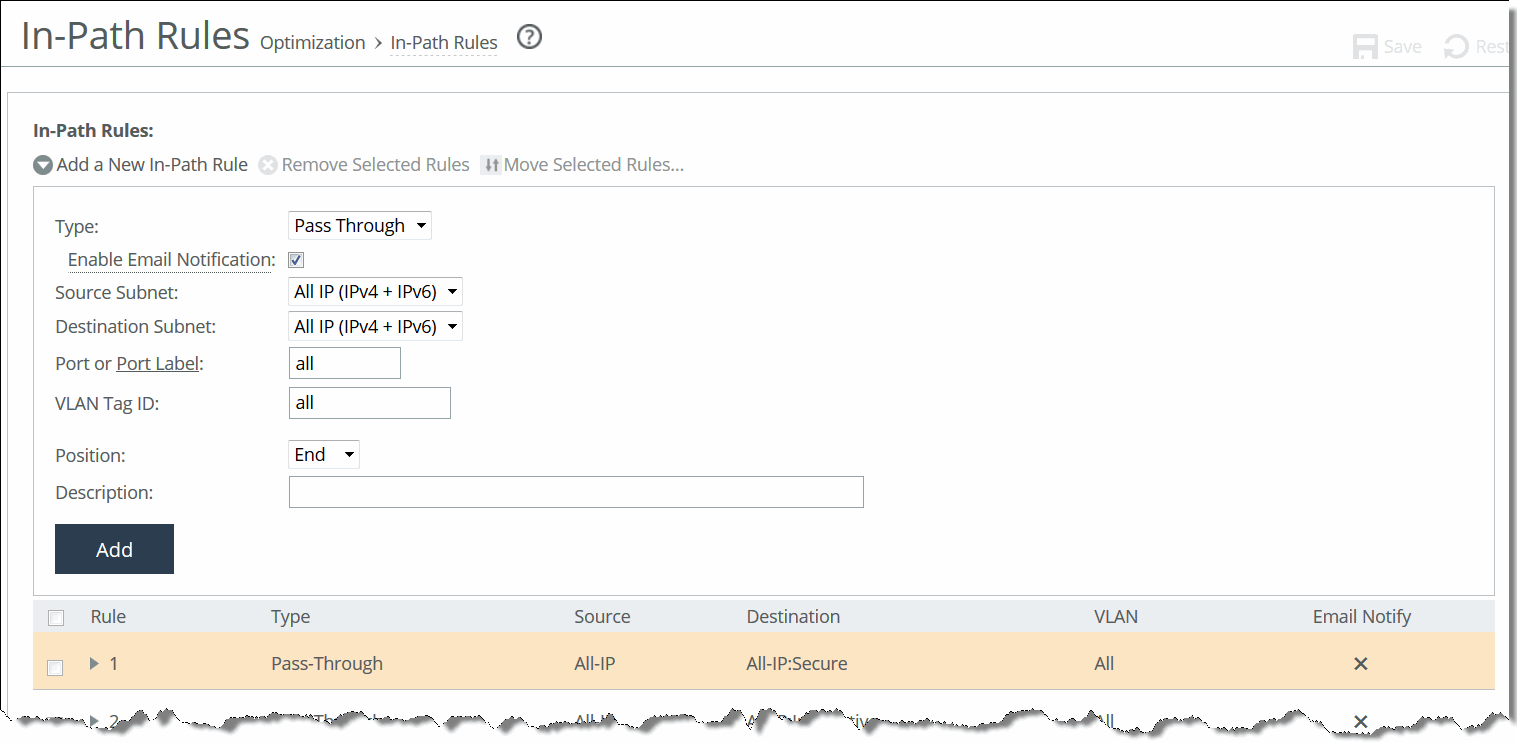
Add a New In-Path Rule | Displays the controls for adding a new rule. |
Type | Select one of these rule types: • Redirect - Redirect rules select traffic that might be redirected. Typically, you configure a redirect rule for source and destination addresses and ports you want to optimize with the Riverbed system. A separate set of load-balancing rules determines the SteelHead Interceptor to which the connection is to be redirected. • Pass Through - Pass-through rules identify traffic that is passed through the network unoptimized. For example, you might choose to pass through traffic on interactive or secure ports. Note: When traffic matches the pass-through rules, the traffic will also be matched to service rules if path selection is enabled. • Discard - Packets for connections that match the rule are dropped silently. Essentially, the SteelHead Interceptor filters out traffic that matches the discard rules. For example, you might choose to drop connections from an unauthorized source or to an unauthorized target subnet. • Deny - If packets for connections match the deny rule, the SteelHead Interceptor actively tries to reset the connection. For example, you might choose to deny connections from an unauthorized source or to an unauthorized target subnet. |
Enable Email Notification | This option enables email notification of pass-through rules every 15 days. In addition to selecting this check box, you must also select the Report Events via Email check box and specify an email address in the Email > System Settings: Email page. You can select or more pass-through rules for notification. However, notifications are sent only for those rules that have this check box selected. Note: This option is available for pass-through rules only and is enabled by default. This option is disabled for the other rule types. To change the frequency of reminder emails, enter the email notify passthrough rule notify-timer command. To disable reminder emails for pass-through rules, clear this check box or enter the no email notify passthrough rule command. For more information, see the Riverbed Command-Line Interface Reference Manual. |
Source Subnet | Specify the subnet IP address and netmask for the source network. • All IP (IPv4 + IPv6) - Maps to all IPv4 and IPv6 networks. • All IPv4 - Maps to 0.0.0.0/0. • All IPv6 - Maps to ::/0. • IPv4 - Prompts you for a specific IPv4 subnet address. Use this format for an individual subnet IP address and netmask: xxx.xxx.xxx.xxx/xx • IPv6 - Prompts you for a specific IPv6 subnet address. Use this format for an individual subnet IP address and netmask: x:x:x::x/xxx |
Destination Subnet | Specify the subnet IP address and netmask for the destination network. • All IP (IPv4 + IPv6) - Maps to all IPv4 and IPv6 networks. • All IPv4 - Maps to 0.0.0.0/0. • All IPv6 - Maps to ::/0. • IPv4 - Prompts you for a specific IPv4 subnet address. Use this format for an individual subnet IP address and netmask: xxx.xxx.xxx.xxx/xx • IPv6 - Prompts you for a specific IPv6 subnet address. Use this format for an individual subnet IP address and netmask: x:x:x::x/xxx |
Port or Port Label | Specify the destination port number, port label, or All. Click Port Label to go to the Networking > Network Services: Port Labels page for reference. For details about managing port labels, see Setting port labels. Note: If you order rules so that traffic that is passed through, discarded, or denied is filtered first, all represents all remaining ports. |
VLAN Tag ID | Specify a VLAN identification number from 0 to 4094, enter all to apply the rule to all VLANs, or enter untagged to apply the rule to nontagged connections. Pass-through traffic maintains any preexisting VLAN tagging between the LAN and WAN interfaces. To complete the implementation of VLAN tagging, you must set the VLAN tag IDs for the in‑path interfaces that the SteelHead Interceptor uses to communicate with other SteelHead Interceptors. |
Position | Select Start, End, or a rule number from the drop-down list. SteelHead Interceptors evaluate rules in numerical order starting with rule 1. If the conditions set in the rule match, then the rule is applied, and the system moves on to the next packet. If the conditions set in the rule do not match, the system consults the next rule: for example, if the conditions of rule 1 do not match, rule 2 is consulted. If rule 2 matches the conditions, it is applied, and no further rules are consulted. In general, list rules in this order: 1. Deny 2. Discard 3. Pass-through 4. Redirect |
Description | Describe the rule. |
Add | Adds the newly defined rule to the list and applies the settings to the running configuration. |
Remove Selected Rules | Select the check box next to the name and click Remove Selected Rules. This action applies the settings to the running configuration. Note: The default rule cannot be removed and is always listed last. |
Move Selected Rules | Click the arrow next to the desired rule position; the rule moves to the new position. Note: The default rule cannot be reordered and is always listed last. |
Event | Interceptor process |
Redirect rule matches and target SteelHeads are available. | Redirects traffic to a SteelHead in the target list. The SteelHead Interceptor chooses a SteelHead from the list based on a connection distribution algorithm that uses peer affinity. With the peer affinity algorithm, the SteelHead Interceptor has chosen the target SteelHead before. When the target list includes more than one SteelHead with peer affinity, the SteelHead Interceptor chooses the SteelHead with the most affinity—that is, the appliance to which the Interceptor has forwarded the most connections. |
Redirect rule matches but none of the target SteelHeads for the rule are available. | Consults the next rule in the target list. |
Pass-through rule matches. | Passes through traffic, traversing bypass routes without optimization. Note: Processed by service rules if path selection is enabled. |
Redirect rule matches but none of the target appliances are available; does not match a pass-through rule. No rules match. No rules specified. | The SteelHead Interceptor chooses a SteelHead from the pool of SteelHeads that you have added as part of the cluster but have not assigned as targets in other load-balancing rules. The SteelHead Interceptor chooses a SteelHead based on the connection distribution algorithm described above. |
Control | Description |
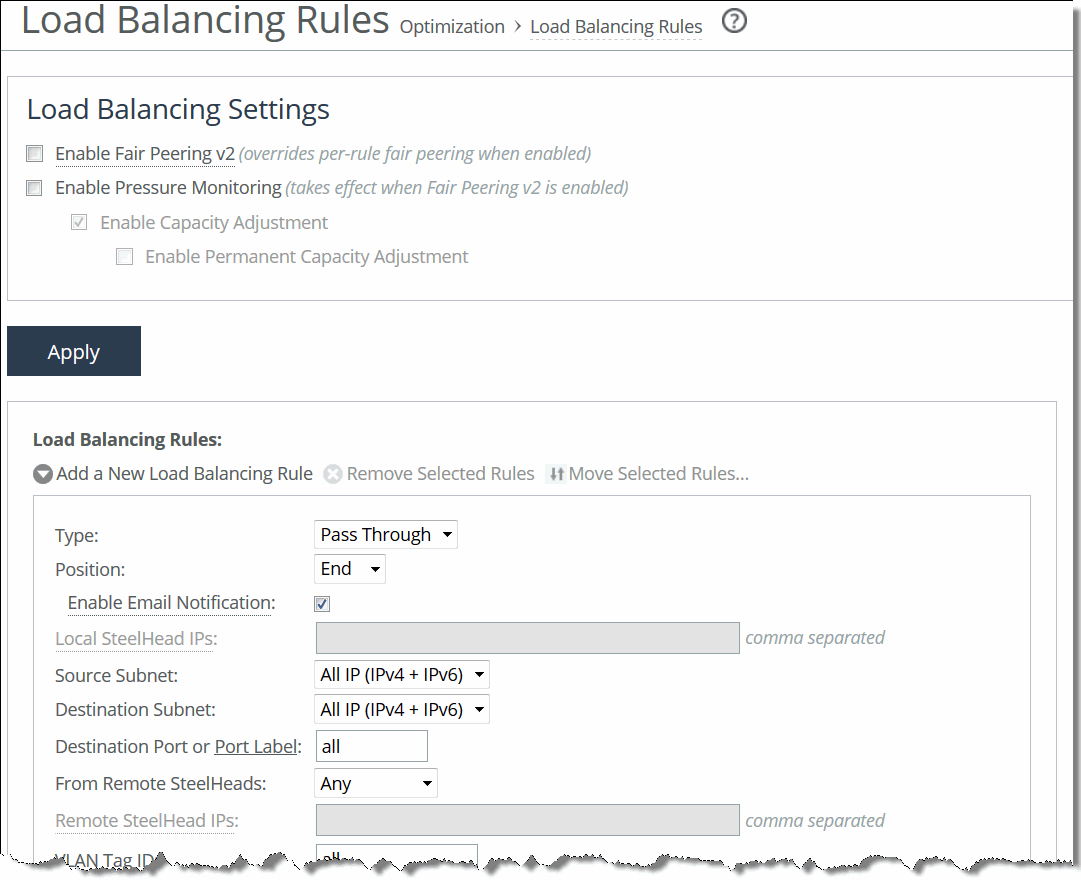
Enable Fair Peering v2 (Standard mode only) | Select this option to enable the Fair Peering v2 feature across all load-balancing rules. The Fair Peering v2 feature ensures that no local SteelHead exceeds a dynamically determined maximum number of remote peers. By default, the SteelHead Interceptor selects the target SteelHead on the basis of peer affinity (based on which candidate SteelHead has been used to optimize connections to or from the remote site in the past). Note: If you enable Fair Peering v2, this global setting overrides any traditional Fair Peering enabled on a per-rule basis. Note: Fair Peering v2 is supported with Interceptor version 3.0 and later and local SteelHeads running RiOS 6.1.3 or later. |
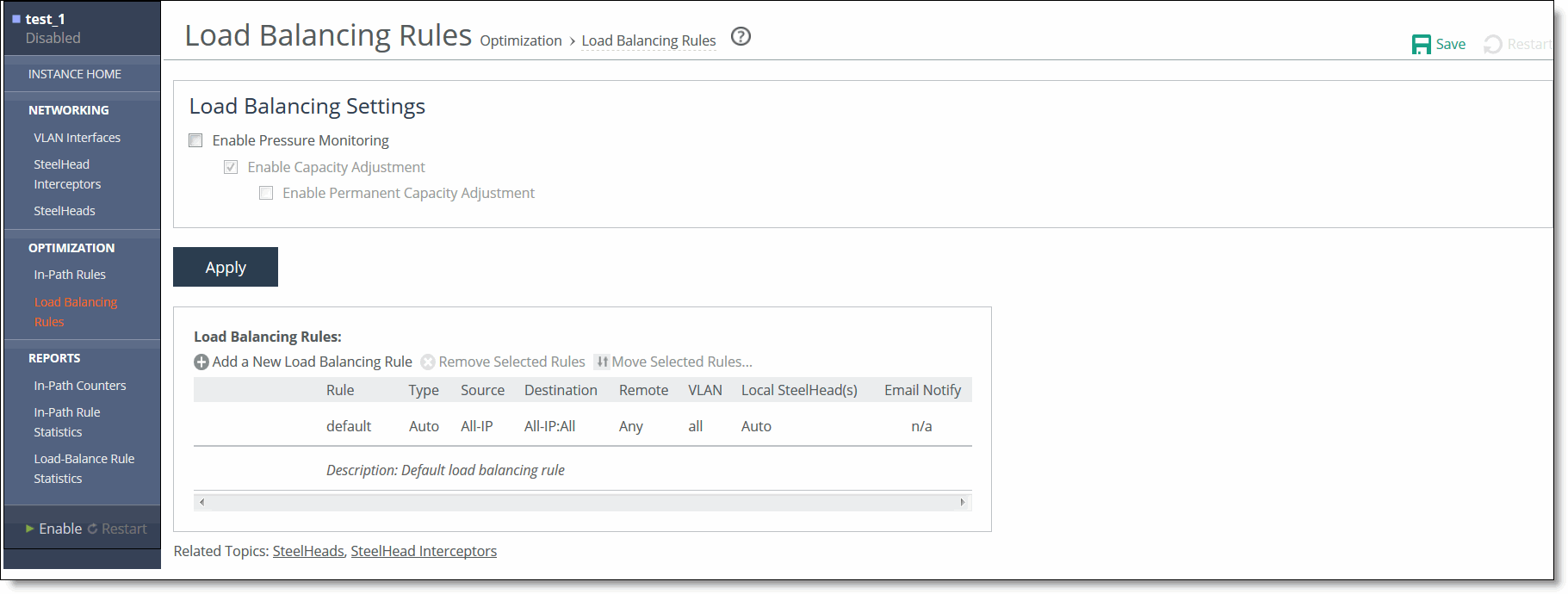
Enable Pressure Monitoring | Select this option to enable the pressure monitoring feature. When enabled, this feature provides more detailed information about the health of the local SteelHeads, to enable the Interceptor to better manage and balance traffic. For details, see Enabling pressure monitoring. Note: We recommend that you enable pressure monitoring only in conjunction with Fair Peering v2. |
Enable Capacity Adjustment | If pressure monitoring is enabled, select this option to enable the capacity adjustment feature. When enabled, this feature reduces the number of new connections sent to local SteelHeads for which the Interceptor determines an unacceptable pressure value. For a local SteelHead with an unacceptable pressure value, this feature artificially and temporarily reduces the capacity of the SteelHead for Interceptor load-balancing calculations. As a result of using a downward-adjusted capacity for a particular SteelHead, the SteelHead Interceptor moves existing paired peers from that SteelHead to less-used SteelHeads. The SteelHead Interceptor uses the artificially reduced capacity value for that SteelHead Interceptor in load-balancing calculations until the SteelHead returns to a Normal pressure value. |
Enable Permanent Capacity Adjustment | If capacity adjustment is enabled, select this option to cause capacity reduction—once triggered for a local SteelHead that reaches an unacceptably high pressure value—to be permanent. Note: To disable permanent capacity adjustment of a SteelHead, you must issue a service restart on the SteelHead Interceptor. |
Control | Description |
Add a New Load Balancing Rule | Displays the controls for adding a new rule. |
Type | Select any of these options from the drop-down list: • Redirect - Configure rules of this type for traffic you want to optimize. • Pass Through - Configure rules of this type as a second-preference rule for cases in which you want to optimize when connections are available on specified targets but, in the event that targets have reached admission control capacity, you would rather pass through traffic than tax the autobalance pool. For example, you might use pass-through rules to handle HTTP traffic on port 80. Note: When path selection is enabled, if traffic matches pass-through rule, the traffic will be further evaluated by service rule table. |
Position | Select any of these options from the drop-down list: • Select Start to insert the rule at the start of the list. • Select End to inserts the rule at end of the list. • Select a rule number. |
Enable Email Notification | This option enables email notification of pass-through rules. Specify the email address using the Email page. For more information, see Setting up email notifications. Note: This option is available for pass-through rules only and is enabled by default. This option is disabled for redirect rules. |
Local SteelHead IPs | Specify a comma-separated list of SteelHead IP addresses to which traffic can be redirected. If a rule matches, connections are redirected to the first SteelHead in the list that has capacity for new connections. If no rule matches, peer affinity applies. If there is no existing peer affinity, the connection is redirected to the SteelHead with the least number of current connections. Note: The target SteelHeads are called cluster SteelHeads. The list you specify here must match the main IP addresses specified in the SteelHeads list, described in Configuring Interceptor-to-SteelHead communication. Note: If IPv6 connection forwarding is enabled, you can enter IPv6 addresses only. Use this format: x:x:x::x/xxx |
Source Subnet | Specify the subnet IP address and netmask for the source network: • All IP (IPv4 + IPv6) - Maps to all IPv4 and IPv6 networks. • All IPv4 - Maps to 0.0.0.0/0. • All IPv6 - Maps to ::/0. • IPv4 - Prompts you for a specific IPv4 subnet address. Use this format for an individual subnet IP address and netmask: xxx.xxx.xxx.xxx/xx • IPv6 - Prompts you for a specific IPv6 subnet address. Use this format for an individual subnet IP address and netmask: x:x:x::x/xxx |
Destination Subnet | Specify the subnet IP address and netmask for the destination network: • All IP (IPv4 + IPv6) - Maps to all IPv4 and IPv6 networks. • All IPv4 - Maps to 0.0.0.0/0. • All IPv6 - Maps to ::/0. • IPv4 - Prompts you for a specific IPv4 subnet address. Use this format for an individual subnet IP address and netmask: xxx.xxx.xxx.xxx/xx • IPv6 - Prompts you for a specific IPv6 subnet address. Use this format for an individual subnet IP address and netmask: x:x:x::x/xxx |
Destination Port or Port Label | Specify the destination port number, port label, or All. Click Port Label to go to the Networking > Network Services: Port Labels page for reference. For details about managing port labels, see Setting port labels. If you order rules so that traffic that is passed through, discarded, or denied is filtered first, All represents all remaining ports. |
From Remote SteelHeads | Select one of these options from the drop-down list: • Any - Rule applies only when matching any SYN or SYN+ (behavior of load-balancing rule before peering was added). • Probe-only - Match any packet with a probe SYN+. • Non-probe - Match only SYN entering from the LAN side. • IP Address - Match the given IP address when a SYN+ comes from that SteelHead. |
Remote SteelHead IPs | If you specify IP Address for the From Remote SteelHeads setting, use this field to specify a comma-separated list of SteelHead IP addresses. You can enter either IPv4 or IPv6 addresses. Important: You can enter IPv6 addresses only if either the Source Subnet or the Destination Subnet map to all subnets (All IP [IPv4 + IPv6]), to all IPv6 subnets (All IPv6), or to a specific IPv6 subnet (IPv6). Otherwise, enter an IPv4 address. |
VLAN Tag ID | Specify a VLAN identification number from 0 to 4094, enter all to apply the rule to all VLANs, or enter untagged to apply the rule to nontagged connections. Pass-through traffic maintains any preexisting VLAN tagging between the LAN and WAN interfaces. To complete the implementation of VLAN tagging, you must set the VLAN tag IDs for the in-path interfaces that the SteelHead Interceptor uses to communicate with other SteelHead Interceptors. Note: To complete the implementation of VLAN tagging, you must set the VLAN tag IDs for the in-path interfaces that the SteelHead Interceptor uses to communicate with other SteelHead Interceptors. For details about configuring the in-path interface for the SteelHead Interceptor, see Configuring in-path rules. |
Description | Describe the rule. |
Enable Traditional Fair Peering for this Rule (Standard mode only) | Select the check box to enable the traditional (v1) Fair Peering feature for the custom load-balancing rule. For details, see Enabling fair peering and pressure monitoring. Note: If you enable traditional Fair Peering for this rule, this per-rule setting is overridden if Fair Peering v2 is enabled for load balancing. |
Add | Adds the new rule to the configuration. The new rule displays in the list at the top of the page. |
Remove Selected Rules | Select the check box next to the name and click Remove Selected Rules. Note: The default rule cannot be removed and is always listed last. |
Move Selected Rules | Moves the selected rules. Click the arrow next to the desired rule position; the rule moves to the new position. Note: The default rule cannot be reordered and is always listed last. |
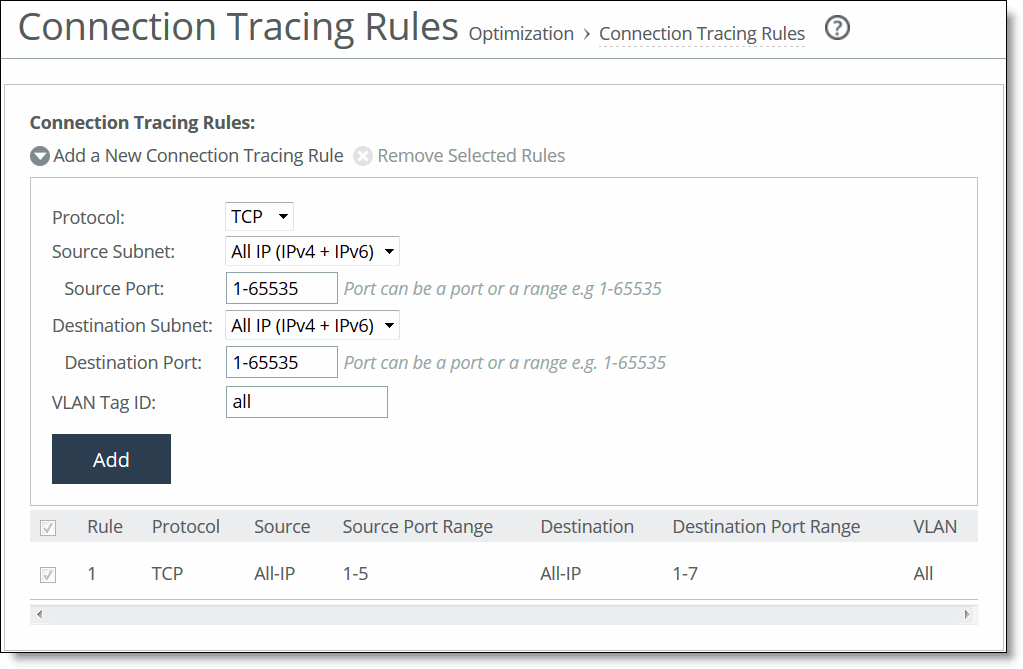
Control | Description |
Add a New Connection Tracing Rule | Displays the controls for adding a new rule. |
Protocol | Specify a protocol. Choices are TCP, UDP (if path selection is enabled), or Any. |
Source Subnet | Specify the subnet IP address and netmask for the source network: • All IP (IPv4 + IPv6) - Maps to all IPv4 and IPv6 networks. • All IPv4 - Maps to 0.0.0.0/0. • All IPv6 - Maps to ::/0. • IPv4 - Prompts you for a specific IPv4 subnet address. Use this format for an individual subnet IP address and netmask: xxx.xxx.xxx.xxx/xx • IPv6 - Prompts you for a specific IPv6 subnet address. Use this format for an individual subnet IP address and netmask: x:x:x::x/xxx |
Source Port | Specify the source port. |
Destination Subnet | Specify the subnet IP address and netmask for the destination network: • All IP (IPv4 + IPv6) - Maps to all IPv4 and IPv6 networks. • All IPv4 - Maps to 0.0.0.0/0. • All IPv6 - Maps to ::/0. • IPv4 - Prompts you for a specific IPv4 subnet address. Use this format for an individual subnet IP address and netmask: xxx.xxx.xxx.xxx/xx • IPv6 - Prompts you for a specific IPv6 subnet address. Use this format for an individual subnet IP address and netmask: x:x:x::x/xxx |
Destination Port | Specify the destination port. |
Trace by VLAN (VLAN segregation mode) | Specify the VLAN ID, if applicable, or All to trace all connections. Note: If the SteelHead Interceptor is running in VLAN segregation mode, you can also click Trace By Instance, and select an instance from the drop-down list. |
VLAN Tag ID | Specify the VLAN ID, if applicable, or All to trace all connections. Note: If the SteelHead Interceptor is running in VLAN segregation mode, you can also click Trace By Instance, and select an instance from the drop-down list. |
Trace by Instance (VLAN segregation mode) | Select the instance for the connections to be traced. For details about VLAN segregation and instances, see Working with instances. |
Add | Adds the new connection tracing rule to the list. The SteelHead Interceptor refreshes the Connection Tracing Rules table and applies your modifications to the running configuration, which is stored in memory. |
Remove Selected Rules | To remove a rule, select the check box next to the name and click Remove Selected Rules. Note: When you remove a rule, you also remove all traces from the list that resulted from the rule. |
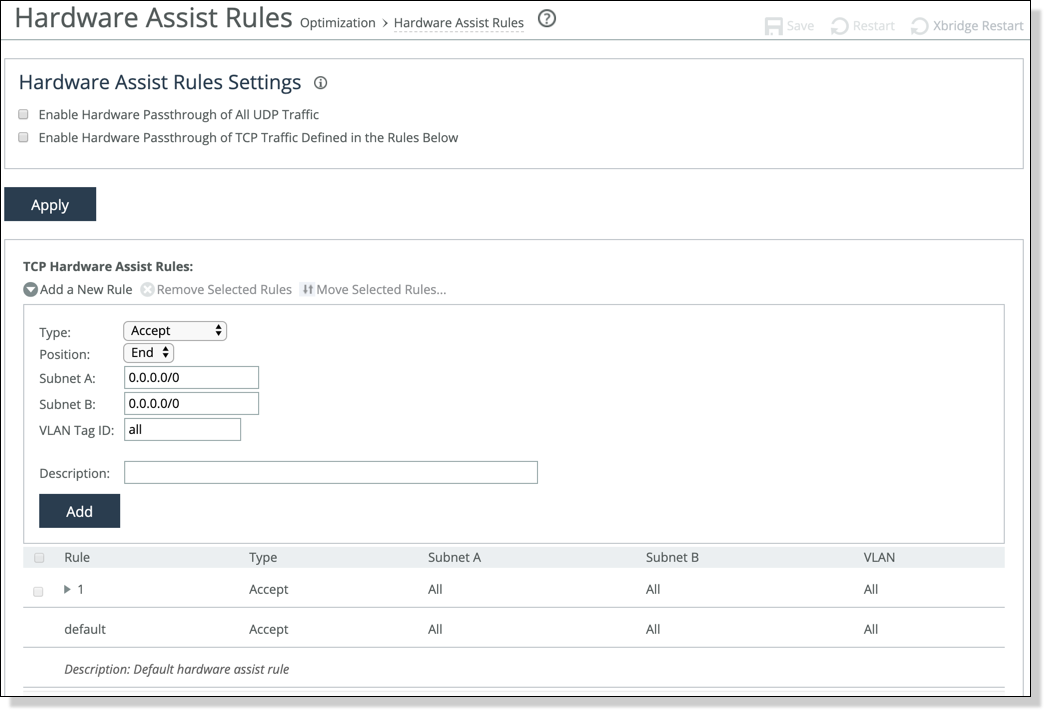
Control | Description |
Add a New Rule | Displays the controls to add a new rule. |
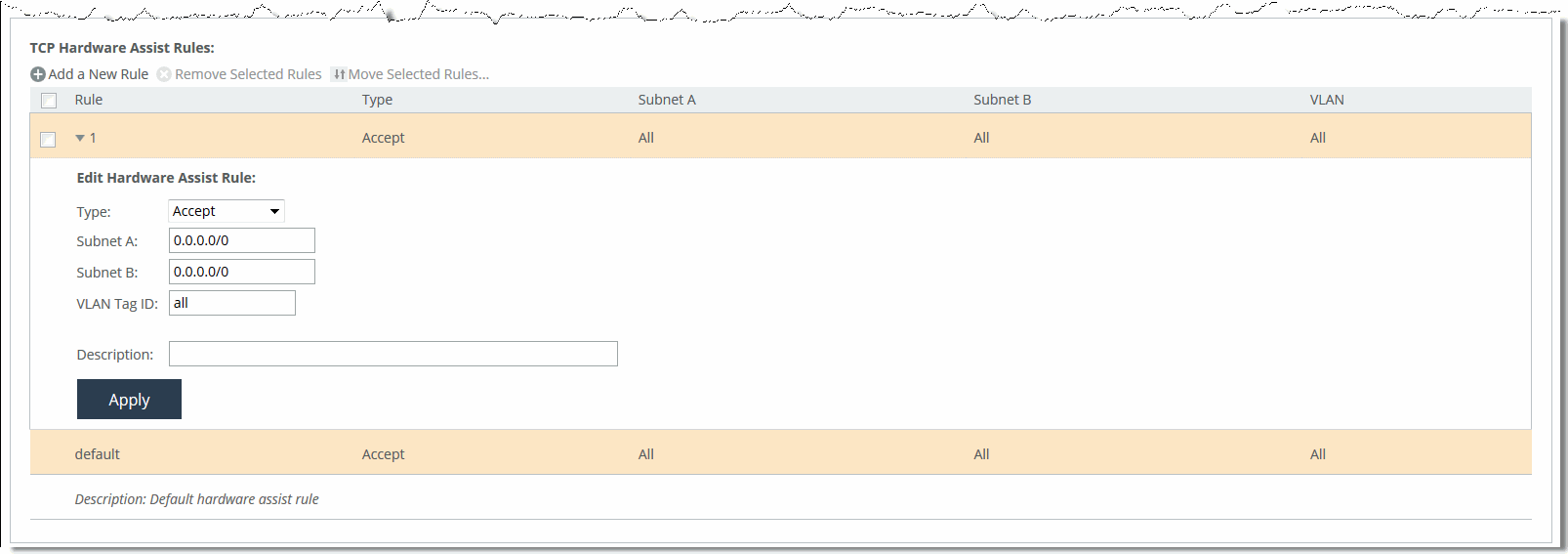
Type | Select one of these rule types: • Accept - Accept rules identify traffic that is optimized. • Pass-Through - Pass-through rules identify traffic that is passed through the network unoptimized. |
Position | Select Start, End, or a rule number: In general, filter traffic that is to be unoptimized, discarded, or denied before processing rules for traffic that is to be optimized. |
Subnet A | Specify an IP address and mask for the subnet that can be both source and destination together with Subnet B. Use this format: xxx.xxx.xxx.xxx/xx Note: You can specify all or 0.0.0.0/0 as the wildcard for all traffic. |
Subnet B | Specify an IP address and mask for the subnet that can be both source and destination together with Subnet A. Use this format: xxx.xxx.xxx.xxx/xx Note: You can specify all or 0.0.0.0/0 as the wildcard for all traffic. |
VLAN Tag ID | Optionally, specify the VLAN identification number to set the VLAN tag ID. • Specify all to specify the rule applies to all VLANs. • Specify Untagged to specify the rule applies to nontagged connections. Note: Pass-through traffic maintains any preexisting VLAN tagging between the LAN and WAN interfaces. Note: To complete the implementation of VLAN tagging, you must set the VLAN tag IDs for the in-path interfaces that the SteelHead Interceptor uses to communicate with other SteelHead Interceptors. For details about configuring the in-path interface for the SteelHead Interceptor, see Configuring in-path rules. |
Description | Optionally, include a description of the rule. |
Add | Adds the new hardware-assist tracing rule to the list. The SteelHead Interceptor refreshes the Hardware Assist Rules table and applies your modifications to the running configuration, which is stored in memory. |
Move Selected Rules | Moves the selected rules. Click the arrow next to the desired rule position; the rule moves to the new position. Note: The default rule cannot be reordered and is always listed last. |
Remove Selected Rules | Select the check box next to the name and click Remove Selected Rules. Note: The default rule cannot be removed and is always listed last. |