Overview of the SteelHead Interceptor
This chapter introduces the SteelHead Interceptor. It includes the following sections:
Overview of the SteelHead Interceptor
The SteelHead Interceptor enables you to scale your deployments of SteelHeads at large central sites. Deployed in-path, SteelHead Interceptors provide virtual in-path clustering and load balancing for SteelHeads that are physically deployed out-of-path.
The SteelHead Interceptor is typically deployed in a data center or hub network where any in-path devices need to be high performing and highly available.
The SteelHead Interceptor directs incoming traffic to its clustered SteelHeads according to in-path, service, and load-balancing rules.
The SteelHead Interceptor is an in-path clustering solution you can use to distribute optimized traffic to a local group of SteelHeads. The SteelHead Interceptor does not perform optimization itself. Therefore, you can use it in demanding network environments with extremely high throughput requirements. The SteelHead Interceptor works in conjunction with the SteelHead and offers several benefits over other clustering techniques, such as Web Cache Communication Protocol (WCCP) or Layer-4 switching, including native support for asymmetrically routed traffic flows.
Note: For details on in-path, service, and load-balancing rules, see the SteelHead Interceptor User’s Guide.
This table lists the SteelHead Interceptor features.
Feature | Description |
Connection tracing | Connection tracing allows you to identify the SteelHeads to which the SteelHead Interceptor has forwarded specific connections. Connection tracing also allows you to debug failing or unoptimized connections or failing pass-through path-selection connections (if the path selection feature is enabled). Note: For details on setting connection tracing, see the SteelHead Interceptor User’s Guide. |
EtherChannel deployment | The SteelHead Interceptor can operate within an EtherChannel deployment. In an EtherChannel deployment, all the links in the channel must pass through the same SteelHead Interceptor. These two configurations are supported: up to four channels with two links per channel group, or up to two channels with four links per channel group. |
Failover | You can configure a pair of SteelHead Interceptors for failover. In the event that one SteelHead Interceptor goes down or requires maintenance, the second SteelHead Interceptor configured for failover ensures uninterrupted service. Note: For details on setting failover, see the SteelHead Interceptor User’s Guide. You can configure a SteelHead Interceptor 9350 as the failover appliance for a SteelHead Interceptor 9600 if you enable the 9350-mode on the SteelHead Interceptor 9600. The 9350-mode is enabled by using the appliance operating-mode 9350 command. Note: For more information about the appliance operating-mode 9350 command, see the Riverbed Command-Line Interface Reference Manual. |
In-path rules | When the SteelHead Interceptor intercepts a SYN request to a server, the in-path rules you configure determine the subnets and ports for traffic to be optimized. You can specify in-path rules to pass through, discard, deny traffic, or to forward and optimize it. In the case of a data center, the SteelHead Interceptor intercepts SYN requests when a data center server establishes a connection with a client that resides outside of the data center. In the connection-processing decision tree, in-path rules are processed before load-balancing rules. Only traffic selected for forwarding proceeds to load-balancing rules processing. Traffic selected for pass-through proceeds to service rule processing if path selection is enabled. Note: For details on setting in-path rules and path selection, see the SteelHead Interceptor User’s Guide. |
Intelligent forwarding | Intelligent forwarding prevents the SteelHead Interceptor from forwarding the same packet to the SteelHead more than once. This feature prevents loops in case the packet that was already processed is routed through the SteelHead Interceptor again. |
Interceptor monitoring | Cluster SteelHead Interceptors include both failover pairs deployed in a serial configuration and SteelHead Interceptors deployed in a parallel configuration to handle asymmetric routes. Asymmetric routing can cause the response from the server to be routed along a different physical network path from the original request, and a different SteelHead Interceptor can be on each of these paths. When you deploy SteelHead Interceptors in parallel, the first SteelHead Interceptor that receives a packet forwards the packets to the appropriate SteelHead. |
Link state detection and link state propagation | The SteelHead Interceptor monitors the link state of devices in its path, including routers, switches, interfaces, and in-path interfaces. When the link state changes for a device that is part of a bridge, the link state change is propagated to the other devices on the bridge as well. |
Load-Balancing Rules | For connections selected by an in-path redirect rule, the SteelHead Interceptor distributes the connection to the most appropriate SteelHead based on rules you configure, intelligence from monitoring cluster SteelHeads, and the RiOS connection distribution algorithm. The SteelHead Interceptor combines two approaches to load balancing: • Peer affinity - The SteelHead Interceptor sends the connection to the local SteelHead with the most affinity (that is, the local SteelHead that has received the greatest number of connections from the remote SteelHead). • Round-robin distribution - Instead of checking the SteelHeads in order of most to least peer affinity, the SteelHeads are checked for availability in round-robin order starting with the one after the SteelHead that received the last connection from that rule. Note: Round-robin distribution can be enabled using the CLI only. It cannot be configured using the GUI. Note: For details on setting load-balancing rules (including information on Fair Peering V2 as it relates to load balancing), see the SteelHead Interceptor User’s Guide. |
Peer affinity | Peer affinity refers to an established connection relationship between remote and cluster SteelHeads. Affinity-based load balancing matches traffic from a remote SteelHead to a specific cluster SteelHead based on a previous connection between them. Note: If no local SteelHead is currently handling the remote SteelHead, then the SteelHead Interceptor directs the traffic to the SteelHead with the lowest connection count. If the SteelHead with the best peer affinity is unavailable, the SteelHead Interceptor attempts to use the SteelHead with the next best affinity. |
Port labels | Port labels enable you to apply rules to a range of ports. The SteelHead Interceptor provides port labels for secure and interactive ports, and for Riverbed Technology (RBT) ports. You can create additional labels as needed. |
Path selection | RiOS 9.1.0 and later extends path selection to operate in SteelHead Interceptor cluster deployments, providing high-scale and high-availability deployment options. A SteelHead Interceptor cluster is one or more SteelHead Interceptors collaborating with one or more SteelHead appliances to select paths dynamically in complex architectures working together as a single solution. You can configure service rules to specify whether UDP traffic flows should be subject to path selection (that is, redirected to a SteelHead appliance or relayed without being path selected). Note: For details on enabling path selection and configuring service rules, see the SteelHead Interceptor User’s Guide. |
Reporting | The SteelHead Interceptor reporting feature allows you to generate interface counter reports, generate diagnostic reports (to check CPU utilization, memory paging, and system logs), and export data. |
SteelHead monitoring | Cluster SteelHeads are the pool of SteelHeads for which the SteelHead Interceptor monitors capacity and balances load. To assist in deployment tuning and troubleshooting, the SteelHead Interceptor can monitor SteelHeads for connectivity, health, and load balancing (if pressure monitoring is enabled). |
System status | The Dashboard displays system status information such as the system uptime, service uptime, SteelHead Interceptors, and SteelHead connections. |
VLAN tagging | The SteelHead Interceptor supports VLAN-tagged connections in VLAN-trunked links. The SteelHead Interceptor supports VLAN 802.1q. Note: The SteelHead Interceptor does not support the Cisco InterSwitch Link (ISL) protocol. |
New feature in version 5.6
• SD-WAN Support - SteelHead Interceptor 5.6 allows you to enable software-defined wide area network (SD-WAN) functionality in a cluster of SteelHeads, SteelHead Interceptors, and SteelConnect data center gateways. The SteelHead Interceptors in the cluster provide scalable data referencing (SDR)-aware load balancing for your network traffic.
The SD-WAN topology requires minimal routing interaction, does not require policy-based routing (PBR), provides graceful failover, and allows you to easily upgrade existing configurations to take advantage of SD-WAN functionality.
Use the SteelConnect Manager (SCM) to create and configure the gateways as out-of-path clusters on your network. Then enable communication between the gateways in the clusters and the SteelHead Interceptor sending traffic to the cluster by using the sd-wan and sd-wan communication commands at the SteelHead Interceptor (9600 model only).
For information about SCM features, see the SteelConnect Manager User’s Guide.
For more information about the sd-wan and sd-wan communication commands, see the Riverbed Command-Line Interface Reference Manual.
For more information about SD-WAN topologies and deployments, see the SteelHead Interceptor Deployment Guide.
Upgrading to SteelHead Interceptor 5.6
This section describes how to upgrade to SteelHead Interceptor 5.6.
To upgrade SteelHead Interceptor software
1. Download the software image from Riverbed Support to a location such as your desktop.
2. Log in to the SteelHead Interceptor appliance using the Administrator account (admin).
3. Choose Administration > Maintenance: Software Upgrade page to display the Software Upgrade page.
Figure: Software Upgrade page
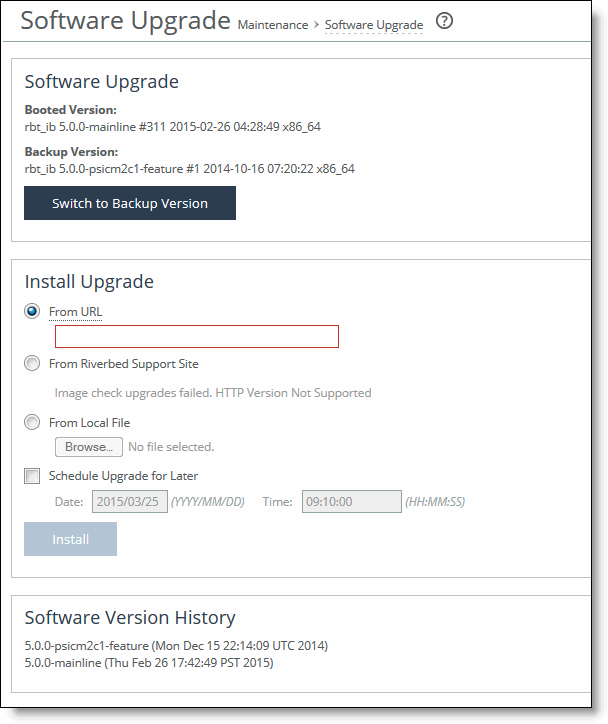
4. Under Install Upgrade, choose one of the following options:
– From URL - Type the URL that points to the software image that you want to upgrade to.
– From Riverbed Support Site - Select this option to upgrade from the support site. But before you can do that, check the Support page to ensure that Riverbed Support credentials have been set.
Note: Installing directly from the Riverbed Support site is not supported.
– From Local File - Browse to your file system and select the software image.
– Schedule Upgrade for Later - Type the date and time using the following format:
yyyy/mm/dd hh:mm:ss
– Click Install to upgrade your SteelHead Interceptor software.
5. Choose Administration > Maintenance: Reboot/Shutdown to display the Reboot/Shutdown page.
Figure: Reboot/Shutdown page
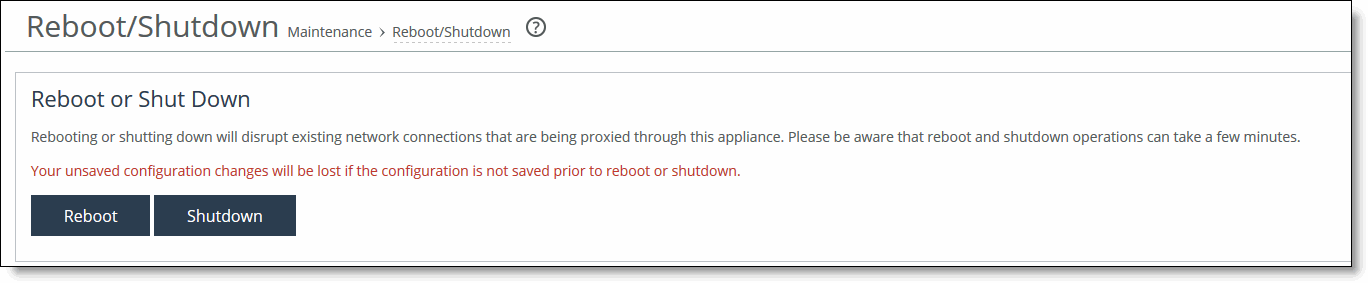
6. Click Reboot to restart the SteelHead Interceptor.
To view software version history
• Under Software Version History on the Software Upgrade page, view the history.
Product dependencies and compatibility
This section provides information about product dependencies and compatibility. It includes the following topics:
Software and configuration requirements
The following tables summarize the software and configuration requirements for the Riverbed CLI and the SteelHead Interceptor.
Riverbed CLI configuration requirements | Software system requirements |
One of the following: • An ASCII terminal or emulator that can connect to the serial console (9600 baud, 8 bits, no parity, 1 stop bit, and no flow control) • A computer with a Secure Shell (SSH) client that is connected by an IP network to the appliance primary interface | Secure Shell (SSH). Free SSH clients include PuTTY for Windows computers, OpenSSH for many UNIX and UNIX-like operating systems, and Cygwin. |
Riverbed component | Software requirements |
Interceptor Management Console | Any computer that supports a web browser with a color image display. The Management Console has been tested with the following browsers: • Mozilla Firefox 10.0 and 31 ESR • Microsoft Internet Explorer 7.0, 8.0, and 9.0 • Google Chrome JavaScript and cookies must be enabled in your web browser. |
SteelHead compatibility
The SteelHead Interceptor with VLAN segregation enabled is fully compatible with SteelHead 8.0.1 and later and supports up to 24 total interfaces in SteelHead 6.5.6 and later.
Ethernet network compatibility
The SteelHead Interceptor supports the following Ethernet networking standards:
• Ethernet Logical Link Control (LLC) (IEEE 802.2 - 1998)
• Fast Ethernet 100 Base-TX (IEEE 802.3 - 2008)
• Gigabit Ethernet over Copper 1000 Base-T and Fiber 1000 Base-SX (LC connector) and Fiber 1000 Base-LX (IEEE 802.3 - 2008)
• 10 Gigabit Ethernet over Fiber 10GBase-LR Single Mode and 10GBase-SR Multimode (IEEE 802.3 - 2008)
The SteelHead Interceptor ports support the following connection types and speeds:
• Primary - 10/100/1000 Base-T, autonegotiating
• Auxiliary - 10/100/1000 Base-T, autonegotiating
• LAN - 10/100/1000 Base-TX or 1000 Base-SX or 1000 Base-LX or 10GBase-LR or 10GBase-SR, depending on configuration
• WAN - 10/100/1000 Base-TX or 1000 Base-SX or 1000 Base-LX or 10GBase-LR or 10GBase-SR, depending on configuration
The SteelHead Interceptor supports VLAN tagging (IEEE 802.1Q - 2005). It does not support the ISL protocol.
All copper interfaces are autosensing for speed and duplex (IEEE 802.3 - 2008).
The SteelHead Interceptor autonegotiates speed and duplex mode for all data rates and supports full duplex mode and flow control (IEEE 802.3 - 2008).
The SteelHead Interceptor with a Gigabit Ethernet card supports jumbo frames on in-path and primary ports.
SNMP-based management compatibility
The SteelHead Interceptor supports a proprietary Riverbed MIB accessible through SNMP. SNMPv1 (RFCs 1155, 1157, 1212, and 1215), SNMPv2c (RFCs 1901, 2578, 2579, 2580, 3416, 3417, and 3418), and SNMPv3 are supported, although some MIB items might only be accessible through SNMPv2 and SNMPv3.
SNMP support enables the SteelHead Interceptor to be integrated into network management systems such as Hewlett-Packard OpenView Network Node Manager, BMC Patrol, and other SNMP-based network management tools.
Safety guidelines
Follow the safety precautions outlined in the Safety and Compliance Guide when installing and setting up your equipment.
Caution: Failure to follow these safety guidelines can result in injury or damage to the equipment. Mishandling of the equipment voids all warranties. Read and follow safety guidelines and installation instructions carefully.
Many countries require the safety information to be presented in their national languages. If this requirement applies to your country, consult the Safety and Compliance Guide. The guide contains the safety information in your national language. Before you install, operate, or service Riverbed products, you must be familiar with the safety information associated with them. Refer to the Safety and Compliance Guide if you do not clearly understand the safety information provided in the product documentation.
SteelHead Interceptor deployment features
This section describes the SteelHead Interceptor features used in SteelHead Interceptor deployments.
The feature configurations vary depending on the deployment, as described in the following table.
Feature | Description |
Allow failure | Allow failure ensures optimized traffic. When contact between two designated SteelHead Interceptors is lost, the remaining SteelHead Interceptor keeps forwarding connections to ensure that optimization continues. In a parallel configuration, consider enabling this feature if no asymmetric routing is expected in the network. Also note that in a parallel configuration using path selection, pass-through traffic will not be able to use path selection if the SteelHead Interceptor is disconnected. In a serial configuration, redundancy is provided by default. This feature is configured in the Networking > Network Services: In-Path Interfaces page. For details, see the SteelHead Interceptor User’s Guide. |
Cluster SteelHead Interceptor | When this feature is enabled, SteelHead Interceptors notify each other when they intercept specific packets. For example, during a connection setup phase, when SteelHead Interceptor A receives a SYN packet, it notifies SteelHead Interceptor B, so that when SteelHead Interceptor B sees the SYN/ACK, it forwards it to the appropriate SteelHead. (During the data phase, both SteelHead Interceptors pass subsequent connections directly to the appropriate SteelHeads.) |
Fail-to-block | When fail-to-block is enabled, a failed SteelHead Interceptor blocks any network traffic on its path, as opposed to passing it through. In a parallel configuration, fail-to-block should be enabled to force all traffic through a cluster SteelHead Interceptor, thereby enabling optimization to continue. This feature is configured in the Networking > Networking: In-Path Interfaces page. For details, see the SteelHead Interceptor User’s Guide. |
Fail-to-wire (bypass) | When fail-to-wire (bypass) is enabled, a failed SteelHead Interceptor passes through network traffic. In a serial or quad configuration, fail-to-wire should be enabled to pass all traffic through to the cluster or failover SteelHead Interceptor, thereby enabling optimization to continue. This feature is configured in the Networking > Networking: In-Path Interfaces page. For details, see the SteelHead Interceptor User’s Guide. |
Failover | Failover enables you to specify a failover counterpart. When failover is configured, a failover SteelHead Interceptor takes over for a failed SteelHead Interceptor. In a serial configuration, you configure the serial SteelHead Interceptors for mutual failover. For details, see the SteelHead Interceptor User’s Guide. |
Deployment scenarios
You can deploy the SteelHead Interceptor using different deployment scenarios.
Typical SteelHead Interceptor deployments have multiple SteelHead Interceptors and SteelHeads, and usually all appliances have more than one enabled and configured in-path interface. For more details, see the SteelHead Interceptor Deployment Guide.
You can configure the SteelHead Interceptor to be either a serially connected failover SteelHead Interceptor acting as a backup for the same network paths, or a SteelHead Interceptor cluster that covers different network paths or is used in a virtual in-path cluster.
The SteelHead Interceptor relationships and failure reaction features are typically combined in several ways for actual SteelHead Interceptor deployments. You can deploy SteelHead Interceptor clusters in the following ways:
For more details, see the SteelHead Interceptor Deployment Guide.
Deploying single SteelHead Interceptors
Figure: Basic single SteelHead Interceptor deployment shows a basic single SteelHead Interceptor deployment.
Caution: To enable full transparency, do not position any router that might generate ICMP “fragmentation needed” or “forward” messages between the SteelHead Interceptor and SteelHeads. Such messages, if not routed through the SteelHead Interceptor, are not received by the SteelHeads, resulting in a possible connection failure.
Figure: Basic single SteelHead Interceptor deployment

In this deployment, the following elements apply:
• SteelHead Interceptor - This deployment features one SteelHead Interceptor.
• Cluster SteelHeads - This deployment features two SteelHeads.
Deploying serial SteelHead Interceptors
Figure: Serial SteelHead Interceptors, fail-to-wire dual-connected SteelHeads
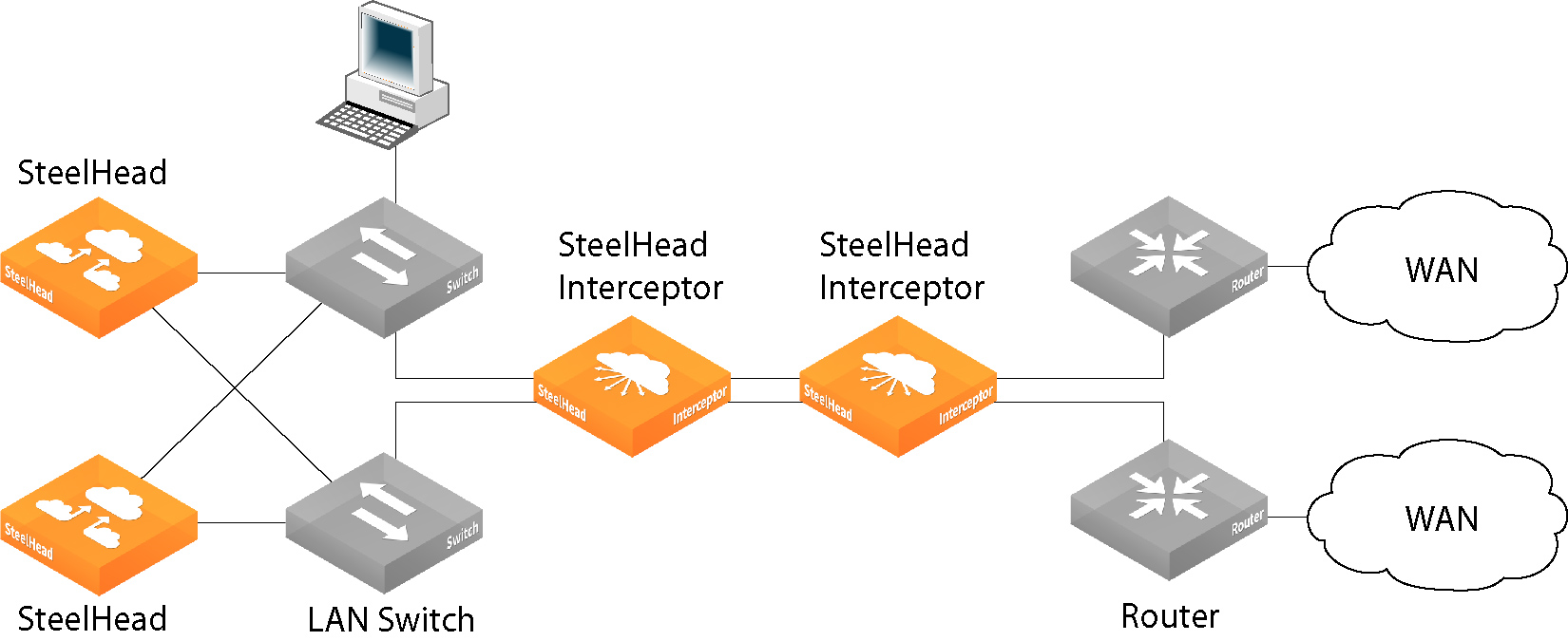
In this deployment, the following element applies:
• Fail-to-wire - If either SteelHead Interceptor fails, traffic passes through to the other SteelHead Interceptor.
Failure handling
In
Figure: Serial SteelHead Interceptors, fail-to-wire dual-connected SteelHeads, each in-line SteelHead Interceptor is configured for mutual failover to ensure high availability. If either SteelHead Interceptor fails, the other appliance directs all network traffic.
Deploying parallel SteelHead Interceptors
Figure: Parallel SteelHead Interceptors, fail-to-block with dual-connected SteelHeads
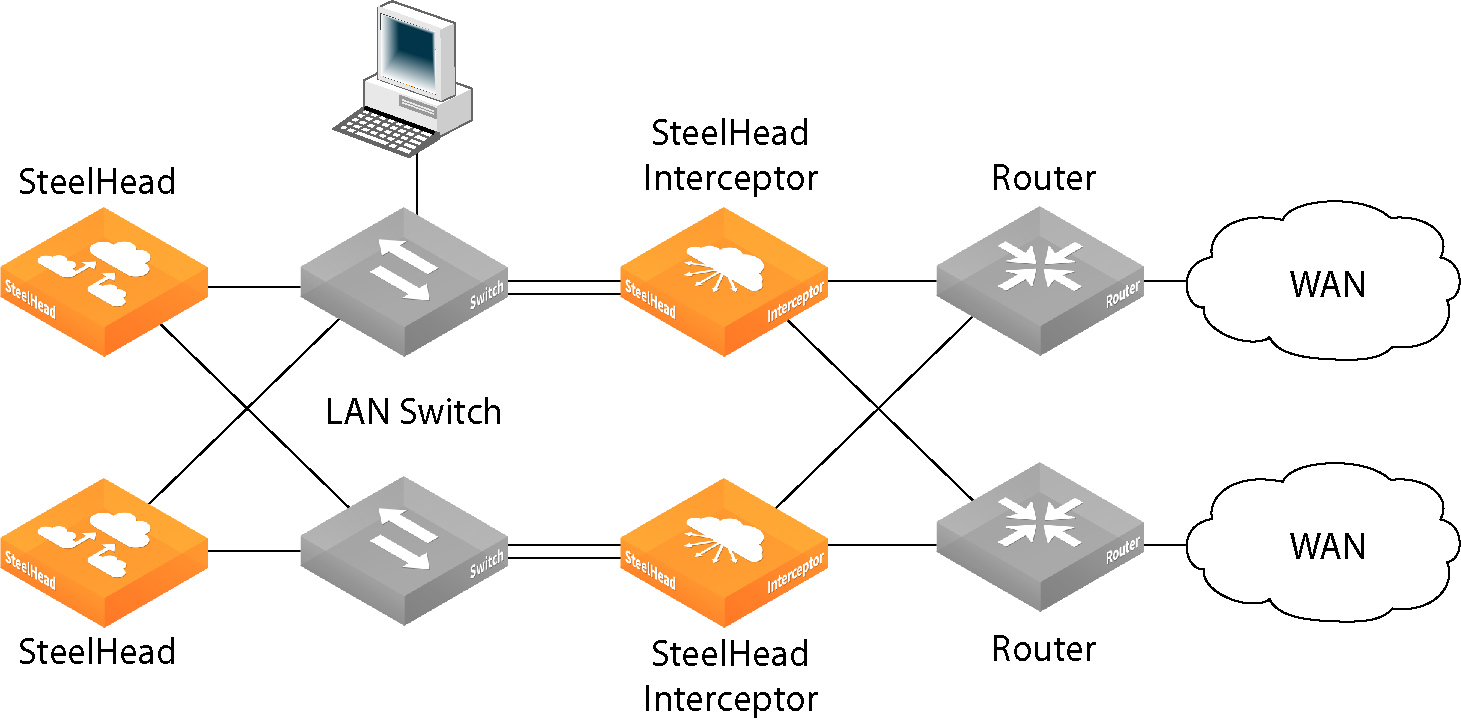
In this deployment, the following elements apply:
• Fail-to-block - This feature is enabled by default. If either SteelHead Interceptor fails or it blocks traffic, the network automatically reroutes traffic through the remaining SteelHead Interceptor.
• Connection-forwarding counterpart - This feature is enabled when the SteelHead Interceptors can notify each other about intercepted connections.
• Allow failure - This feature is optional (but recommended as a best practice). If contact is lost between the cluster SteelHead Interceptors, the remaining SteelHead Interceptor continues directing all connections, ensuring that optimization continues.
Failure handling
In
Figure: Parallel SteelHead Interceptors, fail-to-block with dual-connected SteelHeads, if a SteelHead Interceptor fails, fail-to-block causes connections to route through the other SteelHead Interceptor, thereby allowing optimization to continue. However, delays might result from traffic reconvergence.
Deploying quad SteelHead Interceptors
Figure: Quad SteelHead Interceptors with dual-connected SteelHeads
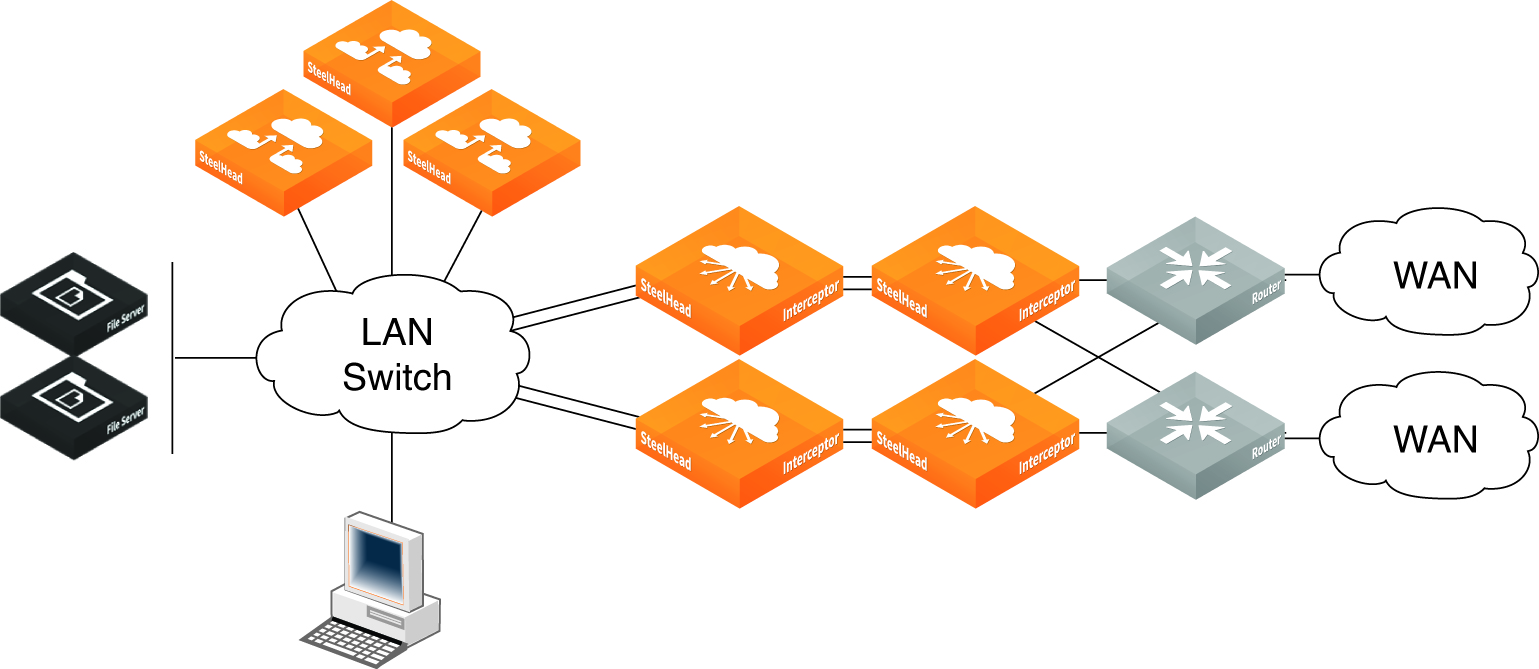
In this deployment, the following elements apply:
• Failover Appliance - Each in-line SteelHead Interceptor is configured to provide failover support for the other.
• Fail-to-Wire - If either in-line SteelHead Interceptor fails, traffic passes through to the other SteelHead Interceptor.
• Clusters - This feature is enabled where clustered SteelHead Interceptors can notify each other about intercepted connections.
Failure scenarios
In
Figure: Quad SteelHead Interceptors with dual-connected SteelHeads, each parallel network uses two in-line SteelHead Interceptors. Each in-line SteelHead Interceptor is configured as fail-to-wire, so if one fails, network traffic passes through to its in-line counterpart, which is configured for failover.
This scenario is distinct from the parallel network configuration shown in
Deploying parallel SteelHead Interceptors because the in-line redundancy eliminates the need for fail-to-block and allow failure configurations.
Deploying octal SteelHead Interceptors
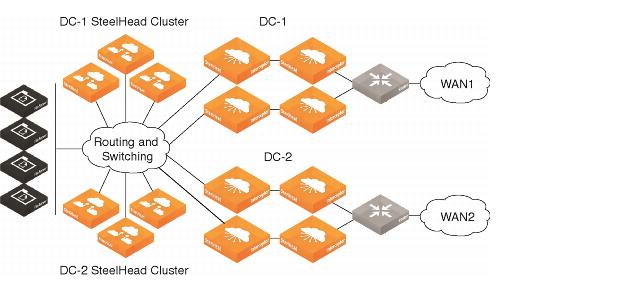
Figure: Octal SteelHead Interceptor deployment shows an octal SteelHead Interceptor deployment. An octal SteelHead Interceptor deployment consists of two quad deployments split across a data center.
Figure: Octal SteelHead Interceptor deployment
Deploying SteelHead Interceptors in an SD-WAN configuration
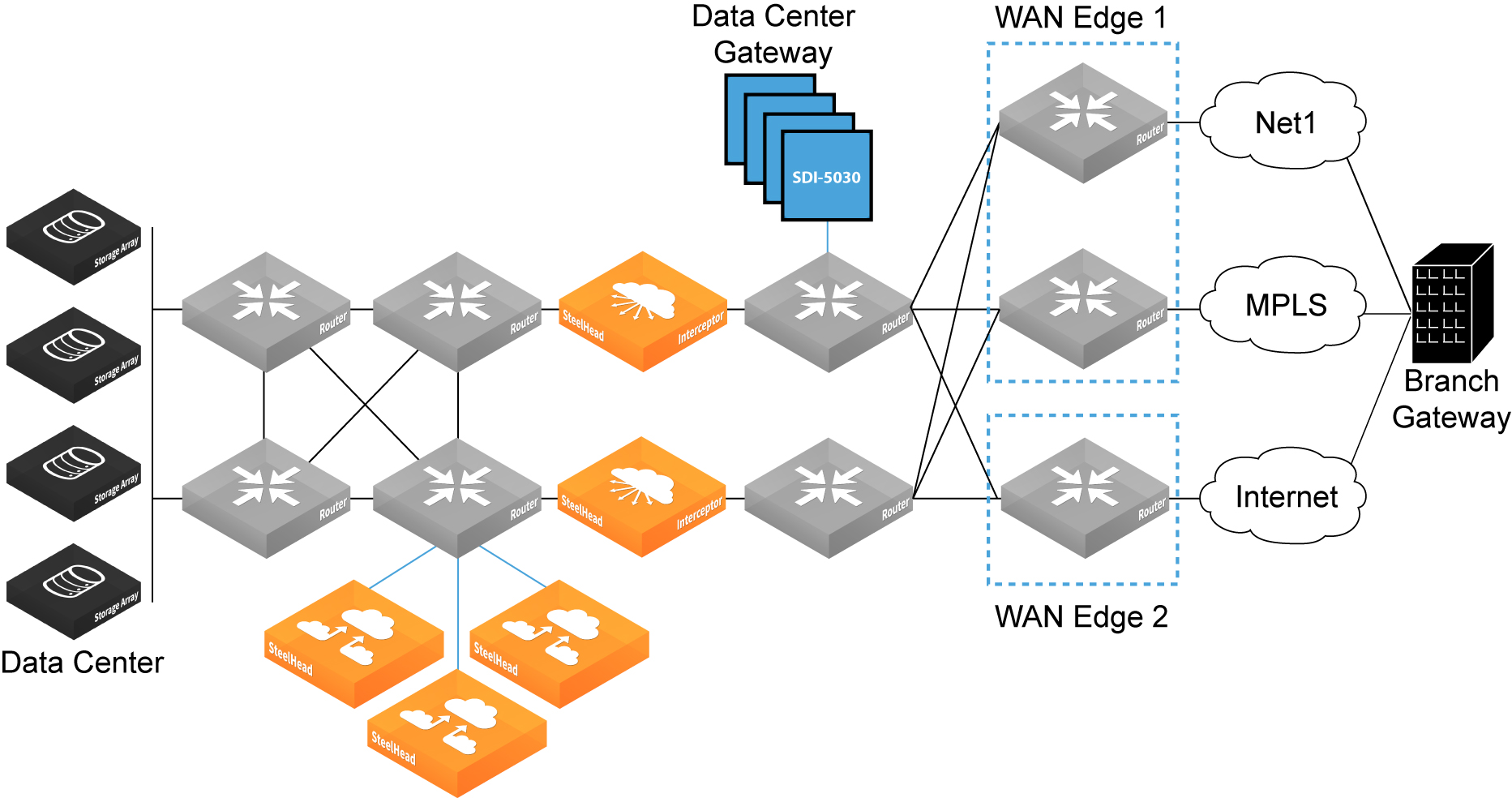
Figure: Traditional SteelHead Interceptor topology (without SD-WAN components) shows a traditional SteelHead Interceptor topology in a split data center. The SteelHeads and SteelHead Interceptor clusters optimize and route traffic from the data center, over the WAN edges, to the branch location. The SteelHeads and SteelHead Interceptors send the optimized traffic over the WAN to the branch location, based on criteria you specify.
Figure: Traditional SteelHead Interceptor topology (without SD-WAN components)
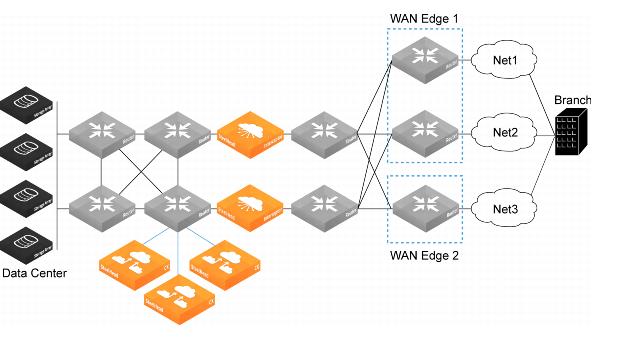
Figure: SteelHead Interceptor topology (with SD-WAN components) shows a simplified SteelHead Interceptor topology configured for SD-WAN capability.
Figure: SteelHead Interceptor topology (with SD-WAN components)
Like the traditional SteelHead Interceptor topology (shown in
Figure: Traditional SteelHead Interceptor topology (without SD-WAN components)), the SteelHead and SteelHead Interceptor clusters optimize and route traffic from the data center, over the WAN edges, to the branch location.
However, the SD-WAN topology (
Figure: SteelHead Interceptor topology (with SD-WAN components)) contains two additional components—a gateway (consisting of a cluster of SDI-5030 appliances) at the data center, and a gateway (consisting of SteelConnect appliances) at the branch.
The SDI-5030 appliances in the data center are configured as an out-of-path cluster at the WAN-side aggregation router (to avoid potential conflicts with in-path traffic). This additional cluster can be used to optimize traffic and send the traffic to the gateway at the branch.
Important: The data center gateway must contain at least two SDI-5030 appliances.
Important: If your SD-WAN topology includes 10-Gbps network interface cards (NICs), you must enable Xbridge. Otherwise, Xbridge is not required.
You can enable Xbridge by using either the GUI or the CLI. For more information, see the SteelHead Interceptor User’s Guide or the Riverbed Command-Line Interface Reference Manual.
The SteelHead Interceptors in the SD-WAN topology provide scalable data referencing (SDR)-aware load balancing for your network traffic.
SD-WAN Design Considerations
When configuring your SD-WAN topology, keep the following points in mind:
• The SD-WAN functionality doesn’t work with path selection with Interceptor clusters (PSIC), VLAN segregation, or out-of-path (OOP) deployments.
• On private WAN links, only services with encapsulation are supported.
• The initial Interceptor 6.0 release does not support IPv6.
• SteelHead Interceptors can’t be part of a SteelConnect demilitarize zone (DMZ), and SteelHead Interceptor clusters can’t span the DMZ.
• VLAN tags and SteelConnect Manager (SCM) are not supported.
• In-path connectivity between SteelHead Interceptors and the SDI-5030 tunnel endpoints (TEPs) is not monitored.
• Hardware-assisted pass-through (HAP) rules are applied before the user-defined pass-through rules. Therefore, traffic redirection can’t be used on traffic managed by HAP rules.
SCM-managed gateways
Use the SteelConnect Manager (SCM) to create and configure the SDI-5030 appliances in the data center gateway as an out-of-path cluster.
Once you’ve created the cluster at the data center gateway, the SCM manages the appliances in both the data center gateway and the branch gateway. This way, the appliances in both gateway clusters can recognize and communicate with each other.
Main entry point
One of the SDI-5030 appliances in the data center gateway acts as the main entry point for the WAN‑optimized traffic sent from the SteelHead Interceptors. The SCM selects the correct appliance based on the appliance capacity and bandwidth.
To complete the configuration, you need to enable the SD-WAN functionality and set up communication between the SteelHead Interceptor and the main entry point appliance in the data center gateway cluster.
Start by using the sd-wan enable command to enable the SD-WAN functionality; then use the sd-wan communication command to set up communication between the SteelHead Interceptor and the main entry point appliance. Use these commands on each SteelHead Interceptor in the cluster.
Important: The sd-wan enable and the sd-wan communication commands are available on the SteelHead Interceptor 9600 only.
For more information about SCM, see the SteelConnect Manager User’s Guide.
For more information about SD-WAN support and installation tasks, see
SD-WAN support.
For more information about SD-WAN topologies and deployments, see the SteelHead Interceptor Deployment Guide.