Viewing Reports and Logs
This chapter describes how to view common reports and logs. It also describes how to verify FIPS mode activity in the logs. This chapter includes the following sections:
This chapter assumes that you are familiar with the Management Console. For detailed information and procedures specific to your product, see the Management Console User Guide for your appliance.
Viewing reports
The Riverbed appliance provides access to a wide variety of reports to track usage and activity. You can review reports for features involving networking (including SSL), optimization, branch services, and diagnostics.
Report descriptions and details are documented in the Management Console User Guide for your appliance.
Viewing appliance logs
Appliance log reports provide a high-level view of network activity. You can view both user and system logs. The logs are an important tool when you need to monitor activity and ensure that features run in FIPS mode.
This section describes appliance logs, including the following topics:
Viewing user logs
You can view user logs in the Management Console. The user log filters messages from the system log to display messages that are of immediate use to the system administrator.
View user logs to monitor system activity and to troubleshoot problems; for example, you can monitor who logged in, who logged out, and who entered specific CLI commands, alarms, and errors. The most recent log events appear first.
Figure: User Logs Page
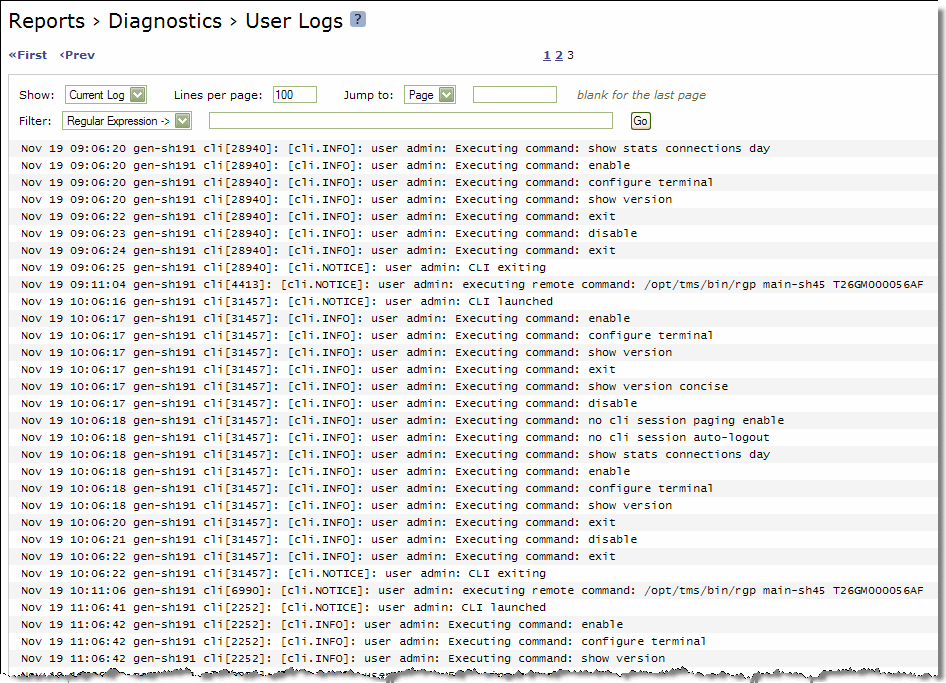
The path to access user logs varies slightly by product. Full details are documented in the Management Console User Guide for your appliance.
Viewing system logs
You can view system logs (syslogs) to monitor system activity and to troubleshoot problems. The most recent log events are listed first.
The logs are an important tool when you need to ensure that features run in FIPS mode. For more information, see
Verifying FIPS mode in system logs.
Figure: System Logs Page
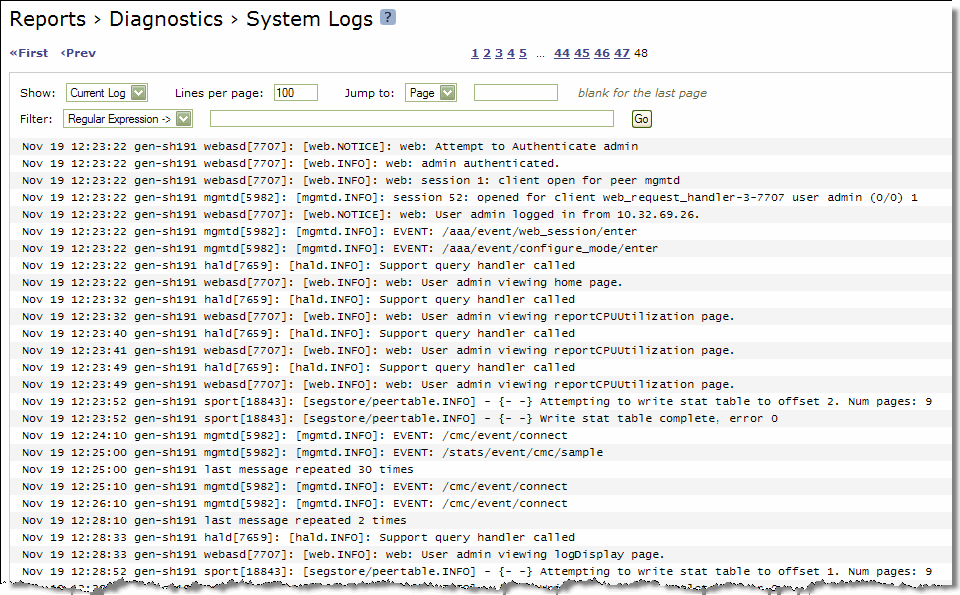
The path to access system logs varies slightly by product. Full details are documented in the Management Console User Guide for your appliance.
Downloading log files
This section describes how to download user and system log files.
You can download both user and system logs.
Downloading user log files
You can download user logs to monitor system activity and to troubleshoot problems.
The User Logs Download page displays up to 10 archived log files plus the current day log file. By default, the system rotates each file every 24 hours or if the file size reaches one gigabyte uncompressed. You can change this to rotate every week or month. Additionally, you can rotate the files based on file size.
The automatic rotation of system logs deletes your oldest log file, labeled as Archived log #10, pushes the current log to Archived log # 1, and starts a new current-day log file.
Figure: User Logs Download Page
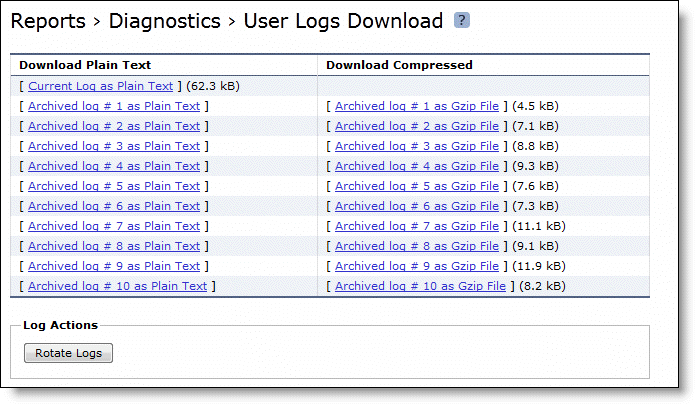
The path to download user logs varies slightly by product. Specific instructions are documented in the Management Console User Guide for your appliance.
Downloading system log files
You can download system logs to monitor system activity and to troubleshoot problems.
The System Logs Download page displays up to 10 archived log files plus the current day log file. By default, the system rotates each file every 24 hours or if the file size reaches one gigabyte uncompressed. You can change this to rotate every week or month. Additionally, you can rotate the files based on file size.
The automatic rotation of system logs deletes your oldest log file, labeled as Archived log #10, pushes the current log to Archived log # 1, and starts a new current-day log file.
Figure: System Logs Download Page
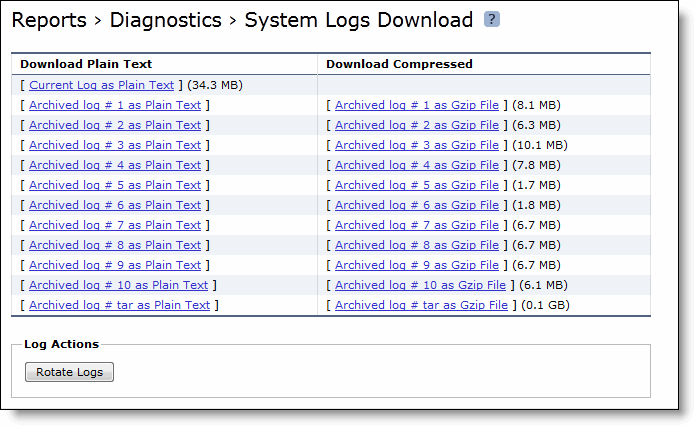
The path to download system logs varies slightly by product. Specific instructions are documented in the Management Console User Guide for your appliance.
Verifying FIPS mode in system logs
You can review the system logs to ensure that features use FIPS mode. Features that run in FIPS mode have entries in the system log that include FIPS_mode_set(1).
The following sections show several examples.
For more information about system logs, see
Viewing system logs.
Verifying that file transfers operate in FIPS mode
File transfers, such as configuration fetch, run in FIPS mode and are FIPS compliant. To verify, look for file transfer entries in the syslog when initiating a file download. Ensure these entries have FIPS_mode_set(1).
For example:
Mar 18 16:28:34 amnesiac curl: FIPS_mode_set(1)
Verifying that NTP operates in FIPS mode
To verify that NTP is running in FIPS mode, examine the system log when NTPD starts (this occurs whenever the NTP configuration is modified) and ensure that the NTPD entry sets FIPS mode:
Mar 18 15:49:57 amnesiac pm[4989]: [pm.NOTICE]: Launched ntpd with pid 27617
Mar 18 15:49:57 amnesiac ntpd[27617]: ntpd
4.2.6p4@1.2324-o Thu May 17 21:31:11 UTC 2012 (1)
…
Mar 18 15:49:57 amnesiac ntpd[27617]: FIPS_mode_set(1)
Verifying that secure vault operates in FIPS mode
The secure vault contains sensitive information from your SteelHead appliance configuration, including SSL private keys and the data store encryption key. These configuration settings are encrypted on the disk using AES 256-bit encryption.
The secure vault always runs in FIPS mode. To verify, look for the following in the system log at startup:
Mar 11 18:28:06 amnesiac encfs: FIPS_mode_set(1)
Verifying that SNMP operates in FIPS mode
To verify that SNMP is running in FIPS mode, look for entries similar to the following in the system log when SNMP starts (this occurs whenever the SNMP configuration changes) and ensure that FIPS mode is set:
Mar 18 16:05:10 amnesiac pm[4989]: [pm.NOTICE]: Launched snmpd with pid 31709
Mar 18 16:05:10 amnesiac snmpd[31709]: FIPS_mode_set(1)
…
Mar 18 16:05:10 amnesiac snmpd[31709]: NET-SNMP version 5.3.1
Verifying that the Web interface operates in FIPS mode
The Apache web server for the SteelHead appliance always runs in FIPS mode.
To verify that the web server is in FIPS mode, look for entries similar to the following in the system log:
Mar 18 16:22:11 amnesiac httpd: FIPS_mode_set(1)
Mar 18 16:22:11 amnesiac httpd: [Mon Mar 18 16:22:11 2013] [notice] Operating in SSL FIPS mode
Mar 18 16:22:11 amnesiac httpd: [Mon Mar 18 16:22:11 2013] [notice] Init: Skipping generating temporary 512 bit RSA private key in FIPS mode
Mar 18 16:22:11 amnesiac httpd: [Mon Mar 18 16:22:11 2013] [notice] Init: Skipping generating temporary 512 bit DH parameters in FIPS mode
Mar 18 16:22:11 amnesiac httpd: [Mon Mar 18 16:22:11 2013] [notice] Init: Skipping generating temporary 512 bit RSA private key in FIPS mode
Mar 18 16:22:11 amnesiac httpd: [Mon Mar 18 16:22:11 2013] [notice] Init: Skipping generating temporary 512 bit DH parameters in FIPS mode
Mar 18 16:22:11 amnesiac httpd: [Mon Mar 18 16:22:11 2013] [notice] Apache/2.2.23 (Unix) mod_ssl/2.2.23 OpenSSL/1.0.1c-fips configured -- resuming normal operations