Configuring Interceptor-to-Interceptor communication
You use the SteelHead Interceptors page to configure the SteelHead Interceptor’s connection-forwarding settings and Interceptor-to-Interceptor communication list. Connection-forwarding settings specify how the appliance is to communicate with the other SteelHead Interceptor or appliances in the communication list.
If you deploy more than one SteelHead Interceptor per site, you must configure each SteelHead Interceptor to interact with every other Interceptor in one of two ways: as a failover Interceptor or as a cluster Interceptor.
• Failover Interceptors are pairs of serially connected SteelHead Interceptors. You deploy two SteelHead Interceptors physically in-path on all of the same physical links, and each appliance is configured to act as a backup for the other appliance for the same network links. If one appliance goes down or needs maintenance, the other appliance handles redirections for the connections over those links.
• Cluster Interceptors are two or more connected SteelHead Interceptors that are not necessarily serially connected. You configure peer SteelHead Interceptors to cover different network paths, typically parallel paths. This design enables SteelHead Interceptors to forward connections in an asymmetrically routed network.
• A SteelHead Interceptor communicates with other SteelHead Interceptors over TCP connections on the enabled in‑path logical interface (or all interfaces if multi-interface support is configured) that you designate for Interceptor-to-Interceptor communication. This type of communication applies to both failover and cluster Interceptors.
Even if an appliance is deployed as a single SteelHead Interceptor that does not communicate with other SteelHead Interceptors, you must select an enabled in-path interface for Interceptor-to-Interceptor communication. If you do not enable the Communicate with Interceptor using this interface option and then choose the Interface drop-down list item that specifies an enabled in-path interface, the Interceptor service fails to start.
To enable connection forwarding, you must configure the Interceptor-to-Interceptor communication list on both failover Interceptors, or on all cluster Interceptors, so that the respective lists point to the IP address of the Interceptor-to-Interceptor communication interfaces of the other appliance or appliances in the set.
Parallel deployments
In networks where servers are physically dispersed, connection requests and responses might take asymmetric paths. To correct this condition, you can deploy SteelHead Interceptors along each parallel path, as shown in
Figure: Parallel deployment in asymmetric networks.
Parallel deployment in asymmetric networks
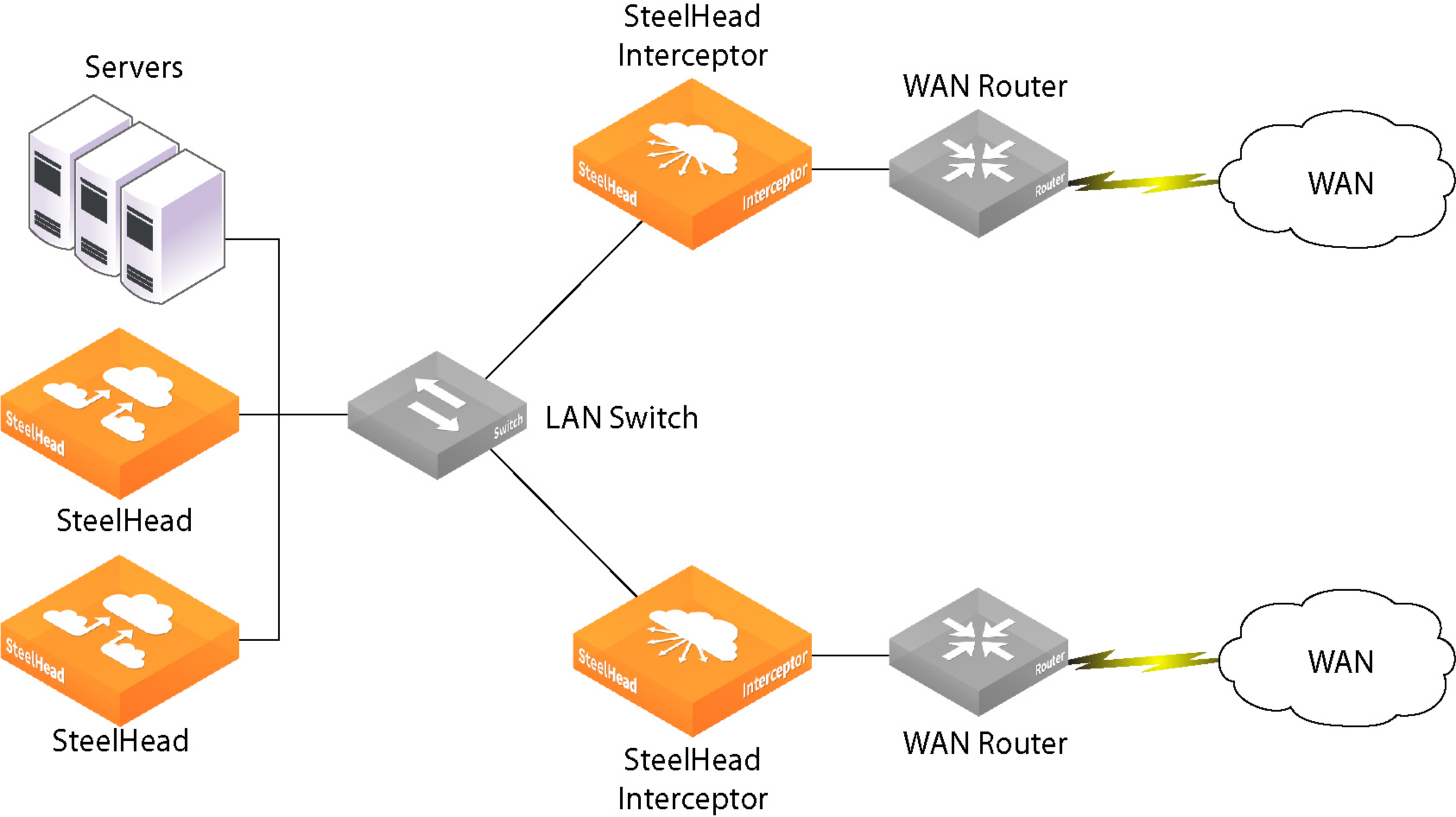
When you configure these SteelHead Interceptors as a cluster, an appliance checks for related packets before forwarding the connection. The first appliance to send the request becomes the one that consolidates all packets for the connection and the only one to forward the connection, thereby eliminating the asymmetric route. The configuration steps are described in
Configuring Interceptor-to-Interceptor communication.
Serial deployments
To deploy failover, you configure a pair of SteelHead Interceptors in a serial configuration. Connect the LAN in-path interface of the WAN-side SteelHead Interceptor using a crossover cable to the WAN in‑path interface of the LAN-side SteelHead Interceptor, as shown in
Figure: Serial deployment to provide failover support.
Serial deployment to provide failover support
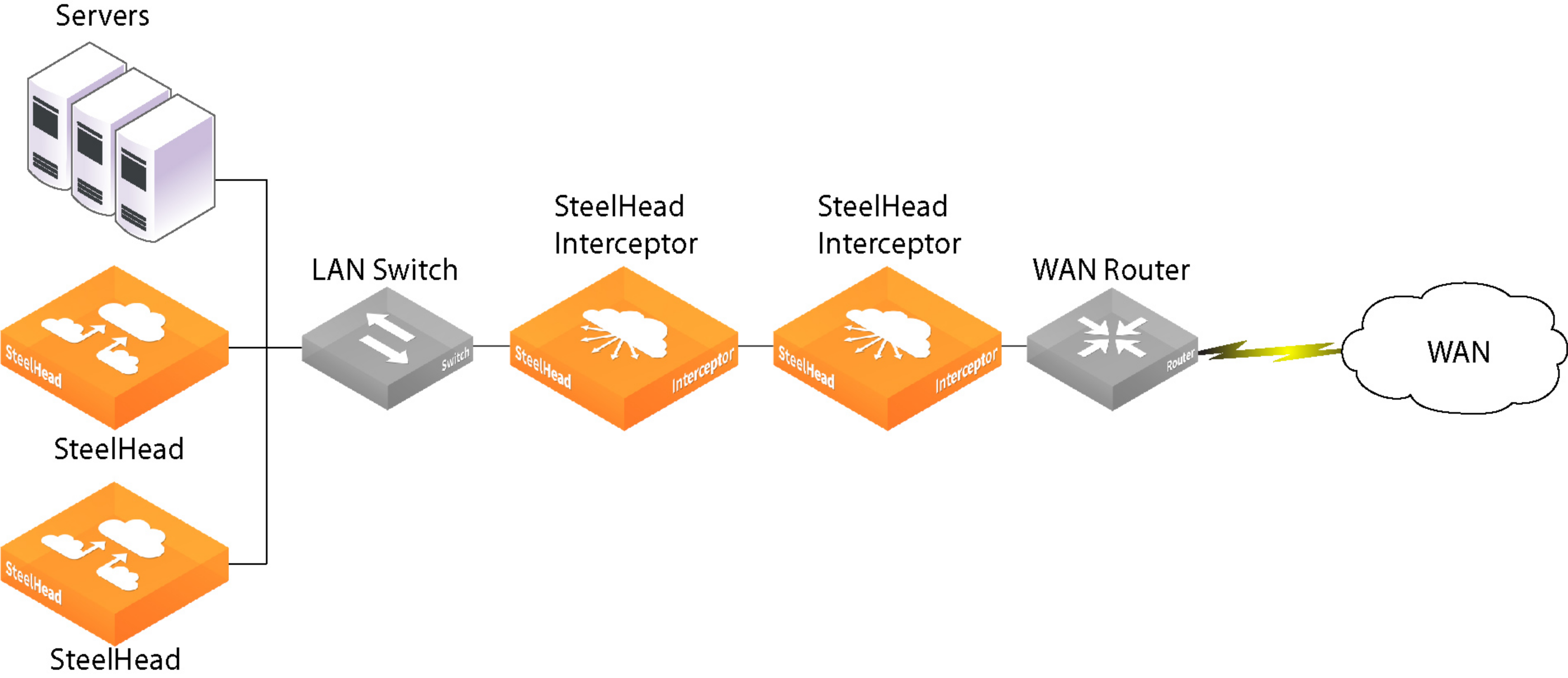
To configure failover, you configure each SteelHead Interceptor as a failover Interceptor for the other. The configuration steps are described in
Configuring Interceptor-to-Interceptor communication.
Quad deployments
A quad deployment offers the highest availability. Each inline SteelHead Interceptor serves as a failover Interceptor for the other. Both inline SteelHead Interceptors serve to forward connections for the parallel SteelHead Interceptors. Connect the LAN in-path interface of the WAN-side SteelHead Interceptor using a crossover cable to the WAN in-path interface of the LAN-side SteelHead Interceptor, as shown in
Figure: Quad deployment to provide failover support.
Quad deployment to provide failover support
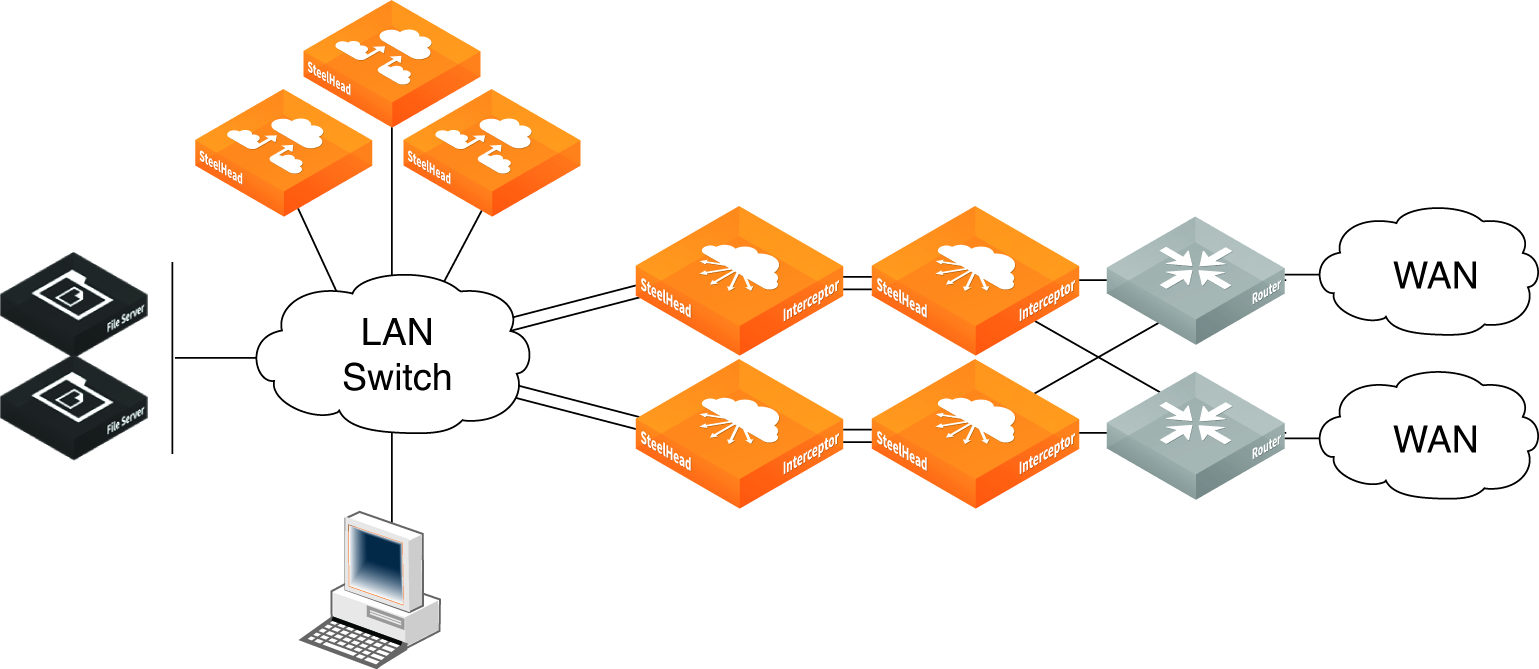
Failover eliminates routing convergence if an appliance fails; optimization continues even in the event of router or switch failure.
Octal deployments
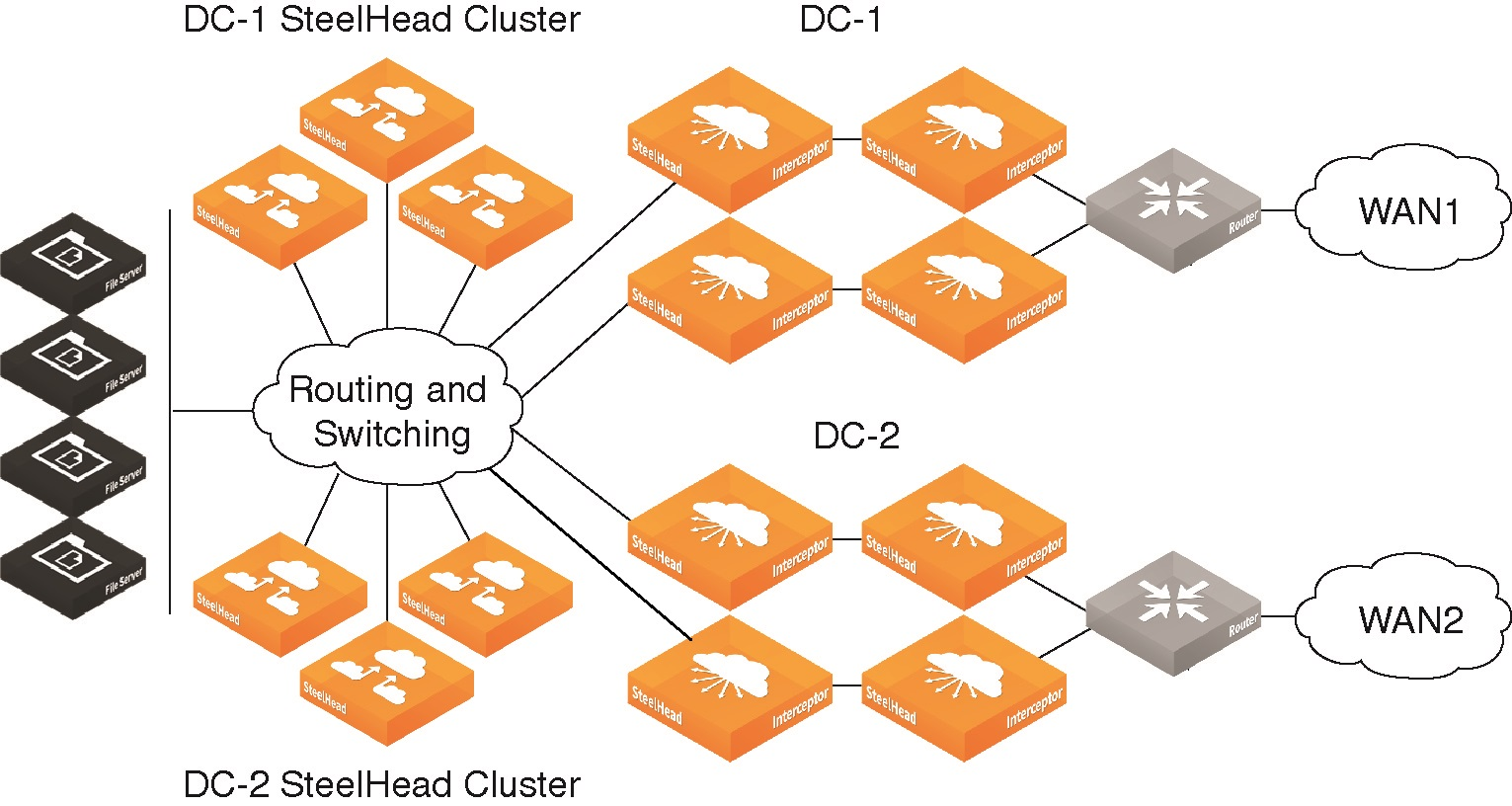
An octal deployment (
Figure: Octal deployment) consists of two quad deployments split across a data center.
Octal deployment
Before you begin
Before you configure Interceptor-to-Interceptor communication, check that configuration requirements are met, and note the configuration recommendations.
Before you configure Interceptor-to-Interceptor communication, you must enable the in-path interface or interfaces that will be designated for Interceptor-to-Interceptor communication on this appliance:
• If you are not enabling multi-interface support on the SteelHead Interceptor, you must enable an in‑path interface before you can select it as the single Interceptor-to-Interceptor communication interface.
• If you are enabling multi-interface support on the SteelHead Interceptor, you must enable at least one in-path interface.
We also recommend these practices when configuring Interceptor-to-Interceptor communication:
• Ensure that LAN-side next hops reach other Interceptor in-path interfaces on different subnets by configuring at least one of these settings on the SteelHead Interceptor:
– Default gateway IP address
– Static routes for reaching Interceptor in-path interfaces on different subnets
• When you add to the Interceptor-to-Interceptor communication list a SteelHead Interceptor that is enabled for multi-interface support, we recommend that you specify the IP addresses of all of the enabled in-path interfaces on that appliance.
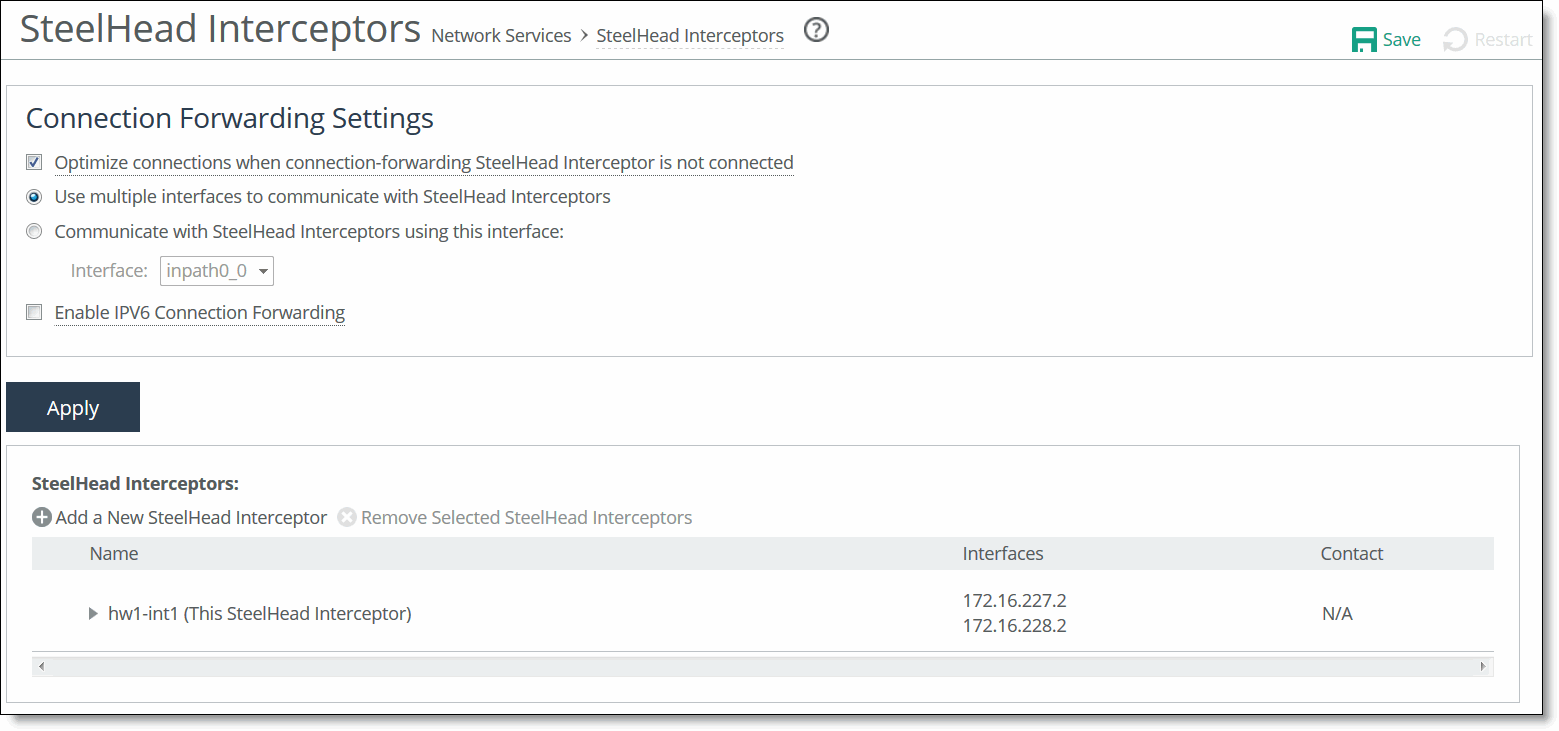
SteelHead Interceptors page (standard mode)
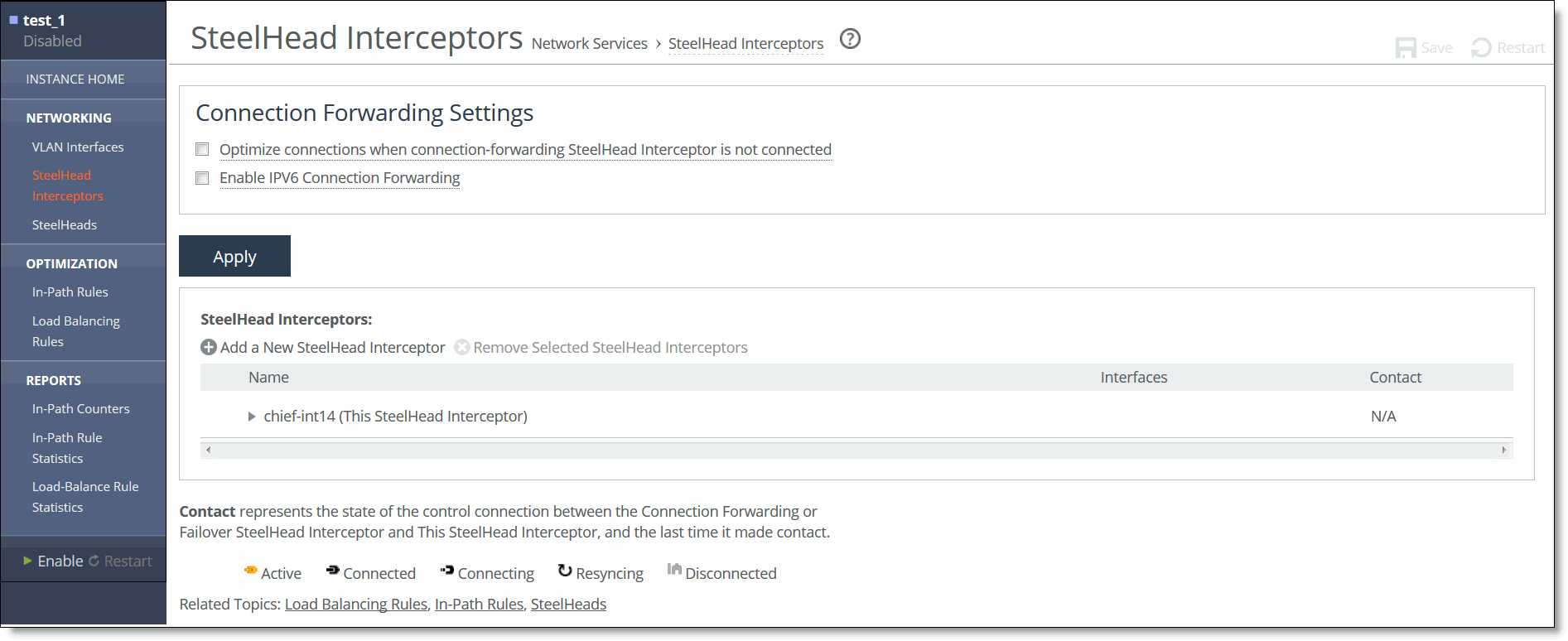
SteelHead Interceptors page (VLAN segregation mode)
To configure Interceptor-to-Interceptor communication
1. Display the SteelHead Interceptors page in either standard mode or VLAN segregation mode.
The location of the SteelHead Interceptors page depends on whether the SteelHead Interceptor is running in standard mode or VLAN segregation mode:
– Standard mode—Choose Networking > Network Services: SteelHead Interceptors to display the SteelHead Interceptors page.
– VLAN segregation mode—Interceptors are configured on a per-instance basis. From the instance dashboard for a given instance, choose SteelHead Interceptors under the Networking section of the navigation bar.
2. Under Connection Forwarding Settings, configure these settings.
Optimize connections when connection-forwarding SteelHead Interceptor is not connected
If this appliance is configured to communicate with another SteelHead Interceptor in parallel, select this option if you want to enable the allow failure feature on this appliance. The allow failure feature causes the appliance to continue to optimize new connections if connection to the cluster SteelHead Interceptor is lost. By default, the allow failure option is disabled, which means that the appliance stops attempting to optimize new connections if connection to the cluster SteelHead Interceptor is lost.
To enable the allow failure feature, you must select the allow failure option on all SteelHead Interceptors on the parallel links, and you must select the allow failure option on all SteelHeads that point to these SteelHead Interceptors. Use the allow failure feature when you can guarantee that the traffic will be rerouted across SteelHead Interceptors that are available to process traffic. To make this guarantee, enable the fail-to-block failure condition. For more information about this failure condition, see
Configuring in-path interfaces.
Use multiple interfaces to communicate with SteelHead Interceptors (standard mode only)
If this appliance is to communicate with other SteelHead Interceptors on multiple interfaces, select this option to enable multiple interface support on this appliance. This option prevents loss of reachability between this SteelHead Interceptor and the other failover or cluster Interceptors that communicate with this appliance.
When you add this SteelHead Interceptor to the Interceptor-to-Interceptor communication list on other appliances in the set, we recommend that you specify the IP addresses of all enabled in-path interfaces on this appliance.
Communicate with SteelHead Interceptors using this interface (standard mode only)
If this appliance is not to communicate with other SteelHead Interceptors on multiple interfaces, you must select one enabled in-path interface for Interceptor-to-Interceptor communication. This requirement applies whether the appliance is deployed as a failover or cluster Interceptor, or if the appliance is deployed is a single SteelHead Interceptor that does not communicate with other SteelHead Interceptors.
Select this option to enable the Interface drop-down list.
Interface (standard mode only)
Select from this drop-down list the enabled in-path interface that this appliance is to use for Interceptor-to-Interceptor communication.
The inpath0_0 interface is selected by default, even if that logical interface is not enabled. For information about enabling an in-path interface on a SteelHead Interceptor, see
Configuring in-path interfaces.
When you add this SteelHead Interceptor to the Interceptor communication list on the other SteelHead Interceptor or appliance with which it communicates, you enter the IP address of this interface in the Main Address field.
Enable IPV6 Connection Forwarding
Enables IPv6 connection forwarding between appliances in the cluster. Note these requirements:
– The SteelHead Interceptor can’t be a virtual in-path appliance.
– Path selection must be disabled.
– Multi-interface support must be enabled. That is, make sure that the Use multiple interfaces to communicate with SteelHead Interceptors option is selected.
– All of the appliances in the connection forwarding appliance list and the failover appliance list must be removed.
Each appliance in the cluster must be using the same kind of connection forwarding. That is, enable IPv6 connection forwarding on all appliances or disable this feature on all appliances. You can’t have a mixture.
When the SteelHead Interceptor is running in VLAN segregation mode, the radio buttons labeled Use Multiple Interfaces to Communicate with Interceptors and Communicate with Interceptors Using This Interface and the drop-down list for selecting the in-path interface do not appear in the Interceptors page. This is because, by definition, VLAN segregation mode requires the use of multiple interfaces. These are configured on the Networking > VLAN Interfaces page of the instance dashboard. See
Adding or removing a VLAN tag to an instance for more information.
3. Click Apply to apply the change.
4. Click Save to save your changes to the running configuration.
5. Under SteelHead Interceptors, add all local SteelHead Interceptors to the SteelHead Interceptor communication list using the controls as described in this table.
Control | Description |
Add a New SteelHead Interceptor | Displays the controls for adding a local SteelHead Interceptor to the Interceptor communication list on the current configuration. If you are configuring a failover Interceptor, add the other failover Interceptor. If you are configuring a cluster Interceptor, add all of the other SteelHead Interceptors in that cluster. |
Name | Specify a name for the local SteelHead Interceptor that you are adding. |
Main Address | Specify the IP address of the local SteelHead Interceptor’s in-path interface that is configured to be used for Interceptor-to-Interceptor communication. For IPv4 addresses, use this format: x.x.x.x For IPv6 addresses, use this format: x:x:x::x/xxx If IPv6 connection forwarding is enabled, you can enter IPv6 addresses only. |
Additional Addresses | If you are adding a SteelHead Interceptor on which multiple interface connection forwarding is enabled, specify additional network addresses for that SteelHead Interceptor. For IPv4 addresses, use this format: x.x.x.x For IPv6 addresses, use this format: x:x:x::x/xxx We recommend that you specify the IP addresses of all enabled in-path interfaces on that appliance. If IPv6 connection forwarding is enabled, you can enter IPv6 addresses only. |
Use For Failover | If you are adding a SteelHead Interceptor that is in a series with the appliance you are configuring, select this option if the SteelHead Interceptor you are adding is to be the failover appliance for the appliance you are configuring. |
Add | Adds the settings to the running configuration. |
Remove Selected SteelHead Interceptors | To remove a SteelHead Interceptor from the list, select the check box next to the name and click Remove Selected Interceptors. If you remove a SteelHead Interceptor from this list, make sure that you also remove this appliance from the other SteelHead Interceptors in the set. |
6. Click Save to save your changes to the running configuration.