Configuring path selection clusters
To configure path selection clusters, choose one of these methods:
• Use the SCC—Set up the path selection cluster on an SCC 9.1 or later. Then use the SCC to push the cluster channel configuration to each of the SteelHeads and SteelHead Interceptors. This is the easiest method and the method we recommend because when you create one rule in one place for all cluster members (with load balancing rules and so on), this method allows for fewer errors and easier maintenance. Also, you can use the configuration wizard to create a graphical representation of your topology. The high-level tasks for using this method are listed in
Using the SCC to configure a path selection cluster.
–or–
• Manually configure each appliance individually—Set up the path selection cluster directly on each SteelHead and configure each SteelHead Interceptor individually. You might want to use this method if you have a small number of SteelHeads in the cluster. The high-level tasks for using this method are listed in
Manually configuring a path selection cluster.
For details about configuring a path selection cluster on a SteelHead, see the SteelHead User Guide.
Before configuring path selection in cluster deployments
Before you configure path selection in a cluster deployment, these prerequisites must be met:
• You must be using SteelHead Interceptor 5.0 or later on the SteelHead Interceptor, SteelHead 9.1 or later on the SteelHead, and SCC 9.1 or later on the SCC (if you are using the SCC to configure path selection clusters).
• You must enable connection-forwarding multi-interface support on each SteelHead Interceptor and each SteelHead.
• You must configure the appropriate subnet-side rules on each SteelHead.
• You must define the accurate subnet in the local site on each SteelHead.
• You must enable Fair Peering v2 (FPv2) on each SteelHead Interceptor.
• When a SteelHead is part of a SteelHead Interceptor cluster, and path selection is enabled, you must configure a path selection channel on both the SteelHead and the SteelHead Interceptor.
For more information about the SteelHead, see the SteelHead User Guide.
• You must make sure that the WAN router does not ricochet packets destined for a remote destination. That is, configure the WAN router to send packets to the WAN (to prevent WAN-bound packets from ricocheting through the LAN).
• The SteelHead Interceptor must be Layer-2-adjacent to the WAN-edge routers.
Using the SCC to configure a path selection cluster
On the SCC, to configure a path selection cluster, complete these tasks:
1. Define a cluster at the Cluster page.
2. Enable path selection and configure path selection rules.
3. Push the configuration settings to the remote appliances.
For detailed instructions, see the SteelCentral Controller for SteelHead User Guide and the SteelHead Interceptor Deployment Guide.
Manually configuring a path selection cluster
To manually configure a path selection cluster channel, complete the high-level tasks listed in this table on either the SteelHead or the SteelHead Interceptor, as applicable. This table includes the sections or documents you can refer to for more information.
Step | Reference |
1. Configure all SteelHeads, as applicable. Multi-interface support must be enabled on all the SteelHeads. | SteelHead User Guide |
2. Configure all SteelHead Interceptors, as applicable. Multi-interface support must be enabled on all the SteelHead Interceptors. | |
3. Configure all SteelHead Interceptors as connection-forwarding neighbors on all the SteelHeads. Restart the service on the SteelHeads, as required. | SteelHead User Guide |
4. Enable Fair Peering v2 (FPv2) load-balancing rules on all SteelHead Interceptors. | |
5. Enable path selection on all SteelHead Interceptors, then restart the service. An alarm is triggered because path selection is not yet enabled on the SteelHead. | |
6. Configure service rules to identify the unoptimized TCP and UDP connections used for path selection or for identifying specific traffic to be passed through to the SteelHead. | |
7. Enable path selection on the SteelHead neighbors. A service restart is not required. | SteelHead User Guide |
Limitations for using path selection in cluster deployments
SteelHead Interceptors must be configured in physical in-path deployments. You enable path selection in standard mode only. You cannot enable path selection in VLAN segregation mode.
Path selection can be configured for IPv4 traffic. Path selection bypasses fragments arriving at the SteelHead Interceptor. However, fragments caused by traffic redirection are not bypassed.
Path selection does not support these features or deployments:
• Xbridge
• Web Cache Communication Protocol (WCCP)
• Policy-Based Routing (PBR)
• VLAN segregation
• Virtual in-path SteelHead Interceptor deployments
• IPv6 traffic
• EtherChannels connected to the SteelHead Interceptor
• Pass-through connection blocking rules on the SteelHead Interceptor
• Packet-mode optimization on the SteelHead
• Path selection firewall traversal
• Path selection with secure transport
To enable path selection on a SteelHead Interceptor
1. Choose Networking > Network Services: Network Services Table to display the Network Services Table page.
Network Services Table page
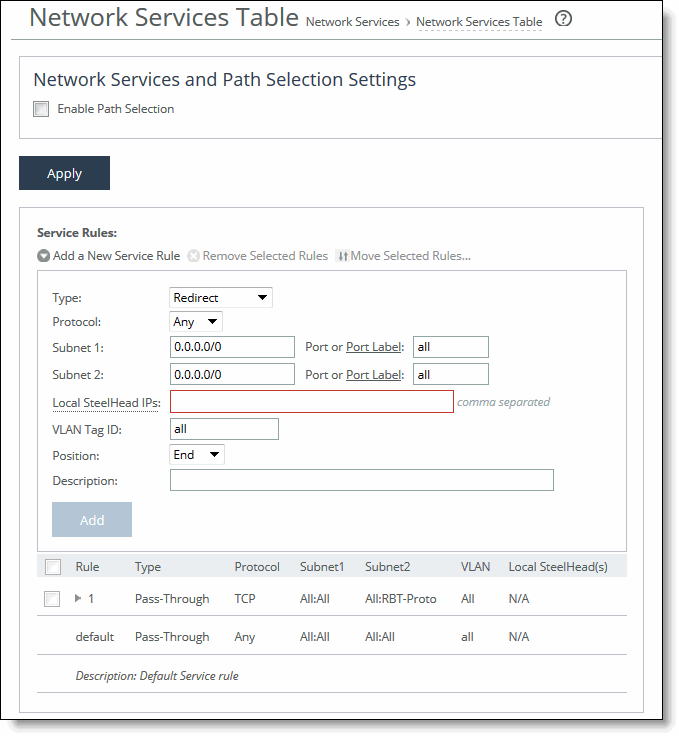
2. Select the Enable Path Selection check box. (To disable path selection, clear the check box.)
3. Click Apply to save your selection.
To add a new service rule on a SteelHead Interceptor
Service rules identify the unoptimized TCP and UDP connections used for path selection or for identifying specific traffic to be passed-through to the SteelHead.
Service rules only apply to unoptimized traffic.
Service rules act like load-balancing rules for optimized traffic with one notable exception: the traffic is bidirectional so the source or destination is not important; the rules merely use the two subnets and ports.
1. Choose Networking > Network Services: Network Services Table to display the Network Services Table page.
2. Under Service Rules, complete the configuration as described in this table.
Control | Description |
Add a New Service Rule | Displays the controls to add a new service rule. |
Type | Specify how the system handles packets if the default uplinks go down: • Redirect—Redirects connections to a SteelHead. This is the default value. • Pass-through—Passes through traffic unoptimized. |
Protocol | Specify a traffic protocol from the drop-down list: • TCP—Specifies the TCP protocol. Supports TCP-over-IPv4 only. • UDP—Specifies the UDP protocol. Supports UDP-over-IPv4 only. • Any—Specifies all TCP-based and UDP-based protocols. This is the default setting. |
Subnet 1 | Specify possible endpoints for subnet 1 connections. Use this format: xxx.xxx.xxx.xxx/xx You can specify all or 0.0.0.0/0 as the wildcard for all traffic. |
Subnet 2 | Specify possible endpoints for subnet 2 connections. Local and remote endpoints do not need to be created in a specific order. Use this format: xxx.xxx.xxx.xxx/xx You can specify all or 0.0.0.0/0 as the wildcard for all traffic. |
Port or Port Label | Specify the port or port label. The default value is all. |
Local SteelHead IPs | Specify the local SteelHead IP address(es). Optionally, specify as a comma-separated list. All addresses have to be the main IPs. |
VLAN Tag ID | Enter untagged to specify that the rule applies to untagged connections. Pass-through traffic maintains any preexisting VLAN tagging between the LAN and WAN interfaces. |
Position | Select the rule position order from the drop-down list. • Select Start to insert the rule at the start of the list. • Select End to insert the rule at the end of the list. • Select a rule number. |
Description | Optionally, include a description of the rule. |
Add | Adds the new service rule to the list. You can add up to a maximum number of 500 rules. The appliance refreshes the rules table and applies your modifications to the running configuration, which is stored in memory. |
Remove Selected Rules | Select the check box next to the name and click Remove Selected Rule. |
Move Selected Rules | Select the check box next to the rule position and click Move Selected Rules to move the rule to the new position. |
3. Click Apply to save your selection.
What’s next?
Be sure to complete the appropriate tasks on the SteelHead, as outlined in
Manually configuring a path selection cluster.