Application Layer Gateway Rules
This chapter provides a summary of the application layer gateway (ALG) security rules and the procedures for ensuring security compliance. It includes these sections:
As a supplement to this guide, consult Securing SteelHeads in the SteelHead Deployment Guide 9.1 or later. This guide provides additional guidance regarding security best practices for SteelHead deployments.
Firewall and IDPS Compliance
This section includes this rule:
Ensuring the Firewall and Intrusion Detection
and Prevention Systems (IDPS) Are in Compliance
Rule Title: RiOS must be configured to ensure inbound and outbound traffic is forwarded to be inspected by the firewall and IDPS in compliance with remote access security policies.
STIG ID: RICX-AG-000037
Rule ID: SV-77303r1_rule Severity: CAT II
Vuln ID: V-62813 Class: Unclass
Automated monitoring of remote access traffic allows organizations to detect cyber attacks and also ensure ongoing compliance with remote access policies by inspecting connection activities of remote access capabilities.
Remote access methods include both unencrypted and encrypted traffic. Inbound traffic must be inspected prior to being allowed on the enclave's trusted networks. Outbound traffic inspection must occur prior to being forwarded to destinations outside of the enclave.
Optimally, the SteelHead must be architecturally placed at the perimeter of the network in front of the perimeter router. Thus, traffic is directed for firewall and IDPS inspection for inbound and outbound traffic in compliance with DoD policy. Additionally, from an operational perspective, this architecture avoids the need to open many ports and services in the firewall to accommodate TCP options 76 and 78 and ports 7800, 7810, and 7870. Some other configurations might involve even more ports and services.
Verifying SteelHead Placement for Firewall and IDPS Security Requirements
Inspect the architectural placement of the device. Verify the traffic from the device is directed to the firewall and intrusion detection system (IDS) or intrusion prevention system (IPS) for inspection.
If RiOS is not configured to ensure inbound and outbound traffic is forwarded to be inspected by the firewall and IDPS in compliance with remote access security policies, this is a security vulnerability finding.
Deploying SteelHeads for Firewall and IDPS Security Requirements
Architecturally place the SteelHead device to avoid the need to open TCP ports in the firewall. The best practice for the SteelHead appliance is to install it at the perimeter of the network in front of the perimeter router configure it to direct traffic to the router. Thus, inbound and outbound traffic is forwarded to be inspected by the firewall and IDPS in compliance with remote access security policies.
SMB and Encrypted MAPI
This section includes this rule:
Ensuring Signed SMB and Encrypted MAPI Protect the Integrity of the DATA
Rule Title: If TLS optimization is used, signed SMB and encrypted MAPI must ensure the integrity and confidentiality of data transmitted over the WAN.
STIG ID: RICX-AG-000032
Rule ID: SV-77277r1_rule Severity: CAT II
Vuln ID: V-62787 Class: Unclass
Protecting the end-to-end security of transport layer security (TLS) is required to ensure the integrity and confidentiality of the data in transit.
Signed SMB and encrypted MAPI traffic use techniques to protect against unauthorized man-in-the-middle devices from making modifications to their exchanged data. Additionally, encrypted MAPI traffic and encrypted SMB3 traffic ensure data confidentiality by transmitting data with protection across the network.
To securely optimize this traffic, a properly configured client and server-side SteelHead appliance with WAN optimization must:
• decrypt and remove signatures on received LAN-side data from the client or server.
• perform bandwidth and application layer optimization.
• use the secure-inner channel feature to maintain data integrity and confidentiality of the data transmitted over the WAN.
• convert the received optimized data back to its native form.
• encrypt and apply signatures for LAN side transmission of data to the client or server.
To query the Windows domain controller for the necessary cryptographic information to optimize this traffic, the server-side SteelHead appliance must join a Windows domain. The SteelHead appliance can require other configuration settings, both on the SteelHead appliance, and in the Windows domain. This cryptographic information is only useful for the lifetime of an individual connection or session. The information is obtained at the beginning of a connection, and transferred to the client-side SteelHead appliance as needed, using the secure-inner channel feature. You must configure the secure-inner channel to ensure maximum security.
Only the server-side SteelHead appliance is required to join the domain, and it does so using a machine account in the same way that a Windows device joins the domain using a machine account. The SteelHead appliance joins the domain to obtain a client-user session key (CUSK) or server-user session key (SUSK), which allows the SteelHead appliance to sign and/or decrypt MAPI on behalf of the Windows user that is establishing the relevant session.
The server-side SteelHead appliance must join a domain that is either:
• the user domain. The domain must have a trust relationship with the domains that includes the application servers you want to optimize (that is, the file server, Exchange server, and so on).
• a domain with a bidirectional trust relationship with the user domain. The domain might include some or all of the Windows application servers for SteelHead appliance optimization (that is, the file server and Exchange server). Production deployments can have multiple combinations of client and server Windows operating system versions and can include different configuration settings for signed SMB and encrypted MAPI. The Windows NT LAN Manager (NTLM) is not approved for use for DoD implementations. Therefore it is possible that the security authentication between clients and servers can use Kerberos, or a combination of the two.
Verifying the SMB and MAPI Security Settings
Verify that signed SMB and encrypted MAPI is configured to ensure the integrity and confidentiality of data transmitted over the WAN.
To verify that signed SMB1 is secure
1. Choose Optimization > Protocols: CIFS (SMB1) to display the CIFS (SMB1) page.
2. Under SMB Signing, verify that the Enable SMB Signing, NTLM Delegation Mode, and Enable Kerberos Authentication Support check boxes are selected.
To verify that signed SMB2/3 is secure
3. Choose Optimization > Protocols: SMB2/3 to display the SMB2/3 page.
4. Under Signing, verify that the Enable SMB2 and SMB3 Signing, NTLM Delegation Mode, and Enable Kerberos Authentication Support check boxes are selected.
To verify that MAPI is secure
1. Choose Optimization > Protocols: MAPI to display the MAPI page.
2. Under Settings, verify that the Enable Encrypted Optimization, NTLM Delegation Mode, and Enable Kerberos Authentication Support check boxes are selected.
3. If any SMB Signing or Encrypted MAPI is selected and “In Domain Mode, Status: In a Domain” is not displayed on the page, this is a security vulnerability finding.
Configuring the SMB and MAPI Security Settings
Configure signed SMB and encrypted MAPI optimization services to ensure the integrity and confidentiality of data transmitted over the WAN.
To configure signed SMB and encrypted MAPI for security
1. On the server-side SteelHead appliance connect to the Management Console.
2. Choose Optimization > Windows Domain Auth to display the Windows Domain Auth page.
3. Under Kerberos, click Add a New User to expand the page.
4. Type the Active Directory Domain Name.
5. Type the User Domain ID.
6. Type the User Account Password and confirm it.
7. Select the Enable RODC Password Replication Policy check box.
8. Type the Domain Controller Name(s) or IP Addresses.
9. Click Add.
10. Verify that “In Domain Mode, Status: In a Domain” is displayed on the page.
11. Click Save at the top of the page to save these setting permanently.
To configure SMB1
1. Choose Optimization > Protocols: CIFS (SMB1) to display the CIFS (SMB1) page.
2. Select the Enable SMB Signing, NTLM Delegation Mode, and Enable Kerberos Authentication Support check boxes.
3. Click Apply.
4. Click Save at the top of the page to save these setting permanently.
To configure SMB2/3
1. Choose Optimization > Protocols: SMB2/3 to display the SMB2/3 page.
2. Select the Enable SMB2 and SMB3 Signing, NTLM Delegation Mode, and Enable Kerberos Authentication Support check boxes.
3. Click Apply.
4. Click Save at the top of the page to save these setting permanently.
To configure MAPI
1. Choose Optimization > Protocols: MAPI to display the MAPI page.
2. Select the Enable Encrypted Optimization, NTLM Delegation Mode, and Enable Kerberos Authentication Support check boxes.
3. Click Apply.
4. Click Save at the top of the page to save these setting permanently.
SSL and CRL Security
This section includes these rules:
Ensuring Private Keys Stay in the Data Center
Rule Title: If TLS WAN optimization is used, SSL optimization must protect private keys ensuring that they stay in the data center by ensuring end-to-end security.
STIG ID: RICX-AG-000038
Rule ID: SV-77305r1_rule Severity: CAT II
Vuln ID: V-62815 Class: Unclass
Protecting the end-to-end security of TLS is required to ensure integrity and confidentiality of the data in transit.
RiOS TLS optimization accelerates data transfers that are encrypted using TLS for SteelHead appliances that are deployed locally to both the client-side and server-side of the network. All of the same optimized connections that are applied to normal nonencrypted TCP traffic can also apply to encrypted TLS traffic. SteelHead appliances accomplish this without compromising end-to-end security and the established trust model. Private keys remain in the data center and are not exposed in remote locations where they might be compromised.
The RiOS TLS optimization solution starts with SteelHead appliances that have a configured trust relationship, enabling them to exchange information securely over their own dedicated TLS connection. Each client uses unchanged server addresses and each server uses unchanged client addresses; no application changes or explicit proxy configuration is required. RiOS uses a unique technique to split the TLS handshake. The handshake is the sequence of message exchanges at the start of a TLS connection. In an ordinary TLS handshake, the client and server first establish identity using public-key cryptography, and then negotiate a symmetric session key to use for data transfer. When using RiOS TLS acceleration, the initial TLS message exchanges take place between the client application (for example, a Web browser) and the server-side SteelHead appliance.
SteelHead WAN optimization platform works to ensure that TLS acceleration delivers the following:
• sensitive cryptographic information is kept in the secure vault—a separate, encrypted store on the disk.
• built-in support for popular Certificate Authorities (CAs) such as VeriSign, Thawte, Entrust, and GlobalSign. In addition, SteelHead appliances allow the installation of other commercial or privately operated Certificate Authorities (CAs).
• import of server proxy certificates and keys in PEM, PKCS12, or DER formats. SteelHead appliances also support the generation of new keys and self-signed certificates. If your certificates and keys are in another format, first you must convert them to a supported format before you can import them into the SteelHead appliance.
• separate control of cipher suites for client connections, server connections, and peer connections.
• bulk export or bulk import server configurations (including keys and certificates) from or to, respectively, the server-side SteelHead appliance.
Verifying End-to-End SSL Security Settings
Verify that TLS optimization services are configured to ensure end-to-end security and protect private keys from unauthorized access.
To configure end-to-end SSL security
1. Connect to the Management Console.
2. Choose Optimization > SSL: SSL Main Settings to display the SSL Main Settings page.
3. Verify that the Enable SSL Optimization check box is selected.
4. Verify that the SSL Server Certificates contain the certificates for SSL services that the organization wants to optimize.
5. If Enable SSL Optimization is not checked or there are no SSL Sever Certificates, this is a security vulnerability finding.
Configuring End-to-End SSL Security Settings
Configure TLS optimization services to provide end-to-end security and protection for private keys.
Adding SSL Certificates
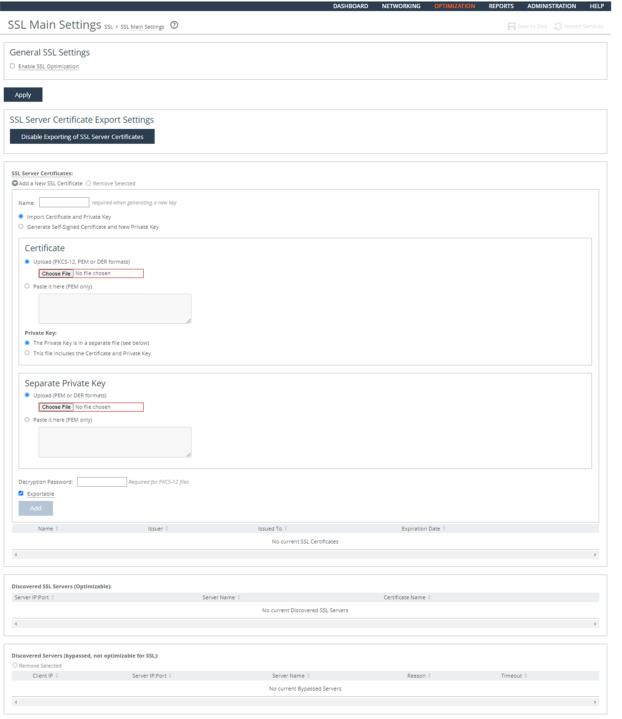
To configure SSL security settings
1. Connect to the Management Console.
2. Choose Optimization > SSL: SSL Main Settings to display the SSL Main Settings page.
3. Choose SSL Server Certificates.
4. Click Add a New SSL Certificate to expand the page.
5. Select Import Existing Private Key and CA-Signed Public Certificates.
6. Select Local File and navigate to the certificate location on the management workstation.
7. Click Add.
8. Select the Enable SSL Optimization check box.
9. Click Apply.
10. Click Save at the top of the page to save these setting permanently.
To enable secure peering
1. If you are securing encrypted MAPI traffic or Citrix traffic, enable one of these on both the server-side and client-side SteelHeads:
– Choose Optimization > Protocols: MAPI and select Enable Encrypted Optimization.
—or—
– Choose Optimization > Protocols: Citrix and select Enable SecureICA Encryption. Both SteelHeads must be running RiOS v7.0 or later.
If you are securing SMB-signed traffic, choose Configure > Optimization > CIFS and select Enable SMB Signing on the server-side SteelHead.
2. Riverbed recommends using N TP time synchronization or manually synchronizing the clocks on both the server-side and client-side SteelHeads. It is critical that the peer SteelHead time is the same for the trust relationship to work.
3. On both the server-side and client-side SteelHeads, choose Configure > Optimization > Secure Peering (SSL) to display the Secure Peering (SSL) page.
4. Under SSL Secure Peering Settings, complete the configuration as described in this table.
Control | Description |
Traffic Type | Select one of these traffic types from the drop-down list: • SSL Only - The peer client-side SteelHead and the server-side SteelHead authenticate each other and then encrypt and optimize all SSL traffic; for example, HTTPS traffic on port 443. This is the default setting. • SSL and Secure Protocols - The peer client-side SteelHead and the server-side SteelHead authenticate each other and then encrypt and optimize all traffic traveling over these secure protocols: Citrix, SSL, SMB-signed, and encrypted MAPI. MAPI encryption or Secure ICA encryption must be enabled on both the client-side and server-side SteelHeads when securing encrypted MAPI traffic, or encrypted Citrix ICA traffic (RiOS v7.0 and later). Enabling this option requires an optimization service restart. • All - The peer client-side SteelHead and the server-side SteelHead authenticate each other and then encrypt and optimize all traffic. Only the optimized traffic is secure; pass-through traffic is not. Enabling this option requires an optimization service restart. Selecting All can cause up to a 10 percent performance decline in higher-capacity SteelHeads. Take this performance metric into account when sizing a complete secure SteelHead peering environment. |
Fallback to No Encryption | Specifies that the SteelHead optimizes but does not encrypt the connection when it is unable to negotiate a secure, encrypted inner channel connection with the peer. This is the default setting. Enabling this option requires an optimization service restart. Riverbed strongly recommends enabling this setting on both the client-side and the server-side SteelHeads, especially in mixed deployments where one SteelHead is running RiOS v6.0 or later and the other SteelHead is running an earlier RiOS version. This option applies only to non-SSL traffic and is unavailable when you select SSL Only as the traffic type. Clear the check box to pass through connections that do not have a secure encrypted inner channel connection with the peer. Use caution when disabling this setting, as doing so specifies that you strictly do not want traffic optimized between non-secure SteelHeads. Consequently, when this setting is disabled connections might be dropped: for example, consider a configuration with a client-side SteelHead running RiOS v5.5.x or earlier and a server-side SteelHead running RiOS v6.0. When this setting is disabled on the server-side SteelHead and All is selected as the traffic type, it will not optimize the connection when a secure channel is unavailable, and might drop it. |
5. Click Apply.
6. Click Save at the top of the page to save your settings permanently.
7. If you have changed an encryption setting, you need to restart the optimization service.
The SteelHead supports RSA private keys for peers and SSL servers.
Ensuring Secure Pairing Trust Relationships for SSL
Rule Title: RiOS must protect the authenticity of communication sessions by configuring securing pairing trust relationships for SSL and secure protocols.
STIG ID: RICX-AG-000123
Rule ID: SV-77323r1_rule Severity: CAT II
Vuln ID: V-62833 Class: Unclass
Authenticity protection provides protection against man-in-the-middle attacks, session hijacking, and the insertion of false information into sessions.
This authenticity protection control focuses on communications protection for the application session rather than for the network packet and establishes grounds for confidence at both ends of communication sessions in ongoing identities of other parties and in the validity of information transmitted. Depending on the required degree of confidentiality and integrity, web services and service-oriented architecture (SOA) will require the use of mutual authentication (that is, two-way or bidirectional).
Verifying the TLS Version
Verify RiOS is configured to support TLS v1.1 as a minimum and preferably TLS v1.2.
To verify the TLS version
1. Connect to the Management Console.
2. Choose Optimization > SSL: Advanced Settings to display the Advanced Settings page.
3. Scroll down to Peer Ciphers.
4. Verify that Peer Ciphers: Rank 1 contains the following string:
TLSv1.2+FIPS:kRSA+FIPS:!eNULL:!aNULL
5. Verify that Client Ciphers: Rank 1 contains the following string:
TLSv1.2+FIPS:kRSA+FIPS:!eNULL:!aNULL
6. Verify that Server Ciphers: Rank 1 contains the following string:
TLSv1.2+FIPS:kRSA+FIPS:!eNULL:!aNULL
If any of the above Ciphers contains strings or groups other than what is listed, this is a security vulnerability finding.
Configuring TLS Version for Peer, Client, and Server Ciphers
Configure RiOS to support TLS v1.1 as a minimum and preferably TLS v1.2.
To configure the TLS version
1. Connect to the Management Console.
2. Choose Optimization > SSL: Advanced Settings to display the Advanced Settings page.
3. Click Add a New Peer Cipher, Add a New Client Cipher, and Add a New Server Cipher to expand the page.
4. Select this option from the Cipher drop-down list:
TLSv1.2+FIPS:kRSA+FIPS:!eNULL:!aNULL
5. Select 2 from the Insert Cipher At drop-down list.
6. Click Add.
7. Select the Rank 1 Default Cipher String check box and click Remove Selected to remove the default cipher string.
8. Repeat
Step 4 through
Step 7 for Client Ciphers and Server Ciphers.
9. Click Save at the top of the page to save your settings permanently.
Ensuring RFC 5280-Compliant Certification Path Validation
Rule Title: RiOS must validate certificates used for TLS functions by performing RFC 5280-compliant certification path validation.
STIG ID: RICX-AG-000098
Rule ID: SV-77321r1_rule Severity: CAT II
Vuln ID: V-62831 Class: Unclass
A certificate's certification path is the path from the end-entity certificate to a trusted-root certificate authority (CA). Certification path validation is necessary for a relying party to make an informed decision regarding acceptance of an end entity certificate.
Certification path validation includes checks such as certificate issuer trust, time validity, and revocation status for each certificate in the certification path. Revocation status information for CA and subject certificates in a certification path is commonly provided through certificate revocation lists (CRLs) or online certificate status protocol (OCSP) responses.
Verifying Certificate Path Validation Is Configured
Verify that RiOS is configured to validate certificates used for TLS functions by performing certificate path validation.
To verify certificate path validation is configured
1. Connect to the Management Console.
2. Choose Optimization > SSL: CRL Management to display the CRL Management page.
3. Verify that the Enable Automatic CRL Polling For CAs and Enable Automatic CRL Polling For Peering CAs check boxes are selected.
4. If the Enable Automatic CRL Polling For CAs and/or Enable Automatic CRL Polling For Peering CAs check boxes are not set, this is a security vulnerability finding.
Configuring Certificate Path Validation Is Configured
Configure RiOS to validate certificates used for TLS functions by performing certificate path validation.
To verify certificate path validation is configured
1. Connect to the Management Console.
2. Choose Optimization > SSL: CRL Management to display the CRL Management page.
3. Select the Enable Automatic CRL Polling For CAs, and the Enable Automatic CRL Polling For Peering CAs check boxes.
4. Click Apply.
5. Click Save at the top of the page to save these setting permanently.
TLS Versions and FIPS Approved Key Management
This section includes these rules:
Ensuring NIST FIPS-Validated Cryptography to Protect the Confidentiality of TLS
Rule Title: If TLS optimization is enabled RiOS must use encryption services that implement NIST FIPS-validated cryptography to protect the confidentiality of TLS.
STIG ID: RICX-AG-000039
Rule ID: SV-77307r1_rule Severity: CAT II
Vuln ID: V-62817 Class: Unclass
Without confidentiality protection mechanisms, unauthorized individuals might gain access to sensitive information through a remote access session.
Remote access is access to DoD-nonpublic information systems by an authorized user (or an information system) communicating through an external, nonorganization-controlled network. Remote access methods include broadband and wireless connections. Remote access methods include, for example, proxied remote encrypted traffic (for example, transport layer security (TLS) gateways, web content filters, and web email proxies).
Encryption provides a means to secure the remote connection to prevent unauthorized access to the data traversing the remote access connection, thereby providing a degree of confidentiality. The encryption strength of the mechanism is selected based on the security categorization of the information.
This requirement applies to ALGs providing remote-access proxy services as part of its intermediary services (for example, OWA or TLS gateway).
Verifying the TLS Version Support
Verify RiOS is configured to support TLS v1.1 as a minimum and preferably TLS v1.2.
For detailed information, see
Verifying the TLS Version.
Configuring TLS Version for Peer, Client, and Server Ciphers
Configure RiOS to support TLS v1.1 as a minimum and preferably TLS v1.2.
Ensuring FIPS-Approved Management of Private and Secret Cryptographic Keys
Rule Title: If TLS optimization is used, RiOS, which stores secret or private keys, must use FIPS-approved key management technology and processes in the production and control of private/secret cryptographic keys.
STIG ID: RICX-AG-000040
Rule ID: SV-77309r1_rule Severity: CAT II
Vuln ID: V-62819 Class: Unclass
Private key data is used to prove that the entity presenting a public key certificate is the certificate's rightful owner. Compromise of private key data allows an adversary to impersonate the key holder.
Private key data associated with software certificates, including those issued to an ALG, is required to be generated and protected in at least a FIPS 140-2 Level 1 validated cryptographic module.
The RiOS secure vault contains sensitive information from your SteelHead appliance configuration, including SSL private keys and the data store encryption key. These configuration settings are encrypted on the disk using AES 256-bit encryption.
The secure vault always runs in FIPS mode.
Configuring TLS Settings for National Institute of Standards
and Technology Special Publication (NIST SP) 800-52
Rule Title: RiOS must be configured to comply with the required TLS settings in NIST SP 800-52.
STIG ID: RICX-AG-000041
Rule ID: SV-77311r1_rule Severity: CAT II
Vuln ID: V-62821 Class: Unclass
Class: Unclass
SP 800-52 provides guidance on using the most secure version and configuration of the TLS/SSL protocol. Using older unauthorized versions or incorrectly configuring protocol negotiation makes the gateway vulnerable to known and unknown attacks that exploit vulnerabilities in this protocol.
This requirement applies to TLS gateways (also known as the SSL gateways) and is not applicable to virtual private network (VPN) devices. Application protocols such as HTTPS and DNSSEC use TLS as the underlying security protocol and are in scope for this requirement. The NIS SP 800-52 provides additional guidance.
NIST SP 800-52 sets TLS v1.1 as a minimum version, thus all versions of SSL are not allowed (including for client negotiation) either on DoD-only or on public facing servers.
Verifying the TLS Version
Verify that RiOS is configured to support TLS v1.1 as a minimum and preferably TLS v1.2.
Configuring TLS Version Support
Configure RiOS to support TLS v1.1 as a minimum and preferably TLS v1.2.
NIST FIPS-Validated Cryptography to Protect the Integrity of Remote Access Sessions
Rule Title: RiOS must use NIST FIPS-validated cryptography to protect the integrity of remote access sessions.
STIG ID: RICX-AG-000042
Rule ID: SV-77313r1_rule Severity: CAT II
Vuln ID: V-62823 Class: Unclass
Without cryptographic integrity protections, information can be altered by unauthorized users without detection.
Remote access is access to DoD-nonpublic information systems by an authorized user (or an information system) communicating through an external, nonorganization-controlled network. Remote access methods include broadband and wireless connections. Remote access methods include, for example, proxied remote encrypted traffic (for example, TLS gateways, web content filters, and webmail proxies).
Cryptographic mechanisms used for protecting the integrity of information include, for example, signed hash functions using asymmetric cryptography enabling distribution of the public key to verify the hash information while maintaining the confidentiality of the secret key used to generate the hash.
This requirement applies to ALGs providing remote access proxy services as part of its intermediary services (for example, OWA or TLS gateway).
Verifying the Management of Cryptographic Keys
Verify that RiOS is configured to support FIPS-approved key management technology and processes in the production and control of private and secret cryptographic keys.
To verify FIPS approved production and control of private and secret cryptographic keys
1. Connect to the Management Console.
2. Choose Optimization > SSL: Advanced Settings to display the Advanced Settings page.
3. Scroll down to Peer Ciphers.
4. Verify that Peer Ciphers: Rank 1 contains the following string:
TLSv1.2+FIPS:kRSA+FIPS:!eNULL:!aNULL
5. Verify that Client Ciphers: Rank 1 contains the following string:
TLSv1.2+FIPS:kRSA+FIPS:!eNULL:!aNULL
6. Verify that Server Ciphers: Rank 1 contains the following string:
TLSv1.2+FIPS:kRSA+FIPS:!eNULL:!aNULL
If any of the above Ciphers contains strings or groups other than what is listed, this is a security vulnerability finding.
Configuring the Management of Cryptographic Keys
Configure RiOS to support FIPS-approved key management technology and processes in the production and control of private and secret cryptographic keys.
To configure FIPS approved production and control of private and secret cryptographic keys
1. Connect to the Management Console.
2. Choose Optimization > SSL: Advanced Settings to display the Advanced Settings page.
3. Click Add a New Peer Cipher, Add a New Client Cipher, and Add a New Server Cipher to expand the page.
4. Select this option from the Cipher drop-down list:
TLSv1.2+FIPS:kRSA+FIPS:!eNULL:!aNULL
5. Select 2 from the Insert Cipher At drop-down list.
6. Click Add.
7. Select the Rank 1 Default Cipher String check box and click Remove Selected to remove the default cipher string.
8. Repeat
Step 4 through
Step 7 for Client Ciphers and Server Ciphers.
9. Click Save at the top of the page to save your settings permanently.
Device and Host Security
This section includes these rules:
Ensuring Unnecessary Services Are Not Enabled on the Host
Rule Title: RiOS must not have unrelated or unnecessary services enabled on the host.
STIG ID: RICX-AG-000086
Rule ID: SV-77315r1_rule Severity: CAT II
Vuln ID: V-62825 Class: Unclass
Typically, the SteelHead is installed in the architecture at the perimeter of the network. Installation of unnecessary functions and services on the same host increases the security risk by implementing these functions before the network inspection occurs and opens excessive ports on the firewall for these functions and services to operate. Loading functions that are outside the scope and unrelated to the WAN optimization function is unauthorized and might create an attack vector. Related services include content filtering, traffic analysis, decryption, caching, and traffic inspection tools (for example, firewall, IDS), unrelated services include email, DNS, and web server.
When the solution is deployed using a SteelHead appliance consisting of the RiOS software installed on the SteelHead, administrators are not allowed to install any software that is not part of a Riverbed software upgrade. RiOS enforces this restriction by performing a validity check when an upgrade is attempted.
However, the RiOS software is available in a virtual appliance that can be installed on an organization-provided host. This type of implementation adds a security risk because more ports might be opened in the firewall if placed in the recommended logical position in the architecture (that is, after the router and before the firewall and IDS). The traffic would then be routed for inspection after traversing the WAN optimizer.
Verifying Unnecessary Services Are Not Enabled on the Host
If RiOS, as a virtual appliance, is installed on the SteelHead appliance, this is a security vulnerability finding.
Inspect the services and applications that are installed on the host with the RiOS application suite.
Ask the site representative if a security review using the applicable STIG has been performed on the operating system and applications that are cohosted.
If unrelated or unnecessary services are installed on the same host as the RiOS, this is a security vulnerability finding.
If a security review using the applicable STIG has not been performed on the operating system and applications cohosted on RiOS, this is a security vulnerability finding.
Disabling Unnecessary Services on the Host
Disable or uninstall unrelated or unnecessary services from the host.
Ensuring Unnecessary Services and Functions Are Not Enabled
Rule Title: RiOS must not have unnecessary services and functions enabled.
STIG ID: RICX-AG-000087
Rule ID: SV-77317r1_rule Severity: CAT II
Vuln ID: V-62827 Class: Unclass
Unrelated or unneeded proxy services increase the attack vector and add excessive complexity to the securing of RiOS 8.x.x. Multiple application proxies can be installed on many ALGs. However, proxy types must be limited to related functions. At a minimum, the web and email gateway represent different security domains/trust levels. Organizations should also consider separation of gateways that service the DMZ and the trusted network.
Verifying Unnecessary Services Are Not Enabled
Verify that RiOS is configured to disable unrelated or unneeded application proxy services.
Obtain documentation for which applications are approved and disapproved for optimization by the organization.
To verify if unnecessary services are enabled
1. Connect to the Management Console.
2. Choose Optimization to display the menu.
3. Verify that the approved or disapproved applications are enabled or disabled according to organization requirements. If optimization features are not enabled or disabled according to the organization’s requirements, this is a security vulnerability finding.
Ensuring Unnecessary Services Are Not Enabled
Check to see if services other than the authorized services are enabled for optimization.
Obtain documentation for which applications are approved and disapproved for optimization by the organization.
To ensure unnecessary services are not enabled
1. Connect to the Management Console.
2. Choose Optimization to display the menu.
3. Set the approved or disapproved applications to enabled or disabled according to organization requirements.
Ensuring Protocols, Ports, and Service Management,
Category Assurance Levels (PPSM) Category
Assurance Levels (CAL) Compliance
Rule Title: RiOS must be configured to prohibit or restrict the use of functions, ports, protocols, and/or services, as defined in the PPSM CAL and vulnerability assessments.
STIG ID: RICX-AG-000088
Rule ID: SV-77319r1_rule Severity: CAT II
Vuln ID: V-62829 Class: Unclass
In order to prevent unauthorized connection of devices, unauthorized transfer of information, or unauthorized tunneling (that is, embedding of data types within data types); organizations must disable or restrict unused or unnecessary physical and logical ports and protocols on information systems.
ALGs are capable of providing a wide variety of functions and services. Some of the functions and services provided by default might not be necessary to support essential organizational operations. DoD continually assesses the ports, protocols, and services that can be used for network communications. Some ports, protocols or services have known exploits or security weaknesses. Network traffic using these ports, protocols, and services must be prohibited or restricted in accordance with DoD policy. RiOS is a key network element for preventing these noncompliant ports, protocols, and services from causing harm to DoD information systems.
The network ALG must be configured to prevent or restrict the use of prohibited ports, protocols, and services throughout the network by filtering the network traffic and disallowing or redirecting traffic as necessary. Default and updated policy filters from the vendors will disallow older version of protocols and applications and will address most known nonsecure ports, protocols, and/or services. However, sources for further policy filters are the Information Assurance Vulnerability Management (IAVM) and the PPSM requirements.
Verifying PPSM CAL Compliance
Verify that RiOS is configured to disable unrelated or unneeded application proxy services.
Obtain documentation for which applications are approved and disapproved for optimization by the organization.
To verify PPSM CAL compliance
1. Connect to the Management Console.
2. Choose Optimization to display the menu.
3. Verify that the approved or disapproved applications are enabled or disabled according to organization requirements. For example, open the pages for Lotus Notes, Citrix, and so on to make sure only approved applications are enabled.
If optimization features are not enabled or disabled according to the organization’s requirements, this is a security vulnerability finding.
Ensuring PPSM CAL Compliance
Check to see if services other than the authorized services are enabled for optimization.
Obtain documentation for which applications are approved and disapproved for optimization by the organization.
To ensure PPSM CAL compliance
1. Connect to the Management Console.
2. Choose Optimization to display the menu.
3. Verify that the approved or disapproved applications are enabled or disabled according to organization requirements. For example, open the pages for Lotus Notes, Citrix, and so forth to make sure only approved applications are enabled.