Reference: Licensing, Upgrading, and Image Signing
The information here provides general guidance on how to license and upgrade appliances, and how to import image signing certificates. The exact procedures vary slightly for each product.
What’s new
The 10.3.0 version introduces the following fundamental shifts in how licenses are handled:
• Flex licensing provides a subscription-based framework that decouples software licenses from hardware. This provides architectural freedom across physical, virtual, and cloud environments, ensuring your network stays agile and compliant.
• Support licenses cover compliance requirements for physical appliances. They anchor software eligibility to your active maintenance contracts.
• Central license manager provides a centralized orchestration engine that automates the distribution and lifecycle management of Flex licenses. The license manager shifts licensing from static, per-device management to a centralized, automated framework.
About prerequisite keys
Before an appliance can activate feature-based entitlements, it must first be identified within the Riverbed ecosystem. Prerequisite administrative keys establish appliance organizational identity. They do not enable optimization or bandwidth functionality.
Customer keys are unique organizational identifiers. One key is assigned to every Riverbed customer upon registration. It acts as a primary key to consolidate clusters of appliances and license keys under a single organizational umbrella. It identifies all appliances (SteelHead, SCC, and so on) and Flex license keys belonging to your specific organization. It is required for all appliances using the Flex licensing model (they are not required for physical appliances with perpetual licenses). You must manually configure this key on appliances to link them to your organization’s global license pool.
Optimization keys serve as a digital serial number for non-physical appliances that do not have a physical serial numbers. They provide the unique identity required to enable the foundational optimization service. They are automatically generated during the sales order process for Flex licenses. Optimization keys are required for all virtual and cloud models, but are optional for physical appliances as their hardware serial numbers automatically serve as unique identifiers. You must manually install this key before you can activate feature licensing.
Following the identification of your appliances through prerequisite keys, you then apply the specific entitlements purchased for your environment. Riverbed provides several license types to manage entitlements, portability, and compliance. The requirements vary depending on whether you are deploying physical, virtual, or cloud appliances.
These licenses correspond to specific SKUs on a purchase order and define the duration and support eligibility of your SteelHead fleet.
About Flex licenses
Flex licensing is a subscription-based framework designed to decouple software licenses from physical hardware. This provides architectural freedom to move acceleration services wherever they are needed—on-premises, in the cloud, or across virtual environments.
Licenses are portable across product models rather than being locked to a single appliance. Under an active subscription, licenses can be seamlessly transitioned between physical and cloud or virtual appliances.
Performance is primarily tied to the optimized bandwidth limit placed on the appliance or the limit of the license, whichever is smaller. To optimize more bandwidth, you’ll need to obtain a higher license type or appliance model.
Subscription-based appliance models, including physical xx80 and xx90, and virtual and cloud models, require Flex licenses.
For virtual and cloud models, Flex and optimization licenses are included in the purchase. There is no need to separately purchase an optimization license. For physical models, an additional support contract license is required.
About perpetual licenses
Perpetual licenses are a traditional, non-subscription licensing model where the software entitlement is purchased upfront for the life of a specific physical appliance. It cannot be moved or migrated to other appliances or any virtual environments. These hardware-locked licenses are directly tied to a specific appliance serial number and are strictly non-transferable. These licenses are exclusive to xx90 series hardware models. Hardware models also require a support contract license, which is also digitally anchored to the appliance’s serial number.
About support licenses
Support licenses ensure that physical appliances are covered under an active hardware support contract. These licenses are critical for maintaining long-term software functionality and regulatory compliance, as it validates that only hardware with active support can run current software versions. They are directly tied to specific physical appliances and cannot be transferred between devices. Support licenses are subscription-based and remain valid only for the duration of your active hardware support contract.
About license management
You can activate and manage licenses in two ways: use a central license manager embedded in SteelHead Central Controller (SCC), or use the Riverbed licensing portal. These licensing tools are mutually exclusive; you cannot simultaneously manage the same set of licenses on both platforms.
SCC includes a license manager (CLM) that can be used to centralize and automate many activities that in the past were manual, per-device tasks. The license manager serves as a central orchestration tool for all of your organization’s acceleration product entitlements. It enables seamless transfer of licenses across physical, cloud, and virtual appliances, and reduces administrative overhead by automating tasks and ensuring that the right license types are applied to appliances with matching underlying capabilities. We recommend using the license manager in SCC whenever possible. You’ll first need to ensure that the SCC itself is properly licensed and to designate the CLM as the licensing authority on each managed appliance before managing your license pools.
You can still manage appliance configuration and administration through SCC on appliances that are not licensed through SCC.
The Riverbed licensing portal provides a way to manage licenses for deployments that do not use the license manager embedded in SCC.
Enabling license management through SCC
1. On the SCC, navigate to Administration > Maintenance: Licenses. This is where you manage your SCC appliance’s licenses.
2. Ensure that the customer key and other licenses are properly applied to the SCC appliance.
3. On each managed appliance, navigate to Manage > Topology: Appliances.
4. Select Appliance Operations.
5. Choose the Enable CLM operation, and then apply and save your changes. This permanently transfers license management authority for the appliance to your SCC.
About the license manager in SCC
On your SCC, access the license manager under Manage > Licenses: Central License Manager.
Central license manager in SCC
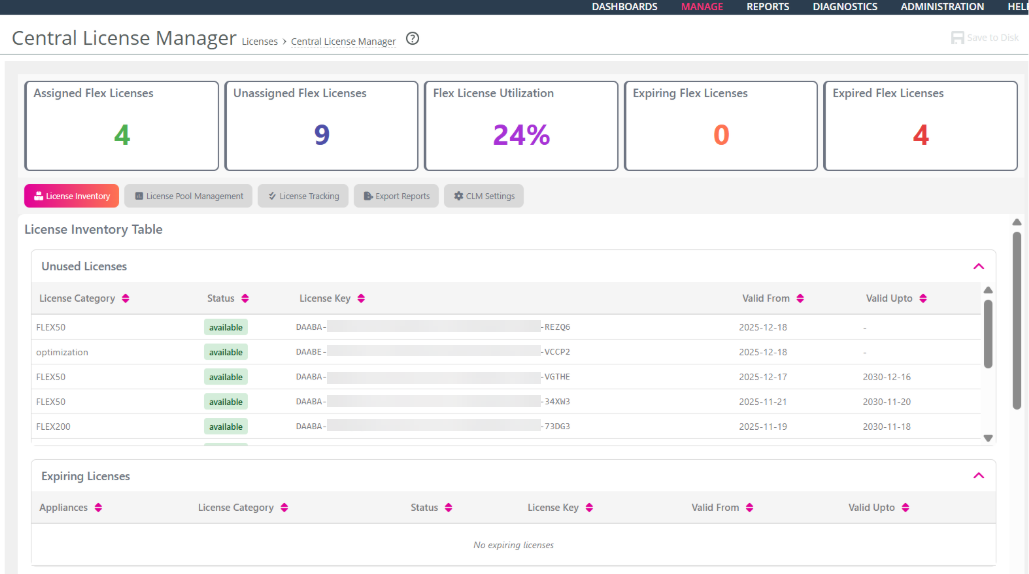
This page serves as the central licensing orchestration hub for managed appliances and CLM activities. It provides immediate visibility into license distribution and status through real-time metrics and detailed inventory tables. Tiles across the top of the page provide an aggregated summary data, such as assigned and unassigned licenses, license pool utilization, and expiring and expired licenses. Below the titles, you can access different management workflows using the tabs.
Flex licenses, which are portable and not locked to serial numbers, automatically appear. Perpetual and support licenses, which are locked to serial numbers, appear only after a managed physical appliance is successfully connected to the SCC and the system has time (up to 30 minutes) to retrieve the relevant licenses. After retrieval, the licenses appear in the SCC and are automatically assigned to the matching appliance. You can manually force retrieval by performing a manual sync on the CLM settings tab.
Air-gapped environments are not supported now, but support is planned for a future release. Customers with deployments in restricted environments must use the challenge-response process available through the Riverbed licensing portal.
License inventory
The License Inventory tab displays an active view showing granular details of every license. It organizes your entitlements into the following lists:
• Unused Licenses: Displays available licenses not yet assigned to an appliance, helping you identify unused capacity for new deployments.
• Expiring Licenses: Lists appliances and their associated licenses that are nearing their expiration date to ensure timely renewal.
• Unlicensed Appliances: Highlights appliances currently lacking an active license, ensuring they can be prioritized for assignment.
• Licenses in Use: Maps active license Keys to specific Appliances, showing their category, assignment status, and validity dates.
• Expired Licenses: Displays a historical list of licenses that have already passed their validity date and are no longer operational.
License pool management
The License Pool Management tab provides a centralized interface for dynamic assignments and reclamation of Flex license capacity through an intelligent assistant. The assistant automates license life-cycle by moving capacity between a central pool and specific appliances.
On the Assign Licenses tab, the intelligent assistant automatically matches available licenses to appliances according to appliance specification. It identifies the most suitable entitlement from your inventory and provides an intelligent auto-suggestion by pre-loading that value into the License Category drop-down menu, with (Recommended) shown in parenthesis. You retain full control to manually override the suggestion and select a different category if needed.
Licensing tracking
The License Tracking tab provides a comprehensive history of all licensing activities and log entries. Recent tracking activities are highlighted at the top of the page, displaying the date and time of the most recent log update. The license tracking table is updated in real-time with details including timestamp, action performed, current state, and associated license key and category.
Export Reports
The Export Reports tab allows you to download licensing data from the inventory tables for off-line analysis or compliance auditing. You can download different output formats, including CSV and HTML.
CLM Settings
The CLM Settings tab provides a read-only view of the configurations used to manage licenses and synchronize the CLM with the Riverbed license portal. This section is essential for ensuring that your local license inventory remains consistent with your purchased entitlements.
• Customer Key: A read-only field that is populated if the key is first added within the primary SCC License page. See Before You Begin: CLM Operational Requirements.
• Mode: Indicates whether the CLM is currently connected or disconnected from the RLP.
• Auto-Sync Frequency: Defines how often the system automatically checks for license updates, with a default interval of 30 minutes.
• Expired License Retention Time Period: Shows the retention period for expired licenses, which is currently set to 2 years for system book-keeping purposes.
• Sync Status: Displays the Last Sync timestamp, conveying exactly when the most recent auto or manual synchronization occurred.
• Manual Sync: Allows you to synchronize with the RLP on demand. In addition to fetching entitlements, this action syncs the appliances listed in the SCC (Manage > Topology: Appliances) with those reported under the License Inventory tab. This button is automatically disabled if a valid Customer Key is not detected in the system.
About the license assistant
Access the license assistant in the License Pool Management tab.
The CLM includes an intelligent license assistant. Through intelligent recommendations, bulk and automated operations, and license tracking, the assistant eliminates the complexity of manual license provisioning across fleets of managed appliances. By analyzing managed appliance specifications to recommend "best-fit" licenses, the assistant prevents over- and under-provisioning. Bulk operations enable mass assignment, removal, and migration across physical, cloud, and virtual appliances. Under license tracking, you can view a real-time tracking table that includes license details, target appliance, and action timestamps.
Assigning licenses through the license assistant
1. On the Central License Manager page, select License Pool Management.
2. Select Assign Licenses. When the page loads, the system automatically analyzes the hardware bandwidth of the selected appliance. The system identifies the most suitable license for that specific appliance from your available inventory and pre-loads it into the License Category drop-down menu.
3. In the License Category drop-down, review and accept the recommended value or select an alternative license that meets your requirements.
4. Save the assignment.
5. Review your changes and proceed to the summary page.
6. Verify the appliance and license details, and then submit and assign the licenses. Once submitted, these license keys are assigned to the selected appliances. To reassign them later, you must first remove them from the appliances. An overall progress bar tracks the status.
Reclaiming licenses through the license assistant
The assistant facilitates license recovery of licenses, returning recovered licenses to the available pool. It identifies appliances currently holding a Flex License, allowing you to release those entitlements back into the unassigned pool.
1. On the Central License Manager page, select License Pool Management.
2. Select Reclaim Licenses.
3. Select the licenses to reclaim.
4. Click the minus icon to initiate license reclamation.
5. Review your changes and proceed to the summary page.
6. Verify the appliance and license details, and then submit and reclaim the licenses. An overall progress bar tracks the status. After successful reclamation, it may take a few minutes for the license inventory to update.
About the Riverbed licensing portal
The Riverbed licensing portal (RLP) is located at
https://licensing.riverbed.com/index.htm.
While we recommend using the CLM to manage your licenses, the RLP provides a way manage licenses for appliances where using the CLM is not feasible.
After purchasing, you’ll receive an automated fulfillment email containing your license keys. You can also use the RLP to obtain your keys. The portal requires a unique product identifier to retrieve a license. Depending on the product, the identifier can be a serial number, license request key (activation code), customer key, or token. The steps to retrieve a license vary based on the product identifier. Online instructions guide you through the process. The portal displays license information for all purchased products associated with the unique identifier. To retrieve your licenses from the Riverbed Licensing Portal, go to the portal and follow the instructions there.
After receiving your licenses, you’ll need to manually apply them to each appliance. For appliances connected to the internet, licenses are automatically authenticated with the RLP. For air-gapped appliances, you’ll need to complete a challenge-response workflow to authenticate their licenses with the RLP. When licensing physical products, ensure you apply both the Flex or perpetual license and the support contract license. Remember, support licenses are required for physical appliances and locked to your appliances’ specific serial numbers.
Serial numbers are on a label located on your appliance and also appear in the Help page of the Management Console. Customer keys are typically provided through email, or directly from your Riverbed representative.
Assigning licenses through the RLP
1. Retrieve your licenses from the fulfillment email or the RLP.
2. For each target appliance, verify that your licenses match the serial numbers of your target appliances. Because perpetual and support licenses are tied to specific serial numbers, they will function only on the appliances for which they were generated.
3. Log in to the management console of each target appliance and apply the relevant licenses, or use the CLI.
Assigning licenses through the RLP to air-gapped appliances
For highly secure or isolated environments where appliances cannot access the internet, Riverbed utilizes an air-gapped challenge-response process. This process is part of a broader disconnected mode, which also applies whenever an appliance lacks connectivity to the RLP—whether due to strict security policies, network constraints, firewall, and so on.
1. Locate license keys. Retrieve your keys through an automated fulfillment email or from the Riverbed Support Portal using a separate, internet-connected system.
2. Generate challenge code. From the air-gapped product’s management console, generate a unique challenge code to license the product.
3. Enter the challenge code into the Support portal on your connected system. The portal uses this to verify the request and prevent unauthorized license reuse.
4. Apply response the response. The portal generates a response code, which you then apply back to the air-gapped appliance to validate the keys and activate the software.
Upgrading to 10.3.0 and later
You can upgrade virtual and cloud appliances running 10.2.0a to 10.3.0. Appliances running earlier versions cannot be upgraded. Instead, you’ll need to deploy a fresh instance running 10.2.0a or later. Licenses used for 10.2.0a are fully compatible with 10.3.0. Licenses on appliances running earlier versions are not compatible; you’ll need to obtain new Flex licenses.
Flex licenses in 10.3.x introduce the ability to self manage licenses in a way not available earlier. New Flex licenses will be provided to every customer who purchased Flex licenses prior to 10.3.0 so that they can have the full benefit of this self-managing capability.
The following table outlines the minimum supported builds and the resulting impact on license compatibility across different appliance series.
Appliance | Minimum required version | License status |
|---|
xx80 | 9.16.0a | Perpetual and older subscription-based licenses are incompatible,. Flex licenses are required. |
xx90 | 10.x | Perpetual licenses remain valid, but a Support license is now mandatory. Flex licenses and Support licenses are required. Older subscription licenses are supported for 10.3.0 upgrades and can be replaced with the new Flex license, if desired. |
Cloud and virtual appliances | 10.2.0a | Only Flex licenses are supported. Legacy licenses are incompatible. If you are currently running build 10.2.0a, this requirement is already met, and no additional licenses are required. |
About legacy Riverbed licensing methods
Legacy versions of Riverbed products use a common licensing management framework (CLMF) to obtain, apply, and manage license keys.
In CLMF, customer keys replace tokens.
A license key is a string of characters issued by Riverbed that embeds information that ties the license to data to prevent tampering. After you install the license, the system saves it in the configuration database and enables the functionality associated with the license. Riverbed employs the following licensing methods:
• Automatic—Once you connect your appliance to the network, it automatically contacts the Riverbed Licensing Portal, which downloads and installs the licenses.
• Manual—You can manually fetch and activate licenses for Riverbed products using the Riverbed Licensing Portal. Go to
https://licensing.riverbed.com/index.htm and follow the instructions to retrieve license keys. After you manually retrieve your license keys, you need to install them on the appropriate appliance.
• Customer key—You use your customer key to activate Riverbed software. This method applies only to virtual products. When you purchase your first virtual Riverbed product, you are given a customer key. When you need to apply licenses, you use your customer key to validate the license keys.
• Air-gapped—You license air-gapped products through a challenge-response process. After you receive your keys through email or the Riverbed license server, you log in to the air-gapped product’s management console and generate a challenge. Then, on a different system that is connected to the internet, you log in to the Riverbed Licensing Portal and enter the challenge. After successfully submitting the challenge, you are provided with a response, which you apply to the air-gapped product to validate your license keys.
About automatic licensing
Automatic licensing enables products with access to the internet to automatically contact the Riverbed Licensing Portal and install available license keys. Automatic licensing simplifies inventory management and provides an automated mechanism of fetching licenses for Riverbed products without having to manually activate individual appliances and licenses. Automatic licensing also works over a web proxy.
If you are behind a firewall, you can retrieve licenses at the Riverbed Licensing Portal using the email option or by downloading an XML file to a Controller appliance.
After a product successfully completes automatic licensing, the Management Console Licensing page displays a success message. If automatic licensing is unsuccessful, the Alarm Status page reports an actionable error message.
For automatic license renewals, the product contacts the portal and downloads the new licenses. You do not need to delete the expired license. The system uses the license with the latest expiration date.
Licenses can be fetched on demand, but only administrators can do this. To fetch a license on demand, display the Management Console Licenses page, and then click Fetch Updates Now.
Installing licenses using the Management Console
Each license key is generated for a specific appliance. Ensure that you install licenses on the appropriate appliance. You can enter multiple licenses by separating them with a space, tab, or line return.
These procedures offer general guidance. Exact steps vary slightly across products. For most products, the Licenses page is in the Administration section of the Management Console.
1. Connect to the Management Console of the appliance.
2. Display the Licenses page.
3. Copy and paste the license key provided by the Riverbed Licensing Portal into the text box.
Installing licenses using the CLI
The command for installing licenses under the Riverbed Common Licensing Management Framework (CLMF) is license clmf install <license-key>.
1. Connect to the CLI of the appliance and enter configuration mode.
2. At the system prompt, enter the license install <license-key> and write memory commands.
About software upgrades and image signing
The Software Upgrade page of the management console enables you to perform these software management activities:
• Enable and disable software image signing.
• View current and backup software versions, and switch from the currently running software version to the backup software version.
• Install a new software version immediately or schedule the upgrade.
• View a history of previously installed software versions.
For Controller appliances, such as the SteelHead Mobile Controller and SteelHead Central Controller, upgrading may update some policies. After the upgrade is complete, the optimization service on managed devices might automatically restart.
For most products, the Software Upgrade page is in the Administration section of the Management Console.
About software image signing certificates
Riverbed software images are now digitally signed, ensuring the integrity and authenticity of the image. Verifying an image is performed by comparing a public key, or image signing certificate, with the image signature. For details, including a copy of the public key and intermediate certificate, go to Knowledge Base article
S33657.
Image verification is enabled by default. We strongly recommend that it remain enabled at all times. Disable this feature only when absolutely necessary.
The feature requires a public key in a certificate to verify the digital signature of the software image. The certificate is automatically installed on the appliance, but you can import an updated version, if needed. During the verification process, the appliance compares the signature in the image with the Riverbed public certificate. If they match, the installation continues. If not, the system alerts you to a potential problem. As long as image signature verification is enabled, you cannot continue with an installation that cannot verify the image signature.
Importing image signing certificates
Enable Image Signature Verification. If you clear the Image Signing Verification check box, you disable this feature and a warning message appears indicating images will not be verified.
Ensure the appliance has a valid certificate. You can use the certificate that is installed by default, or you can upload a PKCS #12, PEM, or DER format certificate or copy and paste a PEM certificate.
About software upgrades
To find allowed upgrades between software versions and recommended upgrade paths, use the software upgrade tool for your product on the Riverbed Support site. The tool includes all of the recommended intermediate versions.
Software images can be quite large; uploading the image to the appliance and installing it can take several minutes. After the installation is complete, you’ll need to restart the appliance to switch to the new version of the software and complete the upgrade process. Restarting can take a few minutes.
Do not press Ctrl+C, unplug, or otherwise shut down the system during restart.
After the upgrade is complete, the Dashboard, Software Upgrade, and Help pages of the Management Console display the new software version.
The following sections describe different methods to upload and install software upgrade packages.
Using an image located on the network
Specify the URL. Any of these URL formats are valid:
• http://host/path/to/file
• https://host/path/to/file
• ftp://user:password@host/path/to/file
• scp://user:password@host/path/to/file
Using an image located on the Riverbed Support site
Download an image directly from the Riverbed Support site to the appliance or the appliance host. Select the target release number from the drop-down list. The system uploads and installs the new image immediately after you initiate the installation.
Optionally, schedule another date or time before you initiate the installation.
Using an image located on the local system
Browse to the file using your system file browser and install it; or, optionally, schedule the upgrade for a later time. Remember, you’ll need to restart the appliance after the installation completes.
Switching to the backup software version
Select to switch to the backup version on the next restart, and then restart the appliance.
Restarting and shutting down the appliance
Choose Administration > Restart/Shutdown to restart or shutdown the appliance.