About Managing Controller Appliances
This chapter describes how to manage your system including managing SCC backups, viewing job status, managing licenses, upgrading your software, and shutting down and rebooting the system.
We recommend you back up the SCC before you perform a software upgrade.
About external backups
External backup settings are under Administration > Maintenance: External Backup.
You configure external backups to an external file share (CIFS/NFS/SSH) in the External Backups page. IPv6 is not supported for external backup to NFS. You configure external backups:
• using a username and password to authenticate the external backup using CIFS or SSH.
• using a hostname or IP address and the remote path using NFS.
• using a Rivest-Shamir-Adleman (RSA) public security key using SSH. Configuring external backups using a public key eliminates the need for password authentication. The public key is generated with 2048-bit encryption.
These types of data are backed up:
• Managed appliance configuration information, such as policies and host settings, as configured by the controller.
• Managed appliance statistics, such as traffic summary, connection history and data store cost, as reported by the controller.
• SCC configuration information, such as networking, system settings and security settings. This type of backup is distinct from managed appliance backups that serve an archival purpose for a specific appliance.
If you have more than 1000 appliances in your deployment, an external backup may take more than three hours
You can also use the external backup functionality to migrate data and configuration settings from one SCC to another. For details, go to Knowledge Base article
S14439.
Some external SCC backups via SSH can partially or completely fail with a particular set of Windows-based SSH servers, yet can succeed without issue with a different set of servers. For SolarWinds SFTP/SCP servers, the backup server configuration works, but the actual backup or restore operations fail with either Error 13 (permission denied) or Error 74 (IO Error). For WinSSHD, ensure that the configured SSH server directory is writable by the username that the SCC uses to connect. If it isn’t, the server configuration doesn’t work.
Configuring external backups
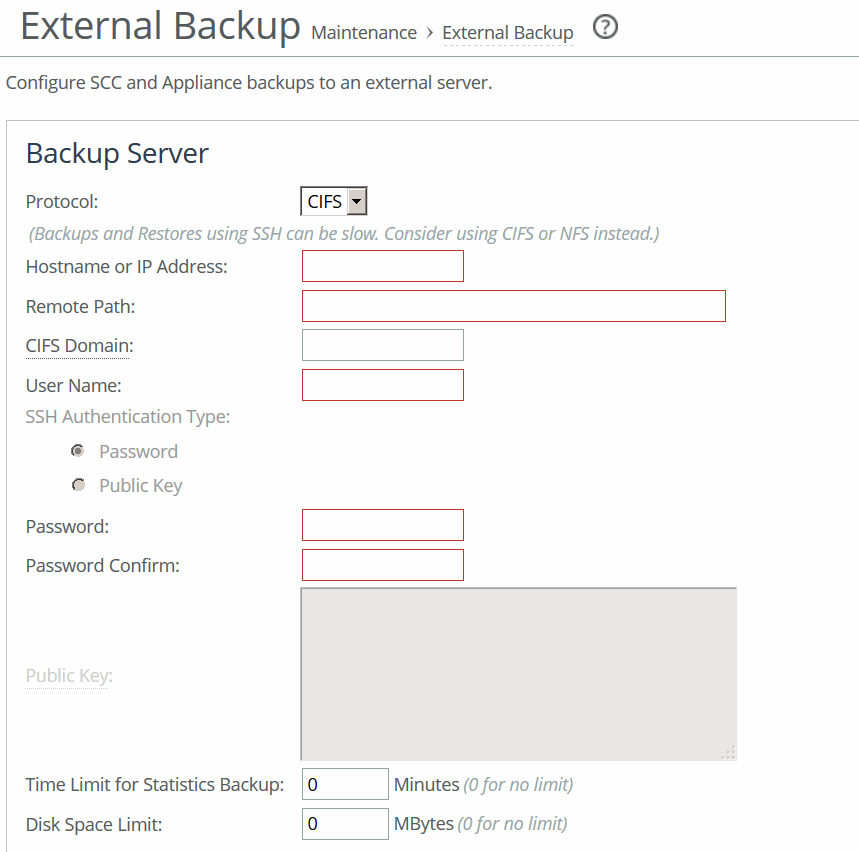
These configuration options are available under Backup Server to specify the external location for the backup:
Protocol
Specifies the file server protocol from the drop-down list for the backup server for storing or retrieving the backup:
• CIFS—Specify a domain name, username, and password.
• NFS—Specify the hostname or IP address and the remote path.
• SSH—Specify a username and password or you can configure a backup using an RSA public key that doesn’t require password authentication.
If you back up to an NFS or SSH server and the same backup location is subsequently exposed via CIFS, the backup can fail.
If the backups and restores are slow, use CIFS and NFS.
Hostname or IP Address
Specifies the hostname or IP address for the backup server.
Remote Path
Specifies the directory path on the backup server for the backup file. For example, for CIFS: \<sharename>\<directory>\<directory> or <sharename>/<directory>. For example, for NFS: /<mount>/<point>/<directory>. For example, for SSH: /<directory>/<directory>.
The directory must already exist on the backup server.
CIFS Domain (CIFS only)
Specifies the CIFS domain. If the username corresponds to a local account (as opposed to a domain account), this field should contain the NETBIOS name of the backup server.
User Name
Specifies a valid username for CIFS or SSH access.
Password
Allows you to supply a valid password for CIFS or SSH access.
Password Confirm
Allows you to confirm the password for CIFS or SSH access.
Time Limit for Statistics Backup
Indicates the time limit, in minutes. The default value is 0.
Disk Space Limit
Specifies the disk space limit, in megabytes. The default value is 0.
Total Capacity
Available Space displays the available space on the controller and space reserved for other contollers.
Used Space displays the space used by the controller’s configuration snapshots, managed apppliance snapshots, and statistics.
Used by Other Data displays the space used by other data.
External backups using an RSA public key
Configuring external backups using an RSA public key eliminates the need for password authentication. Select SSH for the protocol, enter required information, and then generate the public key. You can then copy and paste the public to the home directory of target appliances, for example:
/u/test/.ssh/authorized_keys.
Scheduled backups
These configuration options are available.
Schedule SCC Configuration Backup
Enables schedule for backup of the controller appliance.
• Start at specifies the start using this format: yyyy/mm/dd hh:mm:ss
• Repeat every specifies the number of days the backup operation should be repeated.
• Maximum SCC Snapshots Retained specifies the maximum number of SCC snapshots.
Schedule Appliance Snapshots Backup
Enables the snapshot backup of managed appliance configurations. You should perform a full backup before you schedule snapshot backups. Settings are similar to controller backup settings.
Schedule Statistics Backup
Enables the backup of appliance statistic data. Statistics backups are incremental. Settings are similar to controller backup settings.
Backup operations list
You can view backup operation status in the Backup Operations section. Backup status can be one of the following:
• success, <time-stamp>
• running <time-duration>, <percentage-complete>
• failed <time-stamp>
• failed <time-stamp>, last success: <time-stamp>
• idle indicates that there is no backup or restore history. The system doesn’t retain a record of backup and restore statuses from prior to system startup (including reboots).
You can also manually initiate, remove, or restore a controller or managed appliance snapshot, or initiate or restore a managed appliance statistics snapshot.
About daily maintenance window settings
Daily maintenance settings are under Administration > Maintenance: Maintenance Window.
The maintenance window is used for nightly jobs, for example, preventative database maintenance and backups for all appliances. These configuration options are available:
Start Time
Specifies the start time for the job. Use this format: hh:mm:ss. The duration of Maintenance Window should be at least three hours.
End Time
Specifies the end time for the job. Use this format: hh:mm:ss.
About scheduled jobs
Scheduled jobs are available under Administration > Maintenance: Scheduled Jobs.
Jobs are commands that are scheduled to execute at a time you specify. You can schedule an appliance reboot or shut down, or generate multiple TCP trace dumps on a specific date and time.
Click the Job ID number to display details about the job. Optionally, under Details for Job <#>, these configuration options are available:
Name
Specifies a name for the job.
Comment
Allows you to provide a comment.
Interval (seconds)
Indicates the number of seconds between job recurrences. Specify 0 to run the job one-time only.
Executes on
Specifies the start time and end time using the format yyyy/mm/dd hh:mm:ss.
Enable/Disable Job
Enables the job. Clear the check box to disable the job.
Rebooting and shutting down controller appliances
You can reboot or shut down the system under Administration > Maintenance: Reboot/Shutdown.
Click Reboot. After you click Reboot, you’re logged out of the system and RiOS reboots.
Click Shut Down to shut down the system. After you click Shut Down, the system is turned off. To restart the system, you must manually turn on the SteelHead.
Rebooting the system disrupts existing network connections that are currently proxied through it. Rebooting can take a few minutes.
When you shut down the system, connections are broken and optimization ceases. Shutting down the appliance can take a few minutes.
To restart the system, you must manually turn on the controller.
Your unsaved configuration changes are lost if the configuration isn’t saved prior to reboot or shutdown.
About controller high availability
You can maintain a second controller offline as a cold, standby device. If the primary fails and is no longer available, then you can power on the second controller and configure it through a restore operation from the external backup configuration and data. You can manage all appliances with one controller.
The SCC doesn’t support true active-active high availability failover. You can restore a failed host with VMware high-availability features. In addition, you can routinely restore external backups from a primary controller to a secondary one to keep their state consistent. This routine restoration allows for a faster switchover if the primary controller fails.
Use one of the following methods to switch the managed appliances from the primary to the secondary controller.
• Assign the primary IP address of the primary controller to the secondary. If the secondary controller was restored from an external backup of the primary, select Restore Primary and Aux network interfaces. The secondary controller has the list of managed appliances from the external backup.
• If you’re using automatic registration, update the controller hostname in the DNS accordingly. The default controller hostname configured in managed appliances is riverbedcmc.
• Use the cmc hostname and scc hostname commands on each managed SteelHead to set it to the correct controller.
Multiple controllers can’t manage the same managed appliances at the same time. When performing a full restore on a controller on warm standby, there’s potential risk that the standby controller will take over the management for some appliances if there’s a temporary network disruption to the active (primary) controller connectivity.
Each controller requires its own set of licenses. You can’t share licenses among different SCC appliances.