About Managed Appliance Connection and Registration
Most SteelHead-family appliances can be managed from an SCC. To be managed, appliances must be registered with the controller. SteelHead-family appliances include an automatic registration feature (autoregistration) enabled by default.
Automatic registration
Automatic registration allows a new appliance installed in an existing SCC-managed environment to automatically contact the SCC and register itself. Automatic registration is useful in environments in which you want to ship an appliance to a remote office and have a non-administrator operator connect the appliance into the network.
To use automatic registration, prepare the appliance for registration with the SCC by entering the IP address or DNS-registered hostname of the SCC when you run the initial configuration wizard on the appliance. We recommend that you set up your DNS servers to resolve riverbedcmc to the primary interface IP address of your SCC with either a CNAME or an A record. If you configure your DHCP servers to forward the correct DNS settings, any appliance added into the network and powered on should automatically register with the SCC.
Alternatively, you can use the cmc enable and cmc hostname commands. If you do not change the default hostname, it remains riverbedcmc.
If the appliance password has changed from the default, the SCC can automatically register the appliance, but it can’t connect to or manage it. The appliance appears as disconnected on the Appliances page. To continue the automatic registration process, edit the appliance’s details by entering the correct password.
If automatic registration is not working, use the show cmc command to verify that automatic registration is enabled. If the show cmc command indicates that the hostname is correct, but autoregistration is not working, check the SteelHead name server search-path configuration using the show host command. Use the cmc hostname <hostname> command to change the SCC hostname.
Registration doesn’t change an appliance’s configuration; it allows the SCC to communicate with it. Configuration of the appliance is completed either automatically or manually through a policy push.
You can always manually register appliances under Manage > Topologies: Appliances on the controller’s console.
Common Administration Login and Strict Key Verification
If you enable Common Administration Login, the SCC uses a single username and password to manage all appliances. The appliance-specific username and password are ignored. A single username and password are useful if the account used by the controller to authenticate is the same across the organization or the controller’s account is authenticated through TACACS+ or RADIUS.
Strict Key Verification enables prevents rogue appliances from spoofing as another appliance by enabling only explicitly trusted appliances to register on the controller.
About branch-managed appliances
You might want to manage some appliances locally, but monitor them through the controller. You might do for appliances that are running a software version greater than the controller, or if you’re using the controller merely for monitoring and not configuration policy management. In the later scenario, note that, to prevent accidental configuration changes, you can manage the remote appliances with the permissions of a monitor account or a role-based user in place of the administrator account. A common mistake is to make a configuration change on an appliance locally, and then have the changes disappear the next time policies are pushed from the controller.
To ensure that an appliance’s local configuration remains unaffected by controller policy pushes, enable Branch Managed mode.
About HTTPS communication channel
Previously, appliances communicated with the controller using SSH. Now, they can also use an HTTPS channel over TCP port 9443. This channel is used for hybrid networking features like path selection, QoS, and secure transport.
Both the SSH and HTTPS connections must be active. If either connection is down, some configuration pushes from the controller to managed appliances may fail.
Initiated by the managed appliance to the controller, HTTPS connections are established using a certificate-based authentication mechanism. You can view the status of these SSH and HTTPS communication channels on the managed appliance using the show scc command.
About connections through a firewall
The controller allows you to set up an SSL authentication port for managed appliances when it is behind a firewall that restricts access to ports 443 and 80. This ensures appliances can still communicate with the controller. You configure the SSL authentication port through the command-line interface (CLI).
For example, as shown in the following diagram, a SteelHead (SH-1) can connect directly to the SCC on port 443 without a firewall. Another SteelHead (SH-2) connects through a firewall that blocks ports 443 and 80. In this case, you can configure the controller to use an alternative SSL authentication port (such as 7443) for SH-2 communication.
SCC with custom authorized port 7443
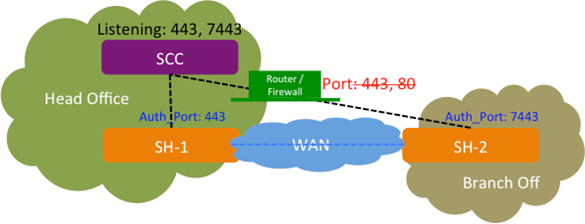
You can configure one additional authentication port in addition to the existing port 443.
The SSL authentication port feature can only be configured through the CLI; it isn’t available in the Management Console.
About SteelHead SaaS Manager Registration
Settings to register the SteelHead SaaS Manager (SSM) are under Administration > SaaS: SteelHead SaaS Manager Registration.
SaaS Accelerator Manager Hostname
Specifies the SSM hostname.
SaaS Accelerator Manager Port
Specifies the SSM port. The default listening port is 3900.
Registration Token
Specifies the registration token.
Register
Registers SSM on the SCC.
Configuring the SteelHead SaaS policy
You configure the SaaS Accelerator policy under Manager > Services: Policies. Expand the policy where you have included the SteelHead SaaS policy. SteelHead SaaS is an Optimization policy.
On the SaaS Accelerator policy page, enable the acceleration feature. You can also optionally enable compatibility with third-party proxy chaining services.
Viewing managed appliance status
You can view appliance status under Reports > Topology: Appliance Status.
A global summary displays quick status information about all managed appliances, including the number of managed appliances by product type, appliance health and connection status, and the total number of connections handled by SteelHeads. Health and connection status can be in one of these states:
• Healthy—The appliance is functioning and optimizing traffic.
• Needs Attention—Accompanies a healthy state to indicate management-related issues not affecting the ability of the appliance to optimize traffic.
• Degraded—The appliance is optimizing traffic but the system has detected an issue.
• Admission Control—The appliance is optimizing traffic but has reached its connection limit.
• Critical—The appliance might or might not be optimizing traffic; you must address a critical issue.
• Connected—The appliance is connected to the controller.
• Disconnected—The appliance isn’t connected to the controller. A reason, if known, is listed.
• Unsupported—The appliance is connected but not supported by the controller.
Below the global summary, you’ll find more detailed information about managed appliances. Settings enable you to configure which pieces of data are displayed in the tables under the other tabs. Global options settings specify the time period and application traffic direction (bidirectional, or one way) for data under Reduction and Peak Throughput columns. While most items are self-explanatory, here are some things to note about specific pieces of data:
• Status—Displays the overall status of the appliance. The message from the most severely triggered alarm is displayed. If there are two equally severe alarms being triggered, the newer alarm is listed here.
• Reduction—Displays the total decrease of data transmitted over the WAN, according to this calculation: (Data In – Data Out) and (Data In) *100.
• Total Connections—Displays the total connections (optimized and pass through) handled by SteelHeads.
You can further customize displayed data by group.
Troubleshooting connections
On controllers
The port number should have an appropriate entry when you run the netstat command. On the SCC, via the shell, at the system prompt enter:
netstat -an |grep <port-number>
The port number should be listed in the Apache /etc/httpd/http.conf file:
Listen <port-number>
If the port number doesn’t appear, restart the HTTP service on the SCC:
pm process httpd restart
On managed appliances
Enter the show ocd connections command. It should list the port number as Auth Port and Status “Connected.”
To ensure registration is successful, enter these commands:
amnesiac # show scc
amnesiac # show cmc