Figure: Logs Export page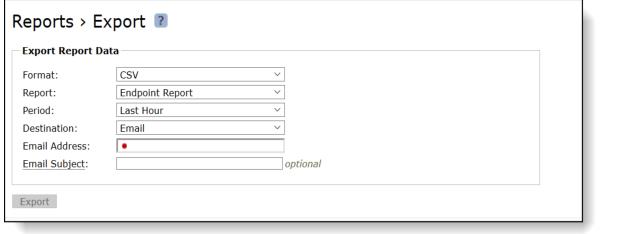
Control | Description |
Format | Select the format type from the drop-down list: CSV or PDF. |
Report | Select a report type from the drop-down list: Endpoints – Endpoint Report – Desktop Bandwidth – Branch Warming – SSL Optimization – Endpoint History – Desktop Traffic • Diagnostics – CPU Utilization – Memory Paging – Paging I/O |
Period | Choose the time period for your report: • Last Hour • Last Day • Last Week • Last Month • Custom: Specify the Start and End Time in the text boxes. |
Destination | Select the destination type: • Email - Emails the report to the specified address. • Download - Downloads the report in Excel format. |
Email Address | Specify an email address. The page displays a message when the email has been sent. |
Email Subject | Optionally, provide a description of the email. |