Chapter 22 Authentication, Security, Operations, and Monitoring : Configuring SNMP v3 Authentication and Privacy

Configuring SNMP v3 Authentication and Privacy
RiOS v7.0 or later includes privacy to the SNMP v3 feature to support authentication and privacy encryption of SNMPv3 messages. You can use AES 128 and DES to send an SNMP v3 encryption for GET action.
All SNMPv3 passwords (authentication/privacy) are stored as hashed (MD5/SHA), and they are all master keys, even if you provide plain text password during configuration.
An SNMP agent runs in every SteelHead that supports SNMP GET request action. Among the techniques to secure SNMP traffic, such as access control lists, you can use SNMP v3 to provide authentication and privacy. The main benefit for SNMP v3 authentication is to ensure the integrity of SNMP traffic, while privacy provides encryption protecting data from being seen by a third party.
Configuring an SNMP v3 GET request encryption is a two-part process:
  • Configure USM user
  • The user corresponds with the authentication and privacy mechanism that a management station uses to access the SteelHead.
  • Configure ACLs
  • To configure the ACLs, you need to add or edit a group, view and access policy. You cannot add an access policy with a group and a view. Security names are not supported by SNMPv3. To restrict SNMP v3 USM users from polling a specific subnet, use the RiOS ACL feature on the Administration > Security: Management ACL page.
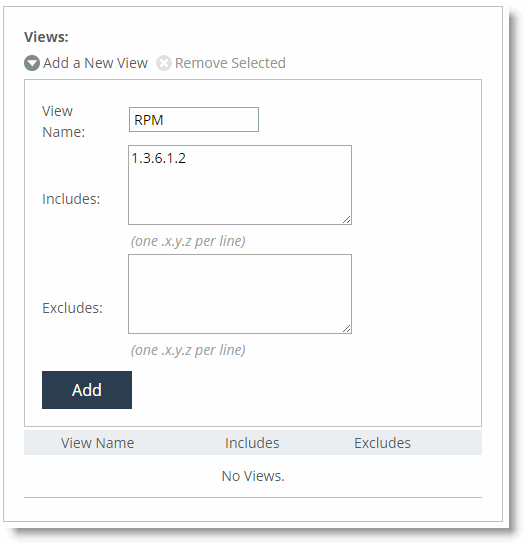
    Views represent the OIDs a management station is allowed to access. You can create multiple views and restrict specific OIDs. A view starts with the highest level OID that you specify, and you can view all OIDs further down in the hierarchy, unless you specifically restrict them. You can only view OIDs in the hierarchy.
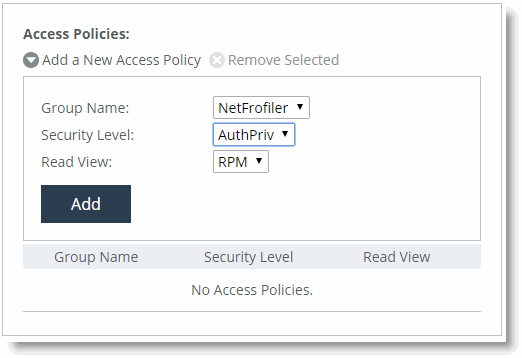
    You must associate a group with a view. After you associate a group with a view, you can define an access policy to link the user, group, and view together.
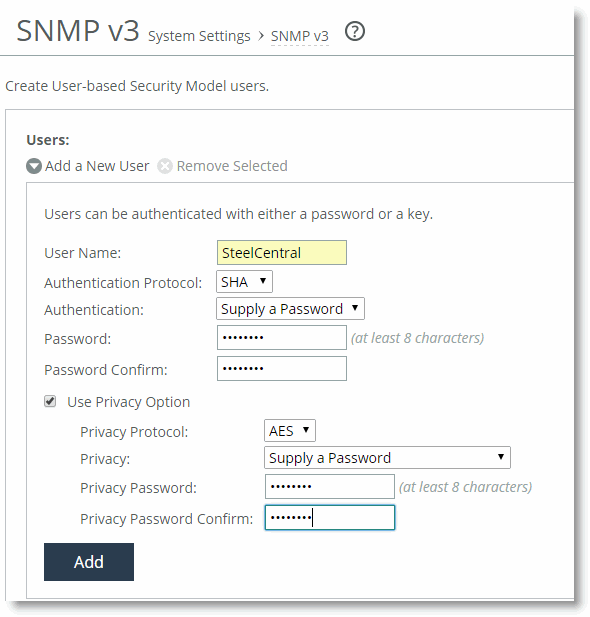
    The following procedure shows an example of a user named Cascade created with SHA authentication and AES encryption for privacy.
    To configure a USM user
    1.
    2.
    Figure 22‑3. Add a New USM User
    3.
    4.
    5.
    Figure 22‑3 shows Supply a Password and the corresponding password.
    6.
    Click Add.
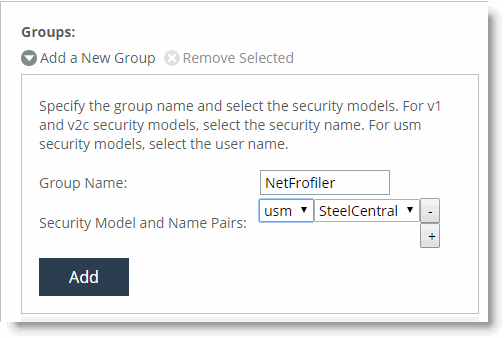
    The following procedure shows an example of a group NetProfiler created, and then user Cascade is associated with the group Profiler.
    To configure SNMP ACLs
    1.
    2.
    Figure 22‑4. Add a New Group
    3.
    4.
    5.
    Click Add.
    6.
    Figure 22‑5. Add a New View
    7.
    8.
    9.
    Click Add.
    10.
    Figure 22‑6. Add a New Access Policy
    11.
    12.
    13.
    14.
    Click Add.
    You can verify your configuration in Wireshark. Make sure the SNMP PDUs are encrypted.
    Figure 22‑7. Wireshark Verification
    To decrypt the SNMP packets for further troubleshooting
    1.
    2.
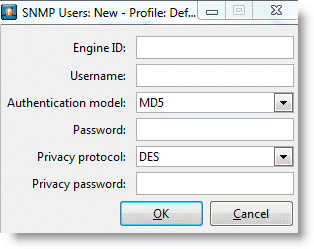
    Figure 22‑8. SNMP Users Window
    3.
    The engine ID is available on the SteelHead through the show snmp CLI command or near the end of the running-configuration. The username, authentication model, password, privacy protocol, and privacy password are the same settings you configured for the SNMPv3 user on the SteelHead.
    4.
    Wireshark decrypts the SNMP encrypted packets and you can analyze further for troubleshooting.