Configuring SaaS Acceleration through SteelConnect
You can accelerate SaaS application traffic by registering a SteelHead with a SteelConnect Manager (SCM) that is set up for SaaS acceleration.
When you set up SaaS acceleration on the SCM, the SCM deploys and manages a SaaS service cluster in the cloud. Once registered, SteelHeads (and SteelHead Mobile clients) peer with the SaaS service cluster to accelerate the SaaS traffic.
The SaaS Accelerator feature also includes proxy certificate management to simplify the deployment process.
Note: SaaS Accelerator through SteelConnect is a Riverbed end-to-end solution and simplifies deployment and certificate management. It is intended as a replacement for SteelHead Cloud Accelerator with Akamai, which has been renamed to Legacy Cloud Accelerator.
Prerequisites
Before you can set up the SteelHead and accelerate SaaS traffic, you need to perform these steps on the SteelConnect Manager:
1. Enable automatic signing and certificate management capabilities. (On the SteelConnect Manager, choose Optimization > SSL Optimization.)
2. Configure SaaS applications for acceleration. (On the SteelConnect Manager, choose Optimization > SaaS Accelerator.)
See the SteelConnect Manager User Guide and the SaaS Accelerator User Guide for detailed configuration information.
Configuring SaaS acceleration
When you have configured SteelConnect Manager for SaaS acceleration, you can configure SteelHead as a client.
To configure a SteelHead for SaaS acceleration
1. On the SteelConnect Manager, choose Optimization > SaaS Client Appliances and copy the registration token.
2. On the SteelHead, choose Optimization > SaaS: SaaS Accelerator and add these values:
– SteelConnect Manager Hostname.
– SteelConnect Manager Port. The client-side SteelHead uses port 3900 to communicate with the SCM and the port needs to be open on the branch firewall. You cannot change this value.
– Registration Token. Paste the registration token you copied in Step 1 to this field.
Figure: SaaS Acceleration registration page
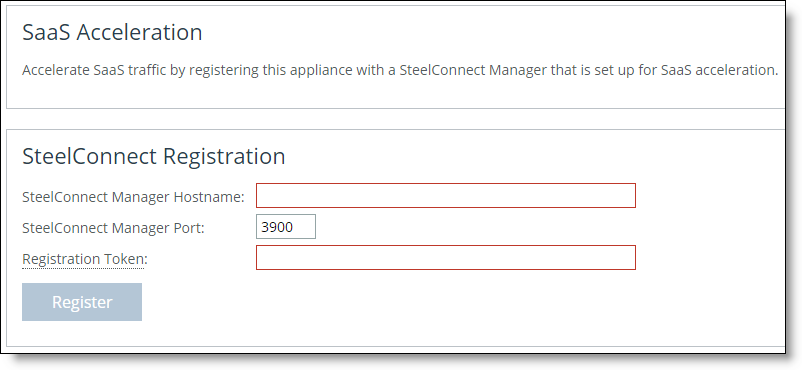
3. Click Register.
When the registration process completes, the registration details and a helpful list of remaining configuration tasks appear on the page. Completed tasks are prefaced by a check mark.
A new SaaS Acceleration section also appears on the page and you can view the current status and monitor acceleration status.
4. Enable SSL optimization on the SteelHead appliance.
Choose Optimization > SSL: SSL Main Settings, and in the General SSL Settings area select Enable SSL Optimization and click Apply.
5. On the SteelConnect Manager, move this SteelHead appliance to the whitelist.
Newly added appliances always appear on the graylist in the Access List column. You need to change their status to the whitelist to allow acceleration.
Choose Optimization > SaaS Client Appliances and click the appliance serial number to display the details panel.
Under Access List and Notes, select Whitelist from the Access List drop-down menu and click Submit.
6. Enable SaaS acceleration on this appliance. Choose Optimization > SaaS: SaaS Accelerator, select Enable Acceleration, and click Apply.
When you click Apply, be patient. It can take several minutes to start acceleration.
7. Add an in-path rule to accelerate SaaS applications.
The in-path rule lets the SteelConnect Manager associate the IP address of the SaaS service cluster in the cloud with the SteelHead and associates the SaaS service cluster with the accelerated application.
Choose Optimization > Network Services: In-Path Rules and click Add a New In-Path Rule. For the Destination Subnet, choose SaaS Application. A second menu appears to the right. In the second menu, choose a SaaS application for acceleration. (Note, only applications set up for SaaS acceleration on the SteelConnect Manager appear in the list.) Click Add.
Figure: SaaS in-path rule
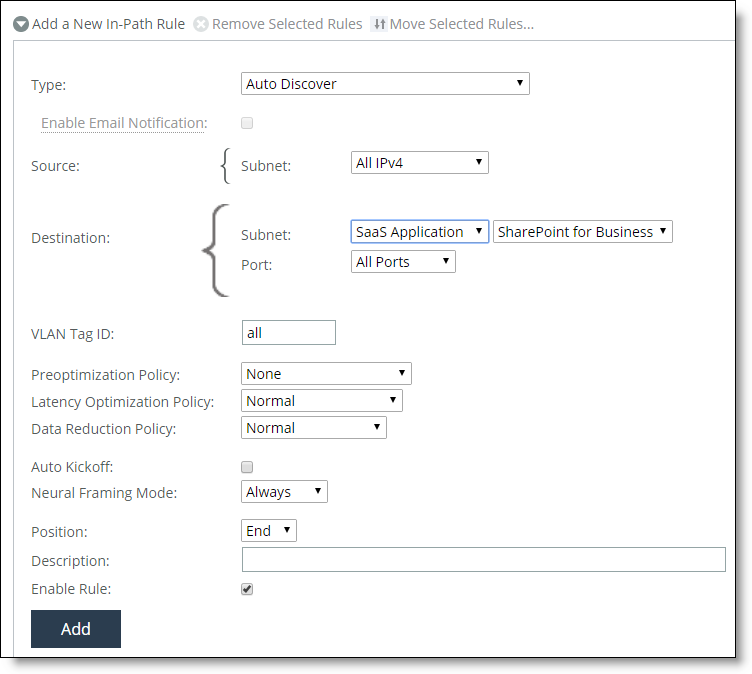
8. Click Save to Disk to save your settings permanently.
Monitoring SaaS acceleration
Once configured, you can use the SaaS Acceleration Status panel to monitor activity. This pane shows all SaaS applications configured for acceleration and shows the status of their in-path rules.
Figure: SaaS Acceleration Status panel
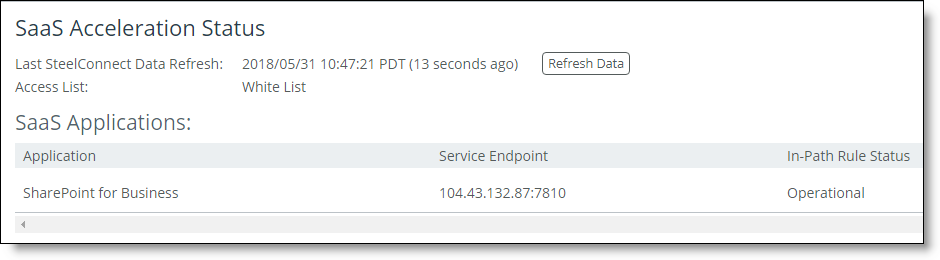
The SteelHead gets data from the SteelConnect Manager every five minutes and shows the time for the displayed data. Click Refresh Data to get the latest information.
Canceling SaaS acceleration
If you want to pause SaaS acceleration, uncheck Enable Acceleration and click Apply.
If you want to permenently cancel SaaS accleration and remove the settings, click Deregister. This also removes all related in-path rules.